

Note: The original voice-over was lost after our Platform Ambassador spoke at the Thinkwise Summit. This video is an AI-generated replacement created with Claude Opus 5.5.
With Thinkwise Platform 2026.3, the Model Context Protocol (MCP) changes how you interact with your Thinkwise applications and their data. MCP support was introduced as beta release in Thinkwise Platform 2026.2.12 and is generally available with this LTS release. You can connect any MCP client, such as your preferred AI tool, to your business applications and the Software Factory using the /mcp endpoint in Indicium. Instead of navigating to the right screen and searching for data manually, you can ask your AI tool to find and analyze the data for you. Adding data becomes easier too, because your AI tool can turn unstructured input, such as an email, document content, or a voice message, into structured data in your database without any manual typing.
Because the MCP server is built into Indicium, you do not need any additional components; you set up MCP and manage its access in the Intelligent Application Manager (IAM). To give AI tools and AI agents secure and granular access, follow our best practices for role-based access control, access delegation, and logging. MCP is freely available in development and test environments, so you can speed up development in the Software Factory and test MCP with end users. Using MCP in production requires an amended license agreement with Thinkwise, so contact your account manager for more information.
To learn more, read our Community blogs Thinkwise Platform as MCP Server, Getting started with MCP, and MCP on the Software Factory.
You can also use MCP on the Software Factory, and together with our published skills, it significantly changes the way developers work. Your AI agent can take on tasks such as creating a data model, creating screen types, and setting up a Scheduler, so you can spend more time understanding, describing, and refining business needs. You can also hand over repetitive work while you review and decide, such as finally adding those missing unit tests for existing functionality. Unlike vibe coding, where AI leaves you with a mountain of generated code to maintain, your AI agent works with the model. This model-driven development and Technology-as-a-Service approach lets you deliver business value with as little code as possible.
The MQTT broker capabilities from Thinkwise Platform 2026.2 let you publish messages, and with this release, you can also subscribe to MQTT topics. A subscription listens to a topic on your message broker and starts a process flow every time a message arrives, whether it comes from a machine, a sensor, or another Thinkwise application. Your applications can now receive sensor data and machine status updates directly, enabling real-time interaction between the shop floor and your business applications.
With IAM on DB2 for IBM i, we take a major step toward running the entire Thinkwise Platform on IBM Power. We have already proven that it works, and we are now completing a dedicated Indicium distributable for IBM Power. You can then deploy Indicium and the Universal UI on a Red Hat Linux partition, on the same IBM Power machine that runs your DB2 databases.
The inline action bar is our answer to a long-standing and popular community idea: showing tasks on grid rows. We took this idea further, so you can now configure any action inline. Note that this is still a beta feature. We plan to improve the user experience and add support for card lists.
Besides MCP, developers also get a major upgrade to Model insight and the Thinkwise Workspace Listener for Linux and macOS. Thinkwise Deployment Center 4.0.0 is now also available for Linux, and you can use it to deploy IAM on DB2.
This release includes 19 community ideas, representing 367 votes.
A full overview of all the release notes of the Thinkwise Platform 2026.3 is available now!
The Indicium and Universal UI 2026.3.10 features below are backwards compatible with previous Thinkwise Platform versions. Therefore, these fixes are not part of the release notes for Thinkwise Platform 2026.3.
Contents
Breaking
Important: Redeploy required objects to DB2 application schemas
Software Factory DB2
From Thinkwise Platform 2026.3, Indicium requires the following functions and procedures on the schema of DB2 applications:
tsf_userandtsf_original_login- If these are not updated, user authorization does not work as expected.tsf_set_session_variableandtsf_clear_session_variables- If one of these is missing, Indicium cannot open connections to the application database.
The DB2_DB base model adds these objects to your work model. You still need to deploy them to your application schema.
Required action for all DB2 applications
Deploy these objects directly after upgrading to Thinkwise Platform version 2026.3. Without these steps, the upgrade to 2026.3 does not succeed for DB2 models.
To deploy the objects:
- Go to menu Business Logic > Functionality.
- Deactivate the prefilter Hide generated.
- Search for the object name, see the list above.
- Deploy the object to your application on the tab Deploy.
Alternatively, upgrade the DB2 applications. The upgrade applies these objects automatically.
Restricted file access outside the base path
Indicium
Previously, in non-database file storage configurations, file paths outside the configured base file storage path could still be retrieved, downloaded, and previewed.
From Thinkwise Platform version 2026.2.14 onwards, the database record is retrieved successfully, but with an invalid file contract. Trying to download or preview the file now returns a 404 Not Found error.
Check that your file paths are within the configured base file storage path. To temporarily restore the previous behavior, set the extended property AllowPathOutsideBasePath to True. Only use this setting as a temporary solution, as it will be removed in a future release.
Check custom CSS
Universal UI
As a result of improvements to the Scheduler in Thinkwise Platform version 2026.2.14, the structure of the HTML and the CSS classes used have changed significantly.
If you have custom CSS for the Scheduler, review your styles and update the selectors if necessary. Contact support if any selectors are missing.
Removed support for Thinkwise Platform version 2024.3
Indicium Universal UI
In accordance with our lifecycle policy, we have removed support for Thinkwise Platform version 2024.3 in Indicium and Universal UI.
Upgrade to Thinkwise Platform version 2025.1 or higher.
New and changed in the Universal UI and Indicium (2026.3.10)
Configurable timeout for i-net Clear Reports
change Indicium
Previously, the timeout for generating reports with i-net Clear Reports was raised from 100 seconds to 5 minutes. Some reports need even more time than that, so you can now configure the timeout with the extended property clearReportTimeoutSeconds. The value is in seconds. If you do not set this property, the default of 5 minutes (300 seconds) still applies.
Select resources directly in the Scheduler
new Universal UI
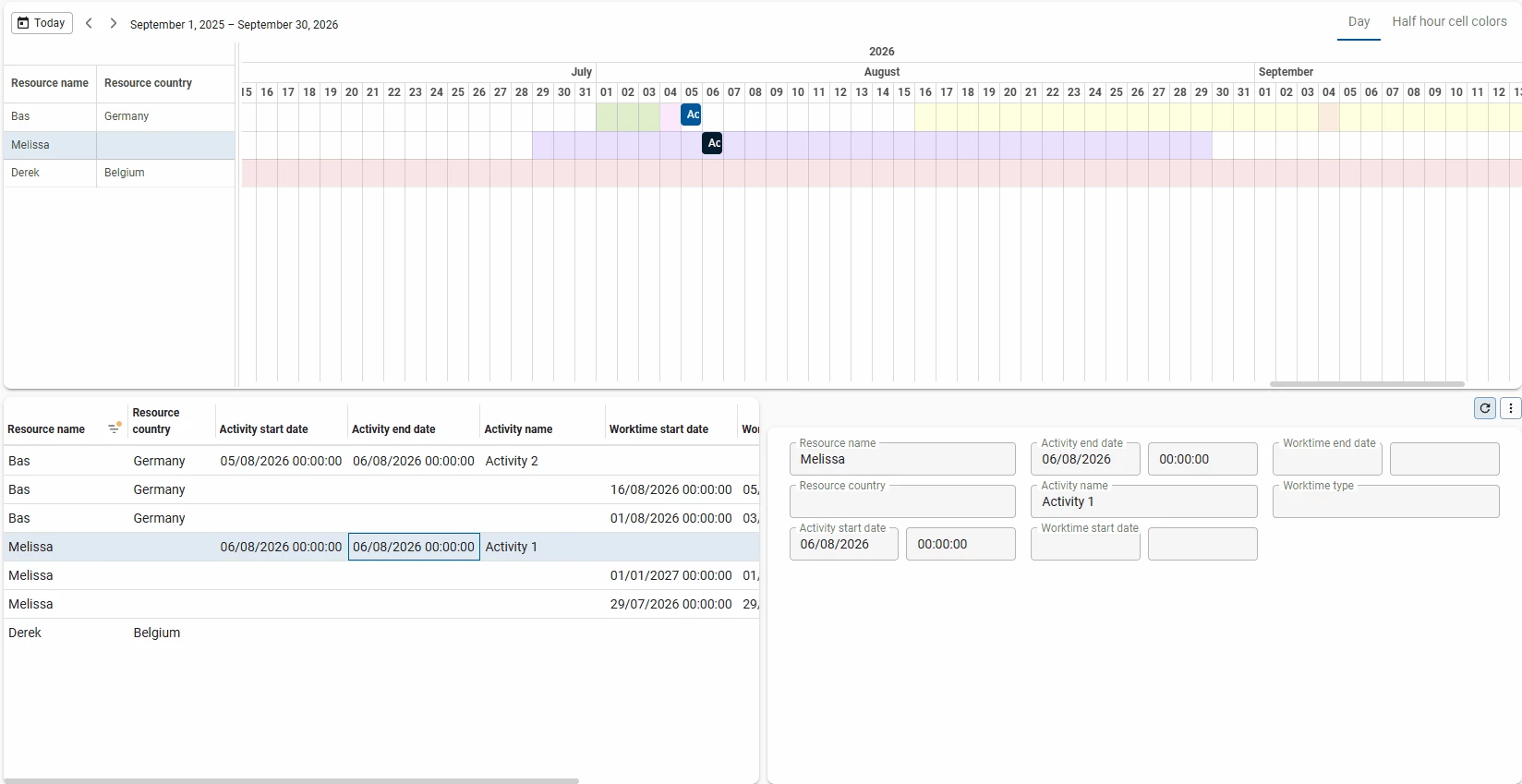
Users can now change the active record of a resource by directly clicking on it in the Scheduler.
The user can select a resource in the following ways:
- Selecting a resource directly in the Scheduler.
- Selecting a resource's activity.
- Selecting the corresponding record in another screen component, such as a form or grid.
Once a resource is selected, the active record is shown in other screen components, such as a form or grid. Similarly, if the user changes the active record of a resource in another screen component, the corresponding resource in the Scheduler is highlighted.
For example, if a user clicks on employee in the Scheduler, the data of that employee is displayed in the form. If the user then selects a different employee in the grid, the corresponding resource in the Scheduler is highlighted. This improves the user experience by keeping related screen components in sync and making it easier to navigate between resources and their corresponding records.
Search and open documents pinned in the menu
change Universal UI
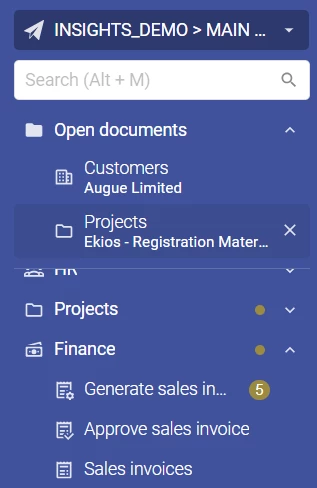
Previously, when a user scrolled in the sidebar menu, the Search field and the Open documents section scrolled out of view. Now, they stay pinned to the top of the menu while the rest of the menu scrolls underneath. This way, users can use them to navigate and to see the current state of the application. The collapsed state of Open documents is remembered across sessions.
Application backplate shown after switching applications
change Universal UI
Previously, when a user switched to another application using the application switcher, the previous application's document remained on screen. Because it was shown in the new application's theme, it could be unclear which application the document belonged to.
Now the new application's backplate is shown, with the focus on the menu. The previous application's document remains available in the Open documents section. When a user selects it, the theme and menu switch to the application it belongs to.
MacOS-specific keybind text in shortcut labels
change Universal UI
Shortcut labels used to show the same key combination on every operating system.
On MacOS, shortcut labels now show MacOS-specific keybinds. Instead of Ctrl + E, the edit shortcut now shows Cmd + E.
The shortcut itself still works the same way on every operating system. If you connect a Mac keyboard to a Windows computer, Cmd + E still works. On MacOS, Ctrl + E still works too.
For non-MacOS users, nothing changed. Mobile devices still do not show shortcut labels.
Fixed
Indicium
- With the extended property IgnoreDiacritics enabled, Search did not ignore diacritics if the lookup column was part of the primary key. This has been fixed.
Universal UI
- Users can sort a column by selecting its header in ascending or descending order, but could not disable sorting. This has been fixed. Sorting of grouped columns has not changed.
- When the parent record changed, sub-details nested under an unrelated detail lost their data. Their tabs stayed empty until you selected Refresh. This has been fixed.
- In a pivot table, selecting a row label, such as an employee, and then starting a task or report opened it with empty parameters. This has been fixed.
- In a Date control, you could not type a date later than 31/12/2500. This has been fixed. You can now type dates up to 31/12/9999. The date picker still goes up to 31/12/2500.
- When you went from a subject with an active variant to a detail without one, Model insight still showed the variant of the previous subject. Now, it hides the variant in this case.
- In a form, radio button labels did not line up vertically with other fields. Also, a radio button field that shared a row with another field could be too narrow. As a result, its option labels could be cut off or overlap. This has been fixed.
- Previously, when executing the Go to row process action, the newly added grid row would in some cases not automatically become the active row. The screen had to be refreshed manually for this to take effect. This has been fixed.
- In some cases, the action bar did not fully fit the screen and the Search field was next to the overflow menu. The overflow menu then sometimes opened unexpectedly. This has been fixed.
- When the action bar did not fully fit the screen, it would shift around when you opened a document. This behavior has been improved.
- Added translations for the
NOT INoperator for older platform versions. - When tasks are disabled, they are grayed out in the user interface and cannot be selected. Previously, a disabled task could still be executed using its keyboard shortcut. This caused the application to freeze, requiring users to restart it manually. This has been fixed. Users can no longer trigger a disabled task using its keyboard shortcut.