


Hi everyone,
This release extends deployment control to IAM administrators and strengthens governance for delegated and AI-driven access. Note that this release includes several breaking changes, covering the Execute all creation steps parameter order, Indicium file access, and Scheduler and theme behavior.
To support safe delegated and AI-driven access, branches can now allow delegated mutations from a personal access token (PAT) or client application. The trace fields now show whether a change came through delegated access instead of directly from a user. The Software Factory also introduces eight default user groups, so you can scope down what developers and AI agents can do.
Based on a request from the community, models with a single database type can now always show query details, for instance, to view historical versions of a query.
Several quality-of-life improvements round out this release. Indicium can now resolve a lookup when patching a staged resource, and no longer requires create schema and create table permissions on the IAM database. In the Universal UI, keyboard focus improves when opening or switching documents, and Search bars can now be reached with a keyboard shortcut. The new ‘NOT IN’ filter operator lets you exclude multiple values at once.
Thinkwise Platform 2026.3 releases on October 5, 2026, shortly after this release. Because the two versions are released close together, the differences between them are limited.
This is a short-term support (STS) release of the Thinkwise Platform. STS release support expires as soon as a new release is made available. For example, support for version 2026.1.12 ends when version 2026.1.13 is released.
See our Lifecycle policy for information about supported versions.
Contents
Contents
Before you upgrade
- Features for the Software Factory and the Intelligent Application Manager are only compatible with this STS version of the Thinkwise Platform.
- Indicium and Universal UI features are backward compatible with previous Thinkwise Platform versions, unless otherwise noted.
Demo and download
Breaking
Check parameter order of 'Execute all creation steps' calls
Software Factory
As a result of synchronization running before the tests in Creation, the parameter order of the task Execute all creation steps has changed.
The synchronization parameters run_sync, sync_run_type, and sync_target_iam_id now come before execute_unit_tests and execute_smoke_test.
If you start the task with named parameters, nothing changes for you.
If you call the task directly from the database without parameter names, the values now bind to different parameters. No error message appears, so the task runs with settings you did not intend. For example, the task now reads a call that meant "run the tests, do not synchronize" as "synchronize to storage, do not run the tests."
Positions 1 to 14 are unchanged. Following the CI/CD example from the previous release, the new order for positions 15 to 22 is:
New parameter order
- execute_source_code_error_handling
- run_sync
- sync_run_type
- sync_target_iam_id
- execute_unit_tests
- execute_smoke_test
- debug
- job_id
Use named parameters to avoid this. Supply every parameter, because the task procedure has no default values. You can pass null for parameters that your selected creation steps do not use:
For example:
declare @job_id id;

exec dbo.task_add_job_to_do_complete_creation
      @model_id                           = 'MY_MODEL',
      @branch_id                          = '1.12',
      @execute_complete_creation          = 0,
      @model_vrs_name                     = '1.13',
      @generate_definition                = 1,
      @generate_definition_error_handling = 1,
      @validate_definition                = 1,
      @validate_definition_error_handling = 3,
      @generate_source_code               = 1,
      @upgrade_method                     = 0,
      @write_code_files                   = 0,
      @write_prog_objects                 = 0,
      @execute_source_code                = 0,
      @runtime_configuration_id           = null,
      @execute_source_code_error_handling = null,
      @run_sync                           = 1,
      @sync_run_type                      = 0,
      @sync_target_iam_id                 = 1,
      @execute_unit_tests                 = 0,
      @execute_smoke_test                 = 0,
      @debug                              = 0,
      @job_id                             = @job_id output;
Restricted file access outside the base path
Indicium
Previously, in non-database file storage configurations, file paths outside the configured base file storage path could still be retrieved, downloaded, and previewed.
Now, the database record is retrieved successfully, but with an invalid file contract. Trying to download or preview the file now returns an 404 Not Found error.
Check that your file paths are within the configured base file storage path. To temporarily restore the previous behavior, set the extended property AllowPathOutsideBasePath to True. Only use this setting as a temporary solution, as it will be removed in a future release.
Check custom CSS
Universal UI
As a result of improvements to the Scheduler, the structure of the HTML and the CSS classes used have changed significantly.
If you have custom CSS for the Scheduler, review your styles and update the selectors if necessary. Contact support if any selectors are missing.
Check application themes
Universal UI
Previously, if a theme only had one image configured for either Light or Dark mode, the Universal UI would display that image for both modes. Now, the Universal UI displays the background color for the mode that does not have an image configured.
After upgrading, check your themes in Light and Dark mode to ensure they behave as expected.
Model Context Protocol (MCP) and AI
Models - Allow delegated mutations for a branch
new Software Factory
It is now possible to allow a PAT or client application to edit a branch via delegated access on behalf of a developer. You can use this to determine which branches can be edited via delegated access, which is useful for MCP in the Thinkwise Platform.
You can find the checkbox Allow delegated mutations in the following locations:
- menu Model overview > Branches > Form.
- When you create a new branch via the menu Models > Switch branch.
Generic - Delegated access trace field
new Software Factory
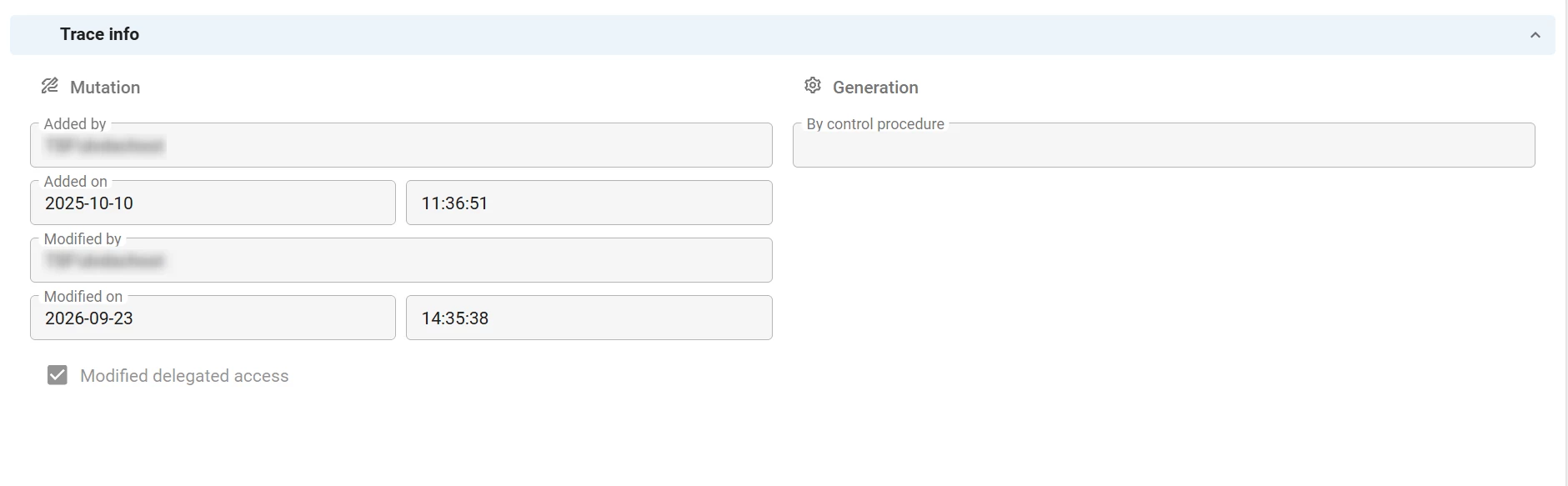
You can now see whether a record was changed through delegated access, such as a personal access token (PAT) or an agent with the correct permissions.
The trace fields now include a Modified delegated access checkbox. It is selected when the last insert or update on a record was made via delegated access rather than directly by a user. Any manual change to the record clears the checkbox.
Deployment
Deployment - Synchronization runs before the tests in Creation
change Software Factory
In the previous release, we added synchronization to IAM to the Creation process. It ran as the final step, after the unit tests and smoke tests. However, during development, you often want your model available in IAM as soon as the application database is up to date. You do not want to wait for the tests to finish. For this reason, we moved synchronization earlier in the process.
-
Moved synchronization before the tests - Synchronization now runs directly after the tab Execute source code, before the unit tests and the smoke tests. Your model becomes available in IAM sooner, so you can continue working with it while the tests run.
Because each creation step waits for the previous one, this also reverses which step cancels which. Before, a failed unit test or smoke test canceled synchronization. Now, a failed synchronization cancels the unit tests and smoke tests.
-
Moved the Synchronization to IAM tab - The tab now appears directly after the tab Execute source code (menu Deployment > Creation).
-
Changed the order of the options - In the task Execute all creation steps (menu Deployment > Creation > Generate definition > Current), the synchronization options now come before the test options. The same order applies to the screen Creation presets (menu Maintenance).
Your existing creation presets retain their settings after this update, and the new order applies to every creation.
-
Changed the job that the task returns - The task returns the job of the last step in the Creation process. This is now the smoke test instead of the synchronization job. Automation that waits for this job still waits for the whole Creation process to finish.
-
Breaking: Changed the parameter order of the task Execute all creation steps - See Check parameter order of 'Execute all creation steps' calls for more information.
New and changed
Data - Removed case type setting for columns, task parameters, and report parameters
change Software Factory
Previously, you could set the Case type to determine the capitalization of text for individual columns, task parameters, and report parameters. This capability has been removed to keep the case type defined in a single place and reduce the risk of inconsistencies. You can still define the Case type for a domain.
When upgrading to this version, the existing case type settings for individual columns, task parameters, and report parameters are migrated to new domains.
Quality - Description column in Code review changes
change Software Factory
Previously, the tab Changes in Code review did not show the description of a changed control procedure or template. You can now see this in a new Description column (menu Quality > Code review > tab Changes). It shows the control procedure description or the template description, depending on which object changed.

Processes - Process action 'Activate Search'
new Software Factory Universal UI
We have added a new process action: Activate search (menu Processes > Process flows > tab Process actions). You can use it to activate the Search field in the context of a table. No input parameters are required for this process action.
The process action cannot be used as a trigger or starting step in a process flow. It is useful to bring focus to the search field in a table after performing other actions in a process flow. Therefore, it is typically used as the last step in a process flow.
For example, after a user selects a record in the main subject, the process flow can bring focus to the search field in the detail subject. This allows the user to continue their work seamlessly.
This process action was added as part of Improvements to search in the Universal UI.
Screen component tabs are automatically opened by this process action. However, detail tabs must be activated using the process action Activate detail.
Access Control - Default user groups for the Software Factory
new Software Factory
You can now limit what developers can do in the Software Factory using eight default user groups. This helps restrict access for AI agents and lets you scope down roles for specific tasks. For example, you can limit testers to registering test findings only, rather than giving them direct access to the data model, functionality, and more. You can create custom user groups in IAM based on these default roles.
application_logic_developer- Writes business logic and behavior: process flows, tasks, reports, functionality, and the dynamic model.data_subject_modeler- Builds the data layer and how it is consumed: table, column, and domain design, plus settings for individual subjects.integration_automation_engineer- Sets up external connections and database- and AI-driven automation: all of integration and AI, plus enrichments and the Thinkstore.platform_model_administrator- Oversees the Software Factory rather than contributing directly: the whole model group, plus the non-QA-related half of Analysis.qa_test_engineer- Verifies quality and its dashboards: the entire quality menu group, plus the test- and validation-related parts of Analysis.rbac_administrator- Sets up who can do what and who they are: everything related to access control and user management.release_deployment_manager- Ships and operates: deployment, plus the operations side of Maintenance, such as runtime configuration, hotfixes, and jobs.ui_ux_navigation_modeler- Sets up the shell around the data, not tied to any one table: modeling the application's UI, navigation, and messaging.
Deployment - Application database name in post-synchronization code
new Software Factory
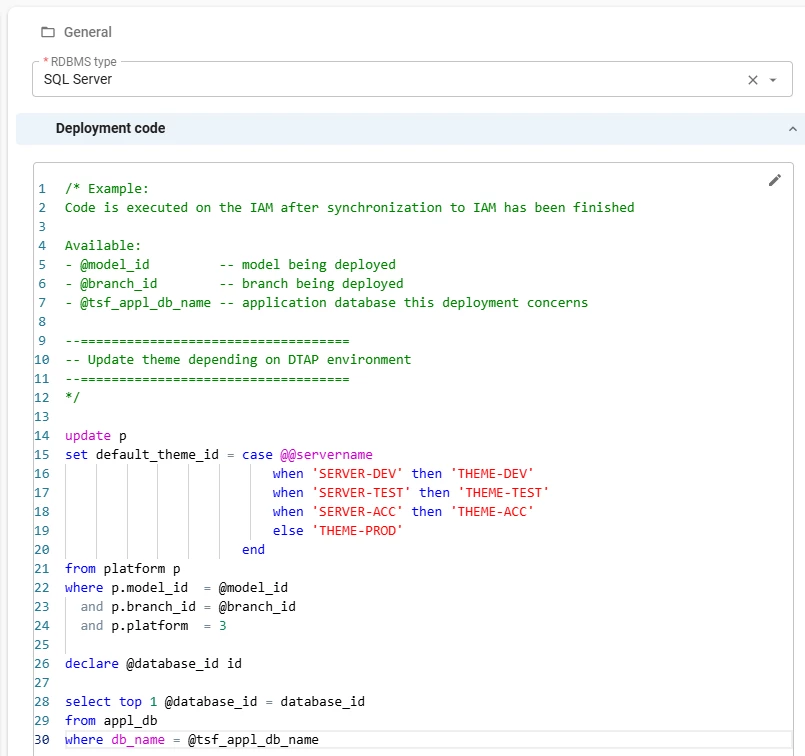
You can now use the name of your application database in post-synchronization code within a deployment package, using the new variable @tsf_appl_db_name. This variable sits alongside the existing @model_id and @branch_id variables.
Post-synchronization code often needs to find or create the application registration in IAM for the database a deployment targets. With this variable, the same deployment package works in every environment, without hardcoding the database name into the code.
You can add this code in the menu Deployment > Deployment package > tab Post synchronization code. The Deployment Center automatically sets the variable to the application database name.
If you run the generated synchronization script yourself instead of through the Deployment Center, the script carries the SSMS template parameter <@db_name,,> in that position. Fill it in with the application database name to use the variable, or leave it untouched to keep the variable empty.
For example, to look up the application database registration for the current deployment:
declare @database_id id

select top 1 @database_id = database_id
from appl_db
where db_name = @tsf_appl_db_name
The variable @tsf_appl_db_name is not available for post-synchronization code for Synchronization to IAM or Synchronization to storage.
Analysis - Changed function point calculation to Easy Functional Sizing (ISO/IEC 25986)
change Software Factory
You can automatically calculate the number of function points for your application using the task Calculate function points (menu Analysis > Function point analysis).
The task now uses Easy Functional Sizing (ISO/IEC 25986), a streamlined function point standard developed by Nesma (Netherlands Software Metrics Association) that measures the functional size of software. This standard allows you to compare objective metrics across your applications, such as:
- Productivity - effort hours spent per function point delivered.
- Cost efficiency - cost per function point delivered.
- Delivery speed - function points delivered per month.
These metrics can be aggregated at different levels to support data-driven decision-making.
Our implementation of Easy Functional Sizing (ISO/IEC 25986) is certified by AgileBenchmark. You can request the certification details via your Thinkwise account manager.
Maintenance - Toggle to show query details for single-RDBMS-type models
Community idea new Software Factory
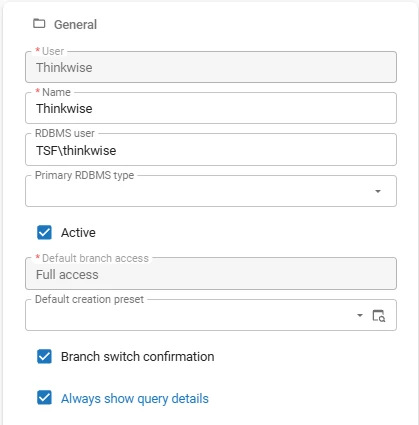
Since Thinkwise Platform version 2026.2, query data is stored in a dedicated query table per query type, for example tab_prefilter_query for prefilter queries. For models with a single RDBMS type, the detail tab showing this record was hidden because it held only one value.
You can now always show these detail tabs, for example to view historical versions of a query. Select Always show query details in the menu Maintenance > Users > tab General.
Updated required permissions for Indicium for IAM databases
change Intelligent Application Manager Indicium
Indicium no longer requires 'Create schema' and 'Create table' permissions on the IAM database from Thinkwise Platform version 2026.2.14 onwards.
The following permissions for the database pool user (or maintenance pool user) are sufficient for SQL Server databases:
USE [db_name]
GRANT SELECT, INSERT, UPDATE, DELETE, EXECUTE ON SCHEMA::dbo TO [user];
Note that creating a new database from the Software Factory does require the additional permission:
USE master;
GRANT CREATE ANY DATABASE TO [login_name];
Patch a staged resource with a lookup translation
new Indicium
Patching a staged resource now supports resolving a property's value via choose, choose_by_display, or choose_by_element. This is similar to what we already support for patching on a table directly.
For example, if you have a column named manager_id, Indicium can now look up the matching key for you, so you do not need to know it in advance. PATCH the staged resource like this:
PATCH /iam/<appl>/staged_employee(#) HTTP/1.1
Content-Type: application/json
{
"manager_id": {
"choose_by_display": {
"display_value": "<Manager Name>"
}
}
}
Server timings in response header
change Indicium
Indicium now adds server timings in the response header even if the timed action results in an error. Previously, this was not the case; server timings were only added when the timed action succeeded.
Removed unused grant types in OpenID metadata document
change Indicium
In the OpenID metadata document, unused grant types have been removed to better reflect the capabilities of our OpenID clients.
Updated Next.js to 16.3.3
change Universal UI
We have updated Next.js from version 16.2.11 to version 16.3.3. This update addresses two reported vulnerabilities, GHSA-2xp9-vwfh-vxw4 and GHSA-p293-qw3h-jr36. Although Universal UI was not affected by either vulnerability, we updated Next.js anyway to include the latest security and performance fixes.
Improved screen component focus
new Universal UI
We have improved the initial focus behavior when opening or switching between documents. This update improves keyboard navigation and overall user experience.
The focus behavior is as follows:
-
By default, focus is placed on the most top-left interactive component of the main subject.
-
Focus is placed on the Search element whenever the first interactive component is an action bar with a Search element. This allows users to immediately filter data upon opening the document.
If the Search element is displayed as an icon, it expands to reveal the search bar. Users navigate away from it using the
Esckey. -
If the action bar has no Search element, focus is placed on the next screen component (for example, Grid, Tree, or Cardlist). This allows users to immediately navigate within the screen component.
-
Focus is placed within a detail tab if it is the most top-left interactive component of the main subject.
-
Tab bars are never focused when opening a document or switching between documents. Users can use
F6orShift+F6to navigate to the tabs. -
When no documents are opened, focus is placed on the menu's search bar.
This focus behavior applies in the following situations:
- Opening a document
- Switching between documents
- Opening a document as a Modal document (by using
Shift+Click) - Opening a document as a Zoomed document (by double-clicking a detail tab)
This focus behavior does not yet apply to nested detail tabs or lookup pop-ups. Support for these is planned for a future update.
Improved Search
new Universal UI
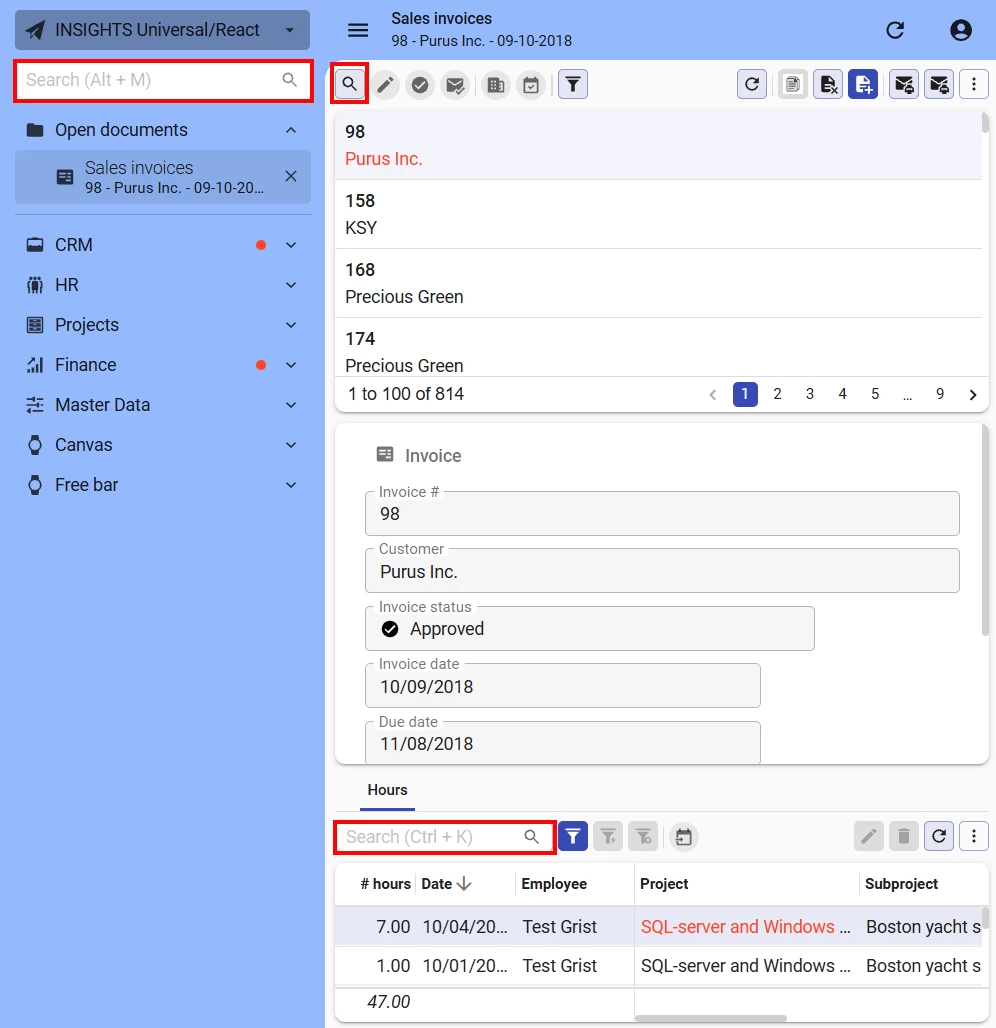
A Search bar in a screen component can now be quickly focused using the shortcut Ctrl + K. When multiple Search bars are present (for example, if each tab or screen component has one), the priority is as follows:
- If a Search bar exists on the current tab, this is focused.
- If not, but a Search bar exists on an ancestor tab, this becomes focused.
- If not, but a Search bar exists on a child tab, this becomes focused.
This also works for icon-only Search bars and even if it is inside the overflow menu. Note that the sidebar menu has its own Search bar, which can now be quickly focused using the shortcut Alt + M.
As part of this update, we also added the process action Activate search, allowing you to activate the Search field in the context of a table. See also Process action 'Activate Search'.
Show subtitles for focused detail subjects in Open documents
new Universal UI
The option to add subtitles to open documents was introduced in the 2026.2.12 release, allowing the active record context to be displayed. Open documents now also show the subtitles of focused detail subjects. If the detail subject is nested several levels deep, the subtitle displays a condensed version of its path.
Selection order stored for multi-row selections
new Universal UI
In grids or trees with multirow selection enabled, the order in which rows are selected is now stored. Any task executed on the selection now receives the selected rows in the order they were selected, instead of in dataset order.
The order depends on how the rows are selected:
Ctrl/Cmd+ click - Rows are ordered by click order. Deselecting a row withCtrl/Cmd+ click only removes that row from the selection.Shift+ click - Rows are ordered from the anchor row towards the clicked row, with the clicked row last.Shift+ arrow keys - The anchor row is first, and the other rows follow in the order they are added. Reversing direction now correctly shrinks the selection, deselecting rows one by one as the cursor moves back through the previously selected range.Ctrl+A- Rows follow the dataset order.
Enforce automatic 'Show top X' limit for cube views
change Universal UI Software Factory
Previously, if a cube view had no Show top x value configured, all records would be loaded. This could result in performance issues, especially for applications with large datasets.
The Universal UI now automatically caps the number of items displayed on each axis to 1000 if no Show top x value is configured. If you have configured values for Show top x on an axis, those settings take precedence over the automatic limit.
The limit applies to all cube views in the Universal UI and is enforced separately for each axis and nesting level. Totals and subtotals still reflect the full underlying dataset, not just the items displayed in the cube view.
Combined filter search with 'Enter'
new Universal UI
For faster search performance, it is now possible to use Enter after entering a value in the Search field in the action bar to immediately trigger the search action. This skips the delay caused by the configured debounce time.
Support for 'NOT IN' operator
new Universal UI
You can now exclude multiple values in Filter pop-ups and Filter forms, using the NOT IN operator. Previously, you could only include values through the IN operator when you applied filter conditions with multiple values.
Model insight includes screen component ID
new Universal UI
The Screen section of Model insight now includes the screen component ID. This makes it easier to identify the exact screen component you are inspecting, for example when a screen contains multiple components of the same screen type.
Improvements to column header filter
change Universal UI
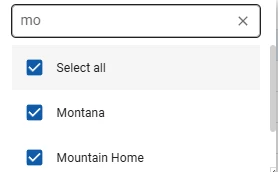
Previously, the column header filter in a grid listed all domain element values, even if no matching records existed in the current dataset. Now, it only shows values present in the current dataset. If filters are applied to the dataset, the shown values reflect the filtered dataset.
Additionally, the column header filter now includes a search bar, allowing users to quickly find specific values within the filter options.
Autofill on fields no longer available
change Universal UI
Previously, selecting a field could suggest values that a user previously entered in similar fields. This type of suggestion and autofill is browser-specific behavior and unrelated to, for example, the Software Factory's own controls with suggestions and autofill.
We have removed the browser-specific suggestions and autofill. This prevents unwanted behavior where autofill was not working as expected or other fields were cleared after an accepted suggestion.
Due to technical limitations, Safari is not included in this change and will still show autofill suggestions based on saved contact information. A user can choose to turn this off in Safari's autofill settings.
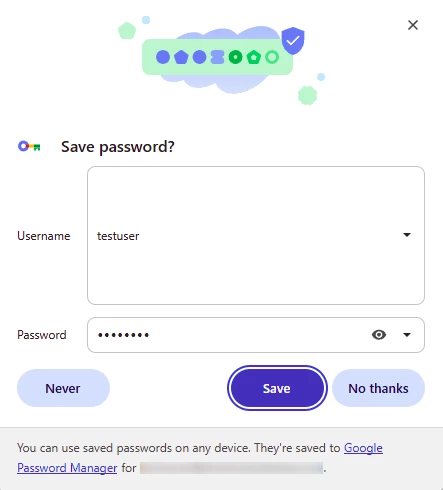
A browser may still prompt the user to generate and save passwords when entering a value in a password field. If the user disables password management for their application, this should no longer happen. For example, in Chrome this can be done by selecting Never when prompted to save a password:
Fixed
Software Factory and Intelligent Application Manager
- The Software Factory allows you to translate check constraints, so you can define a custom error message per language for each constraint violation. Since the introduction of support for multiple RDBMS types for a model in the Thinkwise Platform 2026.2 release, these translations have not been displayed correctly in the user interface. This has been fixed.
- Previously, if an encrypted Web connection was edited, the Layout logic still required the Password field to be entered, resulting in failed attempts to save the edits. This has been fixed.
- Previously, an attempt to start a model synchronization to IAM without configured pool user credentials would result in an error message stating that it had been canceled. However, the synchronization run would still proceed and be reported as successful, even though no synchronization had effectively taken place. This fixes an issue already mentioned in the 2026.2.13 version release.
- Previously, a variant default value query override for a column, task parameter, or report parameter returned NULL through the Indicium interface view. This happened when there was no base default value query, and it led to incorrect behavior. This has been fixed in the platform improvements for week 37, 2026. IAM was not affected.
- The overall performance of the i_ui_col view in the Software Factory has been improved, resulting in faster screen loading times when developing your applications.
Indicium
- Content type values for Web connection endpoints rejected
charset=utf-8specifications. For example,text/xmlworked, buttext/xml; charset=utf-8did not. This has been fixed. Web connections still only support UTF-8 encoding, so a different charset still results in an unsuccessful status code. DB2Deleting a record could fail when the subject had an expression field and a SQL authorization prefilter. This has been fixed.- Fixed an issue where the Application connector process action returned incorrect status codes if the target database did not exist and Azure Active Directory authentication (for example, Managed Identity) was used. This affected process flows that rely on the status code, such as the Creation screen in the Software Factory. As part of this fix, the Provision database connector timeout has been increased from 30 seconds to 5 minutes. This prevents the provisioning step from failing due to a timeout.
- Previously, the printing orientation configured in the Software Factory was ignored. This has been fixed in extra release Indicium 2026.2.13.1. The configured orientation now takes precedence over the orientation of the document itself. If you set an explicit orientation, check your printed output. An incorrect setting is now visible in the print result.
Universal UI
For the Scheduler:
- Improved the performance of the Scheduler, for example: when opening a Scheduler, navigating to the next or previous time frame, and when expanding or collapsing all items in a hierarchical Scheduler.
- Resources are now displayed in the same order as they appear in the dataset.
- If one of the Activity linked columns (Title, Tooltip, Start date or End date) is within the sort columns, activities within a resource are now displayed in the same order as they appear in the dataset. If vertical space can be saved by moving an activity into an otherwise empty time slot, this will take precedence over the dataset order.
- Fixed an issue where the conditional layout of a child resource would not be applied after its collapsed parent was expanded by the user.
- Fixed an issue where the red arrow and line indicating the current time would sometimes be placed incorrectly, for example at the start of the slot for hour "10:00" even though the current time was '10:59'.
- The Today, Previous, and Next buttons have been moved to the left of the Scheduler toolbar. This aligns with where these buttons are typically placed in other calendar applications.
- For Scheduler resources that did not use the full height of the Scheduler, a bottom border is now displayed for the last resource to show the end of the resource.
- Fixed an issue where the Scheduler toolbar would sometimes be sized incorrectly. This occurred in cases where many Scheduler views were configured or if a Scheduler view had long translation labels.
- Scheduler views with Hours set as the highest timescale now open on the current hour, instead of incorrectly opening on an earlier hour. The arrow and line indicating the current time are now correctly positioned relative to the current hour.
- Fixed an issue where the first timescale headers (e.g., "2026" or "August") sometimes had a gray background color.
- Fixed an issue where time cell borders sometimes had a doubled width when cell colors were configured.
- Previously, when certain network requests were delayed, it was not possible to drag an external row on a Scheduler. This has been fixed.
For cubes:
- In pivot tables, the highest-level series was not always collapsible or expandable. This has been fixed.
- In pivot tables, subtotals would sometimes be missing in series. This has been fixed.
- Weekdays were not translated in a cube, so
1was displayed as1in the user interface. This has been fixed. For example,1is now shown asMondayfor series and categories, depending on the translation in the Software Factory and the user language.
For grids:
- Previously, when a field in a grid row was changed using a Combobox control before the record was saved, Indicium could apply default values to other fields in the same record (for example, filling in a date or checking a checkbox). These updated values were not displayed in the grid until the record was saved. As a result, the row appeared unchanged despite the defaults being applied. This has been fixed.
- Previously, for a grid column with checkboxes, the Filter icon could incorrectly show that a filter was active. This could occur, for example, when selecting and clearing the same value in the dropdown until all values were checked again. This was a display issue only, as filtering itself worked as expected. This has been fixed.
- Previously, executing a task on all selected rows of a page in a grid could cause performance issues. This could occur when Page size was set to a high value, for example 1000 rows. The Universal UI sent a separate request for each selected row, even when the selection matched all rows shown under the current filter. This has been fixed: the Universal UI now sends a single request for the entire selection.
- Previously, the search terms in Filter form fields using the
INoperator could still be removed when the grid was in Edit mode. This has been fixed. - Previously, when editing a row in a grid, read-only cells with a lookup had no icon to open a pop-up to view their values. Now, it has one. In a future version, read-only cells with a look-up will be displayed as hyperlinks instead.
- In some cases, navigating to a different page in a grid would cause the detail tab to display the wrong data. This has been fixed.
- Previously, automatic refreshes after editing a record, executing, or cancelling a task could override the user's manually selected active record. This occurred if the user selected a different record before the refresh completed. This has been fixed.
- When Add in grid row was enabled and a checkbox was changed in a copied row, the checkbox in the original row changed too. This has been fixed.
For filters:
- The
NOT BETWEENoperator now includes NULL values for column filter conditions in the Filter pop-up, Filter form, and prefilters. - Previously, the value entered in an active field would disappear when scrolling down in a Filter pop-up with more than 20 fields. This has been fixed.
- Previously, Indicium could not provide searches on the columns Date, Datetime, and Time. This resulted in the columns not appearing as searchable columns in the search bar tooltip in the Universal UI. This has been fixed.
- Previously, the activation of a custom Prefilter was not remembered between sessions. In a new session, it was always inactive. Now, it is remembered.
Other fixes:
- In some cases, the code editor control would not display any content. This has been fixed.
- Previously, when clicking outside the input window in an HTML or Multiline pop-up editor, any available default procedures were run instead of waiting for the pop-up to be closed. This also happened when the user made an edit in an HTML pop-up editor and then selected one of the available styling buttons. This has been fixed.
- Previously, the following controls would not adhere to their width setting if they were empty or in edit mode: Email, Url, Phone Number, and Google Maps. This has been fixed.
- On macOS,
Cmd+Clicknow selects rows in multiselect grids and trees, matching theCtrl+Clickshortcut for Windows. - Fixed an issue where exporting selected rows with an invalid OData URL would fail if the primary key was a Date, DateTime, or Time column.
- When Set tab icons is disabled, icons are no longer requested when rendering a detail tab.
Data model changes
Data model changes for the Software Factory and IAM meta-models are listed here. This overview can be used as a reference to fix dynamic control procedures, dynamic model code, or custom validations after an upgrade.
A complete overview of the data model changes is available in the upcoming Thinkwise Platform 2026.3 release next week.
Changes Software Factory
Table changes
| SF - From table | SF - To table |
|---|---|
| install_code_file | - |
Column changes
| SF - Table | SF - From column | SF - To column | Mandatory | Default value |
|---|---|---|---|---|
| branch | - | allow_delegated_mutation | 1 | 0 |
| col | case_type | - | - | - |
| control_proc_log | - | no_of_reads | 0 | - |
| control_proc_log | - | no_of_writes | 0 | - |
| control_proc_log | - | cpu_time | 0 | - |
| deployment_run | - | iam_rdbms_type | 0 | 0 |
| disk_sync_job | - | iam_rdbms_type | 0 | 0 |
| function_point_analysis_function | path | - | - | - |
| model_vrs | - | from_branch_id | 0 | - |
| model_vrs | - | from_model_vrs_id | 0 | - |
| model_vrs | - | definition_generation_finish_date_time | 0 | - |
| model_vrs | - | archived_date_time | 0 | - |
| prog_object_item_parmtr | - | parmtr_value_hash | 0 | - |
| prog_object_parmtr | - | parmtr_value_hash | 0 | - |
| rdbms | - | is_iam_rdbms_type | 1 | 0 |
| report_parmtr | case_type | - | - | - |
| role | use_for_ai_assistant | - | - | - |
| sync_target_iam | - | rdbms_type | 1 | 0 |
| task_parmtr | case_type | - | - | - |
| usr | - | always_show_query_detail | 1 | 0 |
Changes Intelligent Application Manager
Table changes
| IAM - From table | IAM - To table |
|---|---|
| - | appl_db_deployment_run |
| - | appl_db_deployment_run_log |
| - | prog_object |
| install_code_file | - |
Column changes
| IAM - Table | IAM - From column | IAM - To column | Mandatory | Default value |
|---|---|---|---|---|
| appl_db | - | last_deployment_run_id | 0 | - |
| branch | - | model_vrs_id | 0 | - |
| branch | - | from_branch_id | 0 | - |
| branch | - | from_model_vrs_id | 0 | - |
| branch | - | definition_generation_finish_date_time | 0 | - |
| branch | - | archived_date_time | 0 | - |
| branch | - | model_last_modified_date_time | 0 | - |
| branch | - | model_last_modified_type_of_object | 0 | - |
| global_settings | - | appl_db_deployment_run_retention | 1 | 90 |
| msg | - | alt_transl_msg_id | 0 | - |
| role | use_for_ai_assistant | - | - | - |