

Hi everyone,
This release adds safeguards for AI agents, extends PostgreSQL support, and makes data entry and navigation in Universal UI quicker. Note that this release includes three breaking changes: check existing agent code, check the default export selection, and environment variable support removed for file system storage. Check the details before upgrading.
AI agents that work through MCP now operate with more safeguards. Code written by an agent runs in a protection layer until a person reviews and approves it, and you decide which runtime configurations an agent can reach with delegated access. In Indicium, the new batch tool lets agents make multiple updates in one request.
PostgreSQL support continues to grow. You can now create and run unit tests for PostgreSQL models and design reports for a PostgreSQL database with the Thinkwise DevExpress Report Designer 2.0.
In the Software Factory, read-only precision lets you set how many decimals a numeric field shows, without an extra domain or display column. The new enrichment log shows the status and duration of each enrichment step.
Indicium puts less load on your databases. It now cancels database queries when a request is aborted, and text searching and filtering on SQL Server is faster.
In Universal UI, users can work through data faster. The inline action bar is now available for card lists, so users can select actions right where they need them. This builds on the inline action bar for grids from Thinkwise Platform 2026.2.13. You can also add record navigation actions to your action bars, so users can step through records with Next row and Previous row. Users can also move between editable fields with Enter, and reports are generated asynchronously.
Several quality-of-life improvements round out this release. Offline available tasks support look-ups, and the preview component shows Markdown files.
This is a short-term support (STS) release of the Thinkwise Platform. STS release support expires as soon as a new release is made available. For example, support for version 2026.1.12 ends when version 2026.1.13 is released.
See our Lifecycle policy for information about supported versions.
Contents
Before you upgrade
- Features for the Software Factory and the Intelligent Application Manager are only compatible with this STS version of the Thinkwise Platform.
- Indicium and Universal UI features are backwards compatible with previous Thinkwise Platform versions, unless otherwise noted.
Demo and download
Update your .NET runtime
A critical vulnerability in the Brotli decoder (CVE-2026-111497) affects Indicium on .NET 8, 9 and 10. Microsoft has fixed it in .NET 8.0.33, 9.0.22 and 10.0.14. Update the .NET runtime on your Indicium servers, or pull the new Indicium container image and redeploy it. Thinkwise Cloud containers are already updated.
Read Update your .NET runtime now: the Brotli vulnerability on the Community for the steps per hosting model.
Breaking
Check existing agent code
breaking Software Factory
We have added additional safeguards for AI agents that work through delegated access. Code that an AI agent changed before upgrading to this version is marked with Modified by delegated access. After upgrading, this code runs within a protection layer until a person has approved it.
Directly after upgrading, use the prefilter Unreviewed agent code to review and approve existing agent code, and check the post-synchronization code of your branches (menu Deployment > Synchronization to IAM > tab Post synchronization code). Until you approve it, synchronizing to IAM, synchronizing to storage and creating a deployment package are blocked. See Review agent code for more information.
Check the default export selection
breaking Universal UI
The Export wizard and Export immediately now use the same default column selection.
See Consistent column order and selection in exports for more information.
From Universal UI 2026.3.12.0, applications without the extended property ExportCopyToClipboardOnly can export more columns by default.
- Review your export defaults after upgrading, especially for columns with Include in copy disabled.
- To keep the previous default selection, set
ExportCopyToClipboardOnlyto '1' for your application.
File system storage - Environment variable support removed
breaking Indicium
As of this release, Indicium no longer expands environment variables, such as %TEMP%, for the File system storage type. This applies to all platform versions that run this Indicium version or later.
You are affected if you use environment variables with file system storage in:
- The base path of the file storage location
- The subfolder of a domain linked to a file storage location
- The default value of a file storage column
- The input of a file storage process action, as a constant or a process variable, however that variable is set (for example, by a process procedure)
Stored file paths are also affected when the placeholders themselves, not the expanded values, were written to the database directly. For example, when they were set by procedures, tasks, handlers, triggers, or direct SQL. Values that Indicium stored, such as uploads and defaults, already contain the expanded path and keep working.
Directly after upgrading, replace environment variables in the places listed above with full paths, and update stored file paths that still contain %…% placeholders.
To keep the previous behavior during the transition, set the temporary extended property ExpandFilePathEnvironmentVariables to Yes. If you need it, enable it straight after upgrading, because enabling it later changes how stored paths that contain %…% are read.
This extended property will be removed in Indicium release 2027.3.
MCP
Client applications - Additional safeguards for AI agents
change
We have added extra safeguards for AI agents that work through delegated access, such as a Model Context Protocol (MCP) client. Until this release, an agent could change anything in a branch with Allow delegated mutations enabled. This included code that the Software Factory runs on its own database and settings that reach beyond the branch, such as runtime configurations.
AI agents can still perform their tasks as before, but with additional safeguards in place. Code written by an AI agent now runs within a protection layer until it has been reviewed and approved by a person. See also Review agent code for more details.
You also have more control over which runtime configurations, databases and IAM configurations an AI agent can access. See also Manage delegated access of a runtime configuration for more details.
AI agents are now subject to additional safeguards when performing tasks in a branch with Allow delegated mutations enabled.
The following restrictions now apply to AI agents:
- An agent can only create, edit and delete static control procedures and staged SQL control procedures. Other SQL control procedures run directly on the Software Factory database. An agent can still rename them but can no longer change, copy, test or delete them. An agent can also no longer switch a control procedure between static and SQL assignment.
- When a staged control procedure or a validation written by an AI agent runs, everything it does outside its staging tables or its own validation messages is rolled back afterwards. Staged rows are always merged into the control procedure's own model and branch. Agent code that commits or rolls back a transaction itself is refused.
- If an agent creates a branch, the Software Factory automatically assigns the database name. This prevents the agent from deploying a branch to a database that is already in use, or creating a branch with a name that already exists. See Changed naming convention for branches for more details.
Only a person can now perform the following actions:
- Import and export a model.
- Execute, schedule, change or delete a merge session, and revert a branch.
- Approve code written by an AI agent.
- Approve change logs.
- Change enrichments, runtime configurations and their provider, file storage locations, message brokers, OAuth and web connection configurations, database servers, IAM configurations and branch access per user. This also applies to tasks such as Switch file storage location type, Reset file storage configuration and Reset encrypted data when they change a runtime configuration.
- Execute the following tasks: Write pool user credentials to db, Reset pool user credentials, Set default target IAM, Set branch access, Set default branch access, Switch assignment to SQL, Switch assignment to static, Execute merge session, Schedule execute merge session, Delete merge session, Delete schedule and Revert branch.
When an agent attempts an action that it has no permission for, the Software Factory sends a message that explains why, and what it can do instead.
Quality - Review agent code
new
If you have MCP set up in the Thinkwise Platform, you can develop your applications using AI agents. Agents are useful for automating repetitive tasks, generating code, and assisting with various development activities within your applications.
In the trace field of a model object, you can already see if an agent has modified it when the checkbox Modified by delegated access is enabled. This also includes any code that the agent has generated or modified within the model object.
To improve the review process, you can now review AI-generated code in the following places:
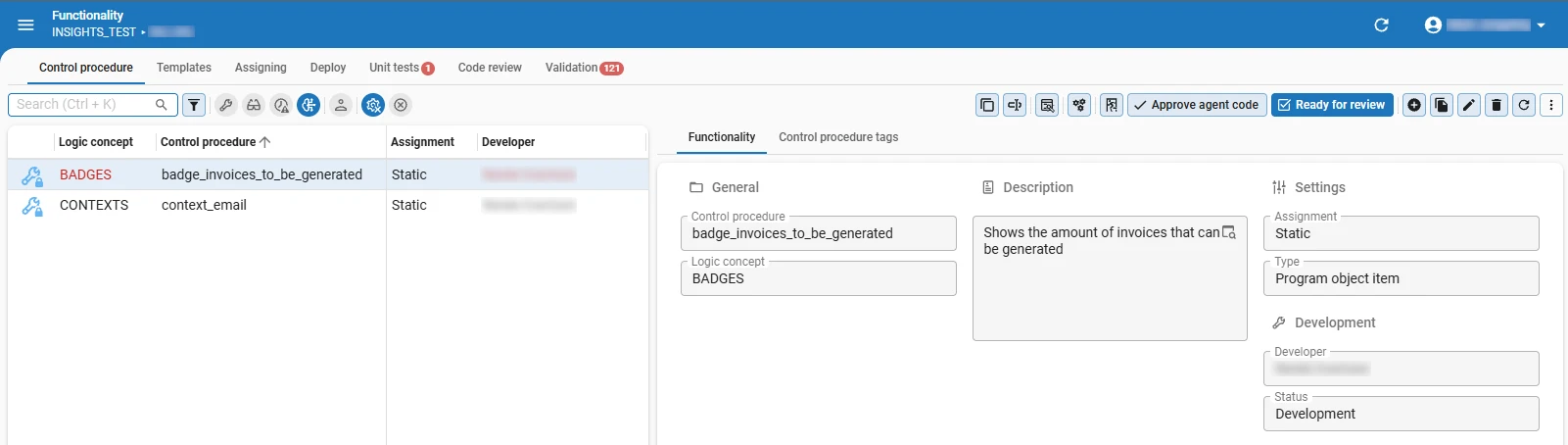
- menu Business Logic > Functionality > tab Control procedure
- menu Quality > Validations > tab Maintenance
- menu Deployment > Synchronization to IAM > tab Post synchronization code
The prefilter Unreviewed agent code is available for control procedures and validations to filter records in the grid. Execute the task Approve agent code to mark agent code as reviewed. Only a person can execute Approve agent code. An AI agent cannot approve its own code.
Editing the code yourself or approving the code clears the checkbox Modified by delegated access in the trace field of the model object. This also applies when you approve a change log for a control procedure. If the code was changed after the control procedure was put in review, it stays marked, and you get a message to check it and execute Approve agent code.
When a staged control procedure or validation with unapproved agent code runs, everything it does outside its staging tables or its own validation messages is rolled back afterwards. A non-staged control procedure with unapproved agent code is not executed until it is approved. If post-synchronization code contains unapproved agent code, synchronizing to IAM, synchronizing to storage, and creating a deployment package are blocked until the code is approved.
Maintenance - Manage delegated access of a runtime configuration
change
Agents can use runtime configurations for tasks like deploying, executing code, running unit tests, smoke tests or enrichments, connecting, or retrieving the number of rows.
You can now manage an agent's access to a runtime configuration with the setting Allow delegated access (menu Maintenance > Runtime configurations). This setting can only be managed by a person, not by an agent.
- If delegated access is allowed for the default runtime configuration of the origin branch, a new branch inherits this setting.
- A branch that shares its database with a runtime configuration without Allow delegated access is out of reach for agents until you give it its own database. This applies, for example, to a branch that still uses the database of its origin branch.
- Merging a branch with delegated access into a branch without delegated access does not carry over the setting to that branch.
- Agents are denied access if they try to use another runtime configuration on the same database that does not have the Allow delegated access checkbox enabled.
Delegated access for IAM configurations can be managed in the menu Maintenance > IAM configurations. An agent can only synchronize to IAM when the Allow delegated access checkbox is selected for the target IAM configuration.
When upgrading, the following applies:
- Branches with Allow delegated mutations enabled will have the checkbox Allow delegated access enabled for the default runtime configuration of that branch. All other runtime configurations remain unchanged.
- The checkbox Allow delegated access is automatically selected for the default target IAM.
Indicium - Higher limits for long values
change Indicium
Indicium limits each column value that an MCP client retrieves, to protect the stability of Indicium and prevent high token costs.
Previously, this limit was 5,000 characters. Because of this limit, an MCP client regularly needed to make multiple requests to read control procedure and template code from the Software Factory.
The default limit is now 10,000 characters, so the MCP client can retrieve the full code in a single request more often. When the MCP client requests a single record by its primary key, the limit is 150,000 characters. This is enough for almost every control procedure and template.
You can configure both limits in Indicium's appsettings.json.
- We strongly advise against disabling value limiting, because it can lead to stability issues and high token costs.
- Be mindful when setting very high limits, especially the general limit that applies to result sets.
{
  "ModelContextProtocol": {
    "ValueLimit": {
      "LimitValueLength": true,
      "ValueLengthLimit": 10000,
      "SingleResourceValueLengthLimit": 150000
    }
  }
}
Indicium - Batch tool for larger updates through AI
new
We have added a new batch tool for MCP in Indicium, which allows AI agents to make multiple updates in a single request.
Batch tool calls shorten the duration of your requests. It also helps reduce context window usage, cache reads and writes, and output tokens. Internal testing with significant changes has shown that the batch tool is 2-3 times faster and lowers costs by 3-4 times. Actual results may vary depending on the environment setup, AI model, and so forth. A similar case can expect a similar gain, while other cases may gain more or less.
Software Factory
Models - Changed naming convention for branches
change
We have updated the naming convention for branches to suggest unique and consistent database names:
-
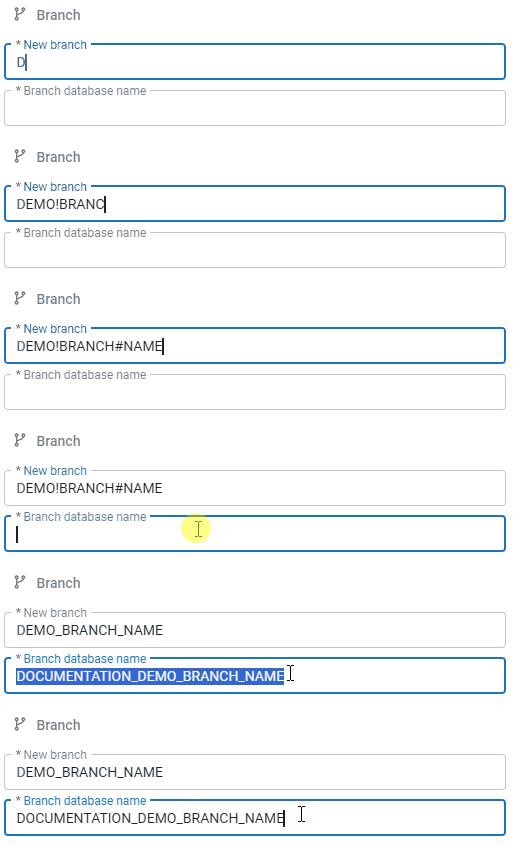
A branch name can contain letters, digits, dots, underscores, and hyphens. When you Create a new branch, any invalid characters in the name are replaced with an underscore when you click outside the input field.
-
When you Create a new branch, the Software Factory now suggests a Branch database name in the task pop-up. The suggested name is based on the database name of the origin branch followed by the new branch name. If another runtime configuration already uses that name on the same database server, it adds
_1to_9. You can still change the suggested name. A name that is already in use is also allowed, such as the database name of the origin branch.For example, a branch
FEATURE-2created from a branch with databaseSF_APPgets the database nameSF_APP_FEATURE_2.
Any existing branches keep their current names and are not affected by this change.
Data - Read-only precision for numeric domains
Community idea new
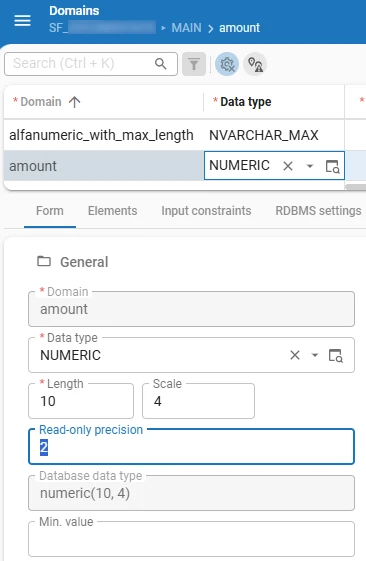
You can now control the number of decimals that a numeric field shows in the user interface with the setting Read-only precision. This applies to read-only numeric fields in editable and non-editable forms. This means you no longer need an extra domain or a display column to control how many decimals are shown in the user interface.
Fewer decimals keep screens streamlined and easy to read for your users. The stored value and the number of decimals users can enter remain the same. Exports still keep all decimals.
The setting applies to the following components: Grid (including summaries), Form, Form list, Card list, Treeview, Scheduler (resource columns only), and the breadcrumb.
To set it up, go to menu Data > Domains > tab Form and select a domain with a numeric data type. In the field Read-only precision, enter the number of decimals to show when the field is read-only. The value cannot be higher than the domain's Scale. Leave the field empty to keep showing all decimals.
For example, a domain amount has the data type NUMERIC with Scale '4'. If you set Read-only precision to '2', the value '1234.5678' shows as '1234.57' in read-only mode.
Synchronize to IAM to apply the setting to all columns, task parameters, and report parameters that use the domain, including their variants.
User Interface - Record navigation actions for action bars
Community idea new
You can now add four record navigation actions to action bars: First row, Previous row, Next row, and Last row. With these actions, users can go through records one by one, which is a common way to enter and check data.
For more information about record navigation actions in the Universal UI, see Record navigation for action bars.
The new actions are excluded by default, so your existing action bars remain the same after upgrading.
The new actions are available in all branches, both new and upgraded, and only appear where you include them:
- For all default action bars in a branch - in menu Model overview > Branches > tab General settings > tab Default action bar, select the actions and execute the task Include action.
- For the action bar of one screen type - in menu User Interface > Screen types > tab Action bars, select the Action bar and include the actions there.
- For a custom action bar - in menu User Interface > Screen types > tab Action bars, select the Custom action bar and include the actions.
- If you execute the task Reset action bar, the four actions are excluded again.
Like any other action, you can set the size, order, display type, and primary action. By default, the new actions are placed after Auto row height and show as an icon only.
Functionality - Deploy code per RDBMS type
change
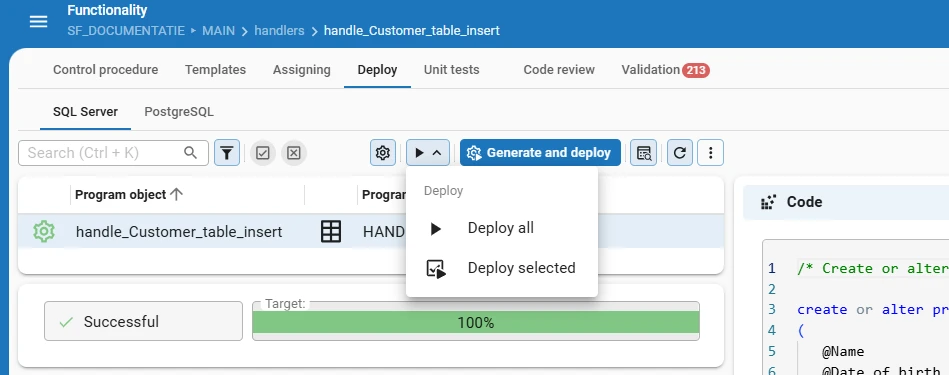
Deploying code is now organized per RDBMS type. When you select a control procedure, the tab Deploy (menu Business Logic > Functionality) shows a sub-tab for each RDBMS type: SQL Server, Db2 for i, Oracle and PostgreSQL. You only see the RDBMS types that are linked to the branch.
The tasks Execute all and Execute selected have been renamed to Deploy all and Deploy selected, and are available under Deploy. They work per RDBMS type, so you can only select a runtime configuration of the current sub-tab's RDBMS type. This prevents deploying code to the wrong runtime configuration.
You can also use the new task Generate and deploy to generate the code and deploy it to the selected runtime configuration. Deployment only starts if the generation succeeds. The separate tasks Generate all and Deploy all are still available.
Enrichments - Added Enrichment log
new
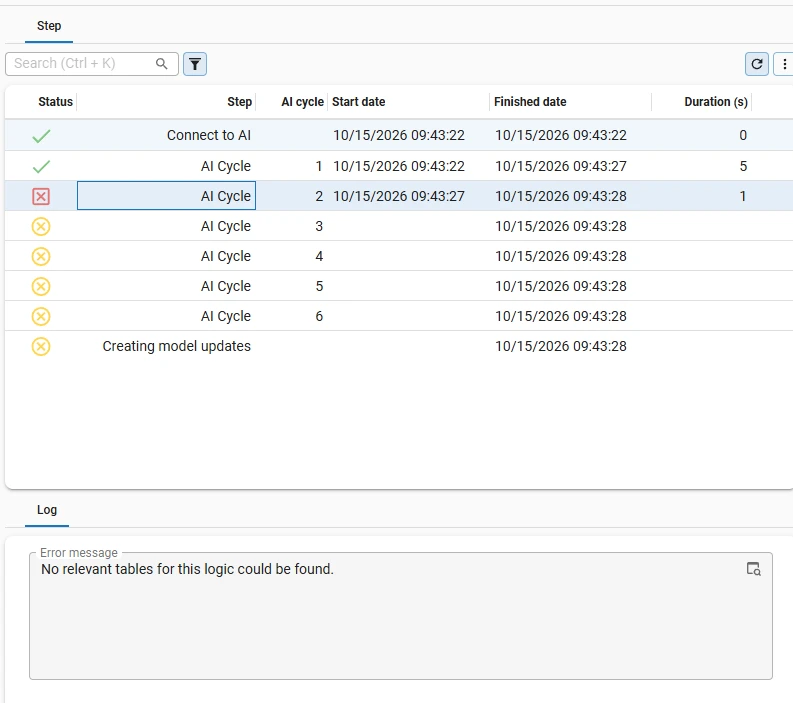
We have added an enrichment log to the Software Factory in the menu Enrichments > Model enrichments > tab Run enrichment > tab Step. Now, when running an enrichment, the steps of the enrichment are logged as they are executed.
Each step has its own Status, Start date, Finished date, and Duration. This helps you identify any slow steps and their possible cause, for example, a slow database query or a delayed AI response.
Furthermore, each step also has its own Error message, which can be viewed in the tab Log. This allows you to track the progress of the enrichment in detail and troubleshoot any issues if they occur.
If an AI enrichment uses chains that involve multiple prompts, each cycle step is logged separately in the column AI cycle. This offers improved transparency into the progress and performance of AI enrichments.
The steps are also logged when you execute the task Execute model updates. When a model update fails, this step opens automatically, and its tab Log shows the error and the name of the failed model update.
You can then deselect or fix that model update and execute the remaining ones. All errors of the run are collected in the same log, and the step stays Failed even if later executions succeed.
Enrichments - Improved 'Dynamic modeling' tasks
change
We have updated the following tasks for dynamic modeling (menu Enrichments > Dynamic model > tab Control procedure):
- Test control procedure code - Previously, this task only checked the syntax. It now runs the control procedure in a transaction that is rolled back afterwards, so nothing is saved, and shows how many rows it staged per table.
- Show full staged control procedure code - The code of a control procedure is now shown in the place where it runs. This allows you to read the complete batch from top to bottom.
- Copy control procedure - For dynamic model control procedures, the fields Update template names and Assignments have been removed from the task pop-up. This is because a dynamic model control procedure has no templates or assignments.
Quality - Support for unit test for PostgreSQL
new
You can now create and run unit tests for models that use PostgreSQL as their RDBMS.
Unit tests for PostgreSQL behave slightly differently compared to other RDBMS types:
- After a database error, PostgreSQL does not run any further statements in that transaction. The test reports the first error only.
- A commit in the logic under test is refused by the database, and nothing is saved. The test fails.
- A rollback in the logic under test is refused by the database. All changes made by the test are undone, and nothing after the rollback runs, so assertion queries are not executed. The "should rollback" check is recorded as usual, and expected outputs are still compared, using the values the output parameters had at the moment of the rollback.
Quality - Updated 'Unit tests' and added 'Unit test coverage' screen
change
Unit tests in the Software Factory have been improved and updated. Unit test code is now generated with control procedures and templates, which adds support for multiple RDBMS types. This also gives more flexibility when updating unit test generation. To reflect this change, the tab Results (menu Quality > Unit tests) now includes the column RDBMS type.
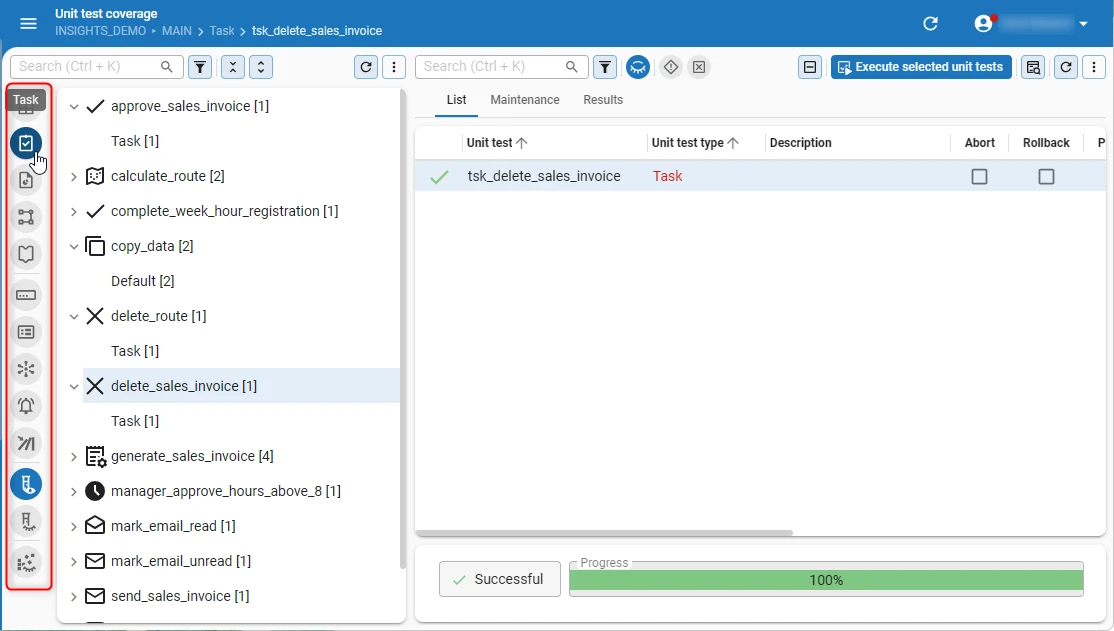
The tab Object overview has been removed from Unit tests. Instead, you can now view objects and test coverage via the new Unit test coverage screen (menu Quality > Unit test coverage).
This new screen is useful for tracking the coverage of unit tests and creating new unit tests for uncovered objects. Use the prefilters on the left of the screen to filter object types and whether they are covered by unit tests. This screen also includes the tabs available in the screen Unit tests.
To improve the workflow, we have also updated the Unit tests screen. This screen is now focused on running and managing unit tests. The changes listed below in Unit tests also affect the Unit tests screens in menu Quality > Unit test coverage and menu Business Logic > Functionality > tab Unit tests.
- The task View unit test code has been removed. Instead, you can now view and regenerate unit test code in the tab Maintenance > Unit test code.
- The tab Form has been moved into the tab Maintenance as well.
Additionally, the tab Mock data has been renamed and moved to the tab Maintenance > Mock data sets. Here, you can now edit mock data of a set directly using the add, edit and delete buttons. This allows for more efficient management of mock data sets and ensures that unit tests have the necessary data for execution. Lastly, in the tab Linked unit tests, you can manage which mock data sets are associated with each unit test.
Quality - Improved 'AI code review'
change
We made the following improvements to AI code review in the Software Factory (menu Quality > Code review > tab Code review):
- More context - The AI now receives the complete generated code of a logic object up to 100,000 characters, instead of 40,000. This makes the review of larger logic objects more accurate. Note that the size of the objects being reviewed affects the number of tokens the AI uses.
- Better instructions - Reviews now include the database type, control procedure and template that the AI is reviewing. The AI ignores code that the Software Factory generates, such as the transaction handling. When it sees only part of the code, it no longer reports variables as undeclared, as they may be declared elsewhere.
- User simulation - The AI now recognizes
tsf_user()as the function that returns the user that may be simulated, andtsf_original_login()as the function that returns the actual user. Both remain the recommended functions instead of functions likesystem_user. - Clearer findings - Each finding now starts with a short summary. The AI returns at most 10 findings per template.
- Templates that are not assigned - Previously, the AI could review a template that was not assigned to a logic object with the code of another template in the same control procedure. These templates now always get the comment that they are not assigned to an active logic object.
- Won't fix comments - A finding that you marked as Won't fix could return as a new comment when the AI worded it differently in a later review. The AI now receives these findings and does not report them again.
- Failed reviews - When the AI did not return a valid response for a template, it used to resolve the open comments of that template. These comments now stay open, and the template gets a comment that its review could not be completed. You can then start the AI review again.
- Approval - The AI could approve a control procedure even when it could not process its response for one of the templates. The AI now only approves a control procedure when it has a valid review result for every template.
We also fixed an issue where the AI reviewer could report that your code only runs after an error, while it actually runs as normal. This happened with large logic objects, such as a task, procedure or handler that runs in a single transaction. For these objects, the AI received the code it needed to review after the CATCH block instead of at its actual position. The AI now always receives the code at the right position in the logic object, for all database types.
Quality - Base model control procedures excluded from quality scores
change
Previously, the Quality dashboard and the cube Unit test control procedure coverage also rated control procedures copied from base models. These lowered the Documentation score and unit test coverage of every branch. The score could not be improved beyond a certain point, as developers cannot change the base model's control procedures.
Base model control procedures are no longer included in the score calculations, so the scores now accurately reflect the quality and coverage of the model. Validations from base models are still included because their messages are about the model.
Intelligent Application Manager
Applications - Changed shortcut for Copy application
change main administrator
Previously, the task Copy application in menu Authorization > Applications > tab Application used the shortcut Ctrl + K.
This conflicted with the recently introduced Ctrl + K shortcut for focusing the Search field on the same screen.
Now, the task Copy application uses the shortcut Alt + K instead.
Indicium
Thinkwise DevExpress Report Designer 2.0
new
We have updated the Thinkwise DevExpress Report Designer to version 2.0. This update allows you to design DevExpress reports for a PostgreSQL database.
By default, Windows uses the .NET 4.7.2 version of the DevExpress plugin, which cannot generate reports on PostgreSQL. You need to use .NET 10 version of the plugin.
To do this, add the following to the appsettings.json file of Indicium:
{
  "Reporting": {
    "DevExpress": {
      "Runtime": "NET"
    }
  }
}
For Linux, no change is needed for the runtime setting as it uses the .NET 10 plugin by default.
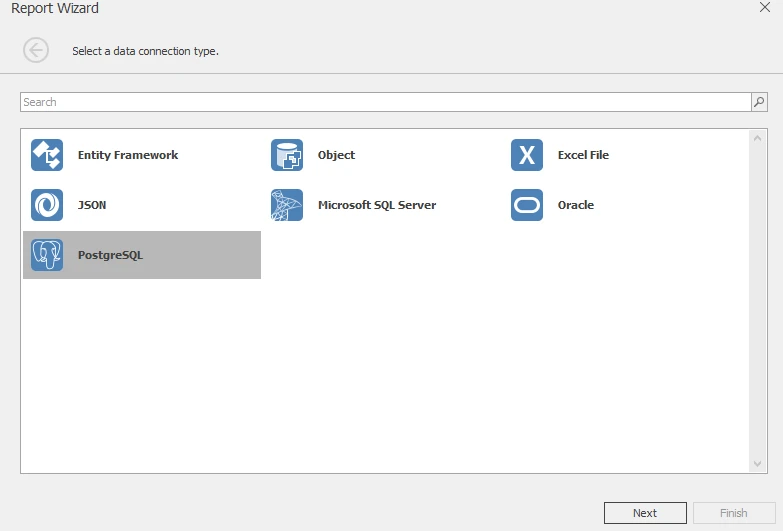
We have also updated the behavior of the Report Wizard when you create a new report. You can now select the data connection type first, then configure the necessary settings for your report in the next step.
Database queries canceled for aborted requests
change Indicium SQL Server Oracle PostgreSQL
Previously, when a request to Indicium was aborted, the underlying database query kept running until it finished. For example, this could happen if a user navigated away from a document or closed it. With heavy queries, such as a resource-intensive badge, the database could keep working for a long time on results that are no longer needed.
Now, Indicium cancels the database query as soon as the request is aborted.
This applies to:
- Data retrieval from tables and views, including
$countrequests - Badges, change detection, layouts, and contexts
Tasks and other actions that change data are never canceled. Query cancellation is not supported by the IBM Db2 for i drivers. This is a limitation of the drivers, with no planned changes at this time.
Faster text searching and filtering on SQL Server
change SQL Server
Previously, when users searched or filtered on text with Contains, Starts with, or Ends with, the database often treated the same search as a new query when a different value was entered. As a result, it could not reuse work it had already done.
Now, Indicium makes better use of the database's query plan cache, so the database reuses earlier work. This reduces database load and can make searching and filtering faster.
Also, when the search value only contains ASCII characters and the column is char or varchar, Indicium now sends the value as varchar instead of nvarchar. This avoids an implicit conversion of the column, so the database can match rows much faster. How much faster depends on the database collation.
This currently applies to SQL Server only. Other database platforms will follow in a later release.
Universal UI
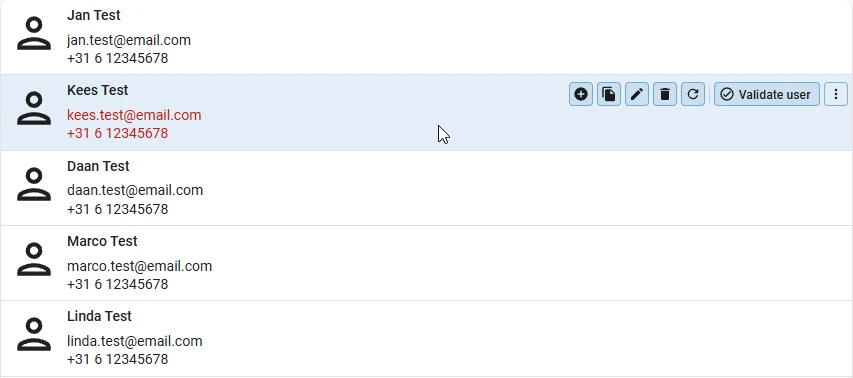
Inline action bar for card lists
new
In an earlier release, we added the inline action bar for grids. The inline action bar is now also available for the Card list screen component.
To show an inline action bar, add the Card list component to a screen type and select Enable inline action bar (menu User Interface > Screen types > tab Design). In the tab Action bars > tab Custom action bar set-up, you can configure the actions included in the inline action bar. This is the same as setting up an inline action bar for a grid.
Want to learn more? Read our latest blog on the Community: Inline actions: buttons where your user needs them.
Added 'Remove all filters' to the 'Filter' pop-up
new
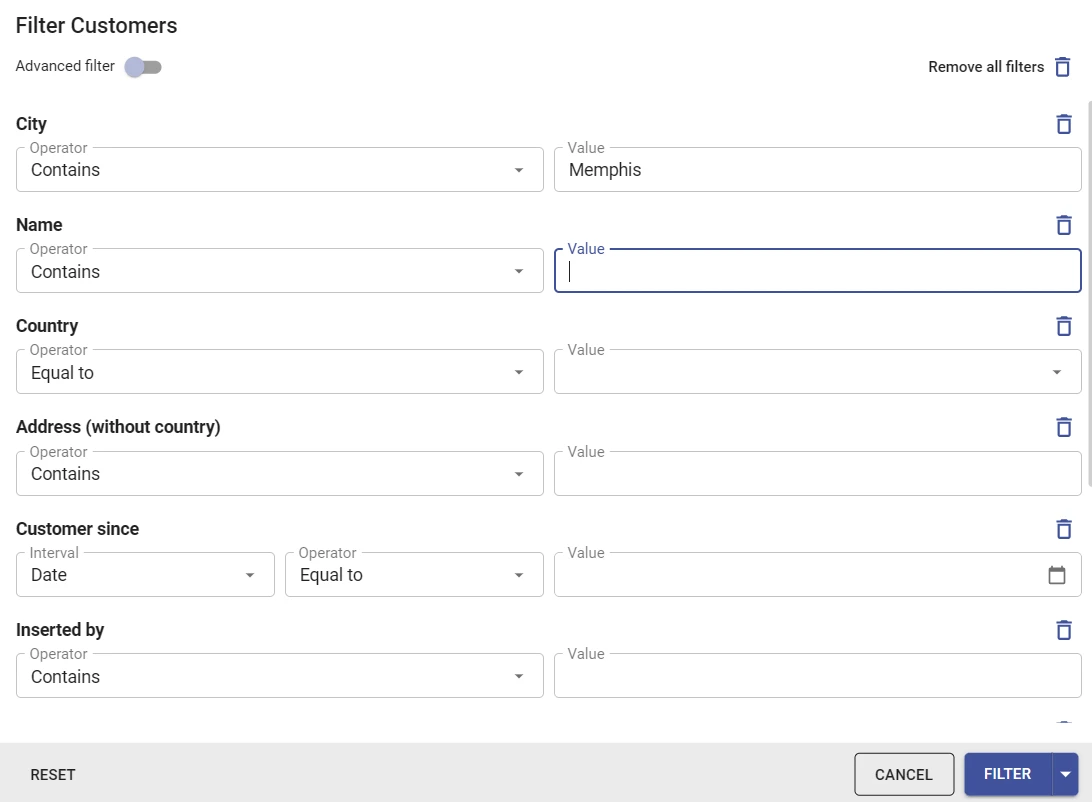
Users can now remove all filter conditions at once by selecting Remove all filters in the Filter pop-up. After all filter conditions are removed, users can add new filter conditions from the drop-down list. Users can restore the previously removed filter conditions by selecting Reset.
The setting is also available for prefilters, and when filtering reference columns, if there are default filter conditions. It is not available for the Advanced filter.
As part of this update, Advanced filter has moved under the title, creating space for Remove all filters on the right.
Navigation between editable fields with 'Enter'
new
Since Universal UI 2026.2.13, read-only fields can also receive focus. This means that when a user navigates the screen with Tab these fields are also included in the tab order.
Users can now use keyboard shortcuts to move between editable fields only. This allows them to enter data quickly with the keyboard in grids, forms, task pop-ups, and report pop-ups.
Enter- Go to the next editable field.Shift+Enter- Go to the previous editable field.Enterin a Barcode scanner field that is the last visible field of a task pop-up - Execute the task. For example, this makes rapid order picking with a barcode scanner possible.
Handheld barcode scanners send a key after each scan, called a suffix. Because Tab now also stops on read-only fields, configure scanners that send Tab to send Enter instead. This keeps them working as expected.
In HTML, Multiline, Code editor, and SQL editor fields:
Enterstill adds a new line when needed.EnterandShift+Enteronly move to another field when the user reached the field withEnter, and did not click in it, move the cursor, or change the value. This way, these fields do not interrupt the flow.
Pressing Enter while focused on a File upload field now moves to the next editable field instead of opening the file picker. Alt + Enter opens the file picker.
Record navigation for action bars
new
Users can now use record navigation actions in the action bar of a grid, card list, or tree. They can step through records, or jump to the first or last one, without selecting rows or switching pages themselves.
The following actions are available:
- First row and Last row - Select the first or last record and load that page when needed.
- Previous row and Next row - Select the neighboring record, also across pages when pagination is used.
For example, users can review invoices one by one with Next row, continue to the next page automatically, and return to the start with First row.
For screens with only a Form component, these navigation actions will become available in a future release.
Navigation follows the current sorting and filtering, and detail tabs update for the selected record. On default editable subjects, changes are saved when users navigate.
The actions are disabled when there is no record to go to, and when editing prevents switching records. There are no keyboard shortcuts for these actions yet.
The actions are excluded from the action bar by default, so a developer must first add them in the Software Factory (2026.3.12 or later). See User Interface - Record navigation actions for action bars for more information.

Added support for look-ups in offline available tasks
new
Offline available tasks now support look-ups. The values of look-up fields are pre-fetched and cached for offline use. This way, users can select and search for look-up values from a drop-down list.
This is not yet possible for look-ups whose options depend on another field, or for look-ups that show a domain element as their display value.
Initial focus in detail tabs
new
In an earlier release, we improved the screen component focus of the Universal UI when users first open a document.
Focus goes to the most top-left interactive component, for example, the Search element in an action bar or the first record in a grid.
Now, this also works when users switch to a new detail tab. Focus is placed on the most top-left interactive component inside that detail.
Report generation now runs asynchronously
new
Reports can now be generated asynchronously. This allows users to continue using the application while the report is being generated.
If a report runs for several selected rows, a progress bar shows how many reports have been generated so far. You can configure the progress pop-up with the setting Await result (menu Processes > Reports > tab Settings).
For example, if users print invoices for twenty selected customers with Await result set to Optional, they can close the progress pop-up and continue working. The .zip file with all invoices is downloaded when it is ready.
Reports with Popup for each row enabled now also run asynchronously. After each report is downloaded, the pop-up opens for the next selected row, where users can enter the parameters for that row.
Asynchronous reports require Indicium 2026.2.14 or later. No configuration is needed when you upgrade. If the Universal UI cannot connect to Indicium for these updates, it runs the report in a single request as before.
Conditional layouts available for 'Form list'
new
You can now use conditional layouts in the Formlist screen component.
A conditional layout with Apply to Form selected now also applies to the Form list.
Support for Markdown files in the preview component
new
Markdown (.md) files have become common with the rise of AI, and users can now view them directly in the preview component.
The preview shows the file as plain text without Markdown formatting, like other text files (for example, .txt).
Consistent column order and selection in exports
change
Previously, the Export wizard and Export immediately could produce a different column order and default selection. Now, the Export wizard follows the column order of the grid and uses the same default selection as Export immediately. This makes exports more predictable.
The wizard lists the columns in this order:
- Primary key columns that are not in the grid
- Grid columns, in grid order (primary key columns in the grid keep their position)
- Other subject columns that are not hidden
Each column appears only once. By default, the columns visible in the grid are selected, except password columns. Users can change the selection and order before exporting.
Password columns are not selected by default, but users can still select available password columns in the wizard. This default is not an access restriction.
As a developer, you can control the default selection with the extended property ExportCopyToClipboardOnly (menu Maintenance > Runtime configurations > tab Extended properties). If you enable it, a column is only selected by default when the column setting Include in copy is also enabled. Otherwise, Include in copy does not affect the default selection. This applies to both the Export wizard and Export immediately.
For example, with the extended property enabled, the column Email is not selected by default when Include in copy is disabled for it.
The wizard now also loads the grid information it needs before it opens, even on screens without a grid.
For more information, see Check the default export selection.
Expanded and collapsed resources kept in hierarchical Schedulers
change
Previously, a Scheduler with hierarchical resource grouping reset the expanded and collapsed resources when users switched to another document, a detail tab, the menu, or another view.
Now, the Scheduler remembers which resources users expanded or collapsed while its document stays open.
Closing the document or starting a new session restores the default.
Fixed
Software Factory and Intelligent Application Manager
- Fixed an issue where the program object code for staged SQL control procedures was regenerated even if nothing had changed.
- When you created a new branch in the branch picker that opens at startup, the Software Factory did not apply the setting Allow delegated mutations, even when you selected it. This has been fixed.
- Deploying to a SQL Server runtime configuration also affected the status of program objects of another RDBMS type. The status of each program object is now determined per RDBMS type.
- The execution log and the deployment progress showed jobs of every RDBMS type. A failed deployment could show as "Successful" or show the target database of another RDBMS type. Both now only show the jobs for the RDBMS type of the current sub-tab.
- Themes could not be created in upgraded Software Factory environments due to missing default values. This has been fixed.
Db2PostgreSQLFlagging of the modified objects for a smart upgrade could take hours in models with many views. We have improved how the views and MQTs that depend on a modified table, view or MQT are found. Views that refer to an object in upper case, or in Db2 for i by its alias, are now also selected. In Db2 for i, journaling is now also restarted when only an MQT has changed.PostgreSQLHandlers had their terminator potentially duplicated. This has been fixed.PostgreSQLSmoke tests for subroutines passed their arguments in alphabetical order instead of using the sequence number. This has been fixed.Db2In IAM on Db2 for i, executing the task Switch email provider type for a tenant resulted in an error. Saving the related connection settings also failed. This has been fixed.Db2Unit tests did not work correctly on Db2 after a change in thetsf_send_messagesystem for Db2. This has been fixed.- Resetting a change on the tab Changes compared to default of table, task and report variants failed since 2026.2. We have fixed this and several other issues on this tab.
- Task parameters, report parameters and process variables sometimes used the default control instead of the control set on their domain. They now always use the control set on their domain.
Indicium
- When users dragged a row onto a time cell of a Scheduler, the date/time of that cell was only passed to the drop task if the Scheduler also had an Add activity task. Without an Add activity task, the drop task still opened, but the task parameter set in Drop date/time parameter stayed empty. Users had to enter the date/time again after every drop. The date/time of the time cell is now always passed to this task parameter, whether or not an Add activity task is configured.
- When you exported a column with a datetime domain that has its time zone set to local, Indicium ignored that setting. This has been fixed.
- Updated the CSS of Indicium's background image. Although highly unlikely, this may affect your custom CSS or styling that relies on Indicium's background image. Check your custom CSS or styling to ensure it still works as expected.
PostgreSQLIn applications on PostgreSQL, using$searchon certain numeric data types, such assmallint, resulted in an error. This has been fixed.- Indicium interprets a quote prefix, such as
'10598, as a style hint that marks a value as text. In some cases, Indicium added this prefix to the value instead of ignoring it. This has been fixed.
Universal UI
For grids:
- Previously, when users were adding or copying multiple records in a grid, the new records would be added, but would not appear in view. Now, the Universal UI automatically scrolls to show the newly added records.
- In a parent grid with a detail tab, the detail tab kept showing the data of the previous active row until the parent grid had reloaded. This happened after users changed the search, a prefilter, a filter, or the page of the parent. This has been fixed.
- In a grid with Auto-edit and multiple row selection enabled, users could select several rows, but a task only ran for the active row. The same happened to reports, mass updates and deletes started from that selection. This has been fixed.
- In a grid with pagination, the row and page counts would sometimes not be updated after changing a filter. They would still display the previous filter results. The pagination footer and row indicator would also remain visible when no records matched the filter. This has been fixed.
- In grouped grids on subjects without pagination, the eye icon could mark the wrong groups as having more records when a maximum number of records was set. Grouped grids without a record limit could also fail to load. Both issues have been fixed.
- When users resized grid columns within grouped labels or the entire label group, the new width was not remembered after a refresh or when switching browsers. This has been fixed. Other columns already kept their width.
- Since 2026.3.11, the grid next to a cube view ignored the maximum number of records when the subject also had a page size. The grid could show far fewer records than the maximum. This has been fixed.
For filters:
- Actions such as Export to Excel, mass updates, tasks and deletes ignored date interval filters that were applied to the records. Instead, the actions would apply to all records. These actions were temporarily disabled in the Universal UI extra release 2026.3.10.1. This issue has now been fixed. Date interval filters are now correctly applied to these actions.
- In the Filter pop-up, date interval conditions on a detail reference of a related subject resulted in a
500 (Internal Server)error in Indicium. This has been fixed. - When users saved a filter as a prefilter with an exact date and time, the time could be lost after they reloaded the page. The prefilter then showed records from any time on that date. This has been fixed.
- When users opened a task pop-up from a grid with filtered columns, the funnel icons in the column headers sometimes disappeared. This made it unclear whether the filters still applied and which rows the task would affect. The icons now stay visible while the task pop-up is open.
- When users executed an All rows action, such as a mass update, delete or stage set, on a filtered dataset that contains special characters such as
$,&or*, the request failed with a bad request error. This has been fixed.
For cube views:
- An empty value in a series would not be displayed in a separate column, but would instead be grouped under the column header Other. Empty values (including 'NULL') now get their own separate column with a blank header.
- The values '0' and 'false' were treated as empty values and end up in that same column. They are now no longer treated as empty values and are displayed in their respective columns, with the value as the header name.
- Empty values in a boolean series would be unrightfully labeled as 'false'. They are no longer displayed as 'false'.
- Previously, when a cube view had no series, users could not edit values in the cube. Removing every field from the series area made all values read-only, even on the lowest category level. Users can now edit and save a value in a cell that shows one record. Cells that combine more than one record, and totals, stay read-only.
- In cube views, if a row contained an empty value in one dimension, the subsequent dimension columns would appear blank despite having values. If a cube view group contained an empty value, no expand arrow would be displayed for that group, or the group would display incorrect totals and blank levels when expanded. This has been fixed.
For action bars:
- In vertical action bars, certain buttons with the display type Icon only would display text as well. This has been fixed.
- Previously, action buttons for cube views and task groups would sometimes appear duplicated and not in the configured order. This has been fixed.
- In screens that only contained a grouped grid, the action buttons Add and Copy would not be displayed, even though they were enabled in the Action bar settings. This has been fixed.
For forms and fields:
- In very small or narrow forms, the content extended beyond the edge of the form, and a horizontal scroll bar appeared. Form content now adjusts to fit the form at any width.
- A phone field with a value sometimes showed taller than its set height. This has been fixed.
- File upload fields with a height of more than one row did not fill that height. They now do, the same as multiline fields.
- Added Segoe UI and Segoe UI Semibold fonts to the HTML editor.
- Opening a screen crashed when a Form or FilterForm had a checkbox as its first field, in the top-left position, and that field received the initial focus. This has been fixed.
For the Scheduler:
- When users scrolled all the way to the right, the Scheduler sometimes showed a large blank area. This has been fixed.
- In a Scheduler view with the timescales Year and Week, users could not click the first week to execute a task in a time cell when part of that week fell in the previous year. For example, week 1 of 2026 includes days in 2025. All weeks are now clickable.
- In the same Scheduler view, the last week of the year was not shown when part of it fell in the next year. For example, week 53 of 2026 includes days in 2027. This week is now shown and clickable.
For process flows:
- Previously, in a grid with pagination, the process flow action Go to row could only select a matching record if it was on the current grid page. The action can now navigate to the page containing the matching record. It does not matter if the input parameter Filter record when not found is enabled or not.
- In screen types with nested tab panels, the process action Activate detail did not always open the detail tab. As a result, the rest of the process flow did not run, or users ended up on the wrong tab. This has been fixed.
- If a process flow ran a task on a nested detail tab and the next action targeted the main subject, the process flow could stop without giving any error. After the task, the parent record was refreshed first. The context procedure then removed the nested detail tab, which halted the refresh. This has been fixed.
Data model changes
Data model changes for the Software Factory and IAM meta-models are listed here. This overview can be used as a reference to fix dynamic control procedures, dynamic model code or custom validations after an upgrade.
Table changes in the Software Factory
| SF - From table | SF - To table |
|---|---|
| - | enrichment_run_step |
| - | enrichment_run_step_log |
Column changes in the Software Factory
| SF - Table | SF - From column | SF - To column | Mandatory | Default value |
|---|---|---|---|---|
| dom | - | read_only_prec | 0 | - |
| dom | default_visible_for_filter | default_visible_for_filter | 1 | 1 |
| file_storage | - | private_key_file_encrypted | 0 | - |
| file_storage | private_key_file_encrypted | - | - | - |
| file_storage_configuration | - | private_key_file_encrypted | 0 | - |
| file_storage_configuration | private_key_file_encrypted | - | - | - |
| model_vrs_clean_up | - | no_of_history_rows_removed | 0 | - |
| runtime_configuration | - | allow_delegated_access | 1 | 0 |
| sync_target_iam | - | allow_delegated_access | 1 | 0 |
| unit_test_result | - | rdbms_type | 0 | - |
Table changes in the Intelligent Application Manager
No changes in this release.
Column changes in the Intelligent Application Manager
| IAM - Table | IAM - From column | IAM - To column | Mandatory | Default value |
|---|---|---|---|---|
| col | - | read_only_prec | 0 | - |
| report_parmtr | - | read_only_prec | 0 | - |
| report_variant_parmtr | - | read_only_prec | 0 | - |
| tab_variant_col | - | read_only_prec | 0 | - |
| task_parmtr | - | read_only_prec | 0 | - |
| task_variant_parmtr | - | read_only_prec | 0 | - |
Questions or suggestions?
Questions or suggestions about the release notes? Let us know in the Thinkwise Community!.