


Hi everyone,
This release makes modeling in the Software Factory faster, keeps your databases lean, and makes filtering and keyboard use in Universal UI quicker. Note that this release includes several breaking changes, so check the details before upgrading.
Modeling in the Software Factory takes fewer steps. The screen New objects now suggests which roles should get rights to each new object, so you no longer need to switch between screens. Code search has new options, such as case-sensitive search and excluding comments, and code review has a new prefilter that shows only your own comments. You can also exempt a user, such as a service account, from exclusive branch access, so jobs keep running on these branches.
Managing the size of your databases has now become easier. You can clean up old model versions in active branches such as MAIN and DEVELOP, manually or based on a retention period. In IAM, old deployment runs and their logs are now deleted automatically.
In Universal UI, filtering is faster. Users can now open the Filter pop-up from a column header and set up date ranges without adding the column again. They can also do more with the keyboard: jump to a row by typing in a grid, navigate the menu with shortcuts, and keep navigating right after editing a record, because the focus returns to where they were.
Several quality-of-life improvements round out this release. Users can now copy multiple rows from a grid, for example to paste them into Excel, and read-only lookup fields show as hyperlinks in edit mode.
This is a short-term support (STS) release of the Thinkwise Platform. STS release support expires as soon as a new release is made available. For example, support for version 2026.1.12 ends when version 2026.1.13 is released.
See our Lifecycle policy for information about supported versions.
Contents
Before you upgrade
- Features for the Software Factory and the Intelligent Application Manager are only compatible with this STS version of the Thinkwise Platform.
- Indicium and Universal UI features are backwards compatible with previous Thinkwise Platform versions, unless otherwise noted.
Demo and download
Breaking
Renamed column for 'Execute source code' for CI/CD
Software Factory
When executing the task Execute source code, two jobs are used. The connect job connects to the database and creates the execution row. The execute source code job then executes the selected code files.
The column for the connect job has been renamed from job_id to connect_to_db_job_id, to clarify its purpose. This change affects CI/CD pipelines that use the job_id column.
Before:
POST [indicium]/iam/sf/code_file_execution_overview(...,job_id=123)/abort_execute_source_codeAfter:
POST [indicium]/iam/sf/code_file_execution_overview(...,connect_to_db_job_id=123)/abort_execute_source_codeThe following still works as before:
- Starting the jobs with
connect_to_dboradd_job_to_execute_source_code. - Getting or waiting for a job with
job(...)orwait_for_job.
If you call one of these tasks or read these tables through the API, replace job_id with connect_to_db_job_id in the key or field name.
Data loading based on the components on a screen
Universal UI
Previously, Universal UI always loaded data based on the pagination and record limit settings of the subject.
Now, Universal UI picks one leading component on the screen and loads data for that component. This prevents unnecessary data and pagination requests. For now, this applies to forms, pivot tables, and charts.
- Without a grid, card list, or tree on the screen, only one record is loaded. For example, on a screen with only a form, or with only a pivot table and a chart. This means you no longer need to set Max. no. of records to '1' and Page size to '0' yourself for these screens.
- With a pivot table or chart as the leading component, pagination is disabled. Other grids, card lists, and trees on that screen only show the number of records set in Max. no. of records, with a default of '1'.
- Double-clicking a pivot table cell to show its underlying data still uses pagination.
When the screen type changes, for example at a breakpoint, Universal UI picks the leading component again.
After upgrading, check screens that show a pivot table or chart next to a grid, card list, or tree. Set Max. no. of records for those subjects if they need to show more than one record.
Fewer conditions for time-based cell colors in schedulers
Software Factory
In preparation of Scheduler conditional formatting based on time and day of week some breaking changes have been introduced in this release.
The available conditions Type of time scale have been changed. This affects all types: Column, Time scale, and Datetime.
The following conditions have been removed:
- Starts with
- Contains
- Does not contain
- Is empty
- Is not empty
- Does not start with
- Ends with
- Does not end with
- In
- Not in
Existing conditions that use these conditions are set to Equal to during the upgrade.
The following conditions remain: Between, Equal to, Greater than, Greater than or equal to, Not between, Not equal to, Smaller than, and Smaller than or equal to.
After upgrading, check whether the conditional formatting for your Schedulers still works as expected.
Software Factory
Quality - Own comments filter and logical sort order
change
The tabs Changes and All comments now have the prefilter Own comments (menu Quality > Code review). It only shows your comments, so you can quickly check how the developer addressed them.
Previously, the tab Changes sorted changes by their last update. Now, control procedure changes come first by default. This is followed by template changes in the order they are assigned to the program object. This new order makes the code easier to follow.
The order of changes can be manually updated using the sort options in the column headers.
Business logic - Improved code search
change
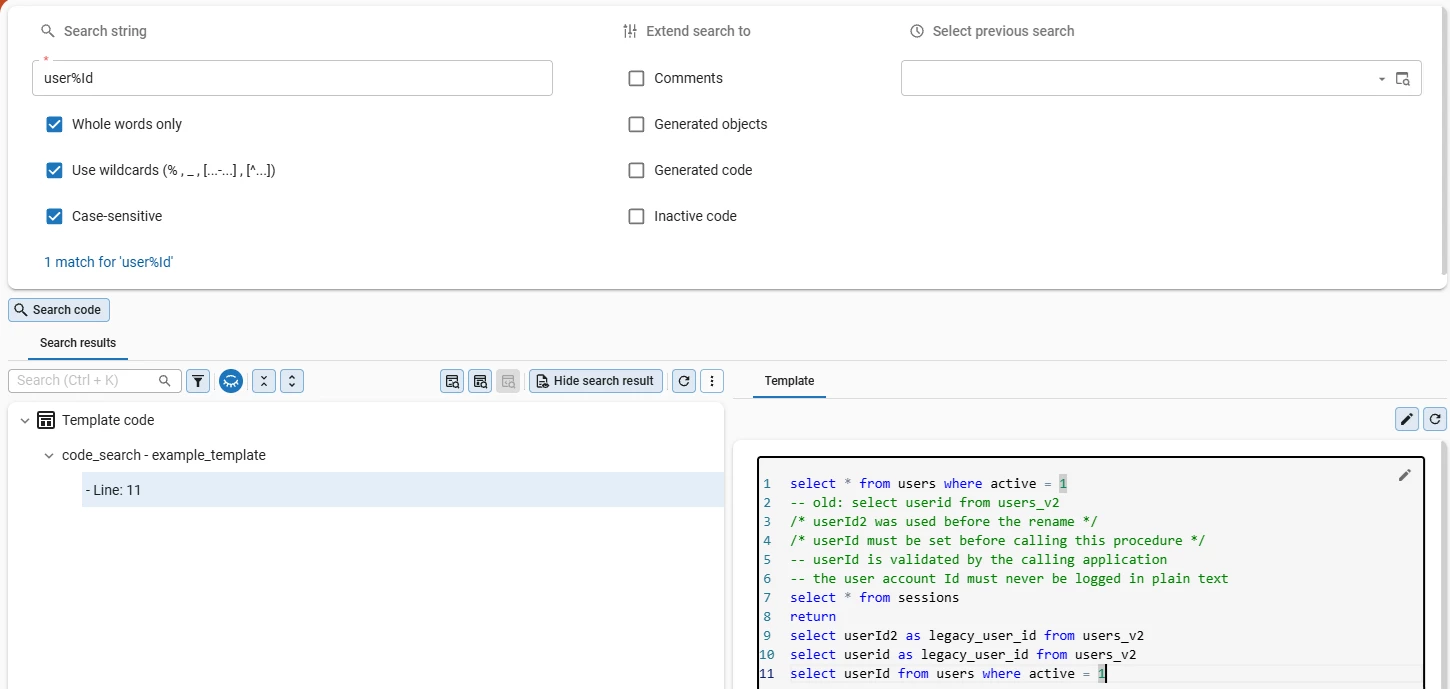
We have improved the search options in the menu Business logic > Code search:
- Comments - Previously, search results always included matches inside comments. Now, you can exclude these matches by clearing Comments under Extend search to.
- Case-sensitive search - Select Case-sensitive to only find matches with the exact same capitalization.
- Combined search options - Previously, selecting Whole words only or Use wildcards cleared the other option. Now, you can combine both options and Case-sensitive at the same time for more precise results. For example, with all three selected, searching for
User%Nameonly findsUserName. It does not findusername, because the capitalization is different. It also does not find-- get User by Name, becauseUserandNameare separate words. - Inactive unit tests - Previously, search results always included code from inactive unit tests. Now, this code is only included when you select Inactive code under Extend search to. Previously, exclusion only applied to code from inactive control procedures.
Models - Exempt a user from exclusive branch access
new
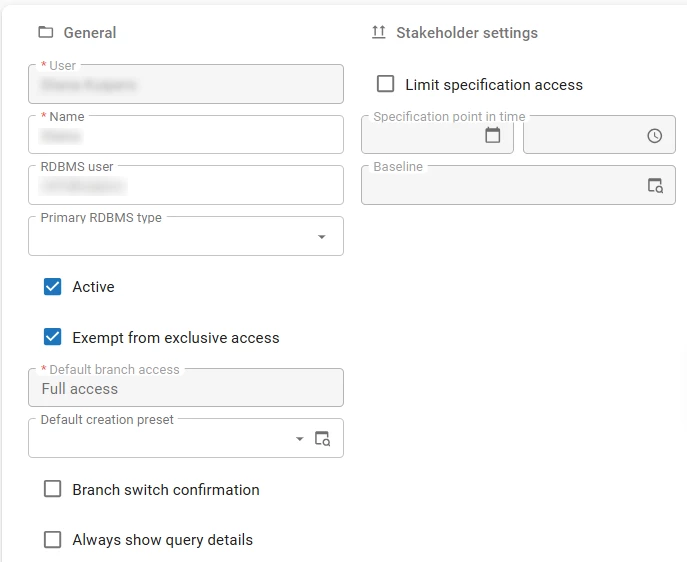
New branches created with Exclusive access, gives full access to the creator and automatically assigns read-only rights to all other users. This would also block any service accounts, for example, Indicium, from accessing the branch and running jobs on it.
To address this, you can now exempt a user from this restriction. To exempt a pool user, select the checkbox Exempt from exclusive access in the menu Maintenance > Users > tab General. This applies to all new branches.
If a new branch is created with Exclusive access selected, a user with Exempt from exclusive access keeps full access rights to it.
Access control - Suggested roles for new objects
new
When you add a new object to your model, such as a column or a table detail, you typically also decide which roles get rights to it. Previously, this meant switching between several screens, including New objects, Model rights, and Roles (all under menu Access control).
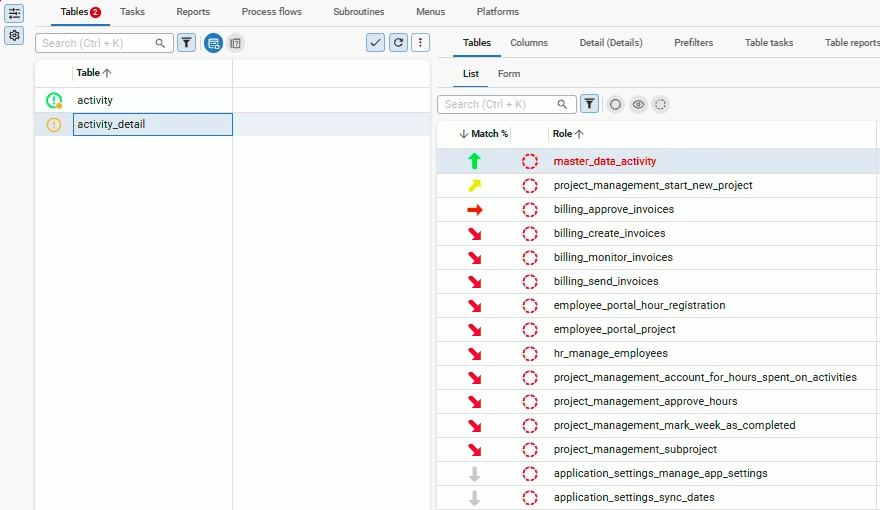
To simplify this workflow, the screen New objects (menu Access control) now suggests which roles are likely candidates for each new object. This helps you organize and assign rights more efficiently.
For each new object, the Software Factory gives a role a match indication. This is based on the role's rights on related objects. For example, for a new column, it looks at the role's rights on the other columns of the same table and on the table itself.
The Software Factory rates each role for an object as follows:
- Green up arrow - Almost certain, more than 90%
- Yellow diagonal-up arrow - Likely, 50-90%
- Orange right arrow - Possibly, 25-50%
- Red diagonal-down arrow - Very low, 5-25%
- Gray down arrow - Rare, 5% or less
Maintenance - Clean-up of model versions in active branches
new
Previously, history data was only removed for archived branches. Branches that are never archived, such as MAIN and DEVELOP, kept every change. As a result, the Software Factory database continued to increase in size.
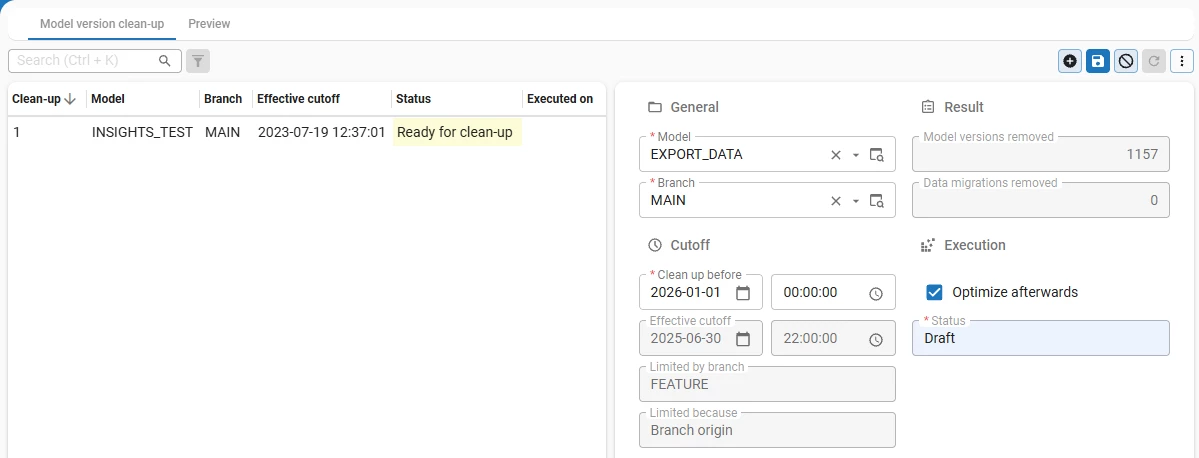
Now, you can clean up old model versions of active branches, along with their history data. To do this, go to the menu Advanced > Master data > Software Factory > Model version clean-up. Select a model and a branch, and enter a date in the field Clean up before. By default, the indexes and statistics are optimized after the clean-up. To skip this, clear the checkbox Optimize afterwards.
When your clean-up is ready, execute the task Ready for clean-up. The nightly system flow Clean up model versions executes the clean-up at its scheduled time. To make changes before the clean-up starts, execute the task Back to draft. Furthermore, you can change the schedule of the system flow in IAM.
The following model versions are always kept:
- The origin of a branch.
- The source version for upgrades.
- Model versions with a status, such as test, acceptance, or production.
- The origin of an open merge session.
The oldest of these versions limits the clean-up: model versions after it are kept as well. The field Effective cutoff shows the date that is actually used, and which branch limits it. The latest model version of a branch is never removed.
The tab Preview shows which model versions will be removed. The columns Will be removed and Kept because indicate which model versions are removed, which are kept, and why.
By default, Model version retention is set to Indefinitely, so nothing is cleaned up automatically. To clean up automatically, select a period, such as 1 year, in the field Model version retention in the menu Maintenance > Configuration. The nightly run then creates a clean-up for every active branch with model versions older than this period.
The following applies to clean-ups of model versions:
- A nightly run stops after three hours.
- A clean-up that did not finish gets the status Incomplete. The next nightly run continues this clean-up first.
After a clean-up, you can only create a branch, revert, merge, or compare from a remaining model version or a moment after the cutoff.
Intelligent Application Manager
Applications - Scope override for OAuth servers
change main administrator application administrator
An OAuth scope specifies the permissions that your application requests from the external service. For example, User.Read is used to read a user's profile in Microsoft Graph.
Previously, scopes of an OAuth server could only be added and changed in the Software Factory. The model then had to be synchronized to IAM to apply the changes.
Now, administrators can also override OAuth scopes in IAM (menu Authorization > Applications > tab General settings > tab OAuth servers). This makes it easier to adjust the scope without needing a new synchronization.
Database servers - Automatic cleanup for deployment runs
change
Old deployment runs and their logs are now deleted automatically by the scheduled system flow system_flow_clean_up.
The new setting Deployment run retention decides which runs count as old (menu Settings > Global settings > tab Form > group Logging). The default is 90 days. When you set it to Indefinitely, nothing is deleted.
For each database, these runs are always kept:
- The latest successful run and every run after it.
- The most recent run.
- Any run that is still running.
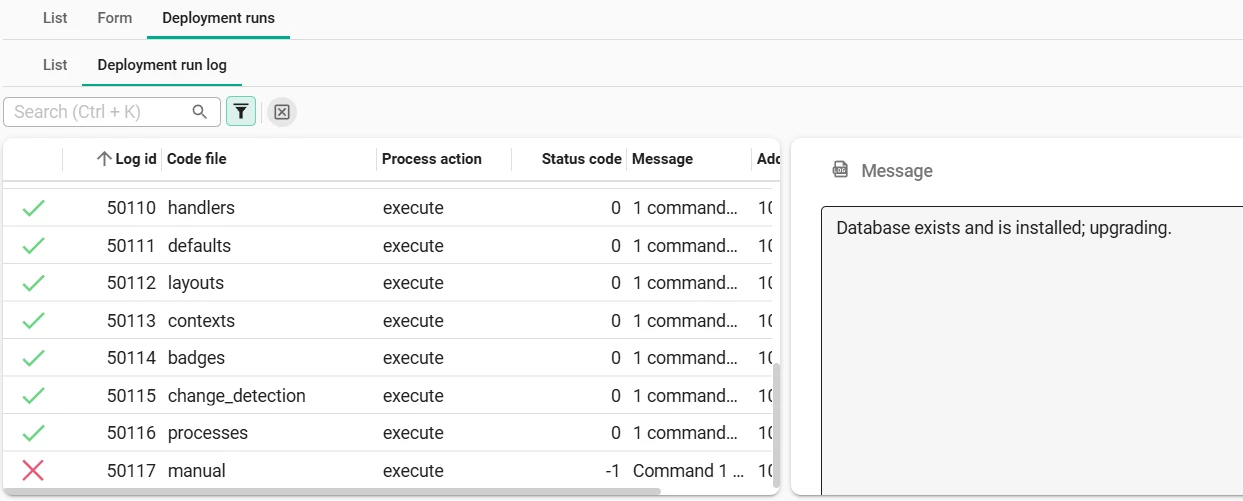
Each step in the Deployment run log now shows a status icon: green when the step succeeded, red when it failed or was prevented (menu Deployment > Database servers > tab Deployment runs > tab Deployment run log). The new prefilter Failed shows only the failed steps. Exports contain the status as text.
Indicium
Support for web connection endpoint timeouts in Indicium
new
Indicium now supports the Timeout setting for web connection endpoints that was introduced in Thinkwise Platform 2026.3. It is available in the menu Integration & AI > Web connections > tab Endpoints > tab General.
You can use this setting to override the default timeout of 100 seconds with a different value. You can use {parameter} markers to set the timeout value at runtime.
The timeout is in seconds:
- '-1' - No timeout.
- '1' to '2147483' - The number of seconds to wait.
Indicium rejects other values with the new status code -24 (invalid timeout).
Universal UI
Open 'Filter' pop-up from a column header filter
new
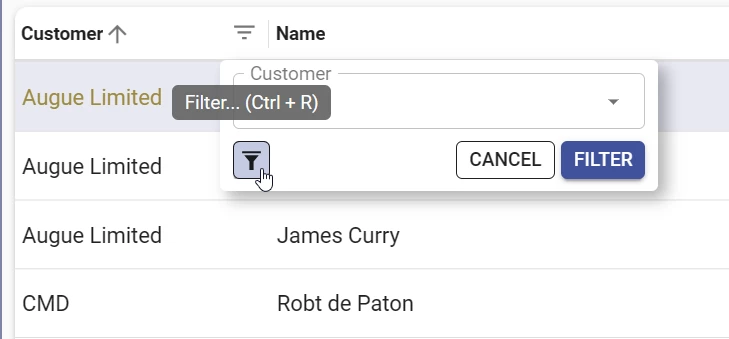
Users can now open the filter pop-up directly from the filter in a column header of a grid.
To open the filter, users can select the filter icon in the column header. This pop-up now contains the following new options:
- Filter icon - Opens the Filter pop-up for the selected column.
- Filter - Applies the filter conditions selected in the pop-up.
- Cancel - Closes the filter pop-up without applying any changes.
As before, clicking anywhere outside of the filter pop-up closes it and applies the selected filter conditions.
Faster date interval filtering in the 'Filter' pop-up
change
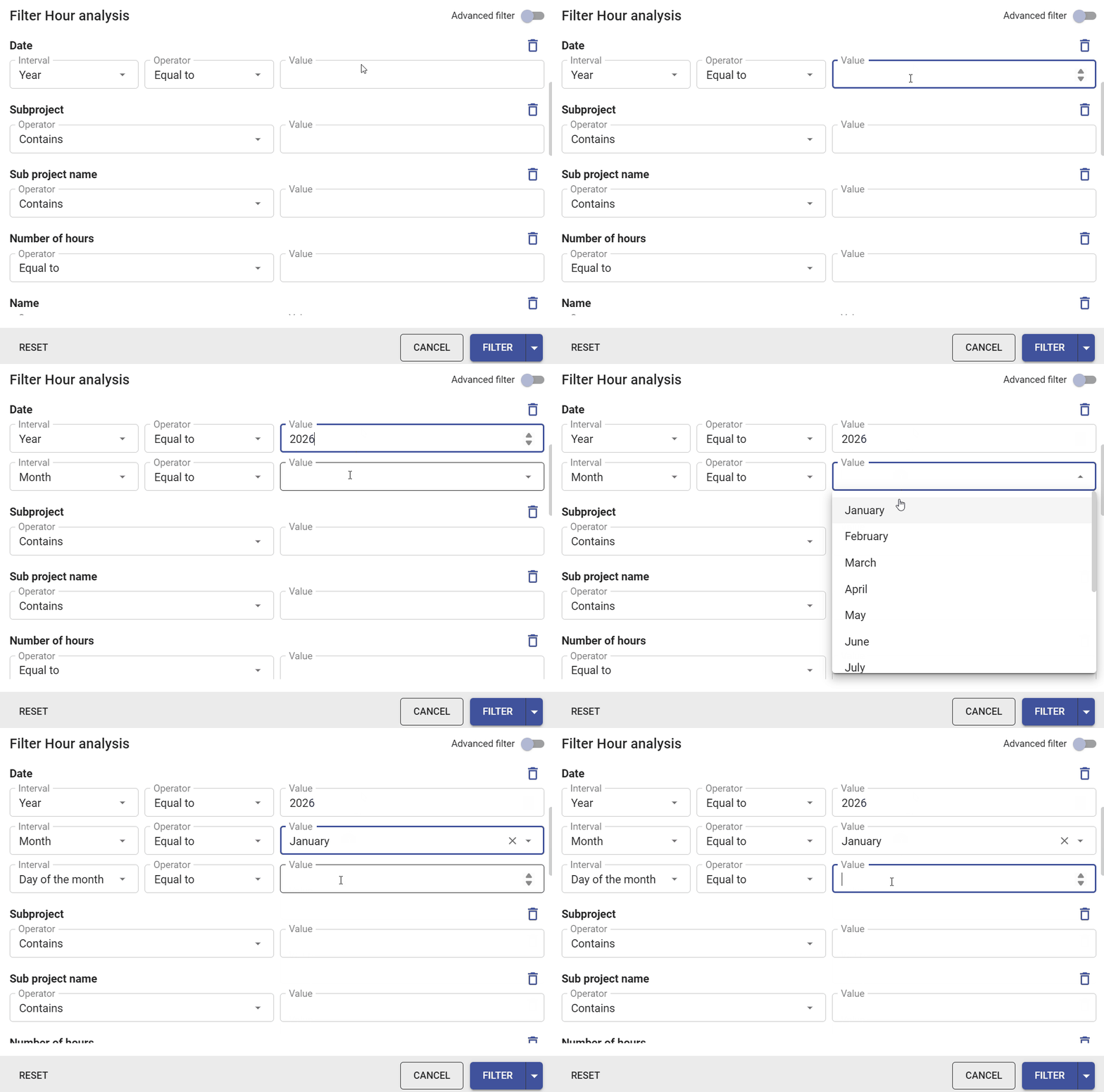
Previously, users who wanted several interval conditions on a date or datetime column had to add the column again for each one, through Add extra field.
Now, a new interval condition appears below as soon as the previous one has a value. This works in both the default and advanced filter pop-up. The next interval type and the same operator are already selected, making it easier to set up a date range. Clearing the value removes the empty condition. In the default filter, the conditions are combined with AND.
Quick search by typing in grids
new
Users can now jump to a row in a grid by typing the first characters of a value, just like in the Windows GUI. This way, they can find rows with the keyboard, without scrolling or opening a filter.
Quick search works in grids, including pop-up grids where users select a value. It is available on desktop when searching is allowed and the grid is not in edit mode. It is not available in trees, card lists, or pivot tables.
To search, users click a cell in the column they want to search and start typing. The grid moves to the next matching row and keeps the same column active. For example, typing 'ams' jumps to the next row with 'Amsterdam' in that column. Capital letters and accents do not matter.
The search starts below the active row and continues from the top after the last row. It only searches the rows loaded on the current page. If nothing matches, the active row stays the same.
Users can keep typing to make their search more specific. After a pause, the next characters start a new search. You can change this pause with the new quickSearchDebounceTime setting in config.json (default 900 milliseconds).
Domain alignment in forms, reports, and tasks
new
Previously, the Alignment setting only affected grids. You can now use the extended property ApplyDomainAlignmentToForms to apply the domain setting Alignment (menu Data > Domains > tab Form) to forms, reports, and tasks. This extended property works for text and numeric fields that are not lookups.
To enable it, set its value to true. Check your screens after enabling this setting to ensure the alignment is configured as expected.
Keyboard navigation in the menu
new
Users can now navigate the sidebar menu with the keyboard, in both the list and tree views. This way, they can find and manage menu items without repeatedly pressing Tab or switching to a mouse.
Available shortcuts:
Alt+M- Focus the Menu search field.Enter- After entering a search term, focus the first matching item. PressEnteragain to activate the item.↑/↓- Move between items. While searching, group headings are skipped. Otherwise, they are included.Ctrl+↑/Ctrl+↓- Move between groups.→- Go to an item action, such as close or favorite.←- Go back to the item.Delete- Close an open document or remove an item from Favorites. The focus moves to an adjacent item or to the Menu search field if no items remain.Esc- Clear the search and return the focus to the Menu search field.
Copying multiple rows from a grid
change
Previously, when a user selected multiple rows in a grid and copied them using Ctrl+C, only the value of the last selected cell was copied.
Now, the full contents of all selected rows are copied to the clipboard. This allows the user to paste the rows directly into Excel, for example. If only one row is selected, the value of the selected cell is copied, as before.
Related changes:
Shift+click in a cell no longer selects the text in that cell. This makes it easier to select multiple rows.- Values in Image combo columns are now copied too. Previously, they were only included in exports.
Improved display of lookup hyperlinks
change
Previously, read-only lookup fields in edit mode showed as a disabled field with a pop-up button. This made it unclear that the field was a lookup and could be interacted with. Now, they show as a lookup hyperlink, the same as outside edit mode. This applies to both the form and the grid.
Focus returns to the original component after editing
change
Previously, when a user edited a record from a non-editable Grid, the focus moved to the Form. After saving or canceling the changes, the focus stayed in the Form. Because of this, the user could not use the arrow keys to move to another row.
Now, after saving or canceling, the focus returns to the component that had focus before editing. The user can continue navigating right away. This works for the Grid, Tree, Card list, and Form.
- If Auto-edit is enabled, the focus stays where it is, because the user never leaves edit mode.
- If only Auto-save is enabled, the focus returns as soon as the user leaves edit mode.
Fixed
Software Factory and Intelligent Application Manager
- Previously, when you aborted a source code execution job in the menu Maintenance > Jobs, only the job itself stopped. The execution in the menu Deployment > Creation > tab Execute source code kept its previous status instead of being set to Aborted. Code files that were running or waiting for your input did not get the status Failed. This has been fixed. Also, when you wait for a source code execution job through the API with
wait_for_jobandshow_msg, a failed code execution is now reported on that job. - When running a complete creation with the error handling for Execute source code set to Ignore, only the first error of each code file was logged. This made it look like only one object had failed to deploy, while more objects could have failed. This has been fixed. All errors are now shown in the Execute source code log.
- For Code search (menu Business logic > Code search):
- A search result could point to the wrong line.
- Searching could fail with a "duplicate values" error.
- Repeating a search could remove it from the Select previous search list, because the cleanup used your first search instead of the last.
- When Show badge was enabled for a subject, but the Badge concept (menu User interface > Subjects > tab Default > tab Settings > tab Performance > group Use concept) was disabled, the system still requested badges. Failed requests caused unnecessary server load and flooded monitoring tools, so other failures were harder to find. This has been fixed for subjects, detail tabs, tasks, and reports, including their variants and tasks and reports on a subject. Badges are now only requested when both settings are enabled.
- Files or images uploaded to a new file storage location with storage type Database were emptied right after a value was provided. Indicium then showed the error
System.Collections.Generic.KeyNotFoundException: The given key '...' was not present in the dictionary.This has been fixed. - After support for manifest schema specification V4 was added to the manifest generation, the Install type in the generated manifest had no path to the Install folder. This has been fixed.
- Some generated rename and copy tasks ran their statements in the wrong order. As a result, a rename task could fail with a foreign key violation. This has been fixed.
- The base model VALIDATIONS gives work models validations that check, for example, whether the default value of a date time column is valid. These validations used the SQL Server function
try_castwith data typeDATETIME. This could fail on some default values thatDATETIMEcannot handle. Now, the validations useDATETIME2.
Indicium
- Percent-encoded characters in a file name could give access to files outside the base path of a file storage location. This affected SFTP and URL-based file storage types. This has been fixed.
- Fixed an issue where the field Table variant could not be emptied. This could occur when, for example, the table variant was removed from an Open document process action (menu Processes > Process flows > tab Process actions).
DB2In applications on DB2, an expression that depended on an identity column with a decimal data type, such asnumeric(5,0), resulted in an error, for example when adding or editing a record. This has been fixed.
Universal UI
For keyboard navigation:
- Since Universal UI version 2026.2.13.0,
Page Up,Page Down,Home, andEnddid not set the active row in a grid.Ctrl+↑andCtrl+↓also had issues setting the active row, and in some cases stopped working after switching pages. This has been fixed. - In a pivot table, entering values quickly and confirming each one with
Entercould cause the focus and the input to get lost. This has been improved. - While typing in a combobox with the dropdown list open,
HomeandEndmoved through the options instead of moving the cursor. This has been fixed in forms and editable grids:HomeandEndmove the cursor to the start or end of the text.Shift+HomeandShift+Endselect the text up to the start or end.- On macOS, use
Fn+←orFn+→instead, and addShiftto select.
- In a grid,
↑and↓sometimes did not move the active row from a checkbox cell. As a result, checkboxes that users toggled withSpacecould be reset to their previous value. This has been fixed.
For filtering:
- In the Filter form, users could change
INfilters on text or numeric fields while editing a record. Removing a selected value could make the record that was being edited disappear from the grid. Filters now become read-only while a record is in edit mode. After saving or canceling, users can change them again. - In the Filter pop-up, the
INandNOT INoperators did not work with date intervals. With Year, Week, or Day, the operator was selected, but an empty pill was shown as a Value. With Quarter, Month, or Day of week, an error occurred. This has been fixed. - When a search in a grid returned no results, switching to another document and back hid the filter icon in the column header. The filter itself stayed active. This has been fixed.
- When a grid was filtered on an interval, such as a date grouped by year, executing an action such as a task on All rows could affect rows outside the filter. Now, the option All rows is disabled for this case.
For local date and time handling:
-
DATETIME and TIME values are stored in UTC. Datetime and time columns who have the underlying domain set to Local show these values in the user's local time zone. When users entered a filter value on such a column, the value was sent to the server without conversion to UTC. For users outside the UTC time zone, this returned wrong or missing rows. This has been fixed.
- Filter values are now converted from the user's local time zone to UTC. This applies to the filter pop-up, the Filter form, and the filter in a column header.
- Prefilters on these columns are also converted to UTC. Existing prefilters keep working.
-
Conditional layouts on these columns had the same issue. Now, they use the same local time as the displayed value.
-
Date intervals in the filter pop-up, such as Year or Month, are still evaluated in UTC. The column label now shows (UTC). Date grouping in cube views also stays in UTC.
-
In the Import wizard, these columns now show (UTC) in the column matching step. A warning shows that data from CSV, Excel, or the clipboard must be in UTC.
Users with a default time zone (Etc/UTC) are not affected.
-
The history of a template or control procedure (
Ctrl+H) showed no code when the user's time zone differed from the server's. This happened in the Functionality screen (menu Business logic > Functionality). This has been fixed.
For pivot tables and cube views:
- When a process flow opened a detail screen with a pivot table as a pop-up, drilling down into a cell showed the wrong records. Instead of only the records behind that cell for the parent record, it showed all records in the table with the same row and column values. With large tables, this could return far too much data and slow down the database server for other users. This has been fixed.
- In a pivot table, selecting a row label, such as an employee, and then starting a task or report opened it with empty parameters. This has been fixed.
- Charts with date intervals, such as year, quarter, or month, requested every level, including those collapsed by default. With large data sets, this caused performance issues and slowed down loading. Charts now request only the levels shown.
- A chart on a cube view failed when a dimension was sorted by a field that the chart did not request. Now, that dimension is sorted by its own values.
- The Export pivot action was not available for cube views whose first row dimension is collapsed by default, or after Collapse all. Now, the action is shown whenever the pivot table contains rows.
For focus:
-
In some cases, switching rows in a default editable detail grid moved the focus to the parent grid or lost it compl- In forms and grids (editable, or with Auto-edit enabled), clicking a read-only cell in a record other than the active one moved the focus to the first editable field. Now, the column of the clicked cell stays active, so the filter pop-up also opens with the focus on that column. etely. This has been fixed.
-
When users switched between component tab pages, the search in the action bar kept taking the focus. This has been fixed.
-
Previously, when a document opened with a form as its top-left component, the focus sometimes went to the second field of the form. This happened when the first field had a barcode scanner or lookup control. This has been fixed.
For maps:
- When a user selected another row, the marker's pop-up on the map no longer opened automatically. This has been fixed.
- The Maps component turned partially gray after switching component tab pages and back, opening a document and back, or moving a splitter. This has been fixed.
Other fixes:
- After reordering rows by drag-and-drop in a nested detail grid, the grid kept showing the old order until the data was reloaded. Users could think the reorder had failed, even though the new order was saved. Now, the grid shows the new order immediately.
- In edit mode, a HTML control would not load HTML that contained an
<img>tag without image data, such as<img src="data:image/png;base64,">. This has been fixed. - Added Clear and Today translations to the calendar of a Date control. You can change the translations by changing the translation objects
clearanddate_today. - A modal document with a hidden footer showed extra empty space at the bottom. This happened if Hide breadcrumb was enabled for its screen type. This has been fixed.
- On screens with nested tabs, adding a record sometimes did not open the tab with the form. Because the other tabs are disabled while adding, users could get stuck. This has been fixed.
- When users imported data from the clipboard (overflow menu > Import > Use clipboard as data source) with Date format or Number format set to Based on browser, the import failed. This has been fixed.
- Uploading a file or image in a default editable screen sometimes did not work correctly. This has been fixed.
- When a task sent a progress update with
tsf_send_progressbefore its progress dialog opened, the first message and percentage were missing. Users did not see that update, even though the task kept running. This has been fixed.
Data model changes
Data model changes for the Software Factory and IAM meta-models are listed here. This overview can be used as a reference to fix dynamic control procedures, dynamic model code or custom validations after an upgrade.
Table changes in the Software Factory
| SF - From table | SF - To table |
|---|---|
| - | model_vrs_clean_up |
Column changes in the Software Factory
| SF - Table | SF - From column | SF - To column | Mandatory | Default value |
|---|---|---|---|---|
| execute_source_code | job_id | connect_to_db_job_id | 1 | - |
| execute_source_code_log | job_id | connect_to_db_job_id | 1 | - |
| execute_source_code_step | job_id | connect_to_db_job_id | 1 | - |
| execute_source_code_step_log | job_id | connect_to_db_job_id | 1 | - |
| sf_configuration | - | model_vrs_retention | 1 | -1 |
| usr | - | exempt_from_exclusive_access | 1 | 0 |
Table changes in the Intelligent Application Manager
No changes in this release.
Column changes in the Intelligent Application Manager
| IAM - Table | IAM - From column | IAM - To column | Mandatory | Default value |
|---|---|---|---|---|
| appl_db_deployment_run_log | message | deployment_run_msg | 1 | - |
Questions or suggestions?
Questions or suggestions about the release notes? Let us know in the Thinkwise Community!.