


Hi everyone,
This release expands AI capabilities, broadens DB2 support, and brings meaningful improvements to modeling, deployment, and the user interface. Note that the SignalR message format has been updated, which requires Indicium and the Universal UI to be upgraded to the same version.
The Software Factory now supports AI-powered conversion of model code between database types, speeding up the process of adding a new database type to an existing model. This builds on the multi-RDBMS support introduced in Thinkwise Platform 2026.2.
DB2 support continues to expand, with temporal tables, smoke tests, and error handling for handlers, subroutines, and procedures now supported.
For file management, you can now store file references relative to the storage root, making it easier to relocate files. Several other quality-of-life improvements have been made, including error details on database connection failure, improvements to the Model Insight panel and overlay, and updated translations and messages for pop-ups.
In the Intelligent Application Manager, administrators can now configure a maintenance pool user and check database status, allowing for better database server management.
Indicium now offers a MCP endpoint, allowing MCP clients to connect to your Thinkwise application and perform read, write, and task operations with lookup resolution and translated error messages. Note that this is a beta version, and some features are not yet supported.
Several improvements have been made to the user interface, including inline editing in HTML columns in grids, offline-available images and files, and subtitles for open document tabs. Help pop-ups are now supported in the Universal UI, allowing you to provide additional information to users
This is a short-term support (STS) release of the Thinkwise Platform. STS release support expires as soon as a new release is made available. For example, support for version 2026.1.12 ends when version 2026.1.13 is released. See our Lifecycle policy for information about supported versions.
Contents
Before you upgrade
- Features for the Software Factory and the Intelligent Application Manager are only compatible with this STS version of the Thinkwise Platform.
- Indicium and Universal UI features are backwards compatible with previous Thinkwise Platform versions, unless otherwise noted.
Demo and download
Updated Next.js from 16.2.6 to 16.2.11
change Universal UI
We have updated the Next.js framework from version 16.2.6 to 16.2.11 to fix several security vulnerabilities. The vulnerabilities are present in the server-side functionality of Next.js, which we do not use. Therefore, these vulnerabilities did not affect the security of the Thinkwise Platform.
Breaking
Updated SignalR progress message format
Indicium Universal UI
The format of SignalR progress messages sent by Indicium has been updated to follow the new SignalR message structure. The Universal UI has been updated to handle this new format. This change only affects the underlying communication between Indicium and Universal UI and does not produce any visible changes in the interface.
When upgrading the Universal UI to this version, Indicium must also be upgraded. If the versions do not match, tasks and mass updates will not work as expected.
New and changed
Models - Finalized branches set to read-only
change Community idea Software Factory
You can choose from several merge strategies when merging a branch in the Software Factory. If you select Finalize branch, cannot be merged again, the branch would not be able to be merged again, but it could still be modified by users in the Software Factory. The finalized branch is now set to read-only for all users in the Software Factory. This prevents any further development or accidental changes on the branch.
Models - AI-powered conversion of model code between database types
new Software Factory
You can now convert model code and queries from one database type to another using generative AI. This speeds up adding a new database type to an existing model, building on the multi RDBMS support released in Thinkwise Platform 2026.2. These tasks become available when you have added two or more database types to your model.
You must set up an AI provider in the Intelligent Application Manager to use generative AI for code conversion. For more information, see Generative AI for an application.
Conversion is currently supported for SQL Server to DB2 for i. Conversions between other database types are experimental and may not produce the expected results. Always verify the converted code before using it in production or continuing development, as AI can make mistakes even for supported database type combinations.
You can convert code in a single template or for all code in a model at once.
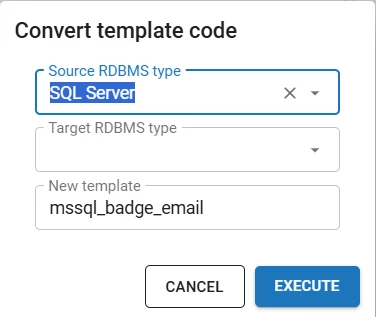
To convert a single template, execute the task Convert template code (menu Business Logic > Functionality > Templates). Provide a source and target database type and a name for the new template. After conversion, assign the new template to program objects manually. For more information, see Assign the template.
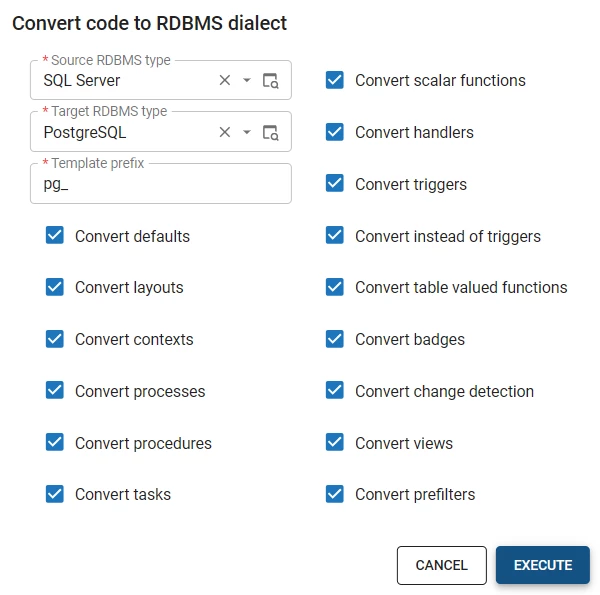
To convert all code in a model at once, execute the task Convert code to RDBMS dialect (menu Models > Model overview > Branches > tab General settings > tab RDBMS types). In the task pop-up, select a Source RDBMS type and Target RDBMS type. Then, choose which logic concepts to convert by selecting the relevant checkboxes.
The conversion runs as a mass conversion enrichment in the background. You can review the generated code while the task is running. Verify the generated code before using it in production or continuing development, as the code is AI-generated and may contain mistakes.
The task runs only once per target database type to avoid conflicts from repeated conversions. To run it again for the same target, remove the tags it added to converted control procedures (for example, AUTO_CONVERTED_TO_ISERIES for DB2 or AUTO_CONVERTED_TO_SQLSERVER for SQL Server). For more control over individual results, use the task Convert template code instead.
For each logic concept, the conversion produces the following output:
- Prefilters get new query entries for the target database type.
- Control procedures get a new template for the target type. The template is assigned to the corresponding program objects where possible, and the control procedure is moved to review.
Lastly, the enrichment Mass convert the code from a source RDBMS type to a target RDBMS type is now also available in the menu Enrichments > Model enrichments.
Data - Support for temporal tables in DB2
new Software Factory DB2
You can now enable system versioning for DB2 tables, extending a feature previously available only for SQL Server. System versioning automatically tracks the history of data changes, making it easier to audit changes, ensure compliance, and recover previous data.
- DB2 does not have a Retention period.
- To use temporal tables in DB2, the pool user executing the upgrade script must have authorization for the
QIBM_DB_GENCOL_OVERRIDEfunction in DB2. For more information, see Overriding system generation column values in the IBM documentation.
To set up system versioning for a DB2 table, select the checkbox System versioning in menu Data > Data model > tab Tables > tab Form.
Data - Domain element database value now supports 100 characters
change Software Factory
Previously, domain element database values were limited to 25 characters. You can now enter up to 100 characters, the same length as the element ID. This allows for the database value to match the element ID exactly, if desired.
User interface - Add subtitles to open documents
new Community idea Software Factory Universal UI
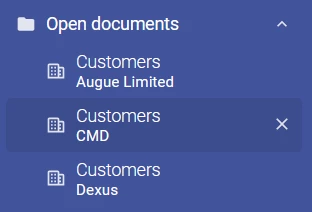
Previously, open document tabs in the sidebar menu only displayed the document title, making it difficult to distinguish between multiple open instances of the same document.
You can now add subtitles for open document tabs to show the active record context. To do this, enable Show subtitles for the menu in the Software Factory (menu User interface > Menus > tab Form > group Settings).
Enabling subtitles shows the value of the active record for that document under the document title. For example, if three 'Customers' tabs are open, the subtitle shows the name of the selected customer for each tab.
The subtitle is determined in the following order of precedence:
- The value of the lookup display column configured for that subject.
- The value of the last primary key column of that subject.
- If you are adding a new row, the subtitle shows 'new row'.
If none of this data is available, no subtitle is shown. If a subtitle is too long to fit, it is truncated with an ellipsis (...).
User interface - Support for help pop-ups in the Universal UI
new Software Factory Universal UI
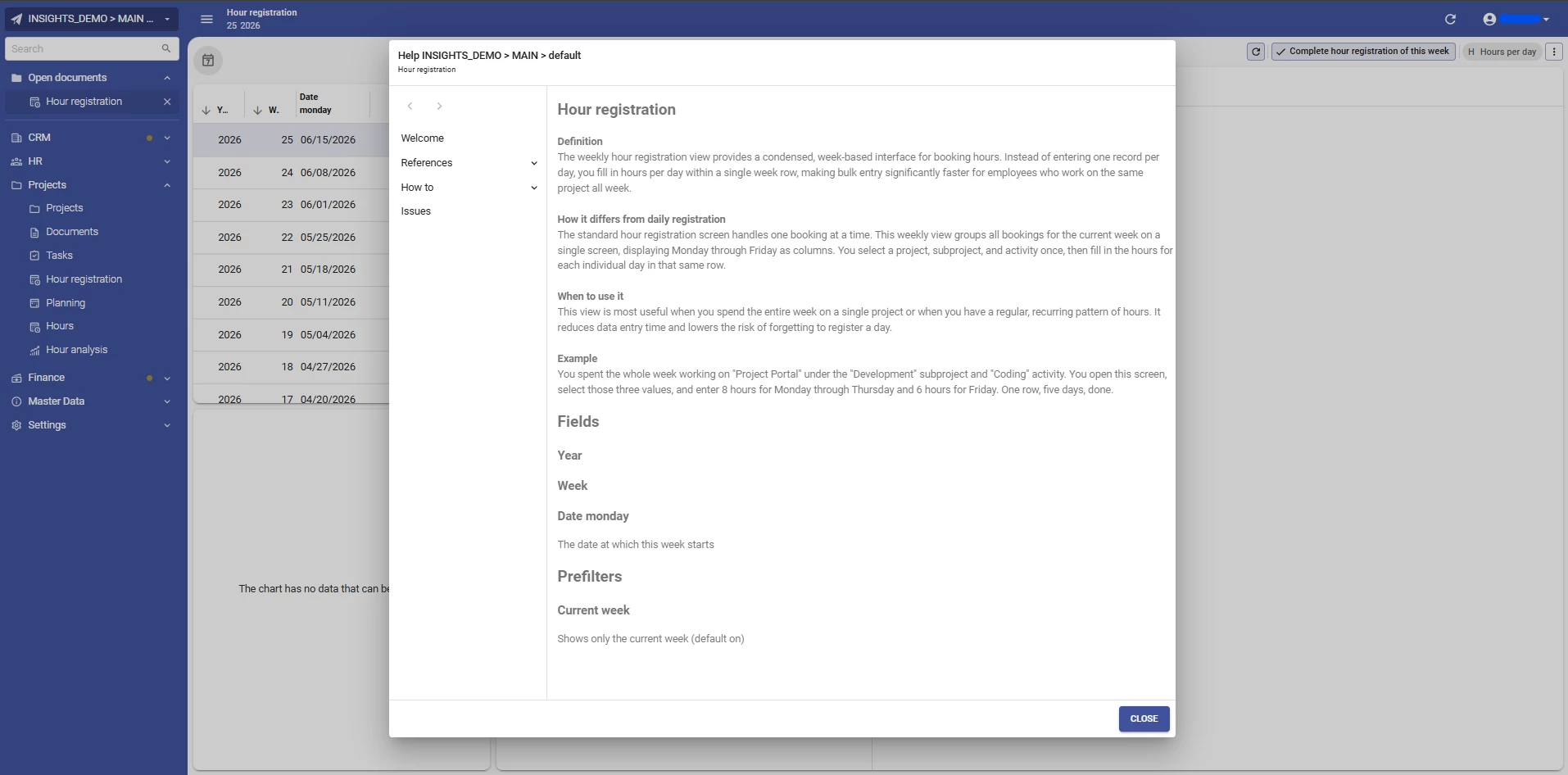
The Help pop-up is now supported in the Universal UI, allowing you to provide additional information or guidance for users. Users can open the Help pop-up by selecting it from the profile menu or by pressing Alt + F1. The Help pop-up displays the help text for the open document. If no document is open, the general help pages are shown instead.
To add help text, you have to add at least one page of text in the Software Factory (menu User interface > Help). For more information, see Help.
Business logic - Error handling for DB2 handlers, subroutines, and procedures
change Software Factory DB2
Error handling is now available for DB2 handlers, subroutines, and procedures. As a result, tsf_send_message is now included consistently.
Quality - Smoke tests now supported for DB2
new Software Factory DB2
Smoke tests (menu Quality > Smoke tests) are now supported for DB2 models, in addition to SQL Server, Oracle, and PostgreSQL.
Deployment - Error details on database connection failure
new Software Factory
An error message is now displayed in a pop-up if the Software Factory fails to connect to the database during the creation step Execute source code (menu Deployment > Creation > tab Execute source code). Previously, the log appeared empty with no indication of what went wrong. The same issue occurred when generating a SQL control procedure, and no program objects were successfully generated.
Enrichment - Re-generate model updates for enrichment runs
change Software Factory
Previously, once you generated model updates for an enrichment run, you could not run the enrichment again. To make any changes, you had to cancel the enrichment run and start over.
You can now regenerate model updates as many times as needed and edit the parameters at any point. Once you update the parameters and execute the task Execute model updates, a pop-up is displayed with the following options:
- Cancel - Stop the execution and continue editing the parameters, or cancel the enrichment run entirely.
- Regenerate model updates - Discard the existing model updates and generate new ones based on the updated parameters.
- Continue - Execute the existing model updates as-is. To also get model updates based on the updated parameters, run Generate model updates manually afterward.
The task Cancel enrichment run is now also available on the tab Run enrichment. After canceling, you are returned to the tab Select enrichment automatically.

Integration & AI - Use relative paths for file references
new Software Factory Intelligent Application Manager
You can now store file references relative to the root of a file storage location, instead of storing the full path. Changing where files are stored is now easier, as you no longer need to update all existing file references when the storage root changes.
You can use relative paths for all File storage types, except for Database.
To enable relative paths, select the checkbox Use storage-relative paths:
- In the Software Factory, this setting is available in:
- menu Integration and AI > File storage locations > tab Form
- menu Maintenance > Runtime configurations > tab File storage locations
- In the Intelligent Application Manager (IAM), this setting is available in:
- menu Authorization > Applications > tab General settings > tab File storage locations
New file storage locations use relative paths by default. Existing file storage locations continue to use absolute paths by default, so this does not affect existing file references.
Enabling Use storage-relative paths on an existing file storage location does not convert existing file references. To migrate to relative paths, you must manually update the file references stored in your database.
This setting is also applied to process actions that work with file references (menu Processes > Process flows > tab Process actions > tab Input).
Processes - Software Factory now adheres to the extended property 'AllowProcessFlowsInLookupDialogs'
change Software Factory
The extended property AllowProcessFlowsInLookupDialogs controls whether process flows can be started from lookup pop-ups.
The Software Factory now adheres to this extended property. This allows process flows in the Software Factory to be started from lookup pop-ups, such as downloading an icon from the Icon screen.
Settings - Improved database server management
new Intelligent Application Manager main administrator application administrator
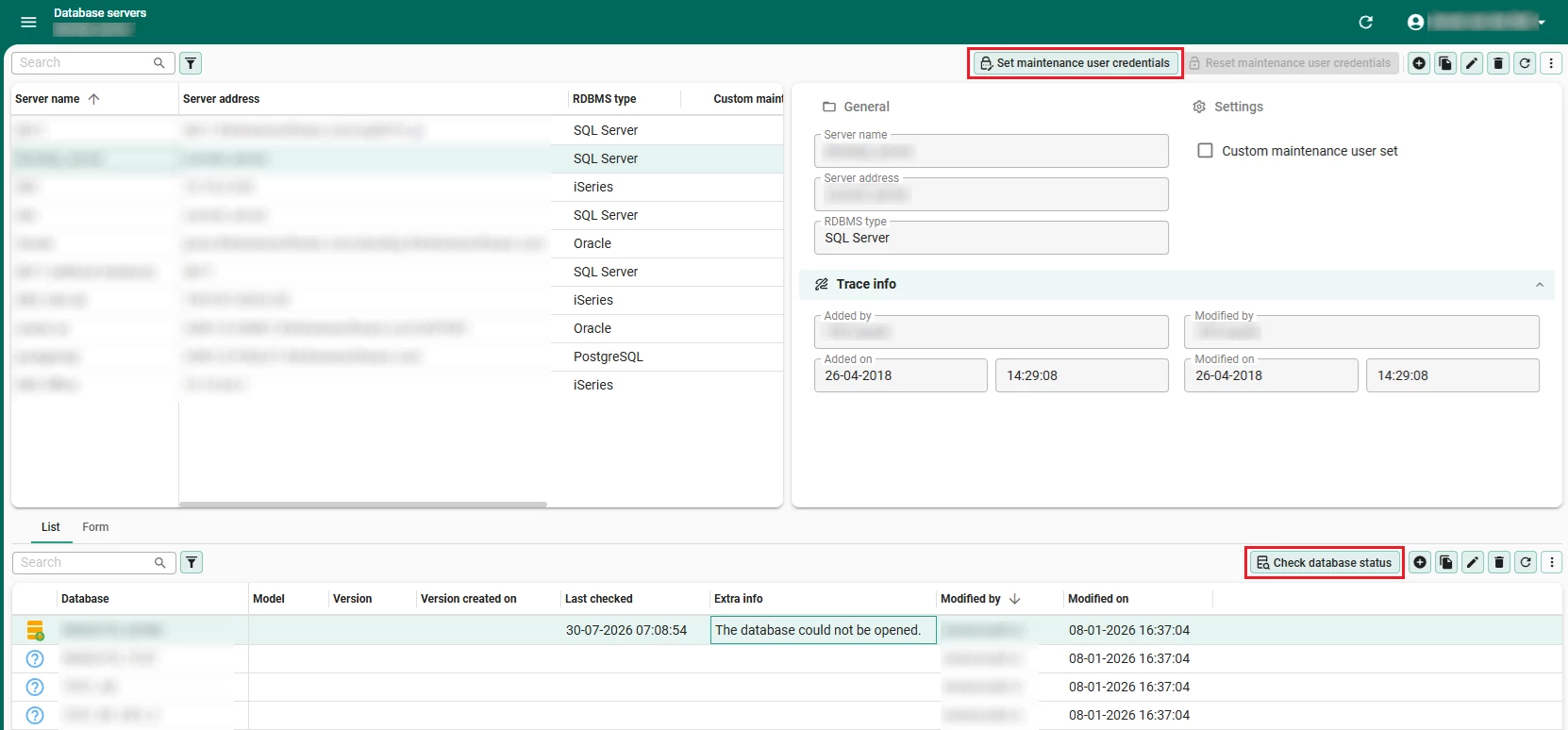
You can now configure a maintenance pool user per database server. This is useful for administrative tasks, such as database provisioning, installation, and upgrades.
Execute the task Set maintenance user credentials (menu Settings > Database servers) and enter the credentials for the maintenance pool user. If a maintenance user is set, the checkbox Custom maintenance user set is enabled.
As part of this update, the menu item Servers has been moved from Advanced menu > Master data to Default menu > Settings. The screen has been renamed to Database servers to better reflect its purpose.
Furthermore, main administrators and application administrators can now retrieve the status of the database by executing the task Check database status (menu Settings > Database servers > tab List/Form). A column has been added in the tab List to show the database status for each server.
The following statuses are available:
- Ok - The database is reachable and contains a valid model.
- Ready to provision - The database server is reachable, but the database/schema does not yet exist.
- Ready to install - The database is present and accessible, but assumed empty; there is no model information stored in the database.
- Unreachable - The database or database server is not accessible for use by the Thinkwise Platform.
- Unverified - No check has been done yet.
The model, named version, and creation date and time are only shown for databases that were installed or upgraded using Thinkwise Platform version 2023.1 or later.
MCP support added in Indicium
new Indicium
You can now connect MCP clients to your Thinkwise application using the /mcp endpoint in Indicium. MCP clients can authenticate using OAuth (via Client Applications with delegated roles) or PAT authentication, depending on what the client supports.
The following operations are supported:
- Reading data, including filtering, sorting, grouping, and aggregating.
- Inserting and updating data, including resolving lookups by their display value, applying default and layout logic, and returning translated error messages so the client can correct mistakes.
- Deleting data.
- Executing tasks — both unbound tasks and tasks bound to a specific record — with the same lookup resolution, layout logic, and error message support as data operations.
The following is not yet supported:
- Uploading and downloading files.
- Reports.
- Process flows that include non-system actions. Process flows that start with a task, add row, update row, or delete row action, and then continue with only system actions work fine.
- Import and other bulk operations.
We are releasing this as a beta version and look forward to hearing about your experiences as we continue to improve performance, reduce token usage, and add more capabilities.
You can read more about MCP in our blog posts here:
Increased timeout for i-net Clear Reports
change Indicium
Previously, report generation using i-net Clear Reports would time out after 100 seconds. The timeout has been increased to 5 minutes, allowing reports that take longer to generate to complete successfully.
'ClearLocalCacheOnStartup' removed from Indicium
change Indicium
The setting ClearLocalCacheOnStartup has been removed from the Indicium configuration.
Previously, this setting controlled whether Indicium cleared its local file cache on startup. It was introduced to prevent multiple Indicium instances from deleting files that other instances still needed, which could cause issues in scaled deployments. An earlier release resolved those issues, making the setting unnecessary.
Indicium now always clears the local file cache on startup. If your configuration includes ClearLocalCacheOnStartup in the FileCache section, you can remove it as Indicium no longer recognizes this setting.
Migration warning for classic data security settings
new Indicium
You now receive a warning if your application is still using the deprecated DataProtectionSettings configuration in Indicium. The warning includes a link to the documentation to help you migrate to the new DataSecuritySettings configuration introduced in Thinkwise Platform 2026.1.12. DataProtectionSettings configuration will be removed in a future release.
Offline available images and files
new Universal UI
Users can now view images and files in offline-available subjects.
When an offline subject loads, Universal UI saves the images and files to the browser's cache storage on the device. Images in grids, forms, card lists, and the preview panel are served from that cache. This allows them to remain visible even when the internet connection drops.
This applies automatically to any subject marked as offline-available in the Software Factory. No additional configuration is needed.
Ensure that users check their browser settings to prevent the cache from being cleared automatically when the browser is closed. Clearing the cache removes offline-saved images and files, making them unavailable without an internet connection.
Support for input parameter 'Filter record when not found'
new Universal UI
The input parameter Filter record when not found for the process action Go to row is now supported in the Universal UI.
By default, if active filters prevent the process action Go to row from locating a row, the process flow is aborted. If the input parameter Filter record when not found is assigned, the Universal UI first attempts to find the row through searching. If the row cannot be found that way, it removes the active filter and filters for the row instead. This allows the process flow to continue as long as the row exists in the dataset.
Support for IN filter operator in the Filter form
new Universal UI
You can now use the IN filter operator in the Filter form to filter a column by selecting multiple exact values at once. Previously, the filter field was disabled and read-only whenever the IN filter operator was active on a column.
When the IN filter operator is active, a list appears in the Filter form, allowing users to select as many values as needed. This works together with other filtering methods, such as the column header filter and the Filter pop-up.
You can configure the default Filter condition per subject in the Software Factory. For more information, see Add columns to Filter.
Improved 'Model insight' panel and overlay
change Universal UI
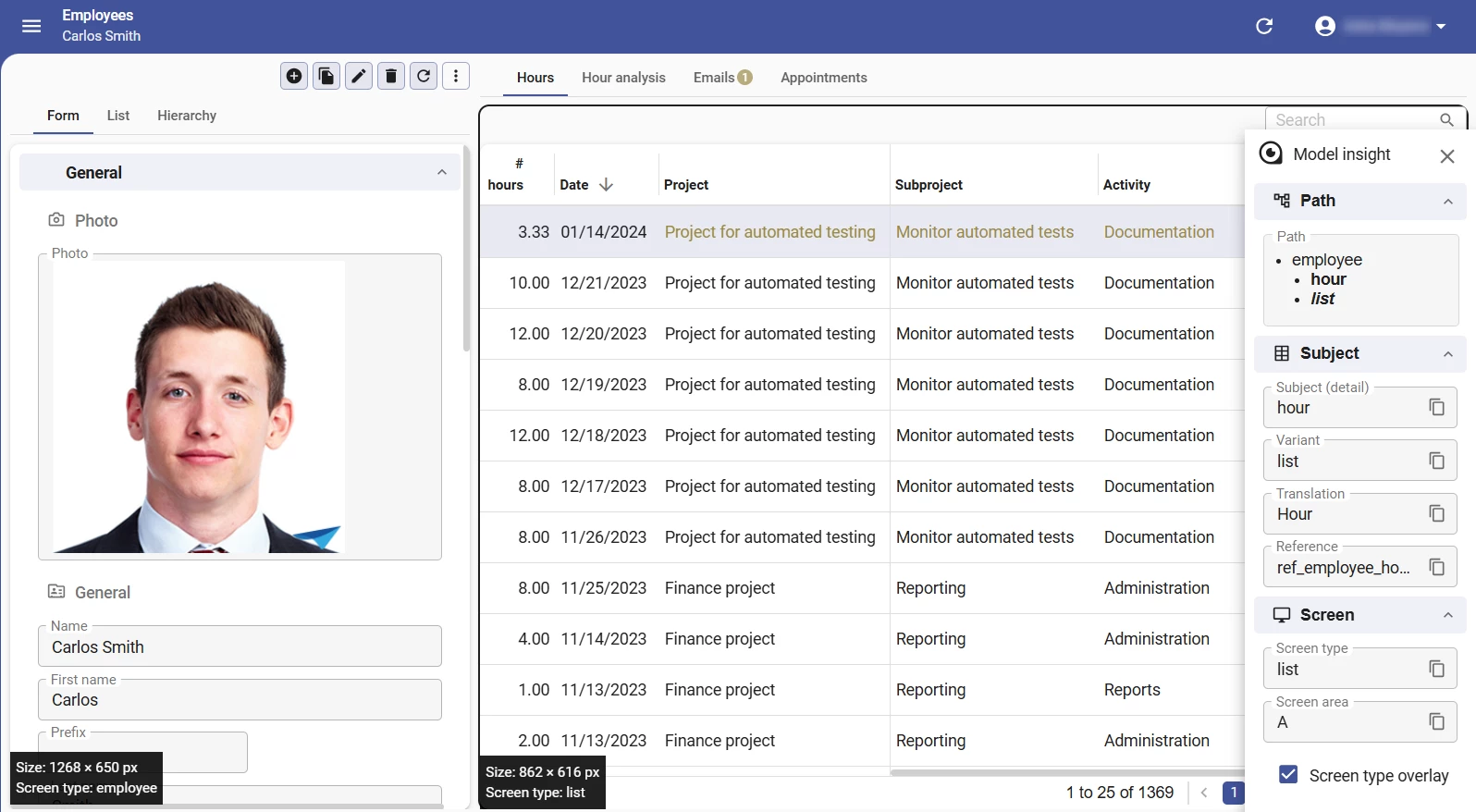
The Model Insight panel and the Screen type overlay have been improved, allowing for better navigation and understanding of the screen hierarchy.
The Model insight panel now has collapsible sections, including a new Path section. The Path section shows the screen hierarchy for the selected subject, including entity IDs and optional configuration IDs. The panel's layout and scrolling behavior have also been improved.
Additionally, when the Screen type overlay is enabled, hovering over a screen component's label now displays a border around the corresponding component. If multiple overlays overlap, they no longer cover each other, making all information readable at the same time.
Updated translations and messages for pop-ups
change Community idea Universal UI
Pop-up button labels and messages for deleting records or cancelling changes in the Universal UI have been updated. Previously, buttons were labeled 'Yes' and 'No' and contained a generic message.
To improve clarity, the following changes have been made:
-
When deleting a record, the pop-up now shows the name of the record that is about to be deleted. The buttons are now labeled 'Delete' and 'Cancel'.
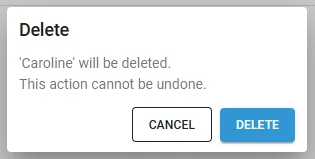
Pop-up when deleting a single record -
When deleting multiple records, the pop-up now shows the number of records that are about to be deleted. The buttons are now labeled 'Delete' and 'Cancel'.
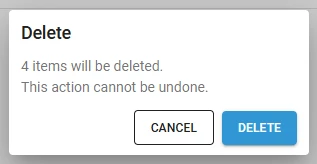
Pop-up when deleting multiple records -
When cancelling changes, the pop-up now mentions that unsaved changes will be lost. The buttons are now labeled 'Keep editing' and 'Discard changes'.
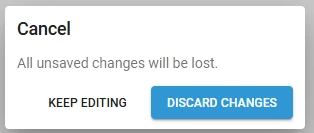
Pop-up when cancelling changes
Inline editing for HTML columns in grids
new Universal UI
You can now edit HTML columns directly within grid cells, without opening a separate pop-up. This makes editing faster and more consistent with other column types.
When a cell enters edit mode, the HTML toolbar is hidden. A pop-up button is always shown to open the full editor with a toolbar, regardless of the Show action button setting configured for that column. When the cell is not being edited, it continues to display as read-only.
Filter pop-up available in cube panel fields
new Universal UI
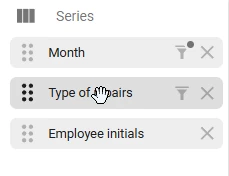
You can directly apply filters to fields using the filter pop-up in the cube panel. Select the filter icon on a field in Categories, Series, or Values to open the standard filter pop-up for that field. If a filter is already active, the filter icon is permanently visible.
The cube panel must be made available, and its screen component added to a screen type for it to be visible in an application.
Additionally, the filter icon only appears for fields where filtering is permitted:
- Visible for filter should not be set to Never (menu User interface > Subjects > tab Default/Variant > tab data > tab Filter)
- Filter permissions should be enabled for the subject (menu User interface > Subjects > tab Default/Variant > tab Settings > group Permissions).
Consistent column widths across pivot grid series
change Universal UI
Previously, resizing a value column in the pivot grid only changed that single column. Now, when you drag the edge of a value column header, all columns representing the same aggregation field across all series resize to match. For example, resizing the Revenue column in one region series also updates Revenue in every other series.
Spacing of paging controls matches application theme
change Universal UI
Paging controls now adapt to the Comfortable or Compact mode set in the application theme. In Comfortable mode, the controls are larger and more spaced out. In Compact mode, they are smaller and more tightly spaced.


Background color fills entire Scheduler resource cell
change Universal UI
Previously, when you added a background color to a Scheduler resource using conditional layout, it would only color the text area of the cell. Now, the background color fills the entire cell.
Fixed
Software Factory and Intelligent Application Manager
- In the detail tab Validation messages (menu Quality > Validations), the correct data was not shown when the prefilter Hide messages was enabled. This has been fixed.
- The validation
Role is not assigned to any objectschecks whether roles in the model have rights (menu Quality > Validation). If a role does not have any rights, the validation informs you about it. This validation was missing checks for several role tables. Because of this, roles that actually contained rights were suggested for cleanup. This has been fixed. - When configuring a tree component, you can link one or more parent columns to a column. The validation
Column cannot have itself as validation columnchecked whether any of the specified parent columns referenced itself. This check was incorrect because the validation should only fail when all specified parent columns reference themselves. We have updated the validation logic accordingly and renamed the validation to All tree parent columns reference themselves. - When the prefilter column subject shrinks, it displays a card list. Previously, this card list did not show any data. This has been fixed. It now shows Column, Filter condition, Filter value, and Filter value until.
- Due to the use of a new table variant, the process flow that selects the active model when you open the Model overview in the Software Factory did not trigger (menu Models > Model overview). The process action now uses the correct variant and selects the active model.
- In the Difference analysis result screen (menu Models > Difference analysis), no detail references to the source and target data were shown. This made it impossible to determine the differences. This has been fixed.
- Writing code files to a storage location may have a different destination in case a Model version name is set in the task Execute all creation steps. However, the cleaning step before writing code files to the storage location did not properly use this name, causing it to clean the folder with the branch name instead of the folder with the model version name. This has been fixed.
- The Software Factory offers a set of validations to ensure the _query tables have a value when needed. However, these validations would only return a result for multi-RDBMS models. This has been changed so they also validate single-RDBMS type models.
- Three query-references were missing ON DELETE CASCADE, causing a deletion of the parent record to be blocked by the existence of a query record. Whilst normally we do want to prevent such deletion, in these cases, the deletion is permitted. Now, you can remove Check constraints, Data sets, and Mock data columns and have the query data removed automatically.
- Granting a user log access would give the user more rights than they were supposed to have, such as access to the IAM application. This has been fixed.
- Due to an inefficient Where clause, the Cube view filter node interface view could inspect a larger dataset of Cube field rights for Custom cube views than needed. This has been optimized.
Indicium
- Previously, the process action Generate report did not work correctly with report parameters that had Property as an input parameter. For example, when Property was set to Report file (non-file storage), it was ignored and you could not override the path. This has been fixed.
- In rare cases, the process flow connector HTTP connector could enter a corrupted state. When this happened, the following was logged to the Indicium error log: "Operations that change non-concurrent collections must have exclusive access". The result of the HTTP connector could then not be read, and the connector returned status code
-1. To return to a valid state, you had to restart Indicium. This has been fixed. - When a user double-clicked Submit on the two-factor authentication (2FA) login screen or the authenticator reset screen, an error could occur. This has been fixed.
DB2For DB2 databases, the Ends with filter condition could fail on fixed-length character columns, such asCHAR. This occurred because fixed-length types can include trailing padding characters that interfered with the condition. This has been fixed. Indicium now appliesRTRIMwhen needed, so trailing padding does not affect the results.- Prefilter conditions using the Not between operator mistakenly excluded NULL values from the results. For example, for
my_column not between 1 and 3, NULL values should be included in the results because NULL is not between 1 and 3. This has been fixed.
Universal UI
- In a default editable grid, switching to a different record under certain circumstances did not make the selected record editable. Under these same circumstances, the
Ctrl+Ashortcut also did not select all records in the grid. Both issues are now fixed. - When the grid summary row triggered an error, the error was returned in an unexpected format, which caused the client to stop working. This has been fixed.
- When you had scrolled down in a form and then selected Edit, the form scrolled back up. This has been fixed.
- When Edit in grid (but not Auto-edit) and Auto save were enabled and the screen type also contained a form, the grid did not respond to auto save when the Universal UI had not yet loaded the form. As a result, after a user changed a value directly in the grid, they could not navigate to another row without first selecting Save. This has been fixed. From Software Factory version 2026.2.12, an
auto_saveflag is available directly on the tab definition, so a form is no longer required to determine the auto-save context for a screen. Users can now change a value in the grid and navigate to another row without selecting Save first. - In a subject with a Date column as its primary key, the active row selection was lost after a user saved a record, which caused an error. This only affected date columns. Numeric and other primary key types were not affected. This has been fixed. After saving, the application now keeps the saved record selected, the same as for subjects with other primary key types, and no error is shown.
- When a user typed quickly across multiple form fields on a slow or throttled network connection (for example, Slow 3G), typed input could be lost without any message. In one situation, a field briefly reverted to the old value while the change was still being saved. In another, characters typed while a change was still being saved were discarded. This has been fixed. A field no longer reverts to the old value while a change is being saved, and characters typed during that time are now kept. This applies to editable form fields that have optimistic updating enabled (text, numeric, and select fields).
- On certain pop-ups, pressing the
Esckey while a field had its drop-down list open had unexpected side effects. In a lookup pop-up or modal document, it cancelled the editing session. In a task or report, it closed the pop-up immediately, and users lost their changes. This has been fixed. TheEsckey now only closes the drop-down list and does nothing else. - When you changed the active record in a subject, a default editable detail of that subject would get one of its fields focused. This could disrupt the keyboard navigation in the focused subject. This has been fixed.
- Hyperlinks in a lookup pop-up would sometimes disappear after you saved an edited record. This has been fixed.
- When the focus was on a multi-select checkbox and a user pressed a key, the application stopped working. This has been fixed.
- The SQL editor and Code editor controls did not scroll into view when
cursor_to_col_idfocused such a field. This has been fixed. - Previously, in the Code editor and Code diff editor controls, comments and string literals were hard to read in dark mode because of the colors used. This has been improved.
- Selecting a value in a Combo control could mismatch the selected option when the database value of the option was a floating-point number that ended with zeros. This could occur, for example, in the Software Factory when you changed the Branch increment field (menu Maintenance > Configuration). This has been fixed.
- A process flow could stop responding when a Go to row action used the Context logic concept to hide the active detail tab and show another tab. This has been fixed.
- During record navigation in a process flow, the output parameters were not filled with the values of the new active record. This occurred only with the process flow actions Go to row, Go to first row, and Go to last row. As a result, the rest of the process flow could make incorrect assumptions about which record the user was on. This has been fixed. The Universal UI now first switches to the correct record and then informs the process flow about the change.
- If a process flow contained the action Start table task/report that triggered a task or report variant, the non-variant was executed and shown to the user instead. This has been fixed. The user interface now detects whether a variant is attached to the target subject and starts the correct instance. No extra task is shown on the subject after execution.
- When you moved between open documents, a pivot table in a cube view reloaded very slowly, line by line, on return. This has been fixed.
- Previously, when setting up conditional formatting for Scheduler time cells (menu User Interface > Schedulers > tab Default > tab Scheduler views > tab Cell colors) based on datetime values, you could not use the condition Equal to in combination with the Type of value set to Column. This has been fixed.
- For a hierarchical tree menu without extra group columns, a conditional layout applied to the tree Display column did not show. This has been fixed.
- In a hierarchical tree, double-clicking a row did not trigger a task that had Double click on record set (menu User Interface > Subjects > tab Default > tab Links > tab Tasks). This has been fixed.
- Model Insight would already show task and report information when you hovered over a task button, for example. However, the information was cleared too often if you moved the mouse from the target to the Model Insight panel, for example, when you tried to copy the task ID. This could also happen when you hovered over a tooltip, which caused flickering. These issues had one underlying cause, which has been fixed.
- In rare cases, a user could briefly see the wrong data. This happened if the user had offline task data that was not yet synchronized, waited until their login expired, and then logged in as a different user. This has been fixed. Now, when offline data still needs to be synchronized, and a user logs in with a different account, the Universal GUI shows a pop-up. The only option is to log off, with the instruction to log back in with the correct account.
- Fixed an issue where switching between menu types or applications would reopen start objects.
Data model changes
Data model changes for the Software Factory and IAM meta-models are listed here. This overview can be used as a reference to fix dynamic control procedures, dynamic model code, or custom validations after an upgrade.
Changes Software Factory
Table changes
No changes in this release.
Column changes
| SF - Table | SF - From column | SF - To column | Mandatory | Default value |
|---|---|---|---|---|
| enrichment_run | - | parmtrs_changed | 1 | 0 |
| menu | - | show_sub_titles | 1 | 1 |
| message_broker_mqtt | will_payload_format | will_payload_format | 0 | 0 |
| screen_component | - | component_action_bar_enabled | 1 | 0 |
Changes Intelligent Application Manager
Table changes
No changes in this release.
Column changes
| IAM - Table | IAM - From column | IAM - To column | Mandatory | Default value |
|---|---|---|---|---|
| appl_db | - | maintenance_gui_appl_id | 0 | - |
| appl_db | - | appl_db_status | 1 | 4 |
| appl_db | - | appl_db_model_id | 0 | - |
| appl_db | - | appl_db_branch_id | 0 | - |
| appl_db | - | branch_date_time | 0 | - |
| appl_db | - | last_checked | 0 | - |
| appl_db | - | extra_info | 0 | - |
| menu | - | show_sub_titles | 1 | 1 |
| screen_type | - | max_width_value | 0 | - |
| screen_type | - | max_height_value | 0 | - |
| screen_type | max_width_value | - | - | - |
| screen_type | max_height_value | - | - | - |
| server | - | encrypted_user_name | 0 | - |
| server | - | encrypted_password | 0 | - |