Completed

Scheduler: Calendar view

Related products:Software FactoryUniversal GUI
  • November 29, 2023
  • 9 replies
  • 286 views

Freddy
Forum|alt.badge.img+16
  • Thinkwise Local Partner Brasil

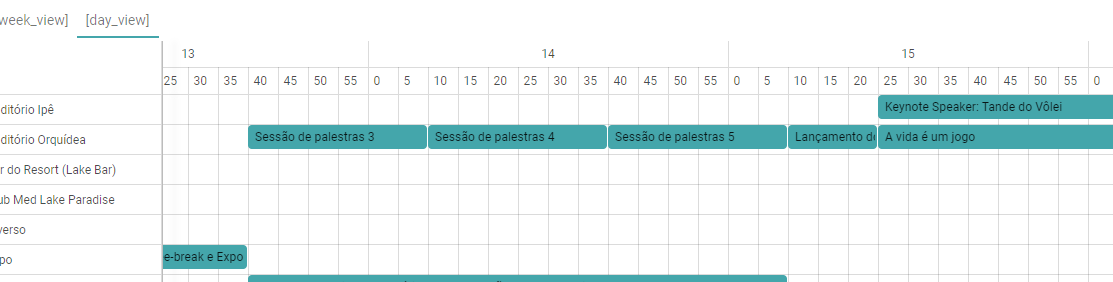
Details of a plan are not every user friendly to see, would be great if we could click on a resource group and see a day calendar view for a day..  Where you have a better overview on the data. 


9 replies

Freddy
Forum|alt.badge.img+16
  • Author
  • Thinkwise Local Partner Brasil
  • November 30, 2023

tiago
Captain
Forum|alt.badge.img+5
  • Captain
  • December 6, 2023

Maybe good to add that we are currently building a event + room planner application which will give us exposure on 5 fairly big events during 2024. The current version was disappointing to the customer. Is there any activity to be expected here?


Jeroen van den Belt
Administrator
Forum|alt.badge.img+10
NewOpen

Forum|alt.badge.img+14

In the Windows GUI we use the calendar view as the default view for time registration. We need the same functionality in Universal.   


Arie V
Community Manager
Forum|alt.badge.img+12
  • Community Manager
  • July 24, 2025
OpenPlanned

Arie V
Community Manager
Forum|alt.badge.img+12
  • Community Manager
  • December 17, 2025

We have extensively discussed if and how we would want to support a Calendar view in the Thinkwise Platform, and we have decided that we DON’T see it as a strong fit to support this with Model settings. A Calendar view is by default typically based on a single resource and is something you have in tools like Outlook already.

Instead of supporting such single-resource scenario’s, we will further extend the capabilities of the Scheduler’s Timeline view. With Release 2026.1 we will support a few more important capabilities:


  • Time cell min width - enter a numeric value to set the minimum width of time cells. This allows you to make the time cells larger for better readability of Activities if needed.
  • Min/Max displayed time - specify the minimum and maximum hour value to hide certain hours. This allows you to hide out-of-office hours for example.
  • Hide Monday/Tuesday/Wednesday/Thursday/Friday/Saturday/Sunday - enable the relevant checkboxes to hide individual days of the week. This option is only available if the checkbox Day is selected in the group Use timescales.

For more details on moving from Windows GUI, extender-based Resource Schedulers to the formalized Scheduler, make sure to read this blog:


With regards to the Calendar view, we do however acknowledge that this was a capability in the Windows GUI > Resource Scheduler extender and that some of our clients use this accordingly. While the concept of extenders is formally outside the scope of our never-legacy promise, we are motivated to make your Transition to the Universal UI a smooth ride. 

Therefore, ​@Remco Kort will soon publish a blog in which he details out how build a Calendar view by utilizing the Custom Components together with the FullCalendar component (which we also use for the formalized Scheduler). His inspiration is drawn from the Use Case that ​@Andre te Raa currently supports with the extender in the Windows GUI.

While this might not be the solution you were hoping for, I do hope it serves your needs!


Arie V
Community Manager
Forum|alt.badge.img+12
  • Community Manager
  • December 17, 2025
PlannedWorking on it!

Remco Kort
Administrator
Forum|alt.badge.img+2
  • Administrator
  • January 13, 2026

For people looking to implement a Calendar view, I have written a blog on how to do this using a Custom Component. This allows you to have a daily outlook style calendar view, and should hopefully tackle the mentioned use-case. You could also easily switch this view to a monthly calendar view etc. if desired.

This is how we suggest you replace any Windows GUI extender based schedulers with a view based on a single resource.


Remco Kort
Administrator
Forum|alt.badge.img+2
  • Administrator
  • January 13, 2026
Working on it!Completed