
Solved

How to create a Tree view in Universal?

  • August 31, 2026
  • 1 reply
  • 30 views

Struggling to even get a tree to shape no matter the options I set, I hope someone could advice me how to get this test scenario to work.

I have a view that has the following columns:

  • parent_id
  • child_id
  • grand_child_id

All columns make the PK.

In an example this is the data (with lookups):
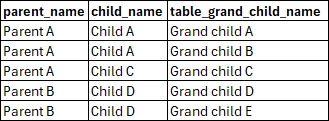


I want to see something like (structure example, formatting is just for clarity):
Parent A
--Child A
----Grand child A
----Grand child B
--Child C
----Grand child C
Parent B
--Child D
----Grand child D
----Grand child E

I have changed the “Tree” settings under “Subject”. I have tried all combinations at “Tree” under “Component”. Chose different options for “Sort” with and without “Group until”.

The screen type has the “Tree” as its component.

All it ever shows is:
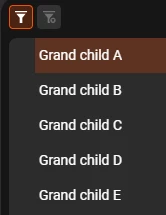


Platform 2026.2

I have compared it to an older product that still has the Windows GUI where a tree does work, but to no avail.

What do I need to set to get the result as desired?

Best answer by Mark_Plaggenborg


Credits to Harm Horstman for guiding me to the right direction.

Here is how I got it working. The screenshots used are from a testing scenario and not a real implementation. Naming and use of columns might not always make sense. Also not all options are used.

Tree (column):
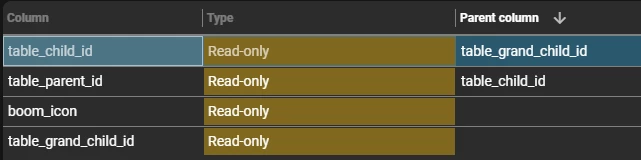
A table/view with some columns. For a possible icon we have used a domain with elements and the control “image combo”.

columns of table/view

In this case I have used the source tables as a lookup for the name of the “Parent”, “Child”, “Grand child”.

Now go to “Subjects” → “Settings”
 

Subjects → Settings (icon  is optional)


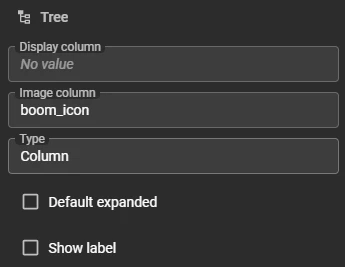
After that go to “Subjects” → “Components” → “Tree”

“Subjects” → “Components” → “Tree”

In the “Parent column” give it the column of which it is the higher node.

Lastly go to “Subjects” → “Data” → “Sort”

“Subjects” → “Data” → “Sort”

Most important there is to set the “Group until” upto the node you which to keep unique before you have it split to the individual values. In this case the “table_child_id” as we want to see each “Grand child”

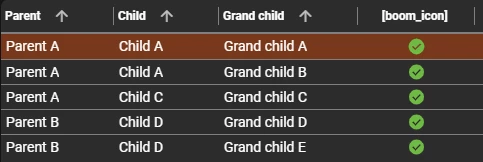
Here the table with the data:

Table representation

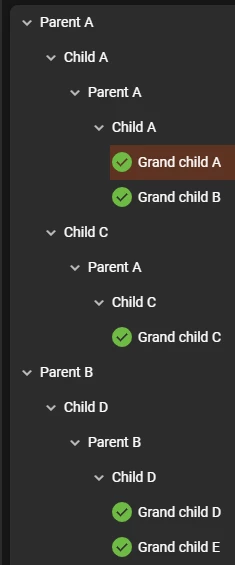
Final result of the tree:

Tree (column)


Tree (hierarchical):
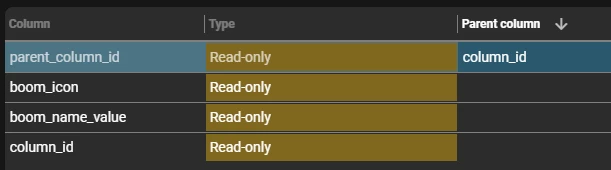
A table/view with some columns. For a possible icon we have used a domain with elements and the control “image combo”. We want the same data, but the structure needs to be made more vertical.
 

columns of table/view

In “column_id” you want to have a unique key. In the “parent_column_id” you match the “column_id” of with it is a child.

Now go to “Subjects” → “Settings”
 

Subjects → Settings (icon  is optional)


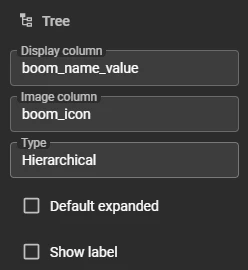
After that go to “Subjects” → “Components” → “Tree”

“Subjects” → “Components” → “Tree”

As we have a vertical connection only, we only need 1 “Parent column” filled.
In this case we do not need a “group until” set in the “Sort”

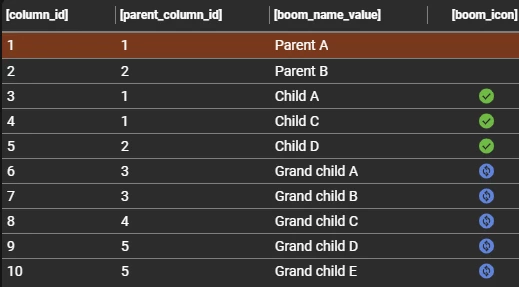
Here the table with the data:
 

Table representation

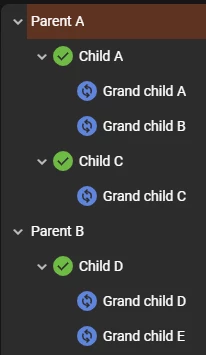
Final result of the tree:
 

Tree (hierarchical)


1 reply


Credits to Harm Horstman for guiding me to the right direction.

Here is how I got it working. The screenshots used are from a testing scenario and not a real implementation. Naming and use of columns might not always make sense. Also not all options are used.

Tree (column):
A table/view with some columns. For a possible icon we have used a domain with elements and the control “image combo”.

columns of table/view

In this case I have used the source tables as a lookup for the name of the “Parent”, “Child”, “Grand child”.

Now go to “Subjects” → “Settings”
 

Subjects → Settings (icon  is optional)


After that go to “Subjects” → “Components” → “Tree”

“Subjects” → “Components” → “Tree”

In the “Parent column” give it the column of which it is the higher node.

Lastly go to “Subjects” → “Data” → “Sort”

“Subjects” → “Data” → “Sort”

Most important there is to set the “Group until” upto the node you which to keep unique before you have it split to the individual values. In this case the “table_child_id” as we want to see each “Grand child”

Here the table with the data:

Table representation

Final result of the tree:

Tree (column)


Tree (hierarchical):
A table/view with some columns. For a possible icon we have used a domain with elements and the control “image combo”. We want the same data, but the structure needs to be made more vertical.
 

columns of table/view

In “column_id” you want to have a unique key. In the “parent_column_id” you match the “column_id” of with it is a child.

Now go to “Subjects” → “Settings”
 

Subjects → Settings (icon  is optional)


After that go to “Subjects” → “Components” → “Tree”

“Subjects” → “Components” → “Tree”

As we have a vertical connection only, we only need 1 “Parent column” filled.
In this case we do not need a “group until” set in the “Sort”

Here the table with the data:
 

Table representation

Final result of the tree:
 

Tree (hierarchical)