


Since release 2026.1.11, we have introduced a new format for our release notes. You can now find all updates of the Thinkwise Platform, Indicium and the Universal UI in one release blog. This supports our full-stack approach and provides a better overview of the changes in each release.
Hello everyone,
We have made important improvements to models and data in the Thinkwise Platform. Expression fields can now be set to Editable, allowing you to use them as input fields for queries and giving you more flexibility in your application design. Day-of-week intervals have been standardized in Indicium to make the display and filtering of days more consistent across different database platforms. Users can now also manage their data more efficiently by deleting rows across multiple pages in grids. We have added several keyboard shortcuts to further improve menu navigation in the Universal UI, and updated the styling of toolbars to match the Action bar.
These changes introduce several breaking changes; see Breaking changes for details.
This is a short-term support (STS) release of the Thinkwise Platform. STS release support expires as soon as a new release is made available. For example, support for version 2026.1.12 ends when version 2026.1.13 is released.
See our Lifecycle policy for information about supported versions.
Thinkwise Platform version 2026.1.12
Contents
Before you upgrade
- Features for the Software Factory and the Intelligent Application Manager are only compatible with this STS version of the Thinkwise Platform.
- Indicium and Universal UI features are backwards compatible with previous Thinkwise Platform versions, unless otherwise noted.
Demo and download
Breaking
Standardization of 'day of week' intervals in Indicium
breaking Indicium Universal UI
As a result of changed behavior for 'day of week' intervals in Indicium, some breaking changes have been introduced. Depending on your database settings, these changes may not affect you. Check the sections below for your database platform to see whether you are impacted.
SQL Server
Databases configured to UK English, German, or Dutch should not be impacted.
Run the following queries separately:
SELECT DATEPART(WEEKDAY, GETDATE())SELECT DATEDIFF(DAY, '19000101', GETDATE()) % 7 + 1If these queries give different results, then you are impacted.
DB2
Run the following queries separately:
SELECT DAYOFWEEK(DATE '1900-01-01')
FROM sysibm.sysdummy1;
SELECT DAYOFWEEK_ISO(DATE '1900-01-01')
FROM sysibm.sysdummy1;If these queries give different results, then you are impacted.
Oracle
Run the following queries separately:
SELECT TO_NUMBER(TO_CHAR(SYSDATE, 'D'))
FROM dual;
SELECT TRUNC(SYSDATE) - TRUNC(SYSDATE, 'IW') + 1
FROM dual;If these queries give different results, then you are impacted.
PostgreSQL
Run the following queries separately:
SELECT DATE_PART('DOW', NOW());
SELECT EXTRACT(ISODOW FROM NOW());If these queries give different results, then you are impacted.
If you are impacted, check the following for your applications:
- Cubes with cube view fields that have a Day of week interval type will have changed values for the day of week numbers. For example, if Sunday was previously day number 1, it is now day number 7.
- Visualization of pivot grids and charts that use cube fields with a Day of week interval type may also be affected, as the day numbers on axes and the order of series can be impacted.
- Sorting on cube fields with a Day of week interval type may also be affected.
- Filter conditions saved as part of a user preference are affected if they contain hardcoded day of week numbers. For example, a filter condition with
day_of_week = 1might need to be updated today_of_week = 7.
Calculated field expression columns only refreshed when dependency changes value
breaking Indicium Universal UI
Calculated field expression columns with dependencies will now only be re-evaluated when the value of one of its dependencies is changed. Previously, these expressions would be re-evaluated after every change made by a user. If an expression column has no dependencies, it will only be evaluated once, upon entering edit mode. Subjects with heavy expression queries will see a noticeable improvement in performance when adding or editing records.
In all realistic scenarios, this change is simply a performance improvement and not a functional change. It is however technically possible that an expression not only depends on one or more columns but also has a time-sensitive aspect and is expected to be updated with unrelated column changes as well. If this is the case, we recommend forcing all editable columns to be expression dependencies via comments in the expression query.
Please ensure that your expressions correctly use t1. table aliases to reference columns, otherwise these columns will not be recognized as expression dependencies. This is not new and expressions that do not use t1. table aliases already don't work in Indicium, but we wanted to stress the importance of this.
New and changed
Models - Thinkwise base models set to read-only
change Software Factory
Previously, Thinkwise base models for the Software Factory could be modified, which could unintentionally break core functionality. We have set branch access for important base models such as ENRICHMENTS, GUI_TRANSL_ENG and SQLSERVER_DB to read-only by default. This prevents unintended changes and helps ensure the stability of the Software Factory.
Models - Formalized 'ShowTabIcons' extended property
change Software Factory
Previously, the extended property ShowTabIcons could be used to show tab icons for detail tabs and tab containers in the Universal UI. We have formalized Show tab icons as a setting in the menu Models > Model content > Model settings > group Screen type.
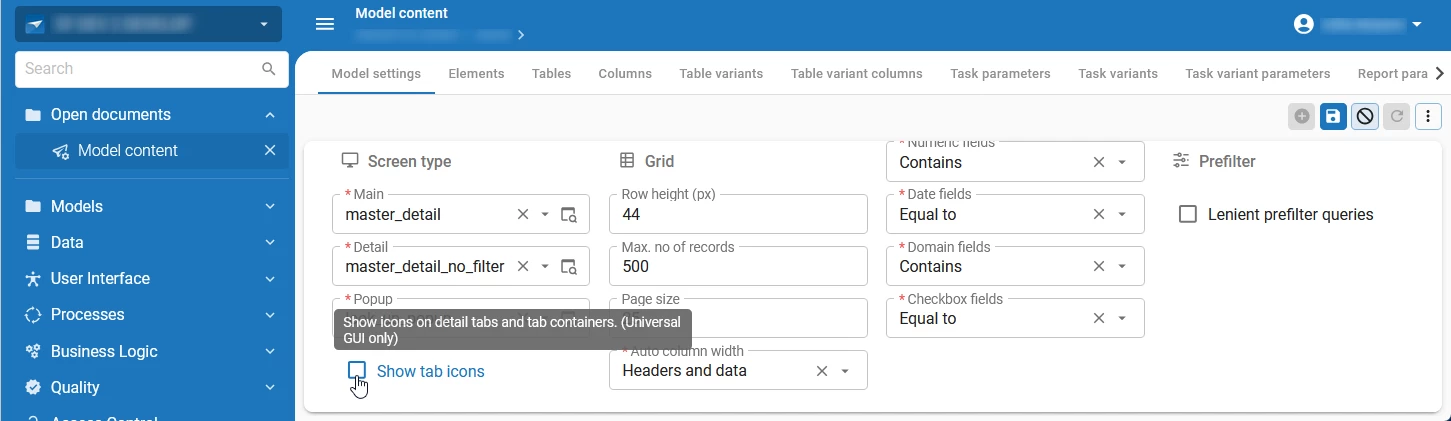
By default, this setting is disabled for all models. However, when you upgrade to this version, the setting is automatically enabled for all models that had the ShowTabIcons extended property set to true.
As a result of this change, the extended property ShowTabIcons is deprecated and removed. This also means you can no longer modify this setting in IAM. The extended property remains available for lower Thinkwise Platform versions.
Data - Editable expression fields
Community idea change Software Factory
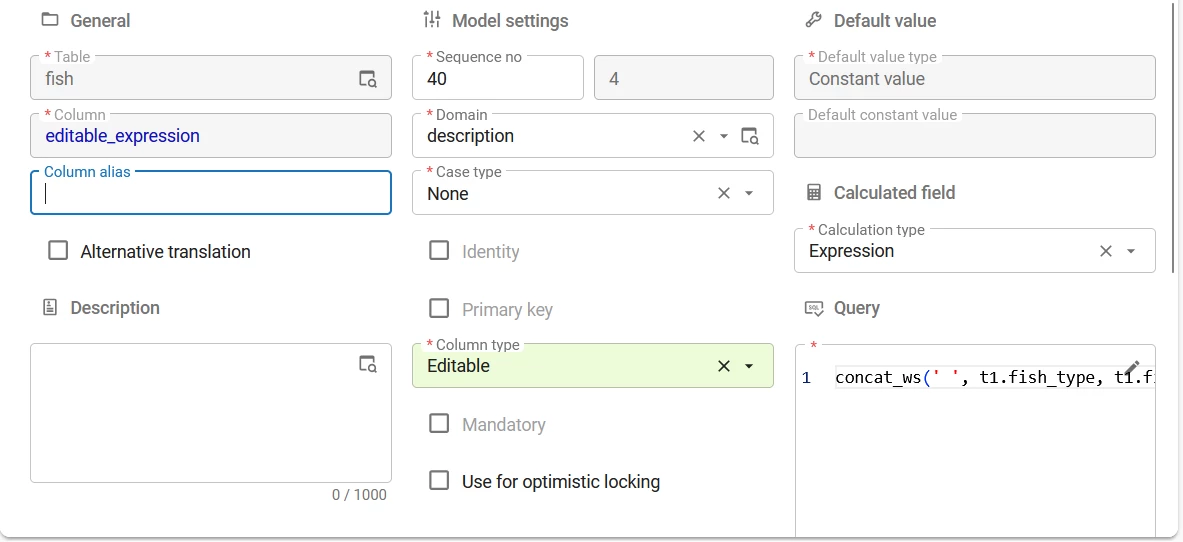
Previously, columns with calculated fields could only be set to Read-only or Hidden. You can now set columns with an Expression field to Editable in the menu Data > Data model > tab Tables > tab Columns. This can be useful, for example, when you want to use an expression field as an input field for a query.
A parameter for insert and update handlers is added if you set up an expression column as Editable. You can use these parameters to process the value of the expression column. This change is not breaking, as expression columns that are set to Read-only or Hidden will not have parameters added and continue to work as before.
User Interface - 'Branch' renamed to 'Version' in IAM
change Intelligent Application Manager
When you synchronize branches from the Software Factory to IAM, they retained the name 'Branch' in IAM. After synchronization, these branches become fixed snapshots that can no longer be changed, merged, or compared like normal branches in the Software Factory. To better reflect this behavior, we have changed the translation label of synchronized branches to 'Version' in IAM.
Data - Support for checkbox control for 'VARCHAR' and 'CHAR'
new Universal UI
The Checkbox control is now supported for domains with VARCHAR and CHAR data types. This allows you to use checkboxes in your application when the underlying database values are, for example, 'Y'/'N' or 'T'/'F'.
To use the Checkbox control for these domains, add the following domain elements to a domain (menu Data > Domains > tab Elements):
- One Element with the name 'true'. The Database value should correspond to a checked checkbox, for example 'Y' or 'T'.
- One Element with the name 'false'. The Database value should correspond to an unchecked checkbox, for example 'N' or 'F'
The Checkbox control only works correctly if the domain contains exactly these two elements. Otherwise, the checkbox control will not work as intended. An indeterminate checkbox corresponds to a null value in the database, similarly to regular checkboxes. A validation has been added to the Software Factory to check whether domain elements with a Checkbox control are set up correctly.
Additionally, in the Thinkwise Platform 2026.1 release, we introduced behavior to the Software Factory where the control type for domain elements is automatically set to Combo. This behavior does not apply when you add domain elements to a domain with a Checkbox control.

Deployment - Simplified configuration for data protection keys, vapid keys and OpenID certificates
new Indicium
You can now configure storage for data protection keys, vapid keys (push notifications) and OpenID certification in one central place in the appsettings.json file. This helps to improve ease of use and reduces configuration and maintenance effort.
Data protection keys, vapid keys and OpenID certificates are enabled by default. If you are just setting up the Thinkwise Platform and have not yet configured any keys, see the configuration examples below for AWS and Azure hosting.
Example configuration for AWS hosting
If you are using a hosting on an AWS EC2 instance that uses the instance identity to read, write keys and certificates, you can use the following configuration to enable all features:
  {
    "Agent": {
      "Enabled": true
    },
    "DataSecuritySettings": {
      "Storage": {
        "Mode": "Aws"
      }
    }
  }
Example configuration for Azure hosting with KeyVault
If you are using Azure hosting with KeyVault, you can use the following configuration to enable all features:
  {
    "Agent": {
      "Enabled": true
    },
    "DataSecuritySettings": {
      "Storage": {
        "Mode": "Azure",
        "Azure": {
          "TenantId": "<optional - leave blank for managed identity>",
          "ClientId": "<optional - leave blank for managed identity>",
          "ClientSecret": "<optional - leave blank for managed identity>",
          "KeyVault": {
            "Url": "https://<vault>.vault.azure.net"
          }
        }
      }
    }
  }
If you have already set up the Thinkwise Platform and are using data protection, it is important to use the same data protection keys in the new configuration. Otherwise, encryption and decryption will fail. See the examples below to migrate your existing configuration to the new DataSecuritySettings configuration.
New configuration for AWS hosting
We recommend migrating to the new DataSecuritySettings configuration as follows:
  {
    "Agent": {
      "Enabled": true
    },
    "DataSecuritySettings": {
      "Storage": {
        "Mode": "Aws"
      },
      "DataProtection": {
        "EncryptionKey": {
          "Name": "DataProtectionKeyName"
        }
      },
      "OpenID": {
        "ServerSigning": {
          "Certificate": {
            "Name": "OpenIDCertificateName"
          }
        }
      },
      "PushNotifications": {
        "VapidKey": {
          "Name": "VapidKeyName"
        }
      }
    }
  }
New configuration for for Azure hosting with KeyVault
We recommend migrating to the new DataSecuritySettings configuration as follows:
  {
    "Agent": {
      "Enabled": true
    },
    "DataSecuritySettings": {
      "Storage": {
        "Mode": "Azure",
        "Azure": {
          "TenantId": "<optional - leave blank for managed identity>",
          "ClientId": "<optional - leave blank for managed identity>",
          "ClientSecret": "<optional - leave blank for managed identity>",
          "KeyVault": {
            "Url": "https://<vault>.vault.azure.net"
          }
        }
      },
      "DataProtection": {
        "EncryptionKey": {
          "Name": "dataprotection"
        }
      },
      "OpenID": {
        "ServerSigning": {
          "Certificate": {
            "Name": "open-id"
          }
        }
      },
      "PushNotifications": {
        "VapidKey": {
          "Name": "web-push"
        }
      }
    }
  }
Changed behavior for 'day of week' intervals in Indicium
change Indicium Universal UI
Previously, Indicium followed the locale settings of the database to determine what the weekday number of a date is. This could lead to differences in weekday numbers across different database platforms. For example, some databases return Sunday as day number 1, while others return Monday as day number 1.
We have introduced date filtering in the Filter pop-up in the Universal UI, which allows users to filter on days. This functionality requires day numbers to be standardized, but the previous behavior of Indicium did not allow for this. In some cases, this resulted in unexpected behavior for users when filtering on days, as the value '1' had no deterministic meaning.
Indicium now returns 'day of week' intervals (i.e. weekday numbers) differently for date values, following the ISO-8601 standard. This means that Monday is standardized as day number 1 and Sunday as day number 7.
See Standardization of 'day of week' intervals in Indicium to see whether this change impacts you.
Delete rows for multiple pages in grids
new Universal UI
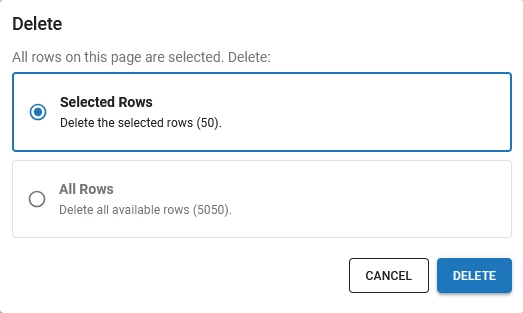
Previously, if you had paging set up in grids, you could only delete rows that were selected on the current page. You can now delete all rows across multiple pages in grids. This aligns with the recent added functionality to execute task or reports on multiple selected rows across pages in grids.
To select rows, use keyboard shortcuts to select all the rows on the current page. Then, select Delete from the action bar. In the pop-up, select whether to delete the Selected rows or All rows that match the current filter. Select Delete to confirm the deletion.
Support for 'Close document' as starting action
Community idea new Universal UI
You can now use the process action Close document as a starting action in the Universal UI. When a normal or modal document is closed, the process flow will continue from the active subject.
In some scenarios you may want a process flow that ends with Open document and then trigger a new process flow with Close document after closing that document. It is recommended to set the Open as input parameter to Modal document for Open document process action in this scenario. Using a Modal document prevents underlying interactions with the application while the document is open. This ensures that the subsequent process flow is only triggered when the intended document is closed, avoiding unintended activation of the process flow during other user interactions.
Keyboard shortcuts for menu navigation
new Universal UI
We have added keyboard shortcuts to improve menu navigation:
-
For the List bar and Treeview menus, to focus the Menu search field:
- Windows or Linux:
Alt+M - MacOS:
Option+M
If the menu is collapsed, the shortcut will expand it focus on the Menu search field.
- Windows or Linux:
-
For the Tiles menu:
- To return to the tiles menu from an open document:
- Windows or Linux:
Alt+M - MacOS:
Option+M
- Windows or Linux:
- Use
EnterorSpaceto open a focused tile. - Use
Tabto navigate through the tiles in the menu.
- To return to the tiles menu from an open document:
Updated cube view buttons in the Action bar
change Intelligent Application Manager Universal UI 2026.1.12+
User-defined cube views are now grouped under a grouped button in the action bar. They are now also displayed before model-defined cube views in the action bar. This change helps users find and access their personalized cube views more easily, improving the overall user experience.
User-defined cube views are only available if users are allowed to create their own cube views. You can set this up in User preferences in IAM.
Matched styling for toolbar buttons
change Universal UI
Previously, the Task bar, Prefilter bar, Search bar, Cube view bar and Report bar screen components were displayed as separate toolbars in the Universal UI.
To create a more consistent styling for all bar components in the Universal UI, these buttons in these bars are now styled to match the Action bar. Underlying functionality remains the same, only display changes have been made.
As part of this change, we have fixed an issue where the Search field would collapse even when sufficient space was available. It now behaves as expected.
This change does not apply to Thinkwise Platform 2024.3 and earlier, because the action bar was introduced in Thinkwise Platform 2025.1.
This is a breaking change to the data-testId and the Testwise pre-built component for TaskBar.Upgrade Testwise to the latest version 0.2.21 to resolve the Testwise-specific issue.
Fixed
Software Factory and Intelligent Application Manager
- The migration of Windows GUI user preferences to Universal GUI user preferences incorrectly handled user-defined prefilters in some situations. This has been fixed.
- Ad-hoc system flow instances would be kept underwater if the application was taken offline before the ad-hoc instance would run, causing the instance to be started and then cancelled in a loop. The instance was never seen as processed, as the instance was never successfully started. This has been fixed.
- Some added start objects would result in the tab/task/report variant field being an empty string rather than
NULL. This has been fixed. - The
view i_ui_cube_view_filter_nodewould return duplicate records in some cases; this has been fixed. - Fixed an issue where the Indicium application tier was trying to execute system flows that are planned manually. This could occur even if the GUI application no longer exists.
- Resolved an issue where an error could occur when deleting a prefilter in the Windows GUI. This happened when the prefilter was created by a user via the Universal UI.
- Fixed an issue where an error could occur when using the task to migrate the Windows GUI user prefilters to Universal user prefilters.
- Resolved an issue where some favorites in the Universal UI were deleted after a synchronization of the branch.
- In the platform improvements for week 6, we communicated the hotfix “20260202 - Disable API trigger for user subflows”. We made an improvement to this hotfix that prevents errors occurring when role permissions are updated and synchronized. It does so by granting user subflow rights to all roles with access to the parent flow.
Indicium
- The end date of session logs in the Intelligent Application Manager used the time zone of Indicium's web server instead of the UTC time zone, which caused incorrect end dates to be shown in the session logs. This has been fixed.
- Fixed an issue where DevExpress reports with sub-reports did not work as expected when running in a Linux container.
- Fixed an issue where expressions without dependencies would not be evaluated. A common workaround was to mimic a dependency by adding a comment like
-- t1.my_colto the expression query. This workaround is no longer necessary. When entering edit mode, expressions without dependencies will be evaluated once.
Universal UI
Improvements for drag-and-drop behavior:
- When dragging a file on a FILE LINK or FILE UPLOAD control in a task or report group pop-up, the file now no longer opens in a new browser tab.
- When dragging a file on an IMAGE LINK or IMAGE UPLOAD control in a task or report group pop-up now works as expected.
Fixed for process flows:
- Fixed an issue for process flows where the Go to row or Refresh table process actions did not work as expected after the Close document process action on a zoomed detail modal document.
- When starting a process flow from a start object, the process flow would sometimes crash due to a timing issue. This has been fixed.
Fixes for menus:
- When you used searched in the menu while having one or more documents open, the Open documents group would disappear, and the message 'No open documents found' was shown. This was incorrect and misleading, as there were open documents, but they did not match the search results. This message is now no longer shown.
- The Open documents group is now only shown when a matching search result exists.
- The Open documents group can now be expanded or collapsed when searching in the menu.
- The menu groups Favorites or Open documents would sometimes show a badge indicator when there were no badges in the menu group items. This has been fixed.
- Tooltips are now shown when hovering menu items in the Open documents group in the tile menu.
- When refreshing an open document, the last start object would become the open document. This has been fixed.
Other fixes:
- The Universal UI now ignores cube value fields with the aggregation type Formula (deprecated), as these fields are deprecated and do not work in the Universal UI.
- In some cases, in a grouped editable grid, editing could manually reset collapsed or expanded groups. It could also cause the active row to switch unexpectedly after editing, especially for fields with a CHECKBOX control. This has been fixed.
- Fixed an issue where the action bar would sometimes collapse earlier than intended. This would particularly happen if users were not allowed to change screen types.
- Fixed an issue where a task pop-up with a Code editor control would continuously increase in size until it filled the entire screen.
- After uploading a file when using a relative path as a Meta URL, the URL pointing to the uploaded file did not work as expected. This has been fixed.
- Previously, if a lookup field was cleared programmatically, for example, by business logic triggered by a default, the field would display '[object Object]' as its value. This issue has been resolved, and the lookup field is now cleared as expected.
- Increased the padding at the bottom of the main content container for mobile devices, so elements are now spaced out better and easier to use.
↑and↓arrow key navigation in default editable grids has been improved. Keystrokes no longer get lost on slower devices when the user quickly presses the↑or↓arrow keys.- When using a grid with aggregations, the application could crash if there was an error resolving the aggregations. This has been fixed.
-
Two issues have been fixed in the Filter pop-up:
- In some cases, a crash would occur when a date column started with a
BETWEENcondition and the operator was changed to a single value type, such as FROM orEQUAL TO. - The dropdown for selecting values for a column with an
INoperator sometimes automatically selected values.
- In some cases, a crash would occur when a date column started with a
- Fixed an issue where Universal would sometimes crash when opening a lookup pop-up.
- Fixed an issue where saving changes in the Code editor to an external file and immediately switching rows could cause updates to be applied to the wrong row. Changes are now saved to the correct record.
Data model changes
Data model changes for the Software Factory and IAM meta-models are listed here. This overview can be used as a reference to fix dynamic control procedures, dynamic model code, custom validations, or custom enrichments after an upgrade.
Changes Software Factory
Table changes
No changes in this release
Column changes
| SF - Table | SF - From column | SF - To column | Mandatory | Default value |
|---|---|---|---|---|
| model_settings | - | show_tab_icons | 1 | 1 |
Changes Intelligent Application Manager
Table changes
No changes in this release
Column changes
| SF - Table | SF - From column | SF - To column | Mandatory | Default value |
|---|---|---|---|---|
| branch | - | show_tab_icons | 1 | 0 |
Questions or suggestions?
Questions or suggestions about the release notes? Let us know in the Thinkwise Community!