


With the introduction of full-stack Platform releases per version 2026.1.11, we have introduced a new format for our Product Updates. All updates of the Thinkwise Platform, Indicium and the Universal UI are now covered in a single release blog. The Universal UI now no longer publishes a release candidate, but all updates are included in the main release.
Hello everyone,
We have made some improvements to filtering, grids and cubes in the Universal UI. You can now filter on the entire dataset when using the Open without data setting, and we have extended filtering options in the Filter pop-up. Users can now configure start objects and favorites in the menu. Additionally, aggregations for each group can now be displayed in grouped grids. Users can now also use the new Expand all and Collapse all buttons in cube views to expand or collapse all categories and series at once. We updated the behavior of the Barcode scanner control to allow users to open the virtual keyboard when needed, and we improved the behavior and styling of hyperlinks in forms. As always, we have made various other improvements and fixes to enhance the user experience and performance of the Thinkwise Platform.
This is a short-term support (STS) release of the Thinkwise Platform. STS release support expires as soon as a new release is made available. For example, support for version 2026.1.11 ends when version 2026.1.12 is released.
See our Lifecycle policy for information about supported versions.
Contents
Before you upgrade
- Features for the Software Factory and the Intelligent Application Manager are only compatible with this STS version of the Thinkwise Platform.
- Indicium and Universal UI features are backwards compatible with previous Thinkwise Platform versions, unless otherwise noted.
Demo and download
Breaking
Process flows in Thinkstore solutions updated
breaking Thinkstore
In the Thinkwise platform 2026.1 release, we made it possible for you to use subflows in regular process flows. As a result of this update, subflows were migrated to the corresponding process flow type based on certain conditions. This migration also affects the subflows used in the Process queue and Reporting service solutions in the Thinkstore. The checkbox Is sub flow has been removed from the process flows in these solutions. If you have implemented these solutions in your environment, check whether the subflows have successfully been migrated to system flows.
Update DB2 Core driver
breaking Indicium DB2
We have upgraded the DB2 Core driver from version 8.0.0.200 to 9.0.0.400. The previous version did not connect to newer DB2 databases, so this update is required to ensure continued compatibility with DB2 databases. We have added a workaround for an issue in the driver, since it could sometimes return empty messages. We are in contact with IBM to resolve this driver issue.
To ensure everything continues to work as expected:
- Download DB2 Core driver version 9.0.0.400. You can only use this driver if you have a valid license.
- Update the
clidriverfolder in Indicium with the new files.
For more information, see Use DB2 .NET Core drivers.
New and changed
Configure start objects and favorites in the menu
new Intelligent Application Manager Universal UI
Users can now configure their own start objects in the List bar and Tree view menu. Start objects can not be configured for the Tiles menu. To make this available, you must Allow a user to change preferences in IAM.
Users can mark any menu item as favorite, by selecting the star icon next to it. The star icon is shown on hover or is always visible, depending on the type of device that is used. These marked items are then added to the new Favorites menu item for easy access.
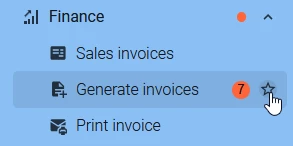
We have also made some improvements to the menu to enhance the user experience:
- Open documents and Favorites are now collapsible groups in the menu, allowing users to easily hide or show these sections as needed. The Favorites group is collapsed by default to save space in the menu.
- Open documents and Favorites groups show a badge when there is an item with a badge indicator inside.
- Open documents are now re-ordered, the last opened document is now at the bottom instead of at the top of the Open documents.
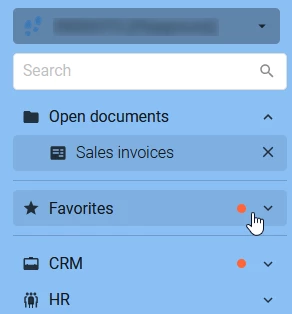
This feature is available for all supported Thinkwise Platform versions, but requires the latest hotfixes of the Software Factory and the Intelligent Application Manager to be applied. See our Lifecycle policy for information about supported versions.
Improved suggestions for 'Create a cube'
change Software Factory
We have improved suggestions when you execute the task Create a cube from the menu User Interface > Cubes > tab Tables.
- Several data and control types have been excluded from becoming dimensions, such as files and multiline controls.
- Numeric primary keys (identities) will now always be added as value columns using a Count aggregation type instead of a Sum aggregation type.
- All other numeric cube values use Sum and can now optionally be marked as editable. This makes the field, column and table editable.
- You can also enable the subject setting update handler for editable values. Writing the handler code itself is not part of the Create a cube task.
- Various options now offer more flexibility to set the screen type of the cube to be focused on either a chart, a pivot, a customization panel or a combination of these.
'Expand all' and 'Collapse all' added for cube views
new Universal UI
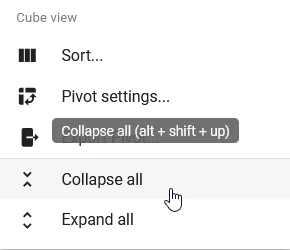
You can now expand or collapse both series and categories in a cube view in the Universal UI with a single click. This can be done by selecting Expand all or Collapse all from the overflow menu in the action bar. Alternatively, you can use the keyboard shortcuts Alt + Shift + ↑ to collapse all groups and Alt + Shift + ↓ to expand all groups.
Show aggregations for each group in grouped grids
new Universal UI
You can already set up aggregations in grids to show totals, averages, counts, and so on at the bottom of the grid. We have now extended this functionality to also show aggregation values for each group in grouped grids. The aggregated value for a group is displayed in italics in the cell corresponding to the aggregated column.
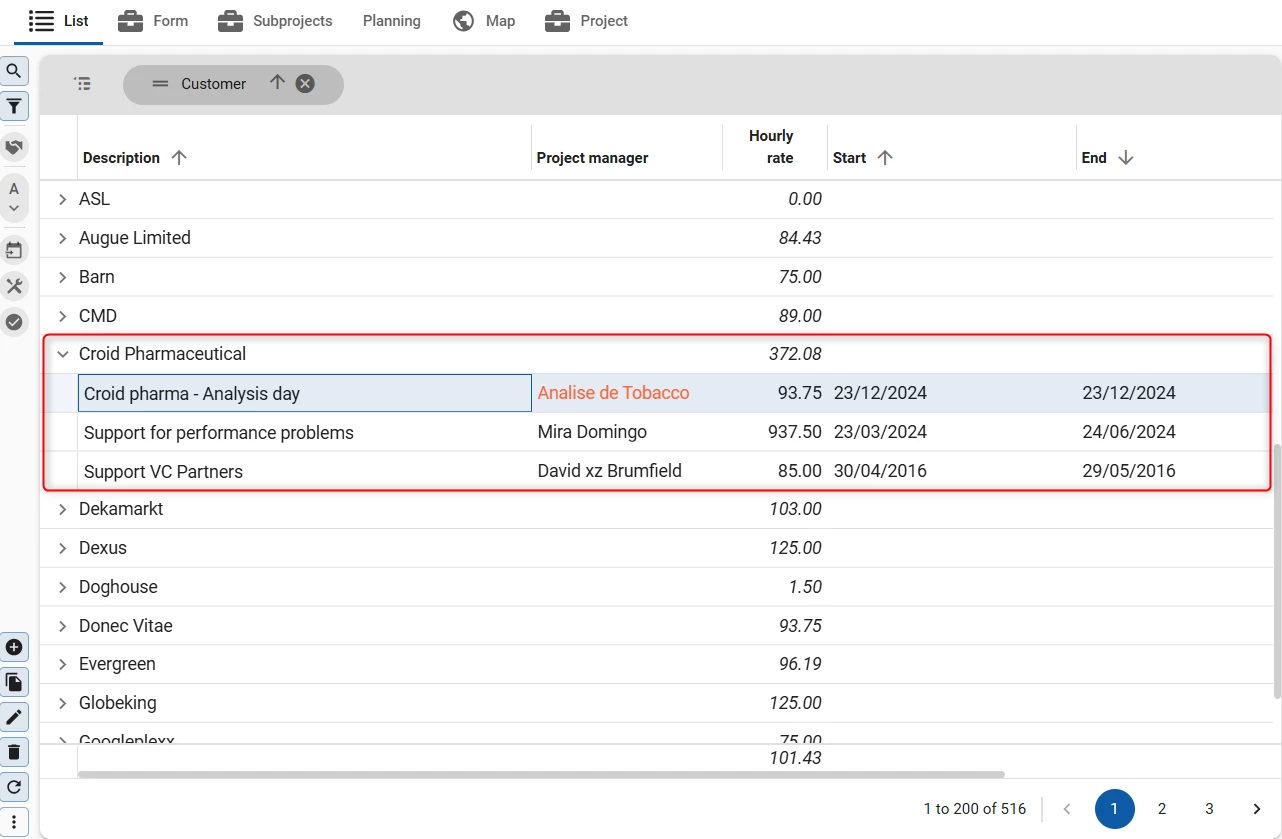
When a group is not fully displayed in the grid, for example because of pagination, the aggregate is still correctly calculated using the complete group. To clarify this, we added an icon with a tooltip notifying the user that the aggregate is based on data that is not fully visible.
This new behavior is enabled by default. In some cases, such as when working with large datasets, you may want to disable this feature for performance reasons. To do this, set the extended property DisableGroupGridAggregations to true. The totals at the bottom of the grid remain unaffected by this setting.
Updated behavior of 'Open without data' setting
change Universal UI
In the Thinkwise Platform version 2026.1, we made the process action Open filter available to open the Filter pop-up on any subject in the Universal UI using a process flow. In addition, we renamed the subject setting Start empty with filter to Open without data to better reflect its functionality.
In addition to these changes, you can now retrieve the entire set of data when clicking the filter button in the Filter pop-up on a subject with setting Open without data enabled.
Extended date filtering in the 'Filter' pop-up
new Universal UI 2026.1+
You can now use more advanced date filtering in the Filter pop-up by adding multiple (interval) conditions on the same column and combining them with different interval types. For example, you can now view data from a specific year and quarter more easily.
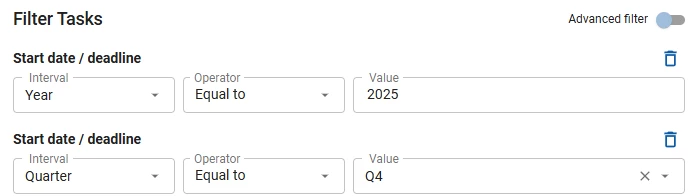
You can save these filters as custom prefilters to reuse them later.
Available interval types are:
- For Date columns: Date, Year, Quarter, Month, Week of the year and Day of the month.
- For Datetime columns: Date and time, Date, Year, Quarter, Month, Week of the year and Day of the month.
Filtering on date intervals is available from Thinkwise Platform version 2026.1 and higher.
Added filtering options to 'Filter' pop-up
new Universal UI
In a previous release, we added the Code diff editor as a new control type. To support this update, you can now use the following filtering options in the Filter pop-up:
- Code editor
- SQL editor
- Code diff editor
Added message for read-only code fields
new Universal UI
You can open read-only fields in an external code editor to view the code. However, since these fields are read-only, changes made in the external code editor are not synced back to the application. To ensure clarity, the message 'Changes will not be saved: the selected code is read-only in the Software Factory.' is shown at the top of the code file when you open a read-only code field in an external code editor.
Added 'Clear color' button
new Universal UI
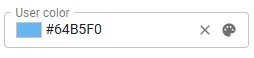
When using the Color control, you could not clear a previously selected color. To solve this, we have added a Clear color button.
Updated 'Barcode scanner' control behavior
change Universal UI
Previously, when you used the Barcode scanner control in your application, you could configure whether the virtual keyboard is shown or not when the control was focused by using the extended property SuppressBarcodeKeyboard. However, if a barcode was not scannable, there was no way to manually enter the barcode value using the virtual keyboard.
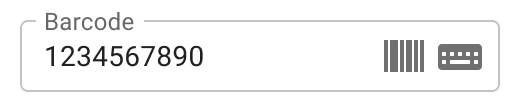
To address this, we have updated the behavior of the Barcode scanner control. A keyboard icon has been added to the control, which allows users to open the virtual keyboard when selected.
The extended property SuppressBarcodeKeyboard has been deprecated and does not affect the behavior of the control anymore.
The virtual keyboard now behaves as follows:
- By default, the virtual keyboard is not shown when the Barcode scanner control is focused.
- When the keyboard icon is selected, the virtual keyboard opens, allowing users to manually enter the barcode value.
- If the data type of the control is numeric, a numeric keyboard is shown.
- The virtual keyboard closes when the control loses focus, for example, when the user clicks elsewhere in the application.
Virtual keyboard APIs may not be fully supported for some devices and browsers, which can cause the virtual keyboard to appear when it should remain hidden.
You can determine whether the barcode and keyboard icons are shown by using Show action button when you are setting up the Barcode scanner control.
- Always - the barcode and keyboard icons are shown in edit mode. :::note The keyboard icon is only shown on touch devices, since they usually have a virtual keyboard to trigger. :::
- When editable - the same behavior occurs as if the option is set to Always.
- Never - the barcode and keyboard icons are never shown.
If desired, you can use custom CSS to determine whether one of the icons is hidden. You can add the following code to the custom.css file in IAM:
.keyboard-icon{
    display: none;
    }

.barcode-icon{
    display: none;
    }
Improved hyperlinks in forms
change Universal UI
We have improved the behavior of hyperlinks in forms, making it consistent with hyperlinks in grids.
This includes the following changes:
- Right-clicking on form fields with a lookup hyperlink will no longer open the hyperlink.
- Double-clicking on a lookup form field will now open only one popup, instead of two.
- Users can copy the value of a hyperlink by right-clicking with the mouse. This does not apply to lookup hyperlinks.
- Hyperlinks on form fields now open when the user clicks on the value (or the
No valueplaceholder for lookup controls). Clicking outside of the value does not trigger any action.
The changes apply to the following controls: lookups, EMAIL, PHONE NUMBER, MAPS, URL, FILE UPLOAD and IMAGE UPLOAD.
We have also made improvements to double-clicking behavior:
- When editing a lookup value, double-clicking a different value in the lookup pop-up caused a loader to remain visible. The double-clicked row is now selected as the value.
- If a double-click task was not bound to a specific column and the user double-clicked on the text of a lookup value in the grid, both a lookup pop-up and the double-click task would be shown simultaneously. Now, only the double-click task is shown.
- When editing a lookup value and selecting a different value in the lookup pop-up by double-clicking, if the lookup subject had a double-click task, the double-click task would be wrongly executed. Now, the double-clicked row is selected as the value.
Fixed
Software Factory and Intelligent Application Manager
- When deploying your PostgreSQL model for the first time, the upgrade script applied correctly but columns that should get their default value from a created default value query function were not applied properly. This caused no default value to be applied. This has been fixed.
- Task procedure names in PostgreSQL would be based fully on the given
Object name. However, due to the object name limit in PostgreSQL, theAliasof the task should be used instead of the object name if present. This has been fixed. - The checkboxes in the task Add to table (Processes > Reports > Table reports > Task: Add to table) had an incorrect field width, causing the checkboxes to overlap with the field next to it. This has been fixed.
Indicium
- Fixed a bug that would occur when executing a full dataset task or report on a table or view with context logic and a column of data type
DATE.
Universal UI
Improvements for pivot tables:
- In certain situations, pivot tables showed unexpected behavior, such as flickering, resetting columns, losing focus, or scrolling to unexpected positions in the user interface. These issues have been resolved.
- When you expanded or collapsed a category or series in a pivot table, then changed tab pages, the state would be reset if you returned. In some cases, switching tabs also caused the pivot table to not remember the last focused field. This has been fixed.
Other fixes:
- Previously, dates were inconsistently displayed across grids and forms for Oxford English locale (en-GB). For example, a grid would display dates in DD/MM/YYYY format, while a form would display them in MM/DD/YYYY format. This has been fixed.
- Cube view groups now correctly display the group icon when the checkbox Submenu is selected.
- Fixed an issue in Cubes where Date interval fields as Categories would be wrongly ordered compared to the other Categories.
- Fixed an issue where, in certain situations, items in the action bar continuously resized back and forth between smaller and larger display types.
- HTML controls showed unexpected behavior when using bulleted lists, such as the bullets disappearing when saving or unwanted empty lines between items. This has been fixed.
- Resolved an issue where grouped action buttons sometimes had an unclickable duplicate in the action bar.
- Fixed an issue where the grid column header would resize and cause the text to jump around when switching between edit and non-edit mode.
- In some cases, process flows would conflict and not run to completion. This occurred when a process flow was started while switching between similar applications with the same role rights. This has been fixed.
- Opening or activating a menu item will now clear the search in the sidebar.
Data model changes
Data model changes for the Software Factory and IAM meta-models are listed here. This overview can be used as a reference to fix dynamic control procedures, dynamic model code or custom validations after an upgrade.
Changes Software Factory
Table changes
No changes in this release.
Column changes
No changes in this release.
Changes Intelligent Application Manager
Table changes
No changes in this release.
Column changes
| IAM - Table | IAM - From column | IAM - To column | Mandatory | Default value |
|---|---|---|---|---|
| usr_pref_cube_view_filter_node | - | date_time_interval | 0 | - |
| usr_pref_variant_cube_view_filter_node | - | date_time_interval | 0 | - |
Questions or suggestions?
Questions or suggestions about the release notes? Let us know in the Thinkwise Community!