


Hello everyone,
We have added some new features, such as modelers for data models, screen types, and process flows in the Software Factory. Additionally we have made a 'Code diff editor' control available to compare code files, and added support for the Close document process action. Users can now also enable Auto row height in grids to dynamically adjust row heights based on content. Several improvements were made to the usability and behavior of existing features as well. Most notably, we improved the behavior of the Export immediately option in the export wizard to better match the current grid view.
Do you have any questions or suggestions? Let us know in the Thinkwise Community!
Demo
As always, we have made a demo for you: try it here. Before trying it out, press 'Clear Cache' on the login screen.
Read the Universal UI user interface guide to get familiar with the GUI.
Universal UI version 2026.1.10
For more information about setting up the Universal GUI, see the Universal GUI setup guide.
Note:
- Use a modern browser to access the Universal GUI, for example, a recent version of Chrome, Firefox, Edge, or Safari mobile.
- Deploy the Universal UI on the same server as Indicium or an allowed origin in
appsettings.json. - Run all hotfixes on IAM and the Software Factory that you plan to use for the Universal GUI.
- Use the latest version of Indicium.
Download the Universal UI version 2026.1.10 here
Contents
New and changed
Modelers in the Universal UI
new
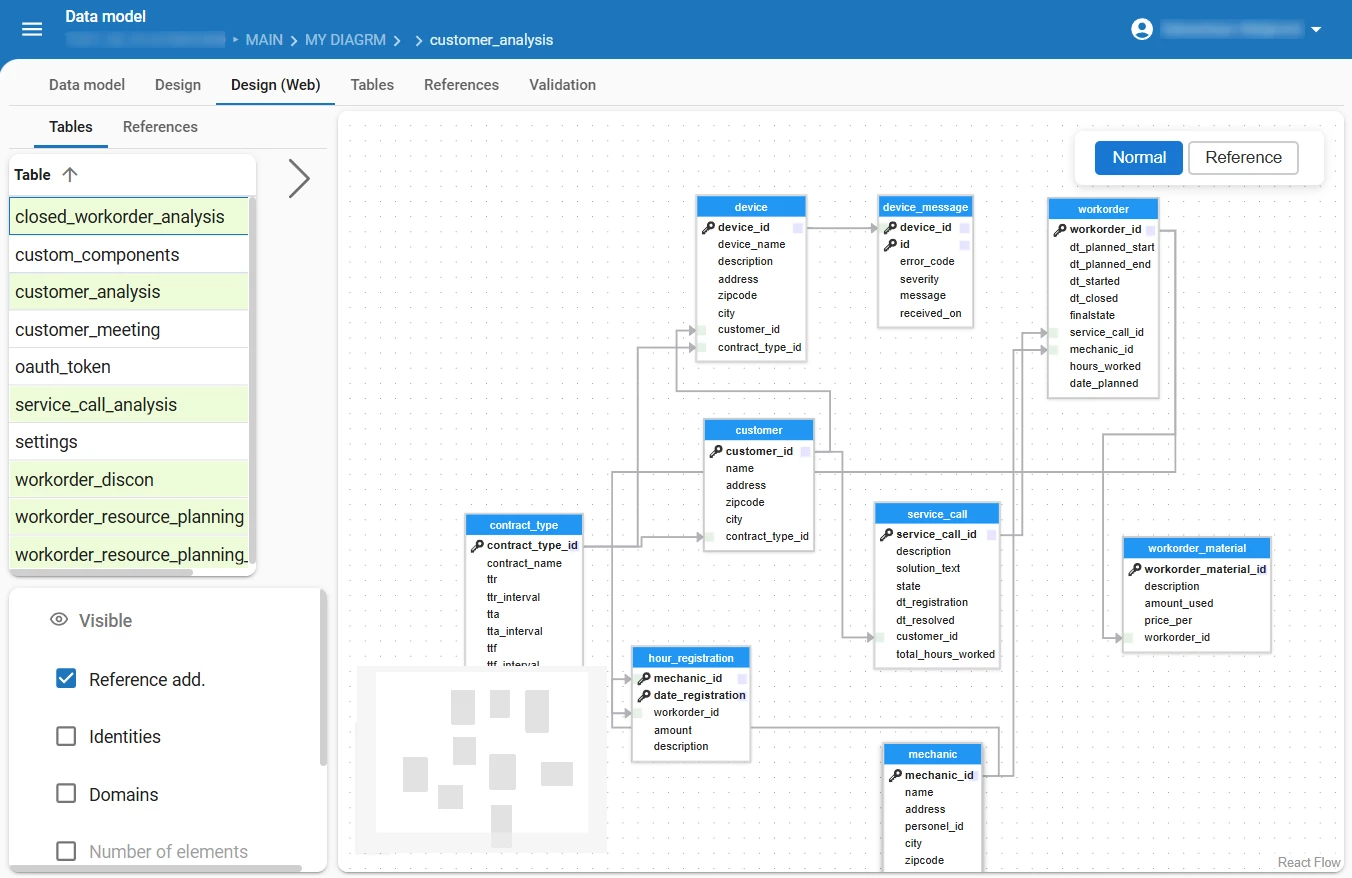
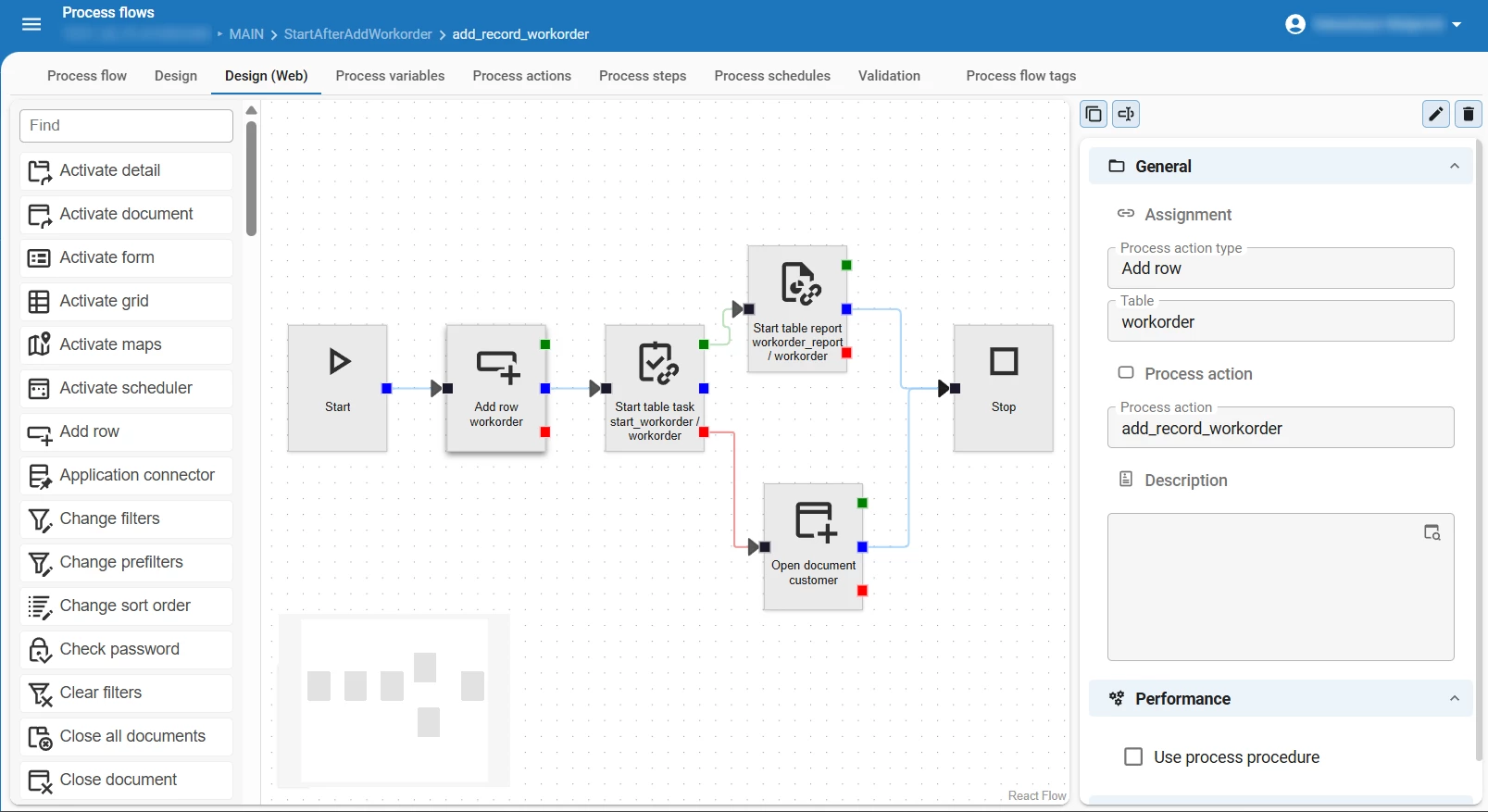
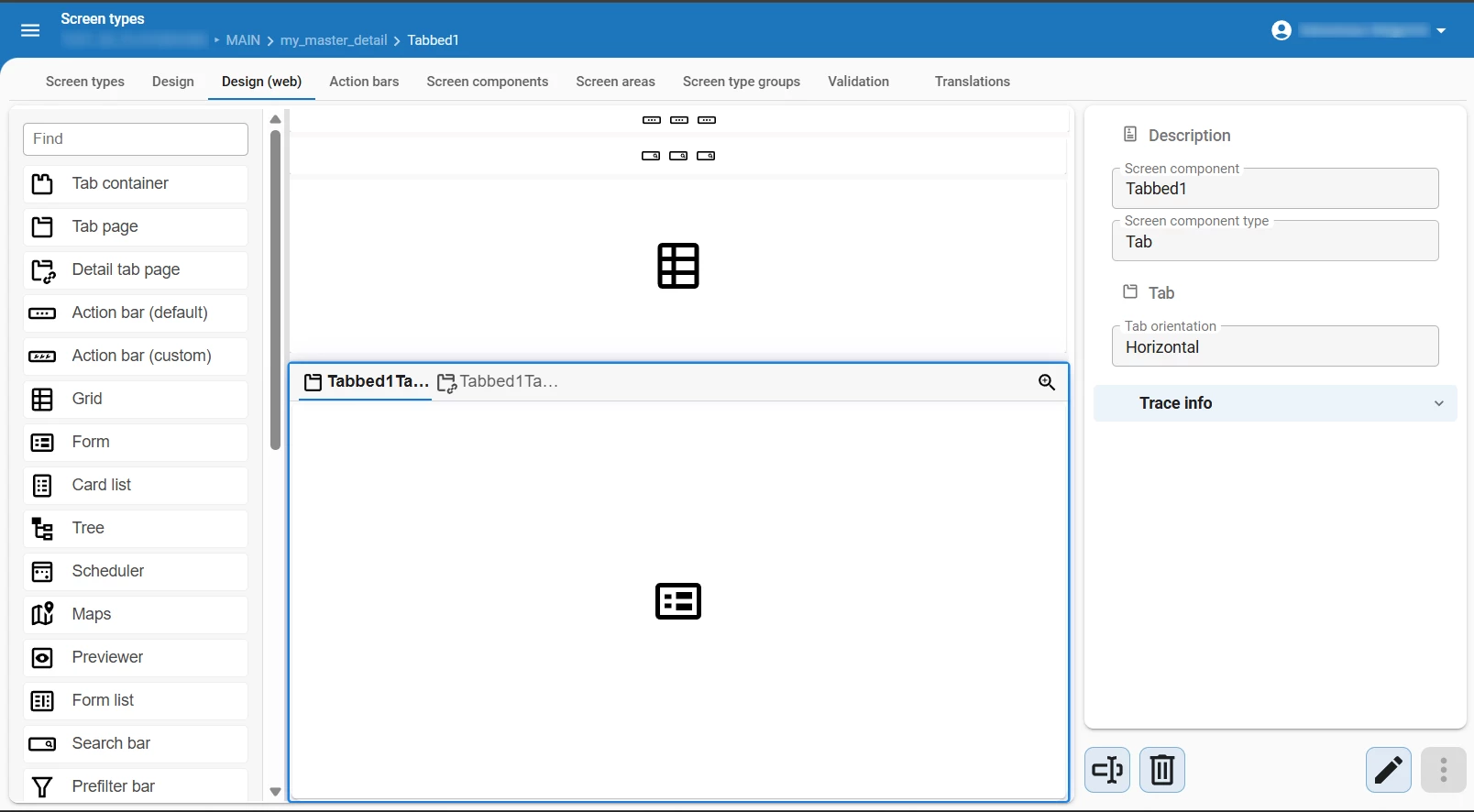
We have made modelers for data models, screen types, and process flows available for the Software Factory in the Universal UI. These modelers were available in the Windows GUI, but have now been updated and integrated into the Universal UI. With improved usability, a modern look and feel, you can now model faster and more efficiently in the Universal UI.
'Code diff editor' control to compare code files
new
We have added a new domain control type Code diff editor to the Universal UI. This control is specifically designed for comparing and editing code files, making it easier to identify differences and resolve conflicts. When using this control, you must add two columns or task parameters: one for the original or source code, and one for the new or target code.
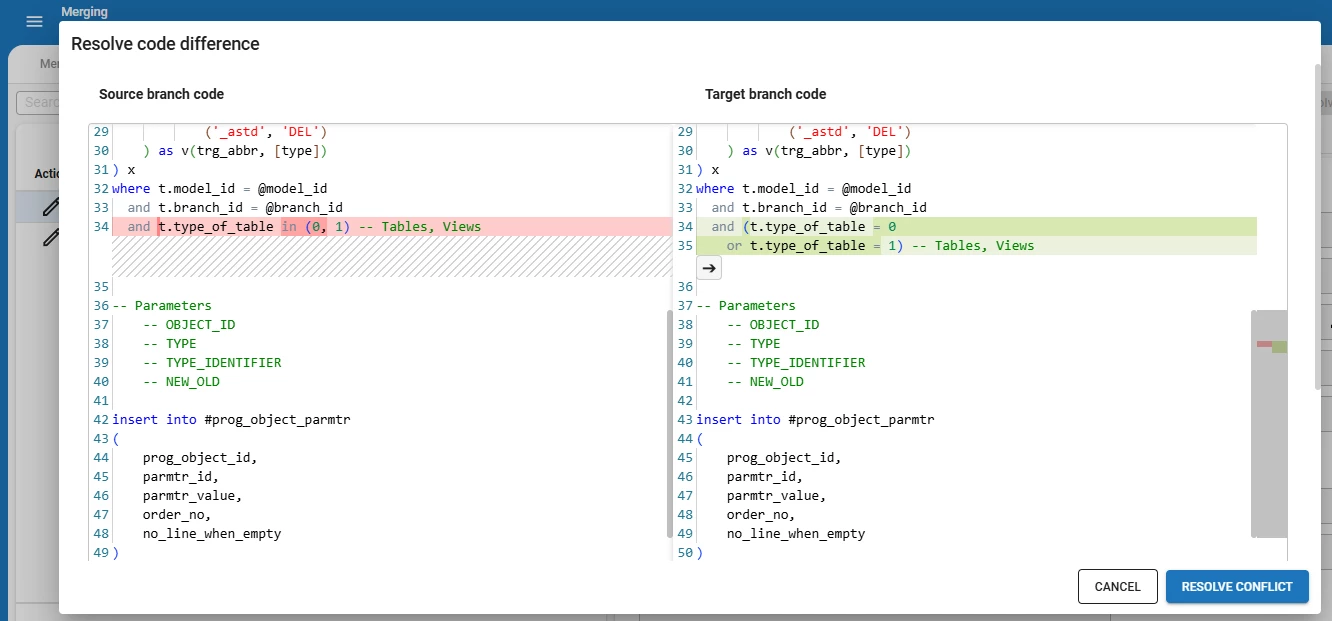
We have added this control in the Software Factory in the following places:
- menu Models > Merging > tab Active conflicts > task Resolve code difference
- menu Business logic > Functionality > tab Code review > tab Changes > task Compare code history
- menu Business logic > Functionality > tab Deploy > task Compare program object with archive
- menu Quality > Code review > tab Changes > task Compare code history
This will help you to review and manage code changes more effectively, while working in the Software Factory.
You can add this control to your applications as well. To do so, you must create two columns, task parameters or report parameters with the following settings:
| Setting | Source code column or parameter | Target code column or parameter |
|---|---|---|
| Control | Code editor | Code diff editor |
| State | Read-only or Hidden | Read-only or Editable |
'Close document' supported for modal documents
new
The process action Close document is now supported for documents opened as a modal popup. You can use this action to close the popup to continue the flow in behind.
Tooltips shown in column headers
new
If a grid column does not have a tooltip assigned, it will now have a tooltip containing the column's display name when being hovered over. You can configure tooltips using alternative translations. For more information, see Alternative translations.
Set 'Auto row height' in grids
new
You can now use Auto row height to control the row height dynamically in grids. This option is available for grids that contain either:
- Multiline controls with the the checkbox Word wrap enabled.
- HTML controls
Select Auto row height from the overflow menu in the action bar. When this is selected, the option Default row height becomes available to disable it again. By default, these options are available in the overflow menu, but you can change this behavior in a default or custom action bar.
If Auto row height is enabled, the following behavior occurs:
- Each row in the grid will adjust its height based on the content within that row.
- In editable grids, when typing in a Multiline control with Word wrap enabled, the row height will dynamically increase or decrease as text is added or removed.
- When you change the Auto row height setting, the active row will be scrolled to the top of the screen to prevent scrolling issues.
- When you switch between subjects, the Auto row height setting is remembered for each subject. This setting is not stored in the browser or user preferences.
When you have enabled Auto row height in a grid with many rows, lazy height calculation is applied to optimize performance. This ensures only relevant row heights are calculated. This has several consequences, further described in Lazy height calculation.
Improved 'Export immediately' behavior
change
We have improved the behavior of the Export immediately option in the export wizard. When you select this option, the exported data will now match the current grid view more closely.
The following changes have been made:
- Only the columns that are currently visible in the grid will be exported. This includes any user-defined column visibility settings. For example, if a user has customized Grid settings in the toolbar that hide certain columns.
- If Copy to clipboard is disabled for a column in the Software Factory, that column will not be included in the export.
- The order of the columns in the exported file will match the order of the columns as they are displayed in the grid, including any user-defined column ordering. For primary key columns, this order will also be respected, even if they were originally placed at the front of the grid.
Since primary key columns may not always be included in the export, importing and updating data from an Excel export may not work as expected. The entire primary key is required to accurately identify records. If you need to ensure that primary key columns are included in the export, make sure that these columns are configured to be visible in the grid. For more advanced export options, use Custom export.
Updated alignment in 'Filter' pop-up
change
We have updated the alignment of the field Operator when it contains Between with the value fields From and Up to in the Filter pop-up. The operator and value fields are now aligned vertically to improve readability.


Updated copying content from grid cells
change
Previously, when you copied text from a grid cell, the entire content of the cell would be copied to the clipboard. It did not matter if you had selected the entire cell or just a portion of the values within it. We have updated this behavior, so you can now copy a selected portion of values from a grid cell.
Minor fixes and tasks
- In some cases, when hovering over grid rows, the conditional layout background color would not be applied throughout the entire grid row. This has been fixed.
- Resolved an issue where SVG icons were sometimes not displayed correctly, leading to some parts being cut off.
- When importing data, the preview would display 'Invalid Number' for zip codes containing letters if the zip code in the first row consisted only of numbers. This has been fixed.
- Fixed column header filters in the Software Factory, so sorting on Sequence no. or alphabetical order now works as expected.
- In the Maps component, an unwanted marker was automatically being placed at coordinates [0, 0] that could not be interacted with. This marker has been removed.
- Fixed an issue where too much width was given to grid group columns when some of the group columns were hidden in the grid.
- When a DATETIME domain control was set to Local, times shown when a Form was in edit mode were incorrect. This has been fixed.
- In some cases, task settings for positioning the fields or for a custom text on the execute buttons were ignored since version 2025.3.12.0. This has been fixed.
What we will be working on next sprint
The next sprint we will be working on:
- Enhanced date interval filtering in filter pop-ups.
- Cube view filters available directly from the filter pop-up.
- Group summary support added to grids.
- Support for user-defined start objects.
- Configurable checkbox values for true and false (for example J/N or Y/N).
- Ability to delete the full data set in a single action.
- Improved offline support, including opening subjects marked as available offline.