
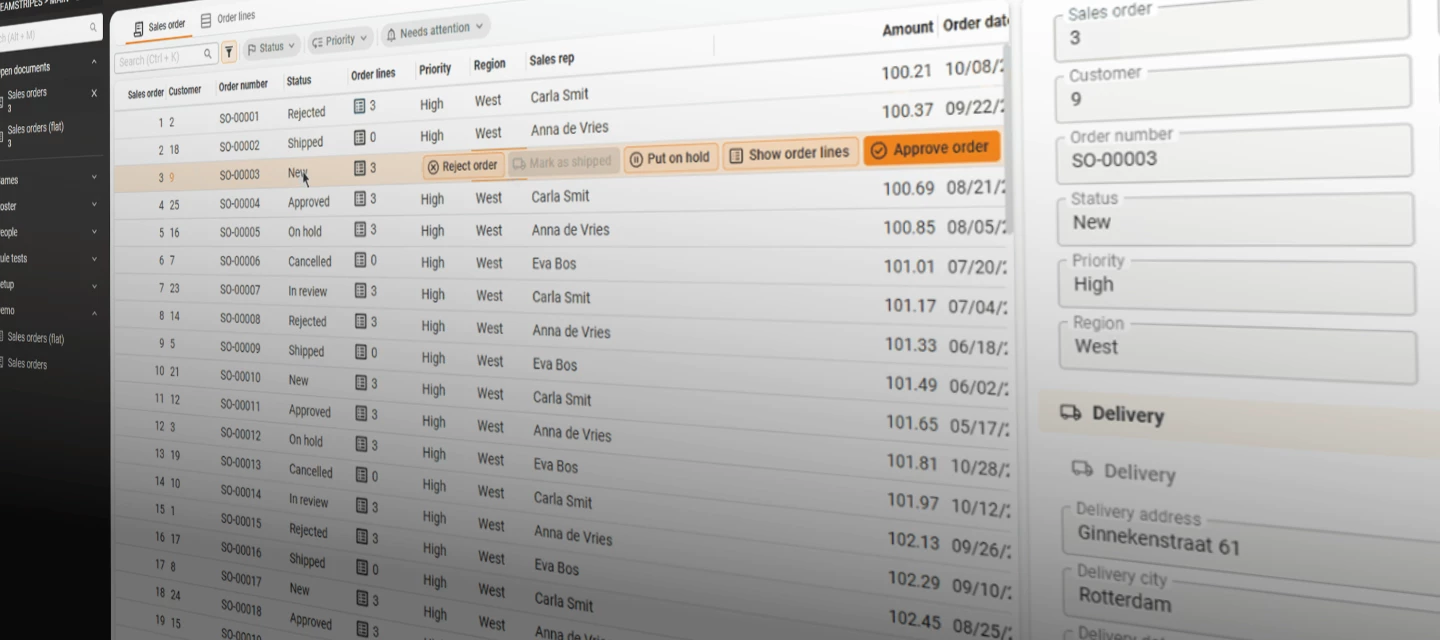



I spent last Monday morning clearing my inbox in Outlook, and it struck me that I performed the actions to interact with my emails with a certain ease. Amidst a lot of options in both the ribbon and on the emails themselves, I mostly delete mails or mark them as unread. These 2 options are always placed exactly where I need them, close to where my cursor often already is.
Your users deserve the same. The Universal UI offers four ways to put actions where they work, and one of them is the most requested feature on the community:
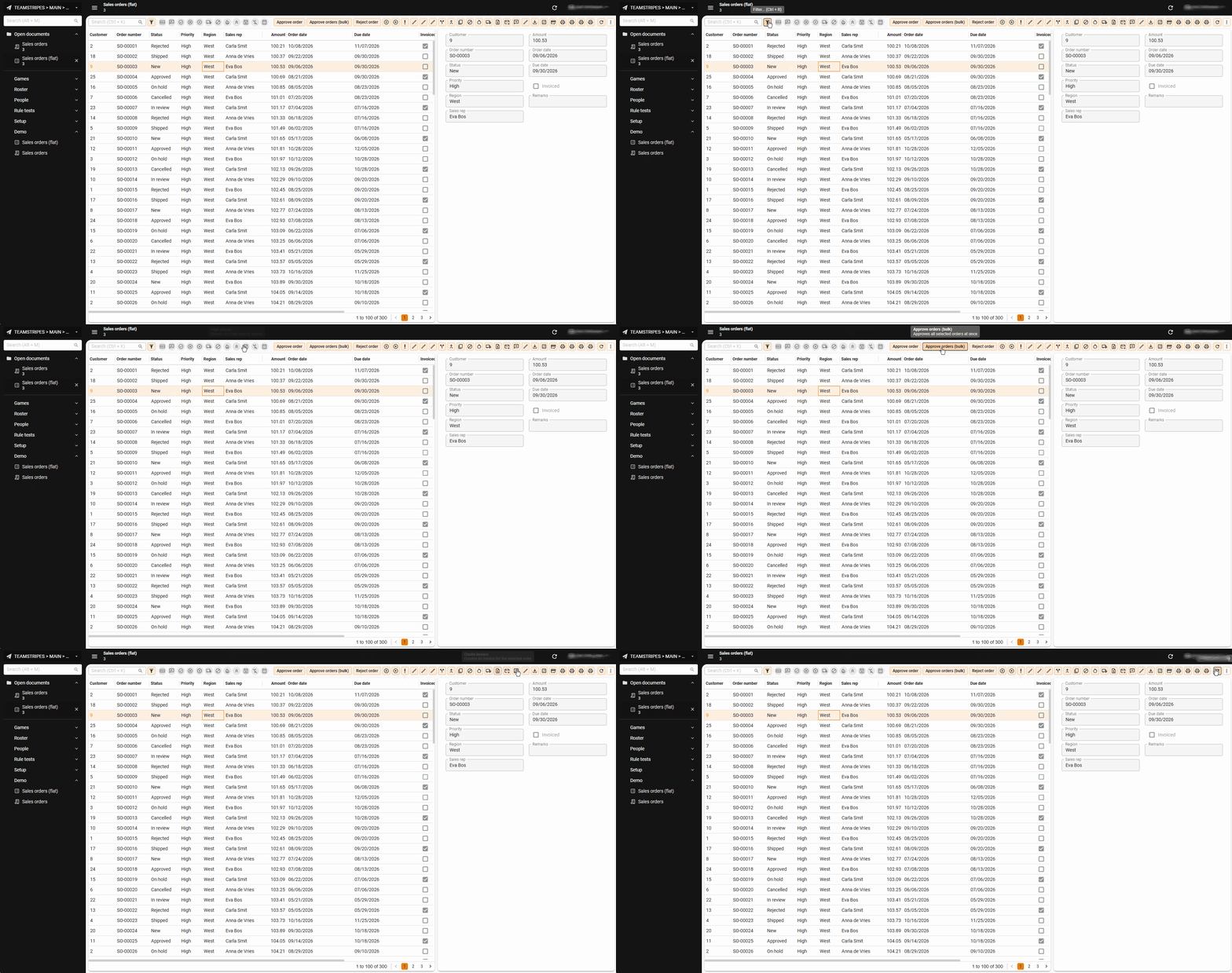
To help you understand the options, we take this Sales order example screen, which has many buttons to choose from. In this example there are 28 actions (without the CRUD buttons) and 12 prefilters above the grid and form.
Showing all buttons at the same time, with limited space, makes the buttons too small to show explanatory text in the button. Some buttons even have the same icon, preventing further visual distinction.
As this action bar is the only location with buttons, the user is forced to go through this process each time a function is needed to interact with a sales order. Causing needless frustration and taking a lot of time and effort to find the right button.
In this blog we will look at all four options to show actions in a different way, improving usability and without losing any button:
- Action bar buttons
- Inline actions on grid rows
- Double click actions on grids
- Hyperlink or HTML actions
Action bar: the home base
First, we’ll use the action bar, as it is the default location where your users find actions on every screen. It holds the search bar, (pre)filter actions, tasks, reports and cube views, etc.
Use it for:
- Actions that come back in the same location on every screen
- Actions that are not used often. Use the overflow option or task/prefilter groups to save space and help users find related actions, based on the principle of chunking
- Actions that don’t need row data (like the import task)
- Batch/multiselect actions
If we take all actions of the first example, we can group them into logical sets. It tremendously lessens the visual strain due to the diminished number of options to sift through. This automatically improves the speed to find the desired action (even though it takes an extra click to open the related dropdown).
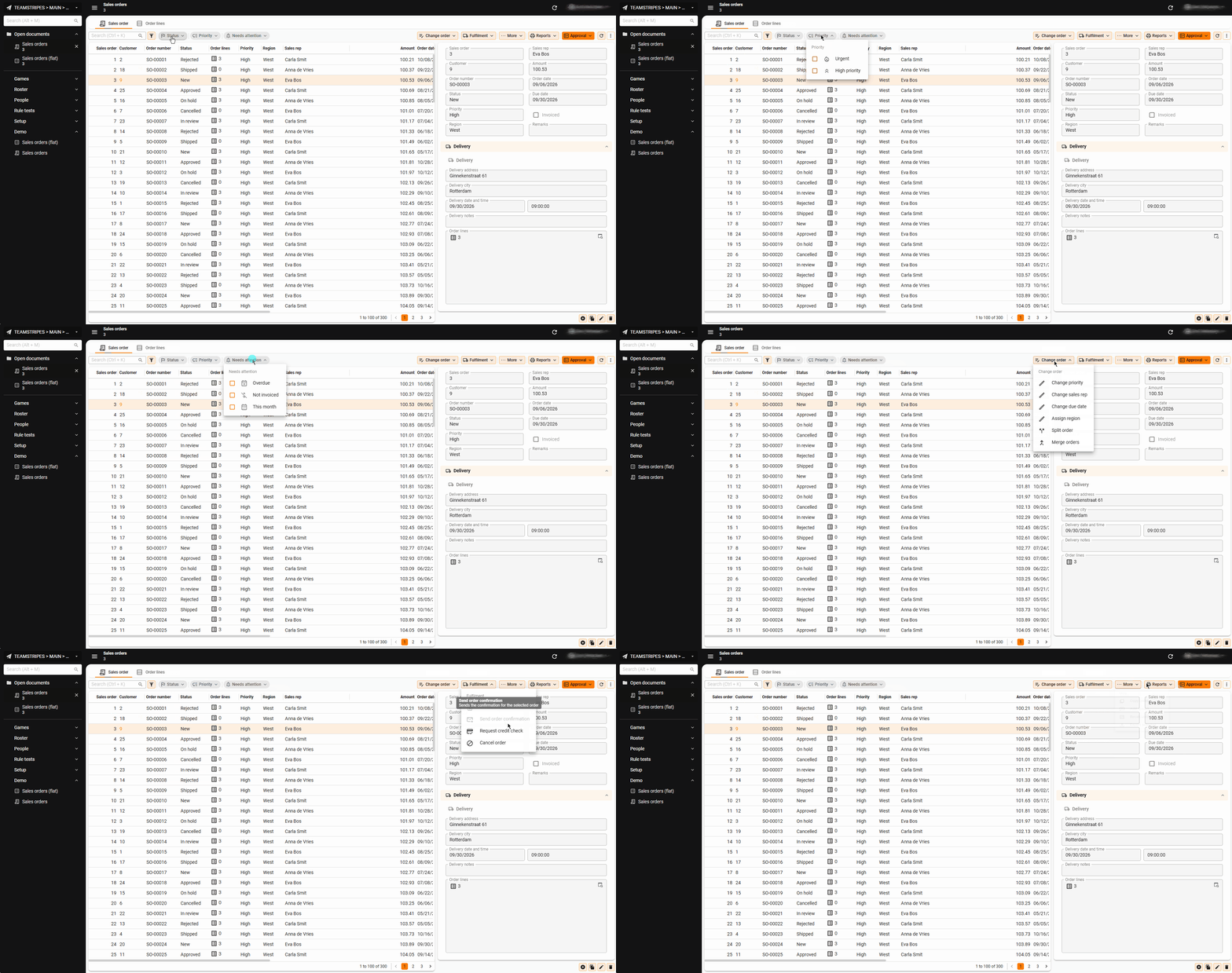
Also, a single primary action draws the attention of your users’ eyes. We recommend one Primary action per screen and placing it on the near or far side of the bar, so the eye passes all the other buttons on the way. This is the Von Restorff effect.
For more information about where and how to build the action bar:
Put actions right on the row
And now without further ado, the option you all waited for: with the latest 2026.3 platform release we support table tasks on grid rows!
Previously, the only option for a user was to select a row, move to the action bar and click on a button.
Now they can hover the row and click. The actions appear on the row itself, so it is instantly clear what you can do with that record. Context and layout logic apply, just like on the action bar.
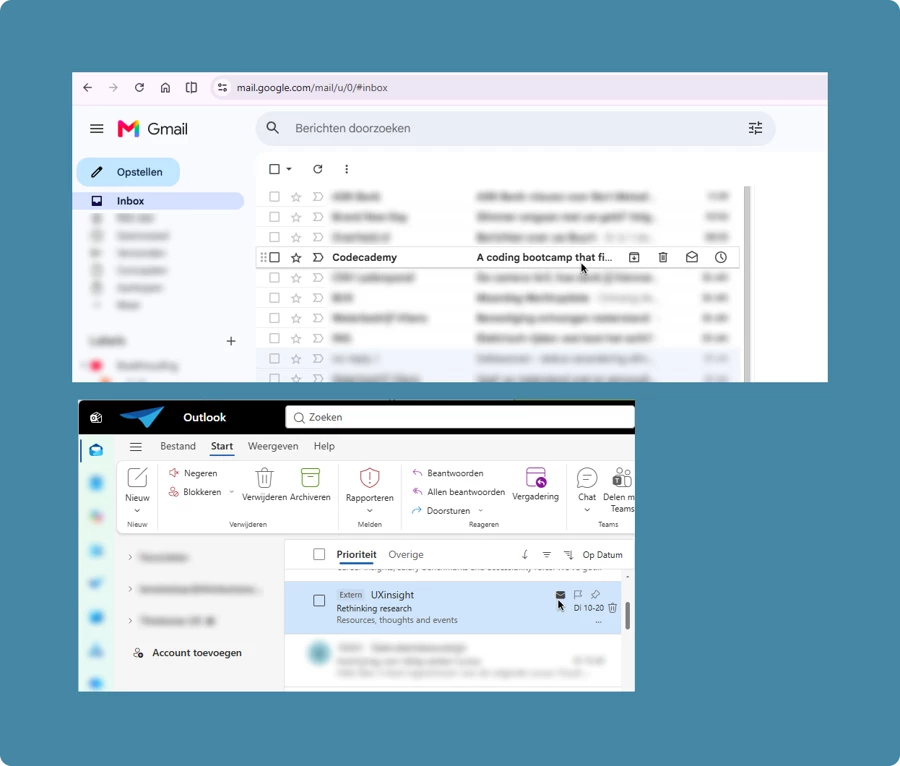
Limit inline actions to a maximum of five options. Mail applications show the same restraint on their rows, such as Outlook with ‘Mark as unread’, ‘Flag’, ‘Pin’ and ‘Delete’ or Gmail with ‘Archive’, ‘Delete’, ‘Mark as unread’ and ‘Snooze’:
Note Inline actions are currently only available on grids. They appear while you hover the active row, and on touch on the tapped, active row.
Set up inline actions in two steps
Inline actions reuse the concept of the (custom) action bar, so there should be little new to learn.
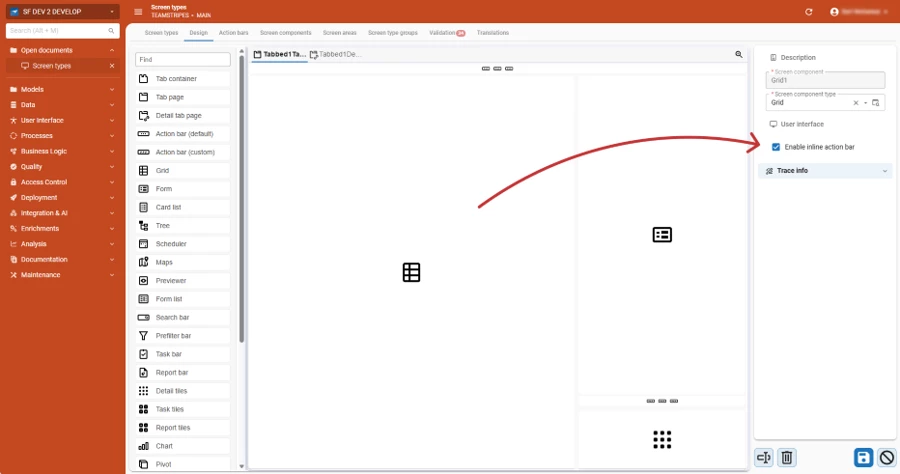
Step 1: enable it. Open the Grid component of your screen type and select the "Enable inline action bar" checkbox.
Step 2: fill it. A new action bar now appears on the Action bars tab, named after the component. Set it up exactly as you do with the (custom) action bar.
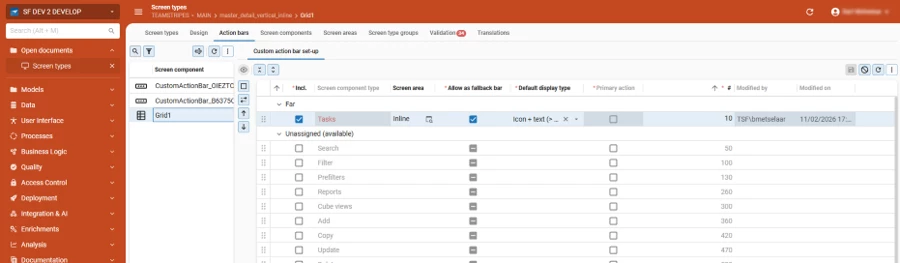
Tip Use screen areas to your advantage. An action that is not added to a screen area appears on all action bars. In the example below we show ‘Approve order’ only on some rows. In the custom action bar, we find ‘Approve orders (bulk)’ in the grouped ‘Approval’ button to approve multiple rows (not shown in the gif).
See it in action
In our example below, users approve, archive and get insights on almost every order row, so those actions go on the inline action bar.
Hover the active row and the actions appear based on the status of that row:
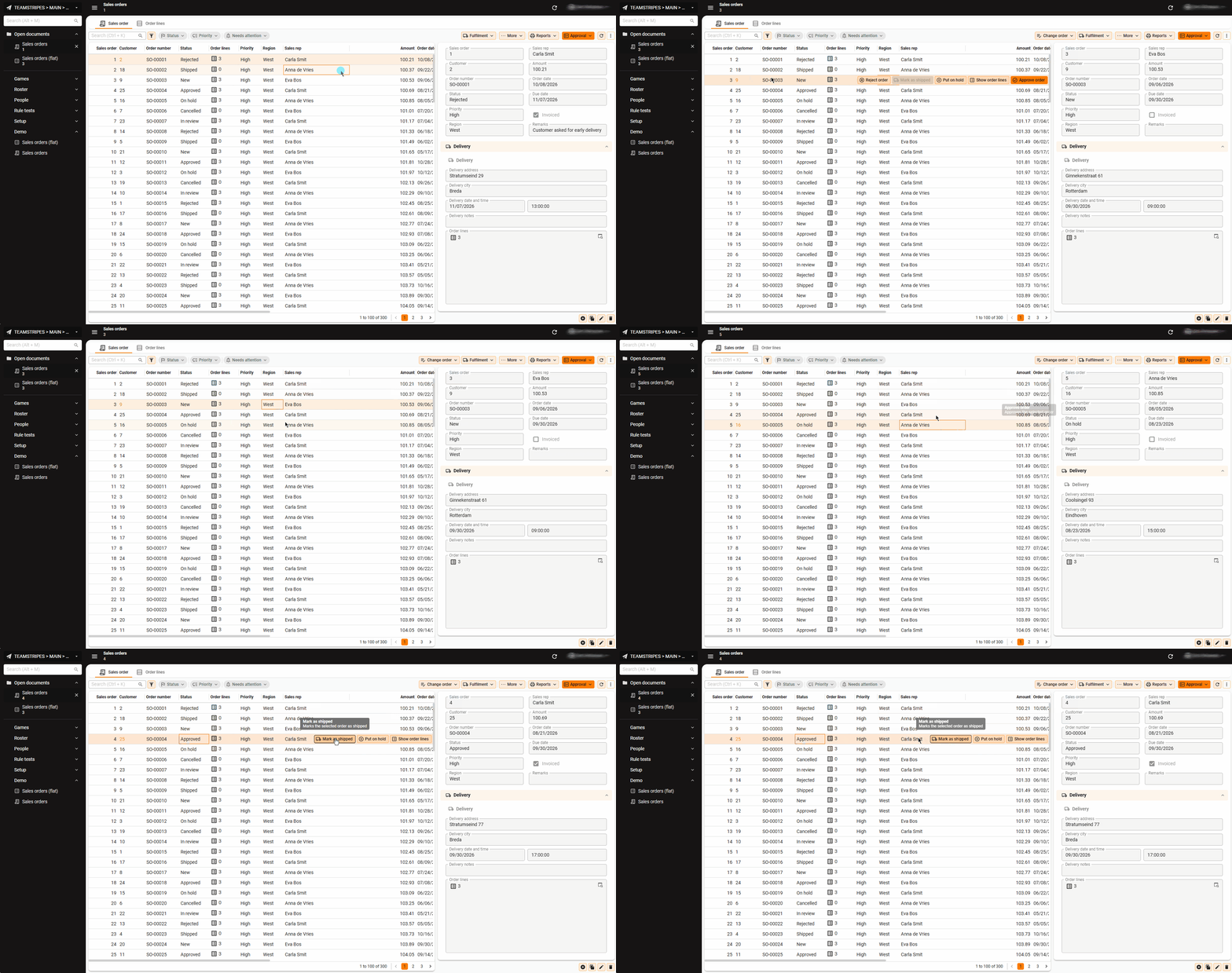
And yes, indeed, some rows have an additional Primary Action (approve) set on them, so you can see the impact of deliberately diverting from the patterns to make something stand out. Use it with care!
What is coming next
Inline actions are already available but are also still in development: We are currently working on support for card lists and show actions whilst hovering on every row so expect these additions soon!
Which action will you put on the row first? Share your setup in the Thinkwise Community and see the action bar documentation for the full reference.
Double click actions: fast, but hidden
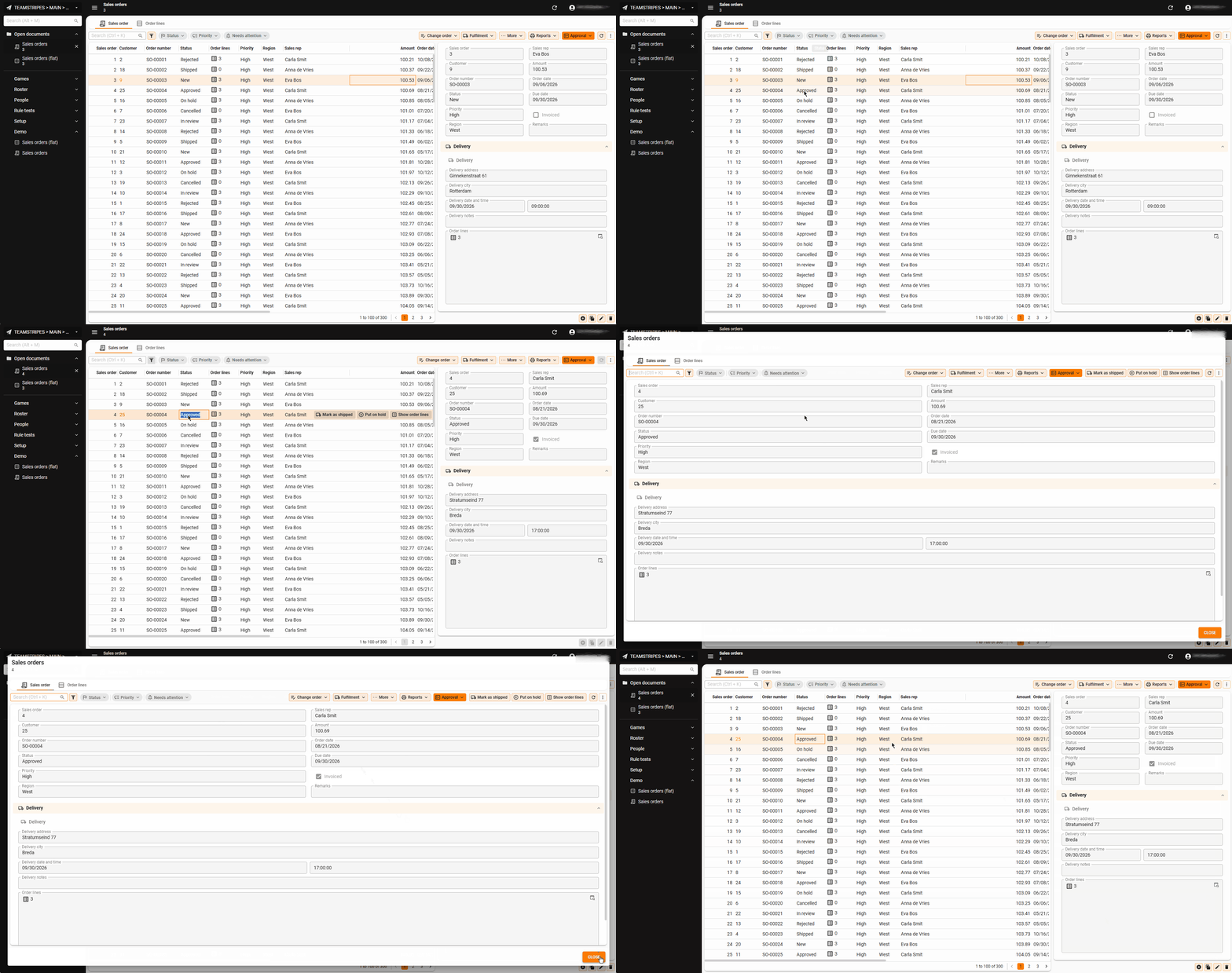
Double click actions are a more hidden, albeit very powerful option. You set up a task that runs when a user double clicks the whole row (or a specific column) which can make grids flexible and interactive.
Unlike buttons, these actions are not visible. A user must know that an action exists on a row or column.
Useful examples:
- Double click a row to drill down to related detail data
- Double click a row to open the form of that row (which we used in our example, see below)
To set up double click actions, follow the double click setup information in our documentation pages.
Hyperlink and HTML actions: flexibility for complex screens
You can set up hyperlinks or custom-built HTML buttons as a starting point for process flows with deep linking in a process flow. An HTML field can hold a hyperlink, data or an image that can be clicked on. On hover, the cursor changes to a pointer, so the user can recognize it as an interactive element.
This option is more custom than the others. In return it gives you more flexibility to run table tasks and process flows in complex screens.
In our example, we have set up a column which shows the number of Order lines within an Order. An icon followed by a number, inviting the user to click on them. On click of the icon, the ‘Order lines’ screen is opened with additional information about each order line.
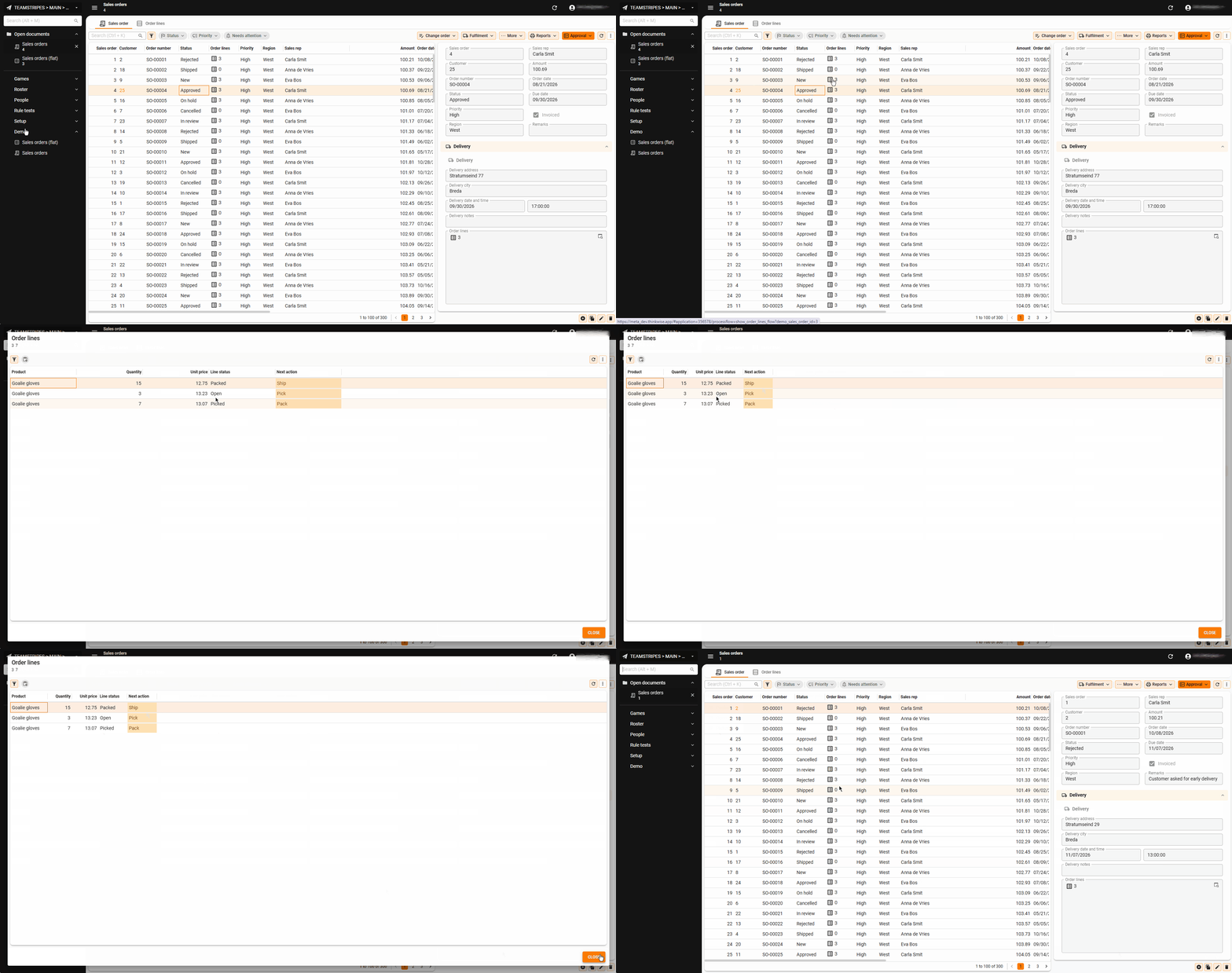
The Community conversation on executing a table task with a hyperlink shows how people set this up in practice, including the URL syntax.
What will be your next action?
Use these setups to your users’ advantage, get to know what buttons they expect and where, so you can reduce their search for the right button, making them feel in control.
Which of these four fits your screens best?