


It's the new hire's third day. They open the incident screen for the first time: four tabs, a detail grid, 50 fields, and no clue which ones matter right now. They fill in what they recognize, skip what they don't, and hit save. The record looks fine. It isn't. A required detail is missing, a business rule quietly broke, and three weeks later someone must work out why that incident never triggered an action.
As a developer you didn't do anything wrong. You trained your users how to use the application, and most days that holds. But training lives in people's heads, and heads forget, leave, and improvise. So instead of teaching users where to look, bring every field they need straight to them, one step at a time. Most of us already know that pattern by another name: a wizard.
This post shows two ways to build a guided, multi-step process in the Software Factory, and how to pick the one that fits.
Why guide the user at all?
There are lots of reasons to guide your users. We've listed a few that would most impact Thinkwise customers, roughly ordered by impact.
-
Data integrity (probably the most important one)
A process is rarely one record. It's a parent, a couple of detail rows, maybe a record in another table entirely. Do that freehand and skip a step, and you not only get confused users, you get a broken record that violates your own rules and that someone must hunt down and repair later.
-
You control the sequence
Because you decide what the user sees and when, you can validate, set defaults, and bring the user to the right next step based on earlier answers. No more dumping every error at the end.
-
Consistency across users
Without guidance, ten people run the same process ten slightly different ways, and your data shows it. A wizard makes everyone walk the same path, so what lands is uniform.
-
The process lives in the app, not in someone's head
Often a process survives in your most senior user's memory and in documentation nobody reads. Put it in a wizard and the knowledge stays in the application, where it belongs.
-
Faster onboarding, less training
New people get productive without a colleague walking them through where everything lives. In enterprise settings that hand-holding is a real, recurring cost. A wizard hands that time back.
-
Lower cognitive load
Enterprise screens are dense: many fields, tabs, nested grids. That's the norm here, not the exception. A new user staring at all of it doesn't know where to start. One focused step at a time fixes that.
Two ways to build a wizard
The SF gives you two approaches: tasks chained into a process flow, or a modal document with details. You can even mix them, if you're feeling brave.
Guiding with tasks
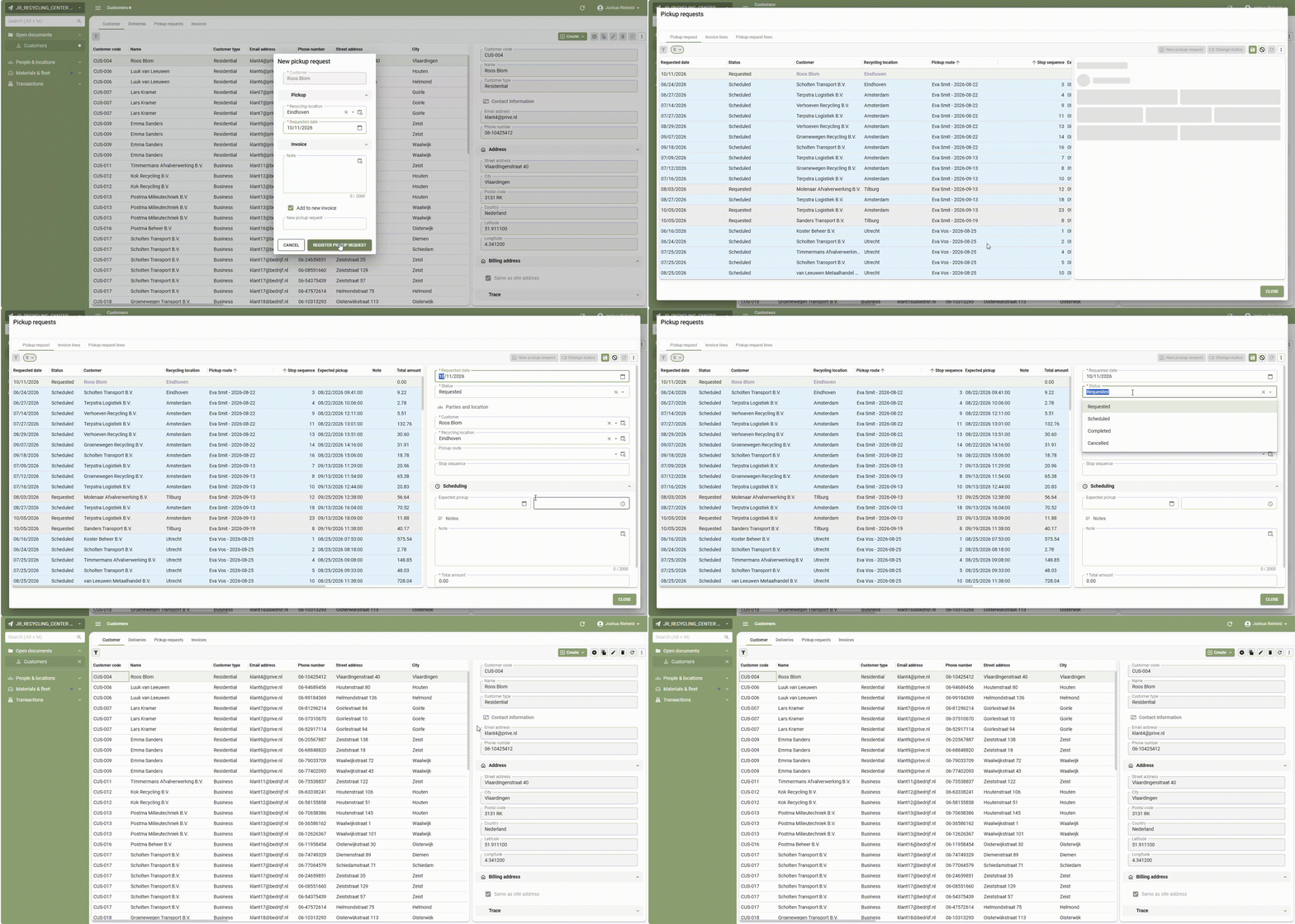
In the example below we want users to report an incident. Getting this right matters: an incorrect report means the incident is handled wrong, or not at all. So we split it into a handful of tasks, each a pop-up with grouped fields and labels that explain themselves. No onboarding is required. One button, a few steps, done.
What stands out
-
Use layout procedures so each step shows only the fields that are relevant right then. Focus stays where you want it.
-
Use defaults to guide even further. If the brakes aren't working, set the report to immediate action and push the severity to high automatically.
-
Make the last step a read-only overview of everything entered. This is the moment the user catches their own mistakes before the report goes in. Highly recommended.
How to build one
Use the steps below to build your wizard using tasks.
-
Create one task per step, each with its own parameters.
-
Add the step counter to the task's name translation: (step 1/5).
-
Add an alternative translation to the confirm/cancel button called next/back.
-
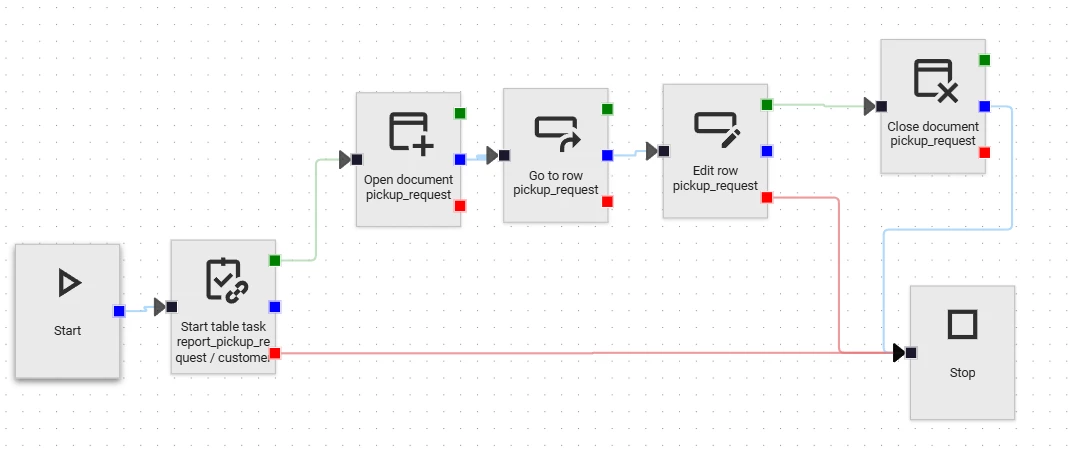
Drop all tasks into a process flow with a process variable for every task parameter.
-
Map both input and output parameters to those variables. This is what lets the user move back as well as forward.
-
Optional but recommended: add an overview step at the end. That final task is the one that actually does the insert. The earlier tasks are just collectors, and the process variables carry their values to the final task.
-
The final step can show every field from the earlier steps, or smarter summaries of them. Keep them all read-only. You want users editing in the earlier steps, where the logic and instructions live.
Guiding with a modal document
This time we're adding a new employee. That means the person's contact details, plus emergency contacts, a photo, and their employment record.
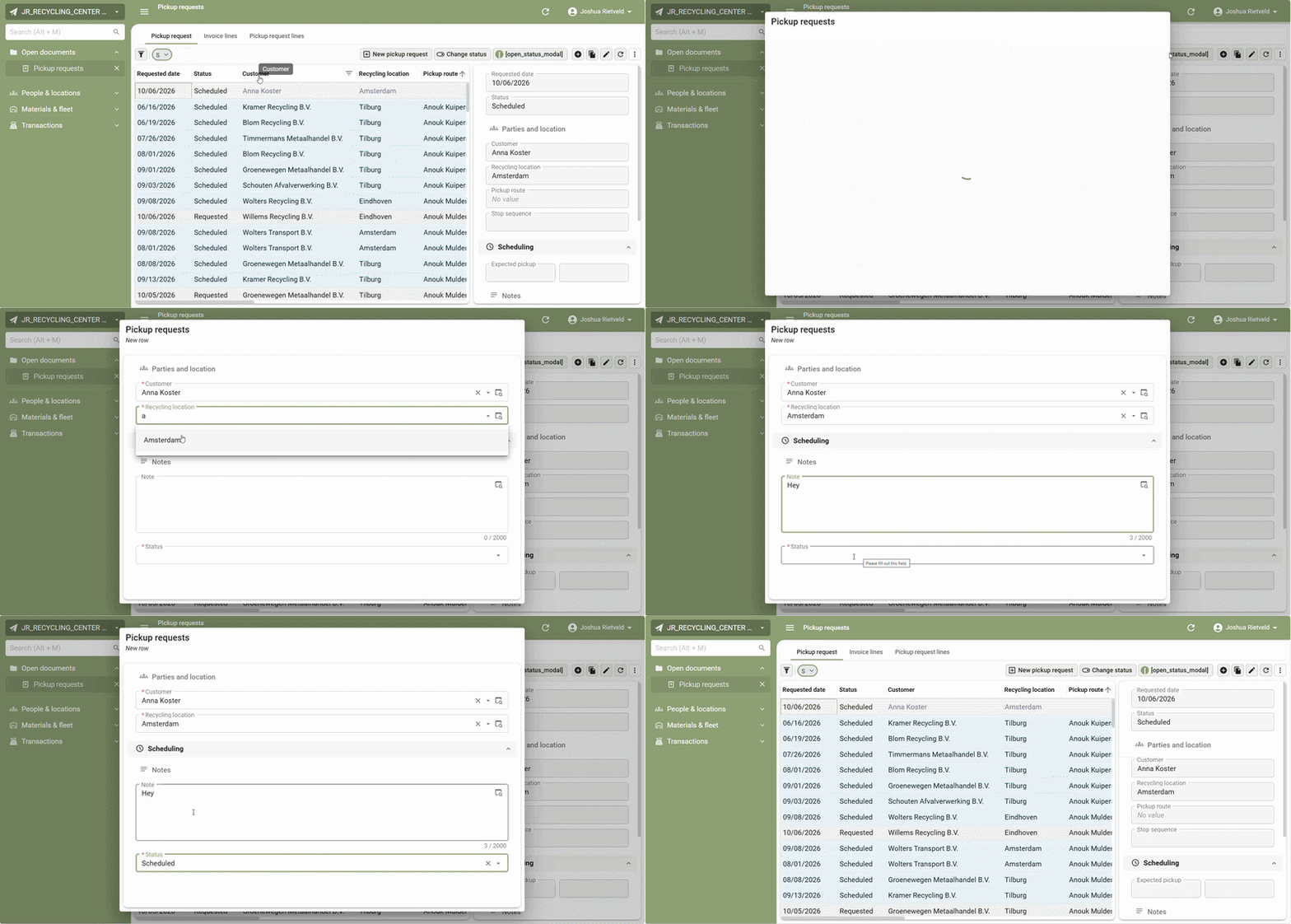
Complete a step and the modal carries you to the next. The big advantage over tasks: it's more future-proof. Add a new column to the table later and it shows up in the modal on its own, with no task to adjust.
Spotted that the header and footer are gone? That's a setting introduced in 2026.2.11. Disable them in the modal settings of the screen type, and lean entirely on the action bar, where you can add as many tasks as navigation buttons as you like
What stands out
-
Here we only used forms, which covers most cases. But these are just normal screen types and subjects, so get as creative as you want: pick a workshop from a map component instead of a dropdown, or preview the document the user just uploaded.
-
Need multiple rows in one step? A modal handles that natively. With tasks you're stuck reaching for workarounds to get the same result.
-
Smart defaults again: set hours per week to 40 the moment the contract type is fulltime.
-
After the insert, drop the user on the new record in the grid, so they see exactly what they added and where.
-
We used standard horizontal tabs in this example, but you can also set the tab page vertically, which lists the steps from top to bottom instead.
How to build one
Use the steps below to build your wizard using a modal document.
-
Create a variant for the main subject and for its details.
-
Add an alternative translation to each ‘page.’ Incorporate the step number in this translation.
-
Give those variants a screen type. In our case that's just an action bar for navigation plus a form.
-
Switch on auto edit and auto save in the variants so the user doesn't do either by hand.
-
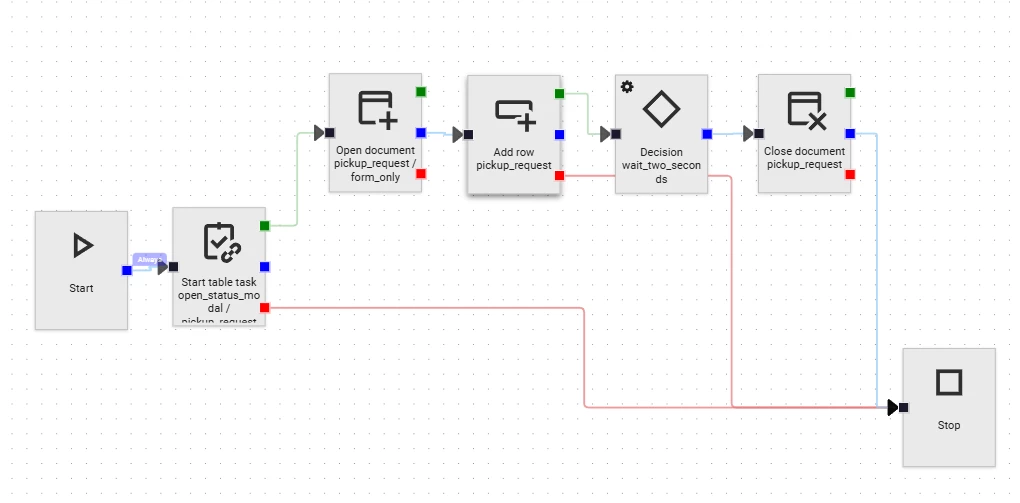
Build tasks and process flows for the navigation. The flow should use "activate detail" to move to the next page, and "add row" so the user can start typing right away.
-
In the SF, disable show footer, and optionally hide the header.
Making your wizards even better
A wizard that runs and a wizard that helps are different things. The mechanics above get you a flow that works. These (UX) rules decide whether it feels like guidance. Want to learn more? Read this article.
-
One job per step. The whole point is lower cognitive load, so don't rebuild the dense screen inside the modals. If a step needs a scroll bar, it's probably two steps.
-
Always show their progress. People will sit through five steps if they can see the end coming. A "step 2 of 5" in the title is enough.
-
Let them go back and lose nothing. A flow you can only move forward through feels like a trap. Mapping your input and output parameters to process variables (which we did above) is what makes "back" safe.
-
One catch: this only holds for "next.” If the user hits back (so cancel), the output parameters never get mapped to the process variables, so whatever they typed in that step is gone.
-
-
Validate as they go, not at the end. The point of splitting the process up is to catch a problem while the user still has the context to fix it. Don't let someone reach the overview step only to learn step one was wrong.
Your turn
Creating these wizards, thinking through the user flow, and actually implementing them takes more effort than building a standard screen. But that effort pays off. You can drastically improve the usability of specific flows in your application, especially the important ones for your organization.
We're curious what use cases you can think of in your own application. How would a wizard help your users?