


Hi everyone,
This release includes important security fixes and meaningful improvements across the platform.
A cross-site scripting (XSS) vulnerability in the HTML editor has been resolved, and Indicium now exposes a security.txt file to support responsible disclosure. Note that SQL Server 2019 is no longer supported as of this release.
The deployment process has been updated to streamline source code generation and execution. The Software Factory now writes separate Install and Upgrade folders, and code files are only shown once the deployment type is known.
On the authorization side, administrators can now manage error log access for individual users without granting full administrator rights. Furthermore, administrators can delegate API access to client applications using roles, allowing for more granular control over their access.
Several UI improvements make modeling more flexible and intuitive. The IN filter operator is now supported as default filter condition for alphanumeric and numeric fields. Tree views now support pagination, Clear cube view has been added to the action bar, and Model insight has been updated with more debug information and improved focus behavior. Startup time has been reduced through on-demand loading of libraries and components, and you can now navigate between screen components using keyboard shortcuts.
This is a short-term support (STS) release of the Thinkwise Platform. STS release support expires as soon as a new release is made available. For example, support for version 2026.1.12 ends when version 2026.1.13 is released. See our Lifecycle policy for information about supported versions.
Contents
Before you upgrade
- Features for the Software Factory and the Intelligent Application Manager are only compatible with this STS version of the Thinkwise Platform.
- Indicium and Universal UI features are backwards compatible with previous Thinkwise Platform versions, unless otherwise noted.
Demo and download
Breaking
Cross-site scripting (XSS) security vulnerability
Cross-site scripting (XSS) security vulnerabilities in the HTML editor have been resolved. When an HTML control field was in edit mode and an attacker could influence the displayed data, a JavaScript payload could execute using the user's credentials.
While Indicium's Content Security Policy (CSP) helped mitigate the risk, it is strongly recommended that you configure security headers for additional protection.
End of Support for SQL Server 2019
Support for SQL Server 2019 has ended. To continue using the Thinkwise Platform, upgrade to SQL Server 2022 or higher.
For more information, see End of SQL Server 2019 support.
Regenerate definitions and source code
As a result of changes made to source code generation and execution, it is important to regenerate definitions and source code after upgrading to this version of the Thinkwise Platform. This ensures the deployment continues to work as expected.
New and changed
User Interface - Show or hide header and footer in modal screens
new Community idea Software Factory
You can now control whether to show the header or footer in a modal screen. This is useful if you want to use modal screens for custom dialogs, such as a wizard, where the header and footer are not needed.
In menu User interface > Screen types, select a screen type and go to tab Form > group Modal size. Select Show header or Show footer to show the header or footer, or clear the checkboxes to hide them.
Check the new blog for inspiration on using Wizards with both Tasks and Modal documents in your Applications!
User Interface - Updated default action order for action bars
change Software Factory
The default order of the action buttons in an Action bar has been updated to show task, report, and cube view buttons first, followed by the CRUD buttons.
Previously, the CRUD buttons were displayed first, then the task, report, and cube view buttons. This would result in the CRUD buttons being displayed in different positions in each screen.
This change does not affect existing models, it only applies to new models or when the action bar is reset. The default order can still be modified in the menu Model overview > Branches > tab General settings > tab Default action bar.
User Interface - Removed 'Values' tab from cube view sort settings
change Software Factory
The sort settings for cube views (menu User Interface > Cubes > tab Cube views > tab Sort) have been updated.
Cube views and charts now use the setting Show top x. Use this setting to limit the number of category rows displayed in a cube view or chart.
Grand totals and sub-totals are always calculated using the full dataset, regardless of the Show top x setting.
Additionally, you can now only select Absolute for the setting Type of show top x, which determines how the top rows are displayed. The Percentage option has been deprecated.
Finally, the following changes have been made to the tab Cube views:
- The Values tab has been removed.
- The sort settings Show top x and Type of show top x have been moved to the tab Categories / Rows.
User Interface - Set 'IN' as default filter operator
new Software Factory
You can now set the IN filter operator as the default filter condition for Alphanumeric and Numeric fields in the Filter pop-up. Users can use this operator to filter data on multiple values at once. For example, users can now filter an order overview to show only orders with the status Pending, Processing, or Shipped.
Default filter operators for all subjects can be set in the menu User interface > Subjects > tab Default settings > group Filter. Filter operators for columns of the subject can be set in the menu User interface > Subjects > tab Data > tab Filter.
Business logic - Updated column order in 'Functionality'
change Software Factory
The order of the columns in menu Business logic > Functionality has been updated to improve usability. The column Code group is now displayed in front of the Control procedure column. This makes it easier to see which code group a control procedure belongs to.
Deployment - Updated source code generation and execution
change Software Factory
We have updated source code generation and execution to improve the deployment process.
Source code generation
Previously, all code files were written to storage when generating source code, regardless of whether the deployment would be an install or an upgrade. You then had to decide afterwards which files to use. The Software Factory now writes separate Install and Upgrade folders. Each folder contains only the code files relevant to that deployment type.
As part of this change, the file specifications of all code files in the Thinkwise base models have been updated. The path has been simplified from Source_code\Groups\[code_file_name].sql to [code_file_name].sql. The full path, including the appropriate Install or Upgrade folder, is now constructed dynamically during generation.
In addition, code files with the Show at deployment setting disabled are no longer written to storage.
Execute source code
Previously, all code files were shown immediately after generating source code. The deployment type was determined only after connecting to the database. Non-relevant files were then deselected and locked, and the create code file was always shown, even when it was not applicable.
Now, code files are shown only after a database connection is established. At that point, the deployment type is already known, and only the relevant code files are displayed. The create code file is also no longer shown when an sf_model_info or sf_product_info table is detected, as this indicates an upgrade scenario.
After upgrading to this version of the platform, generate definitions and source code before running the next deployment.
Authorization - Manage API access for client applications
new Intelligent Application Manager
Previously, for API access for a client application you could either grant No access or Full access. To give you more control, you can now delegate roles to client applications to limit their API access.
The following prerequisites must be met to use access delegation for a client application:
- The user must be allowed to delegate access. To set this up, go to the menu Authorization > Users > tab Form and select the checkbox Allow access delegation.
- The application must be allowed to delegate access. To set this up, go to the menu Authorization > Applications > tab Form and select the checkbox Allow access delegation.
You could already create roles in the Software Factory and assign them to user groups. Now you can use these roles to manage client application access as well.
To make roles available for delegation, go to the menu Authorization > Applications > tab Authorization settings > tab Access delegation roles. This tab was previously named tab Personal access token roles and has been renamed. Select the checkbox Available for delegation for each role you want to make available. These roles can be assigned to both Personal Access Tokens (PATs) and client applications.
To set up limited access for a client application, go to the menu Client apps > Client applications > tab Form > group Access. In the field API access, select Limited access from the dropdown.
Once you have set up limited access, the tab Access delegation roles is added to the screen. In this screen, you can select for each role whether they are:
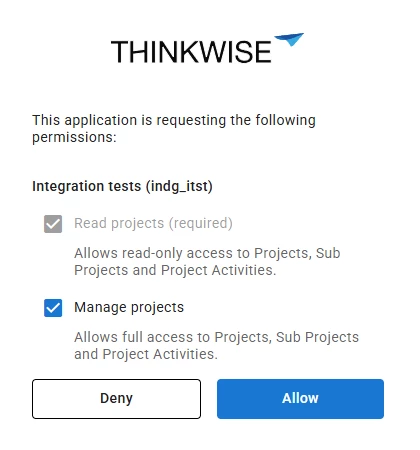
- Enabled - This role is available for delegation to the client application. When a client application requests access, the user can select which roles to delegate in the consent screen.
- Required - This role is required for delegation to the client application. The client application must request this role when requesting access. The user cannot deselect this role in the consent screen, but can still choose to deny access entirely.
When a client application with limited access requests access, it has to request scopes. These should be requested in the format {application alias}/{role id}. The supported scopes are the roles that you marked available in Access delegation roles for the client application. These can be found at https://<base_url>/indicium/.well-known/openid-configuration.
The scopes that are requested by the client application are shown to the user in the consent screen. Requests on scopes that have been marked as Required cannot be deselected.
The following settings have also been renamed as part of this update:
- Default allow PAT is renamed to Default allow access delegation (menu Authorization > Tenants > tab Form). This allows users to manage access delegations by default within a tenant.
- Allow personal access token creation is renamed to Allow PAT management. This allows users to create, update, and delete PATs.
Finally, the Create IAM user and Update IAM user process actions now also include Allow access delegation as an input field. If no value is set for this input field, the value of Allow PAT management is used to preserve the behavior of existing integrations. The OpenID user template has been updated as well to include this setting.
Authorization - Manage error log access for users
new Intelligent Application Manager
Previously, access to the Error log was limited to main administrators. Users who needed access for troubleshooting had to be given full administrator rights, which also allowed access to all administrative features. This is not always desirable.
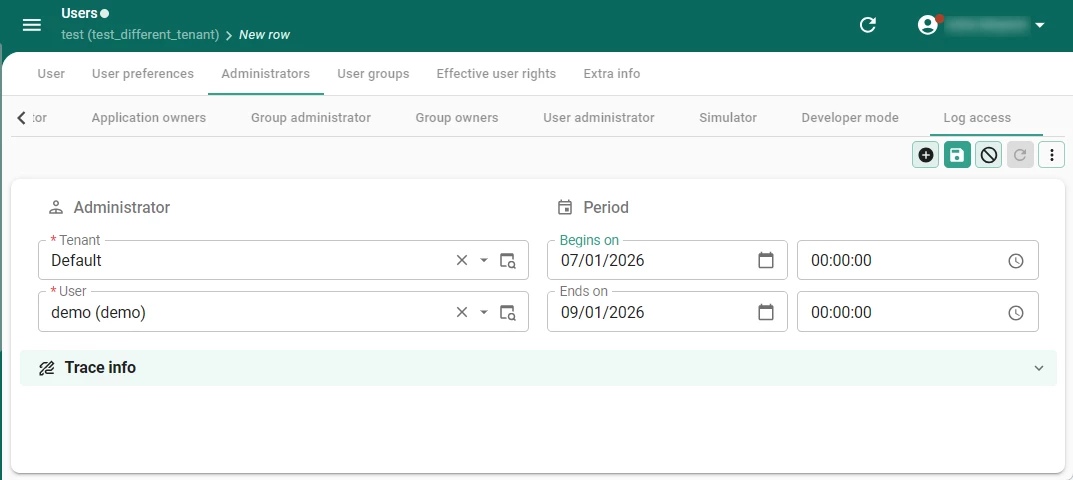
Instead, you can now manage a user's access to the error log in menu Authorization > Users > tab Administrators > tab Log access. Select a Tenant (if applicable) and a User. To set an access period, select a Begins on and Ends on date.
Added 'security.txt' file for Indicium
new Indicium
Indicium now exposes a security.txt file. This file helps security researchers find the right contact for responsible disclosure of security vulnerabilities.
The file is available at:
<server>/<indicium>/security.txt<server>/<indicium>/.well-known/security.txt
The email address used in the security.txt file is taken from the field Contact for system issues field in IAM. If no email address is configured, the endpoint returns a 404 error.
Updated libraries for office file handling
change Indicium
The libraries for reading and creating Excel, PowerPoint, Word, and PDF files have been updated to the latest version. Performance and overall quality has been improved for several components, including the Preview screen component, and Import and Export functionality.
Added pagination for tree views
new Universal UI
Treeview screen components now support pagination. If a dataset contains more records than the configured page size, a pagination footer appears at the bottom of the tree view.
Users can navigate between pages using the mouse or keyboard shortcuts.
Alt+Page Downto go to the next page.Alt+Page Upto go to the previous page.
Added 'Clear cube view' to action bar
new Universal UI
Users can now use Clear cube view from the action bar to reset a pivot grid. This improves usability as users no longer have to remove each field and clear any cube view filters individually.
Clear cube view is unavailable if the cube panel is disabled for the cube. Select Enable cube panel to make the action available in the action bar. For more information, see Create a cube
Improved 'Model insight' panel and debug values
change Universal UI
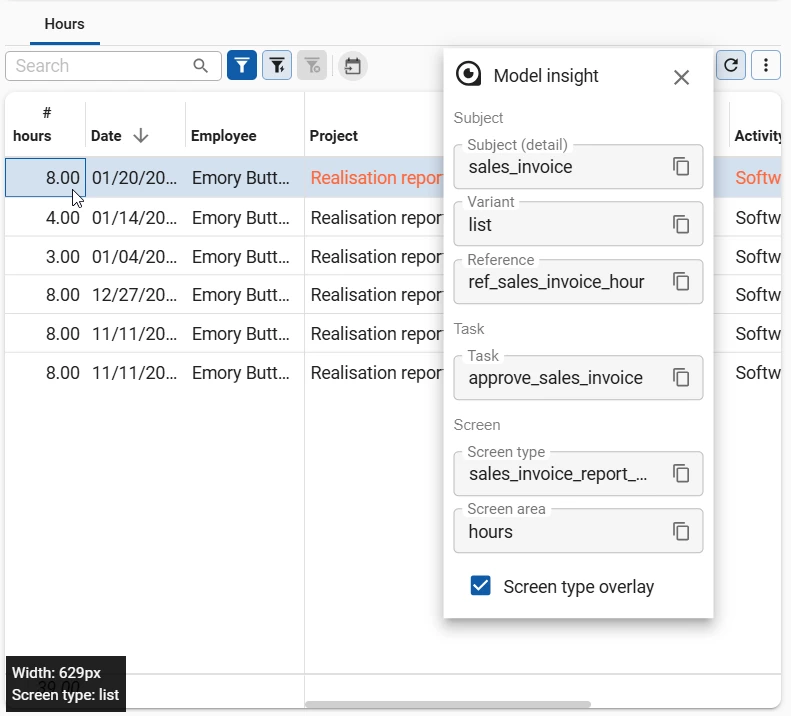
Model insight has been updated for a better debugging experience. The panel now displays more debug information, with values grouped into dedicated sections. You can hover over task and report buttons to see their details. To copy debug values, use the Copy to clipboard button or select and copy values manually. The checkbox Screen type overlay has been added, allowing you to enable or disable the overlay.
Additionally, the focus of Model Insight has been improved. Selecting an action bar, detail tile, chart, pivot grid, pivot grid field list, resource scheduler, or a detail tab page now correctly updates the context in the panel.
The keyboard shortcut to open Model Insight has also been changed from Alt + F1 to Alt + F12 (macOS: Option + F12).
Configure debounce time for lookups
change Universal UI
You can now configure the debounce time for the lookup controls Suggestions (contains) and Suggestions (starts with). To do this, add the following properties to the config.json file:
{
  "searchDebounceTime": 300,
  "searchDebounceTimeMobile": 600
}
The default debounce time is 300ms on desktop and 600ms on mobile devices.
The settings also apply to the Search in the action bar.
Improved datetime filtering
change Universal UI
Previously, entering a date in a Datetime filter automatically filled the time condition with 00:00:00. The time field is no longer filled automatically, making it easier to filter on an entire day. If you do not enter a time in a Datetime filter, it now behaves as a Date filter. To insert the current time, press Space while the time field is focused.
Improved sort order in lookup and domain dropdowns
change Universal UI
When typing in a lookup or domain field, dropdown results are now grouped. Results whose label starts with the typed value appear first, followed by options that only contain it elsewhere in the label.
Previously, matching options were returned in no particular order, mixing results that started with the typed text together with partial matches.
The most relevant option now appears at the top of the list and is automatically highlighted, reducing the number of keystrokes required to make a selection. For example, searching for ro in a country field now shows Romania before Morocco.
Performance optimization for Universal UI
change Universal UI
Previously, Universal UI loaded all libraries and components on startup, including those only needed after login or when using a specific feature. To improve the startup time of Universal UI, these libraries and components are now loaded on demand. Features such as drag-and-drop, maps, and the grid and tree screen components may load briefly on first use as their data is fetched in the background.
Added keyboard shortcut for component navigation
You can now use keyboard shortcuts to navigate between screen components:
F6to cycle forward through components.Shift+F6to cycle backwards.Tabto navigate into the individual parts of a focused component.
Fixed
Software Factory and Intelligent Application Manager
DB2When deploying to a DB2 iSeries database that still needed to be created, the code execution screen (menu Deployment > Creation > tab Execute source code) remained empty, and deployment could not be executed. This has been fixed.DB2Unit test output was not returned reliably when the result included a message, such as a referential integrity error in the mock data. This has been fixed.DB2Some templates had a leftover parameter that would not be replaced when generating the control procedure. This has been fixed.- In a role configuration with rights to the source table and a detail reference but not the target table, the detail reference was incorrectly returned to Indicium as available. This caused an error when loading the subject. This has been fixed.
- When non-default runtime configurations were added with the same RDBMS type as the default, the RDBMS type would be emptied and caused issues downstream. This has been fixed.
- Some references from
prog_objectto child tables were missing theirON DELETE CASCADE. This could leave items where the parent record was removed This has been fixed. - When managing procedures in SQL Server and/or DB2 models, the developer was unable to have solely output parameters due to a scoping issue in the Default and Layout logic of subroutine parameters. This has been fixed.
- When copying or renaming tables or domains, some fields were improperly inserted/updated. This has been fixed.
Indicium
- Image and file parameters in a staged task or report that were populated by the object's default procedure showed a broken link. Opening the file resulted in a 404 error, and image previews were not displayed. This has been fixed.
Universal UI
- When dragging a record with a lookup display value, the dragged item showed the key value instead of the display value. This has been fixed.
- Filtering on a lookup display column with a data type other than
VARCHARnow works as expected. Minimal platform version 2026.3 or STS 2026.2.11 is required for this. - Grid column widths no longer resize when a task or report is opened after a value has been edited in a cell.
- In Firefox, dropdowns inside grid header filters remained open after closing the filter panel. This has been fixed.
- When a value in an active record was changed with a process flow, the Universal UI did not wait long enough for the data refresh. This could cause
bad_requesterrors, empty input parameters, or the flow to stop. This has been fixed. - When editing code in an external file, sessions could disconnect unexpectedly when you switched between records, changed pages, or switched between open documents. This has been fixed.
- In task dialogs opened via drag-drop, lookup values in the task parameters now show display values instead of key values.
- If a user executes an offline task without completing all mandatory fields, the task pop-up reappears so the user can complete the missing fields. However, after the task was reopened, the Execute button remained disabled and the user could not resubmit the task. This has been fixed.
- Refreshing the browser while in a zoomed detail no longer reopens it as an unfiltered main subject.
- Error details for network requests that failed with HTTP status '0', for example because the user was offline, are now displayed.
- On mobile devices, the date picker no longer requires a double tap to open.
- Fixed an issue where entering a date between 01-01-1753 and 01-01-1900 incorrectly displayed a red error border.
- When the same node key value appeared on multiple rows, the hierarchy tree did not correctly display all items and nesting. This happened in cases where an item existed under multiple parents or where a group node and a leaf node shared the same identifier. This has been fixed.
- On a tab panel that contains only detail tab pages, the first visible tab page was not activated and its content was not loaded when other tab pages were hidden by the context stored procedure on document open. This has been fixed.
- Fixed an issue where lookup values in a form could be edited by double-clicking in a lookup popup while the column type was set to Read-only. Note that solely setting a column to Read-only (menu User interface > Subjects > tab Components) does not offer security, because the lookup column can still be edited through the grid, Mass update, and the Indicium API.
- Fixed an issue where if you copied and pasted code into the HTML editor it would strip whitespace and new lines.
- Fixed an issue where selecting a field with a lookup control in Update always used Suggestions (contains) instead of the lookup control specified in the data model.
- Fixed an issue for Export, where opening the link to the file caused an '404 Not Found' error.
Data model changes
Data model changes for the Software Factory and IAM meta-models are listed here. This overview can be used as a reference to fix dynamic control procedures, dynamic model code or custom validations after an upgrade.
Changes Software Factory
Table changes
| SF - From table | SF - To table |
|---|---|
| code_file_code | - |
Column changes
| SF - Table | SF - From column | SF - To column | Mandatory | Default value |
|---|---|---|---|---|
| execute_source_code | - | deployment_method | 0 | - |
| file_storage | - | use_storage_relative_path | 1 | 1 |
| file_storage_configuration | - | use_storage_relative_path | 0 | 1 |
| message_broker_message_mqtt_input_parmtr | pre_processing | pre_processing | 1 | 0 |
| prog_object | - | selected_for_install | 1 | 1 |
| prog_object | - | selected_for_upgrade | 1 | 1 |
| prog_object | selected | - | - | - |
| prog_object_archive | - | selected_for_install | 1 | 1 |
| prog_object_archive | - | selected_for_upgrade | 1 | 1 |
| prog_object_archive | - | code_file_id | 0 | - |
| prog_object_archive | - | order_no | 0 | - |
| prog_object_archive | generated_by_control_proc_id | - | - | - |
| prog_object_type | prog_object_prefix | - | - | - |
| prog_object_type | prog_object_suffix | - | - | - |
| runtime_configuration | rdbms_type | rdbms_type | 1 | - |
| screen_type | - | modal_show_header | 1 | 1 |
| screen_type | - | modal_show_footer | 1 | 1 |
| sf_configuration | - | skip_import_base_data_in_import_model | 1 | 0 |
| sf_configuration | - | skip_vrs_check_in_import_model | 1 | 0 |
Changes Intelligent Application Manager
Table changes
| IAM - From table | IAM - To table |
|---|---|
| - | openid_client_gui_appl_role |
| - | usr_log_access |
| gui_appl_authorization_pat | gui_appl_authorization_delegation |
Column changes
| IAM - Table | IAM - From column | IAM - To column | Mandatory | Default value |
|---|---|---|---|---|
| col | - | has_elemnt | 0 | - |
| gui_appl | allow_pat | allow_delegation | 1 | 0 |
| iam_file_storage | - | use_storage_relative_path | 0 | - |
| openid_client | required_consent | required_consent | 1 | 1 |
| openid_provider_usr_template | - | allow_access_delegation_claim_id | 0 | - |
| openid_provider_usr_template | - | allow_access_delegation_static_value | 0 | 0 |
| ref | - | look_up_display_has_elemnt | 0 | - |
| ref | - | transl_has_elemnt | 0 | - |
| report_parmtr | - | has_elemnt | 0 | - |
| report_ref | - | look_up_display_has_elemnt | 0 | - |
| report_ref | - | transl_has_elemnt | 0 | - |
| screen_type | - | modal_show_header | 1 | 1 |
| screen_type | - | modal_show_footer | 1 | 1 |
| sf_file_storage | - | use_storage_relative_path | 0 | - |
| task_parmtr | - | has_elemnt | 0 | - |
| task_ref | - | look_up_display_has_elemnt | 0 | - |
| task_ref | - | transl_has_elemnt | 0 | - |
| usr_general | - | allow_access_delegation | 1 | 0 |