




Question

Import function does not show all values for lookup

  • Nov 18, 2026 1:06 PM UTC
  • 1 reply
  • 9 views

Blommetje
Superhero
Forum|alt.badge.img+13

Hi,

I have a table 'usr_category’ to connect usr to categories. Both are lookups for said tables. When I enter a row through the gui, I can select any user from the usr table. But when I do a bulk import, I can only select from already existing users in the connecting table,as a 'constant value’. 

In the win gui, this works different; here I can select any user from the table.

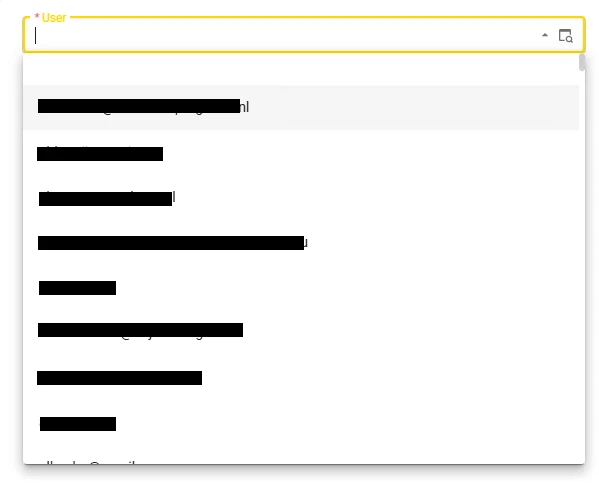
When added in the Form; 
 

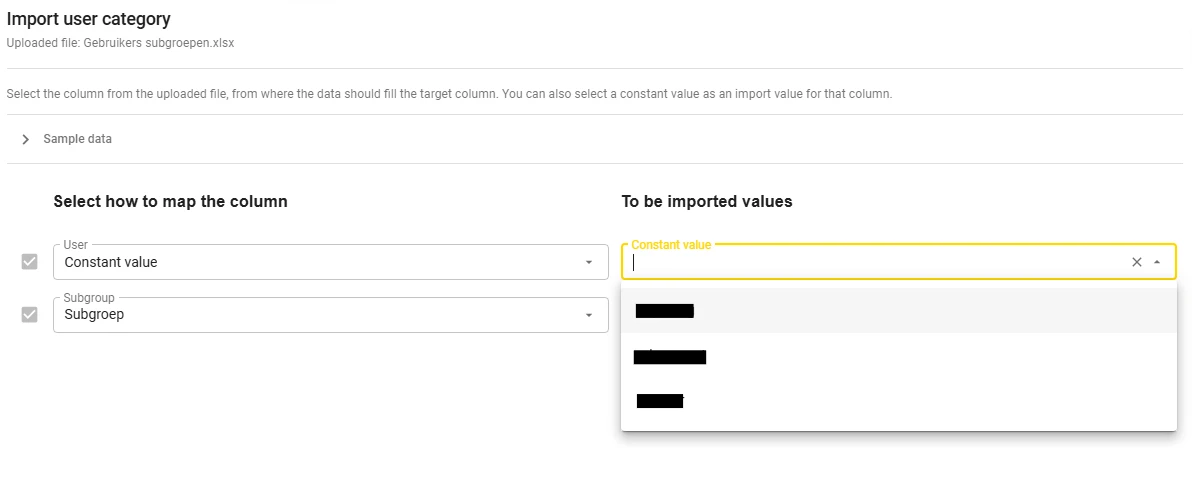
When adding in the import, constant value; Only 3 existing values appear. 

in the windows gui; there is a magnifier to select any usr. 



Is there any way around this?

Thanks! 

Alex

1 reply

This is how the Universal import wizard currently works. It isn’t caused by your model.

In a normal form, the lookup control gets its options from the lookup table (usr), so you see every user. The Constant value field in the import wizard uses a different query. It works like the lookup editor in the advanced filter popup: it asks the target table (usr_category) for the distinct values already in that column, grouped by value and display value. So you only see the users that already have a row in usr_category. That’s why you get three. Typing in the field searches within those same values. The import mapping also never shows the lookup popup (magnifier) button.

The Windows GUI fills this field from the lookup table itself, which is why it shows every user.

Some ways around it:

  1. Put the user in the file. Add a column with the user key to your Excel file, filled with the same value on every row, and map it as a source column instead of a constant value. Universal then imports that value directly, so the user doesn’t have to exist in usr_category yet.
  2. Use a task. If you often link one user to many subgroups, a task on usr (or on the subgroup table) with a parameter for the other side may be easier than an import. The task’s lookup parameter does use the full lookup table.
  3. First-row trick. Add one usr_category row for the new user through the form. The user then appears in the constant value list, and you can run the import as usual.

If you’d like the constant value to offer every value from the lookup table, as the mass update form already does, it’s worth posting an Idea for it.