

Solved

How to create file storage location, type Azure Blob with a SAS token

  • February 5, 2026
  • 5 replies
  • 44 views

Forum|alt.badge.img+1

In the docs, I see 2 possibilities: 

  • A managed identity - select the checkbox Use managed identity.

Or:

  • Enter the Tenant id, Client id, and the Client secret.

But I have a SAS token, which is described as a possibility for Azure Files, but not for the Blob.


Any advise on how to proceed?

Best answer by Tim de Lang

Hi ​@Mike Heijstee ,

The SAS token is indeed not possible for azure Blob storage, you have two options to process:

  1. you can use a managed identity or
  2. use the tenant id, client id and the client secret.

Kind regards,

Tim de Lang

5 replies

Tim de Lang
Moderator
Forum|alt.badge.img+4
  • Moderator
  • Answer
  • February 9, 2026

Hi ​@Mike Heijstee ,

The SAS token is indeed not possible for azure Blob storage, you have two options to process:

  1. you can use a managed identity or
  2. use the tenant id, client id and the client secret.

Kind regards,

Tim de Lang


Harm Horstman
Superhero
Forum|alt.badge.img+21

Hello ​@Tim de Lang ,

I tried setting up an Azure Blob Storage connection, but I wasn't able to get it working. The documentation (version 2026.12) doesn’t provide enough clarity for this scenario, and a concrete example seems to be missing. 

Since our DEV environment runs on‑premise, using a Managed Identity is not an option.
The alternative authentication method requires a User Name, but it’s unclear what should be entered there.

Additionally, the configuration also asks for a Path, but it’s not obvious what the expected value should be in the case of Azure Blob Storage.

Could you provide more detailed guidance or an example for this setup?


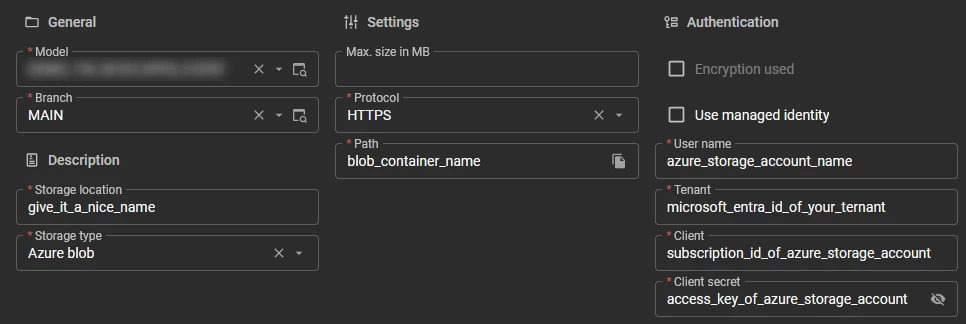
@Harm Horstman We do use Azure blob here. Even though we can use managed identity, I do think this information will help. The only value I am not 100% sure is the “Client” and I assumed the “id” values are needed for “Tenant” and “Client”.

In the fields I have entered where the value should come from.


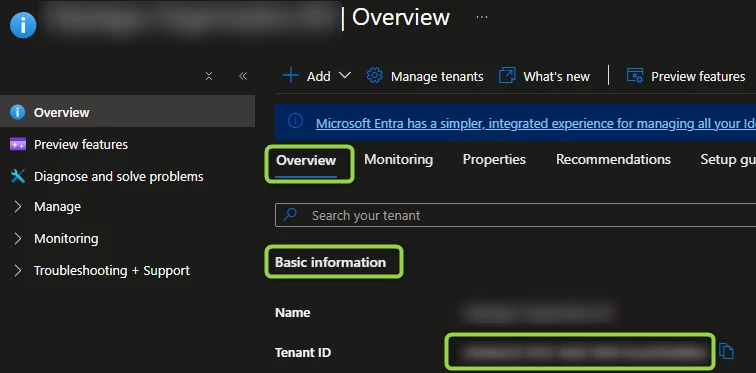
Except for “Tenant” all information can be found in the Azure Portal under the Storage Account and its menu items.

Where to find the “Tenant”?

Go to “Microsoft Entra ID” and it should show be visible straight away under tab “Overview” and group “Basic information


I hope this information was useful to you.


Harm Horstman
Superhero
Forum|alt.badge.img+21

Thanks ​@Mark_Plaggenborg, you helped me out!

I was initially misled by the field labels in the configuration. In my view, the field "Path" would be more accurately described as "Container", and "User Name" should be "Storage Account".

Another thing to be careful with: when entering the Client Secret, it’s super easy to accidentally use the Client Secret ID instead of the actual secret value.

I also had to make sure the App Registration had the right permissions. I did that through Access Control (IAM) on the specific storage container in the Azure Portal. With “Add role assignment”, I assigned the “Blob Storage Data Contributor” role to my App Registration.

Once you know how it works, it’s not that hard — but inside the SF it’s definitely not obvious. Maybe a more wizard‑style setup per storage type would help. The documentation on this topic could also use a bit of improvement. 


Arie V
Community Manager
Forum|alt.badge.img+12
  • Community Manager
  • March 20, 2026

FYI: Just updated the Docs to make it more clear how to properly configure an Azure Blob file storage: File storage locations | Thinkwise Documentation 

Thanks for the elaborate feedback, I think the Docs now cover it all ​@Harm Horstman ​@Mark_Plaggenborg

Agreed that ideally the field names in IAM are more in line with the Azure Blob terminology, but the fields are reused for all File storage types. We are working on making Field translations more dynamic and parameterized though, so this screen might be a good candidate to apply that new feature in the future...