


Solved

field is missing in universal gui but visible in windows gui

  • April 28, 2026
  • 4 replies
  • 69 views

Forum|alt.badge.img+6

I've got a question from one of my key users, he noticed that the Description field for a specific view in the universal gui (we still run TW2025.1) shows as an empty spce while in the windows gui this same field is visible and display it's contents:
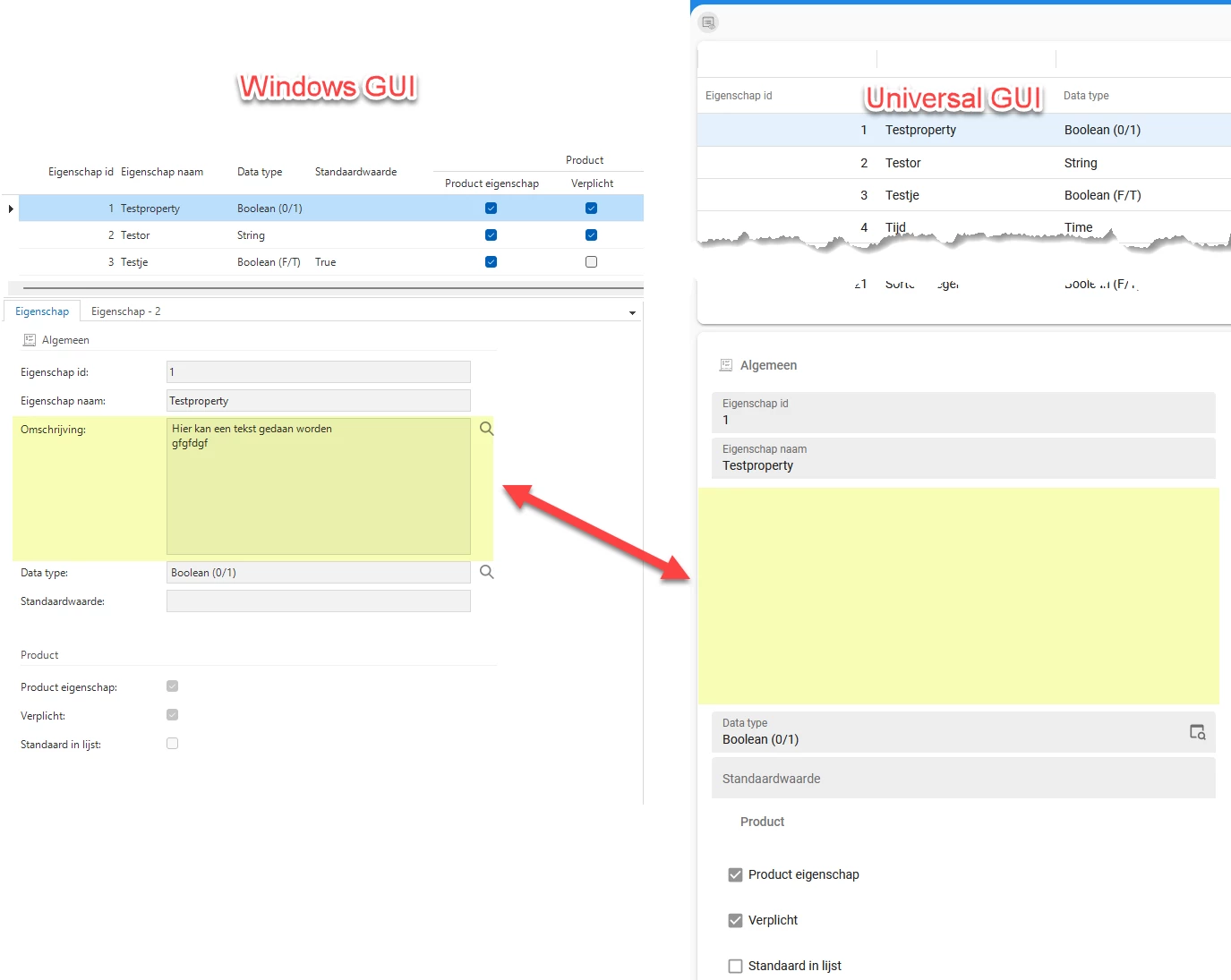
 

I have no idea on where to start to debug this.

Best answer by Arie V

@Alban_T Is the Description field perhaps a RTF Control? That Control type is not supported in the Universal UI, we recommend to replace it with an HTML Control and convert the content.

Let us know if you need further help with that.

4 replies

Arie V
Community Manager
Forum|alt.badge.img+12
  • Community Manager
  • Answer
  • April 29, 2026

@Alban_T Is the Description field perhaps a RTF Control? That Control type is not supported in the Universal UI, we recommend to replace it with an HTML Control and convert the content.

Let us know if you need further help with that.


Forum|alt.badge.img+6
  • Author
  • Hero
  • April 29, 2026

@Alban_T Is the Description field perhaps a RTF Control? That Control type is not supported in the Universal UI, we recommend to replace it with an HTML Control and convert the content.

Let us know if you need further help with that.

Hi ​@Arie V as we say in Dutch “jij gaat door voor de magnetron” 😁
It is indeed an RTF control, is there an easy way to convert the contents to html?


Remco Kort
Administrator
Forum|alt.badge.img+2
  • Administrator
  • April 29, 2026

@Alban_T Unfortunately, I am not aware of easy solutions that can be utilized in TSQL to convert RTF into HTML.

I did some quick testing and it seems like chatGPT is capable of converting it. So you could create a process flow with an llm instruction process action that takes the rtf data then converts it into HTML. Then you could store that data in a new column which has a HTML domain control type. This process flow can then loop through all rtf data and convert it. 

The advantage of storing  the converted HTML data in a new column is that you are able to compare the data, and if the conversion isn’t what it should be, you can try again. Only when you are sure that all data is converted properly, then delete the old RTF column.


If the dataset is not too big you might even be able to export the rtf data as an excel file, ask chatgpt (or any other llm such as Claude) to convert that RTF data to HTML and then import the excel file with converted data back into your application. Again I would use a new column to store the HTML data, that way you can compare the old RTF data with the new HTML data. Once you are happy with the conversion you can then delete the old column.


Forum|alt.badge.img+6
  • Author
  • Hero
  • April 30, 2026

@Remco Kort I managed to convert the RTF content to HTML using a vibe coded Python script by Claude:

import pyodbc
import subprocess
import re

# ============================================================
# CONFIGURATIE
# ============================================================
SERVER = r"YOUR_SERVER_NAME" # Pas aan naar jouw servernaam
DATABASE = "DatabaseName" # Pas aan naar jouw databasenaam
USERNAME = "username" # Pas aan naar jouw gebruikersnaam
PASSWORD = "password" # Pas aan naar jouw wachtwoord

SOURCE_QUERY = "SELECT p.property_id, p.description FROM dbo.property AS p WHERE p.description IS NOT NULL"
TARGET_TABLE = "dbo.rtf_2_html" # table to store the results, must have columns: property_id (int) and html_description (nvarchar(max))
TARGET_ID_COL = "property_id" # id column in the target table to link to the source table
TARGET_VAL_COL = "html_description" # value column in the target table
# ============================================================

conn = pyodbc.connect(
f"DRIVER={{ODBC Driver 17 for SQL Server}};"
f"SERVER={SERVER};"
f"DATABASE={DATABASE};"
f"UID={USERNAME};"
f"PWD={PASSWORD};"
)
cursor = conn.cursor()

def rtf_to_html(rtf_text: str) -> str:
if not rtf_text or not rtf_text.strip().startswith("{\\rtf"):
return rtf_text or ""

result = subprocess.run(
["pandoc", "--from=rtf", "--to=html", "--standalone", "--embed-resources"],
input=rtf_text.encode("utf-8", errors="ignore"),
capture_output=True,
timeout=30
)

if result.returncode != 0:
print(f" FOUT: {result.stderr.decode()}")
return rtf_text

html = result.stdout.decode("utf-8").strip()
body_match = re.search(r"<body[^>]*>(.*?)</body>", html, re.DOTALL)
if body_match:
html = body_match.group(1).strip()

return html


cursor.execute(SOURCE_QUERY)
rows = cursor.fetchall()
print(f"Gevonden: {len(rows)} records\n")

for row in rows:
record_id, rtf_content = row
html = rtf_to_html(rtf_content)

cursor.execute(f"""
MERGE {TARGET_TABLE} AS target
USING (VALUES (?, ?)) AS source ({TARGET_ID_COL}, {TARGET_VAL_COL})
ON target.{TARGET_ID_COL} = source.{TARGET_ID_COL}
WHEN MATCHED THEN
UPDATE SET {TARGET_VAL_COL} = source.{TARGET_VAL_COL}
WHEN NOT MATCHED THEN
INSERT ({TARGET_ID_COL}, {TARGET_VAL_COL})
VALUES (source.{TARGET_ID_COL}, source.{TARGET_VAL_COL});
""", record_id, html)

print(f"✓ {TARGET_ID_COL} {record_id} verwerkt ({len(rtf_content)} → {len(html)} chars)")

conn.commit()
print("\nKlaar!")
conn.close()


The endresult is a column which contains the HTML equivalent of the RTF column with embedded images.