


December 22, 2025
- Full release (from release candidate 2025.3.13)
- Additional fixes this release:
- Fixed an issue that was introduced in Universal UI 2025.3.13 release candidate where grid controls, such as checkboxes, were vertically misaligned.
- Fixed a crash that could occur when loading data in pivot grids and charts, caused by non-unique aliases in the SQL query. This issue could occur in Universal UI 2025.3.10 and higher
-
Hello everyone,
We have extended filtering capabilities in this release, allowing you to filter numeric and date/time values directly from column headers. You can now also use additional operators in the Filter pop-up, allowing for more precise filtering of data. To improve your workflow, we have added the ability to execute tasks or reports across multiple pages in a grid. Display limits will no longer restrict you from performing actions on all relevant rows. We have also made some optimizations and minor fixes to enhance your overall experience with the Universal UI, such as improving the Export immediately task and fixing issues with keyboard shortcuts. Last but not least, we have improved the usability and styling of Multiline and HTML controls in grids and forms.
Do you have any questions or suggestions? Let us know in the Thinkwise Community!
Demo
As always, we have made a demo for you: try it here. Before trying it out, press 'Clear Cache' on the login screen.
Read the Universal GUI user interface guide to get familiar with the GUI.
Universal GUI version 2025.3.13
For more information about setting up the Universal GUI, see the Universal GUI setup guide.
Note:
- Use a modern browser to access the Universal GUI, for example, a recent version of Chrome, Firefox, Edge, or Safari mobile.
- Deploy the Universal GUI on the same server as Indicium or an allowed origin in
appsettings.json. - Run all hotfixes on IAM and the Software Factory that you plan to use for the Universal GUI.
- Use the latest version of Indicium.
Download the Universal GUI version 2025.3.13 here
Contents
Hotfix 2025.3.12.1 for charts
The hotfix of Universal GUI 2025.3.12.1 is included in this release. This fix resolves an issue where charts were not available and a license expiration watermark was shown.
If you cannot upgrade to this version, create a ticket in TCP. We will provide an alternative hotfix for your current version.
Upgraded Next.js to version 16.0.10
Recently, a critical 10/10 vulnerability in React Server Components was disclosed by the React team. The Universal UI is not affected by the vulnerability. Read more in the recently published blog Information about React and Next.js vulnerabilities.
To prevent false positives in dependency scanners, Next.js is upgraded to version 16.0.10 in this release.
Our development team continuously monitors security advisories and responds promptly. Additionally, we are preparing a living security document to keep you informed about relevant security updates.
Breaking
Changed data-testid for column header filters
breaking
As a result of improvements made to column header filtering, the following data-testid has been changed:
grid__custom__menu__icontogrid__custom__filter__icon
Check your automated tests and update them if necessary.
New and changed
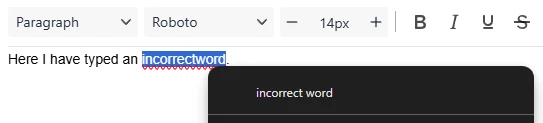
Spell check for HTML editor
Community idea new
Spellcheck is now available in the HTML editor. The spellchecker uses the browser's built-in functionality. Behavior may vary between browsers.
Added operators to Filter pop-up
new
To further improve filtering capabilities, we have added the following operators to the Filter pop-up for look-up type columns:
- Contains
- Does not contain
- Starts with
- Does not start with
- Ends with
- Does not end with
Execute tasks or reports across multiple pages
new
Previously, if you had paging set up in your application, tasks or reports could only be executed for the visible rows on the current page. The same applied if you had no paging set up, but the number of records exceeded the maximum display limit. In these cases, the message 'There are more records than can be displayed' was shown, and tasks or reports could only be executed for the visible rows.
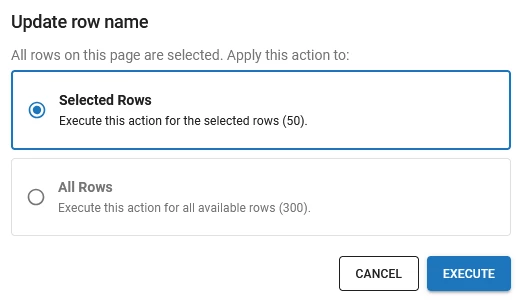
You can now execute tasks or reports for rows across multiple pages in a grid. In addition, you can execute tasks or reports for rows that are not displayed in a grid due to the maximum display limit. To do this, select all visible rows in a grid by holding Shift, or by pressing Ctrl + A (see also, Available keyboard shortcuts). After selecting the rows, execute the desired task or report. A popup is displayed with the following options:
- Selected Rows - Execute the action for selected rows.
- All Rows - Execute the action for all available rows in the grid. If you select this option, active search, filters, and prefilters are applied when executing the action for all available rows. This means that if you have filtered the grid on a specific value, for example a customer, the action will only be executed for all customers matching that filter.
Extended column header filtering
Community idea change
In the previous 2025.3.12 release, we introduced column header filtering for all types of numeric values. We have now added a distinction between qualitative and quantitative value types, allowing you to filter a range of numeric values instead of selecting absolute values.
This included values with the following domain controls: Numeric, Calculator, Progress bar, Currency, and Percentage.
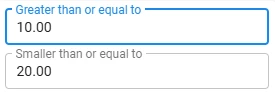
In addition, you can now filter date and time values in column headers using the Date, Time, and DateTime domain controls.
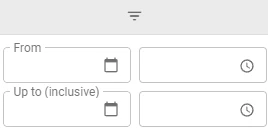
You can filter quantitative numeric, Date, Time, and DateTime values in the following ways:
- Specify a range by entering values in the From and To fields.
- Enter a value in the From field to filter for values greater than or equal to a specified value.
- Enter a value in the To field to filter for values less than or equal to a specified value.
- Enter the same value in both the From and To fields to filter on that specific value.
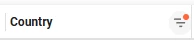
Styling of the column header filter pop-up has also been improved for all available filter types. The three-dot menu has been replaced with a filter icon in the column header. Clicking on the icon opens the filter pop-up directly. Additionally, a badge on the filter icon is shown if a filter is applied to a column. This improves usability and makes it easier to identify which columns have active filters.

Changed asterisk color for mandatory fields
change
Previously, the asterisk (*) indicating mandatory fields used the color of the main theme. The asterisk now uses a red color (#EF5350) to improve visibility and consistency with common design practices. Furthermore, the position of the asterisk in grid cells has been adjusted to be in the top left corner.
Updated availability of 'Filter' popup
change
Previously, the Filter popup would be disabled when all columns had the Visible for filter setting set to Extended. This resulted in users being unable to access the Filter popup.
The Filter popup is now always available in the action bar, regardless of the column filter visibility settings. In cases where you want to disable the Filter popup for a subject, clear the checkbox Filter in the menu Subjects > tab Settings > tab Permissions > group Data.
Minor fixes and tasks
We have made the following minor fixes and changes in this release:
-
When hovering over a checkbox or its label, tooltips were not shown. This is now fixed.
-
To hide field labels, the Label width of a label can be set to '0'. In these cases, the asterisk (
*) for mandatory fields was not displayed. Asterisks (*) are now shown when the label width is set to '0' to indicate mandatory fields. -
Previously, scrolling to to the beginning or end of the Code editor and SQL editor stopped scrolling on the entire form. Now, scrolling to the beginning or end of these editors continues scrolling if more content is available in the form.
-
Using characters like
&,#, and+in a Contains operator in Filter pop-up would lead tobad_requesterrors. This has been fixed and special characters can now be used in filter operators. -
Previously, when executing the task Export immediately from the overflow menu to export data to Excel, the desired columns were not always included in the export. This has been fixed in the following way:
- Primary key columns are always included in the export.
- Password-type columns are always excluded from the export.
- The general column visibility is used, and only visible columns are exported.
- The grid column definition is now loaded first to ensure the correct order of columns in the export.
-
IMAGE COMBO fields did not correctly display both icon and text when there was insufficient space. It now only displays the icon to prevent this behavior.
-
Edit row process flow start action would not be triggered when a Scheduler event was resized or dragged. This has been fixed.
-
Fixed an issue where Ctrl + Enter keyboard shortcut would not work for HTML and Code editor controls. This shortcut is used to save records in Add, Edit, or Copy mode for both classic and modern key bindings. For more information, see Available keyboard shortcuts.
-
Fixed an issue where the selected text in a HTML control would sometimes be lost when opening a dropdown menu in the toolbar.
-
We have optimized performance by removing an unnecessary delay that occurred when expanding or collapsing Listbar groups.
-
Previously, it took a significant amount of time to switch rows and expand or collapse groups when many rows were present in a Tree screen component. We have improved the performance, so these actions are now much faster.
-
Conditional layouts were applied incorrectly to grid aggregation rows. This has been fixed.
-
We have improved the usability and styling of Multiline and HTML controls:
In grids:
- Multiline controls with Word wrap selected are always top-aligned. Multiline controls without Word wrap remain center-aligned in non-edit mode and become top-aligned in edit mode.
- HTML controls are now:
- Scrollable in both edit and non-edit mode.
- Top-aligned in both edit and non-edit mode.
- Consistent in styling with HTML controls in forms.
- Both controls now have a padding of 4 px at the top to ensure sufficient space between the top of the cell and cell values.
In forms, HTML controls now:
- No longer have a white background when focused in Dark mode.
- No longer have shifting contents upon focus in forms or pop-ups.
- Have the same padding between the label and the content as Multiline controls.
- Have consistent spacing between elements in both edit mode and non-edit mode.
-
When the Row height in a grid was not the default value, the input fields in an editable cube were not aligned correctly. This has been fixed.
-
Fixed an alignment issue in the Import screen in the Prepare data step.
-
Open document in a Floating window now behaves as expected.
If a process flow opens a document in a Floating window, it is opened in a new browser tab or window. The browser may sometimes block this action for security reasons. In such cases, the user must allow the new tab or window to open from the browser's address bar
-
Improved the display of dropdown lists in domain elements and lookups. Dropdown lists now better utilize available space on the screen, preventing text from wrapping on smaller dropdowns.
-
Fixed an issue where the Color control would show black (#000000) as the value when the value was actually empty.
-
Improved tooltips:
- If a prefilter has a tooltip, Universal now also displays the prefilter translation in the tooltip. This helps users understand the purpose of the prefilter.
-
You can now base conditional layouts for cubes on fields that are not included in the cube view. For example, a conditional layout for the field
customer_namecan now be based on the fieldorder_status, even iforder_statusis not part of the cube view. -
In some cases, when you edited a time value in the grid, default values for other columns were not displayed. This issue has been resolved.
What we will be working on next sprint
The next sprint we will be working on:
- Date interval filtering in filter pop-ups
- Cube view filters shown in the filter pop-up
- Filtering on empty values in quick filters and the advanced filter pop-up
- Process flows that start after (automatic) refresh
- Full Universal UI support for the Software Factory, including modelers and code editor integration (planned for 2026.1)
- Grid group summaries