


Since release 2026.1.11, we have introduced a new format for our release notes. You can now find all updates of the Thinkwise Platform, Indicium, and the Universal UI in one release blog. This supports our full-stack approach and provides a better overview of the changes in each release.
Hello everyone,
This update includes several quality-of-life improvements for the Software Factory and the Universal UI.
You can now have multiple tabs with different models and branches in the Software Factory, making it easier to work on multiple projects at the same time.
Additionally, you can now add parameters to translation labels in the Universal UI, enabling dynamic and informative labels that adapt to the displayed data.
We have also improved the behavior of copying unit tests and role management for process flows with subflows, as well as several layout and contrast improvements to the Universal UI.
Debugging is now easier with support for parameter values in the Debug Center.
We have also updated the file upload API in Indicium to allow for more efficient file uploads.
Finally, users can now view cube view filters in the Filter pop-up and import CSV data from the clipboard into grids in the Universal UI.
This is a short-term support (STS) release of the Thinkwise Platform. STS release support expires as soon as a new release is made available. For example, support for version 2026.1.12 ends when version 2026.1.13 is released.
See our Lifecycle policy for information about supported versions.
Thinkwise Platform version 2026.1.13
Contents
Before you upgrade
- Features for the Software Factory and the Intelligent Application Manager are only compatible with this STS version of the Thinkwise Platform.
- Indicium and Universal UI features are backwards compatible with previous Thinkwise Platform versions, unless otherwise noted.
Demo and download
Breaking
Filter cube views with the 'Filter' pop-up
breaking Universal UI
new 2026.1+
You can set up filters for cube views in the menu User Interface > Cubes > tab Cube views > tab Filter in the Software Factory. These filters would be applied in the Universal UI but were not available to users.
Cube view filters are now available in the Filter pop-up in the Universal UI for the corresponding cube view. This allows users to view, modify or combine them with other filters in the Universal UI.
If a user selects a different cube view, the filters are replaced by the filters of the newly selected cube view. Modified filters are carried over to the new cube view if they are still valid for that cube view.
Applied filters will now be saved as part of a new cube view by selecting *Save as cube view* from the overflow menu. To save their own cube views, in IAM, the user preferences configuration must be set to Complete. For finer control, you can select Custom cube views in the menu Authorization > Users > tab Form > group User preferences > group Cube settings to allow users to save cube views without giving them access to all user preferences.
This feature is supported for Thinkwise Platform 2026.1 and higher. Support for older platform versions will be added later.
Breaking: When a subject contains a cube definition, the filters from the first active cube view will be applied to the subject’s data, regardless of which components are available in the screen type.
New and changed
Models - Active model and branch are now bound to browser tabs
change Software Factory 2026.1.13+
Previously, in the Software Factory, the chosen model and branch would depend on the authentication session. If you opened multiple tabs in the same browser (or multiple PWA instances), they would load the same model and branch. This resulted in unexpected behavior, since switching branch would not close all documents in other tabs.
We have improved this behavior, so the active model and branch is now bound to the current browser tab. Opening a new tab prompts you to select a model and branch. Additionally, switching branch no longer affects other tabs.
This update is part of our efforts to improve support for multiple tabs in the Universal UI and the Software Factory. Since sessions are now bound to browser tabs, you can use this to your advantage for your applications as well. For example, you can bind the chosen administration, company, business unit, workspace or search result for a user to a browser tab using the tsf_client_instance_id session variable. This allows users to work with different contexts in different tabs. See also New session variable for browser tabs.
This feature is supported for Thinkwise Platform 2026.1.13 and higher.
Models - Added 'Reset merge conflicts' task
new Software Factory
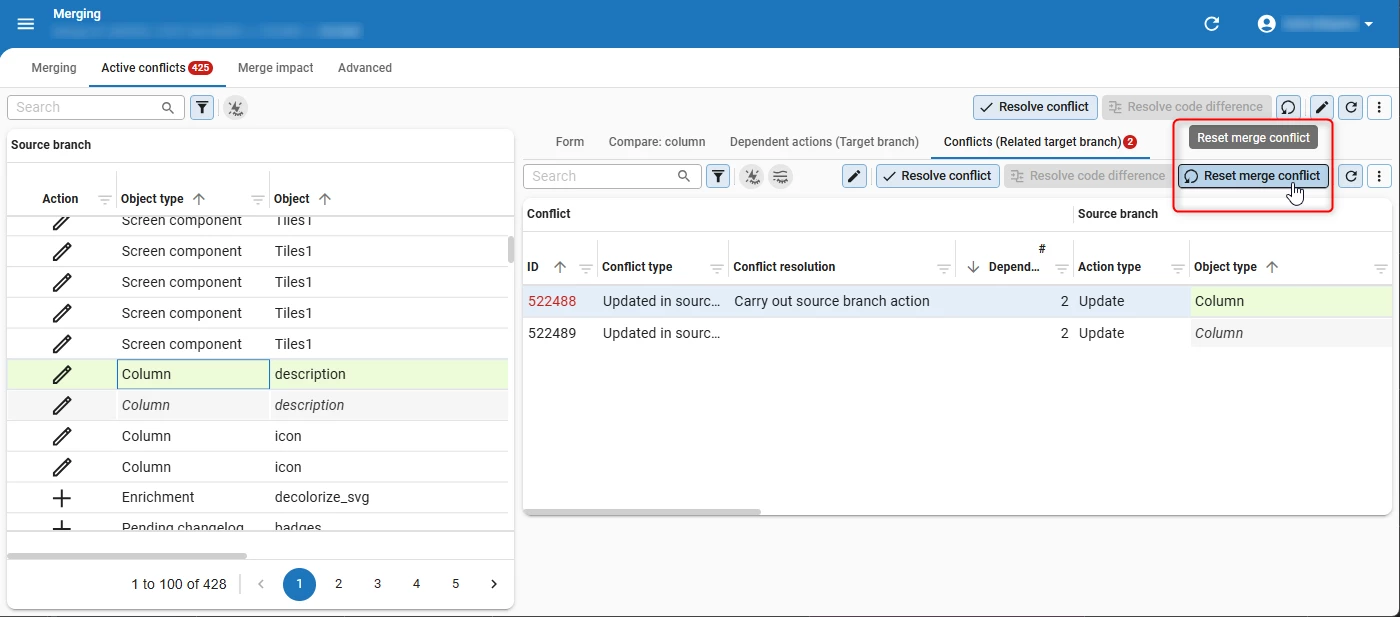
Previously, it was not possible to reset a merge conflict after resolving it in the Software Factory. If you wanted to change how a conflict was resolved, you had to manually undo the changes made to resolve the conflict.
To improve this process, we have added the task Reset merge conflict in the menu Models > Merging > tab Active conflicts.
Quality - Improved behavior when copying unit tests
Community idea change Software Factory
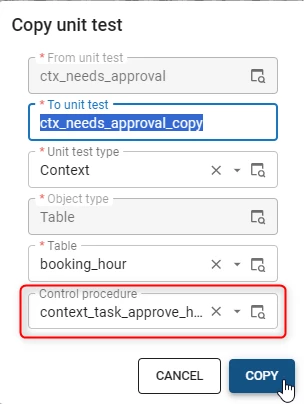
Unit tests help you test each unit of functionality of an application separately. In the Software Factory, you can link unit tests to control procedures to ensure that they work as expected. Previously, when you copied a unit test in the menu Quality > Unit tests > task Copy unit test, the field Control procedure remained empty even if it was linked to a control procedure. This behavior has been improved. If you now copy a unit test with a linked control procedure, the Control procedure field is automatically completed.
Access Control - Improved role management for process flows with subflows
new Software Factory
In the Thinkwise Platform 2026.1 release, we introduced the ability to add user and system subflows to process flows. To execute these subflows, rights must be assigned to the roles that access these process flows.
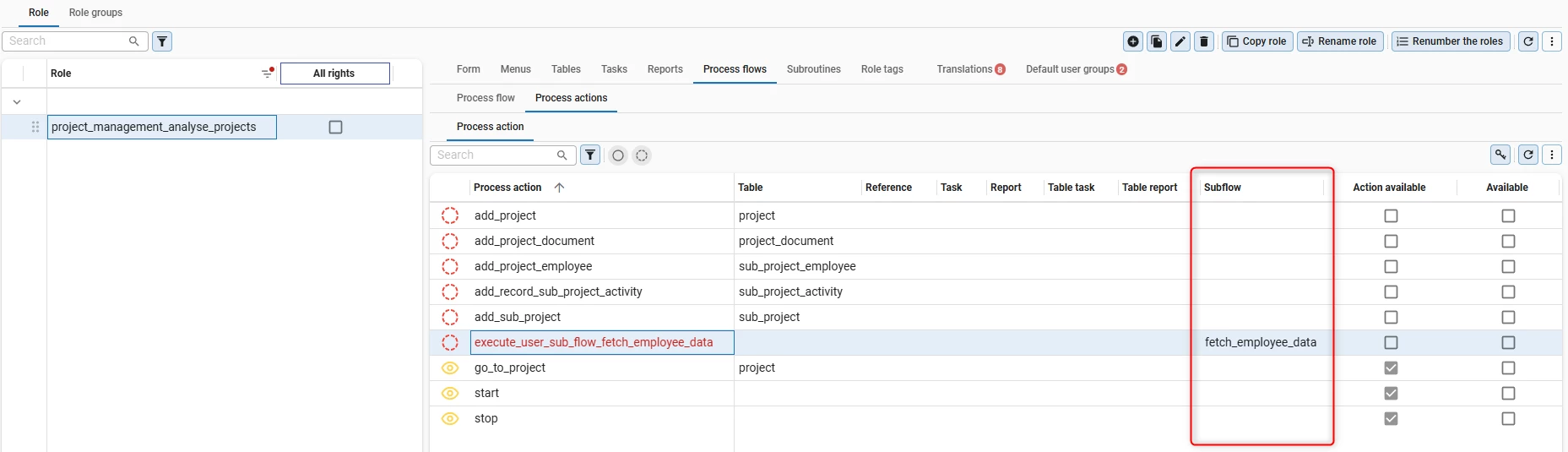
To simplify role permission management for process flows, we have added the column Subflow to the tab Process actions in Roles screen (menu Access control > Roles > tab Process flows > tab Process actions).
This allows you to see if a subflow is linked a process action. Additionally, if you execute the task Assign rights to assign rights for a process flow, rights for subflows in that process flow are now automatically granted.
A process flow is unavailable to a role if any of the individual process actions of that process flow is missing rights.
Parameter values now displayed in Debug Center
new Indicium
We have added support for parameter values in the Debug Center for DB2, Oracle and PostgreSQL databases. This allows you to track the values of parameters used in, for example, default, layout, and handler procedures, which can be helpful for debugging and troubleshooting. This was already supported for SQL Server databases.
New session variable for browser tabs
new Indicium Universal UI
Indicium now adds a session variable, tsf_client_instance_id, to the connection. This allows you to distinguish between different browser tabs, which can be useful for debugging and troubleshooting purposes.
In the background, the Universal UI now sends a unique identifier, called Client-Instance-Id, in the header of each network request. This identifier is used to instantiate the session variable tsf_client_instance_id
A new Client-Instance-Id is created in the following situations:
- Refresh of the browser tab
- Opening a new tab and copying the URL
- Right clicking on the browser tab and selecting the Duplicate tab (this name might differ per browser)
An exception to this is floating documents. A floating document can, for example, be opened by pressing Alt and then clicking on a menu item. This floating document uses the same Client-Instance-Id as its parent tab, and refreshing the floating document also persists this Client-Instance-Id. If you refresh the main tab, a new Client-Instance-Id is created for the main tab, but the floating document will keep using the old Client-Instance-Id.
As part of this update, we also fixed an issue where Indicium would not always set session variables correctly on DevExpress reports. This could cause the tsf_appl_id to be incorrect.
Updated file upload API in Indicium
change Indicium Universal UI
You can now also use multipart/form-data for file uploads in Indicium, allowing you to upload files in a more efficient way. Previously, only application/octet-stream was accepted for file uploads in Indicium. As of this release, the Universal UI uses this file upload method by default.
Previously, when using an Azure Web Application Firewall (WAF) in prevention mode, request bodies from file uploads with an application/octet-stream header were limited to 128KB. A workaround was to relax this limit, but then the request body would not be inspected anymore. Because of this change, multipart/form-data can now be used to upload files without this limitation.
This update reduces the number of requests when uploading files, resulting in a small performance improvement. Additionally, it allows you to upload larger files when using a WAF in prevention mode, while keeping request inspection enabled.
Add parameters to translation labels
new Universal UI
You can now add parameters to translation labels in the Universal UI. This allows you to design forms with more dynamic, informative labels that adapt to the data displayed.
This feature is supported for translation labels in forms, including groups and sections, formlists, and parameters in task and report pop-ups.
For example, when currency_type = (EUR) and amount = 50 in that row, the translation label Amount {currency_type} {amount} resolves to Amount (EUR) 50 in that row. If you add another region, such as the UK, and set currency_type to (GBP), the translation label resolves to Amount (GBP) 50 in that new row.
To add parameters to a translation label, go to the menu User interface > Translations > tab Translations or any Translation tab in the Software Factory.
- For form and formlist labels, add the translation to the field Translation form.
- For task and report parameter labels, add the translation to the field Translation form.
- For group and section labels in forms, and task and report pop-ups, add the translation to the field Translation.
In the field, you can enter the translation and a parameter, for example, Amount {currency_type} {amount}.
The following applies to parameters in translation labels:
- Recursive parameters are not supported, and parameters are resolved only once. For example,
Some {text_field}will result inSome {other_field}iftext_field={other_field}. In this case,other_fieldwill not get resolved any further. - If a parameter resolves to either undefined or null, it is omitted from the label while other parameters remain. For example,
Amount {currency_type} {suggestion}resolves toAmount (EUR)ifcurrency_type=(EUR)andsuggestion= null.
Import CSV data from clipboard into grids
new Universal UI
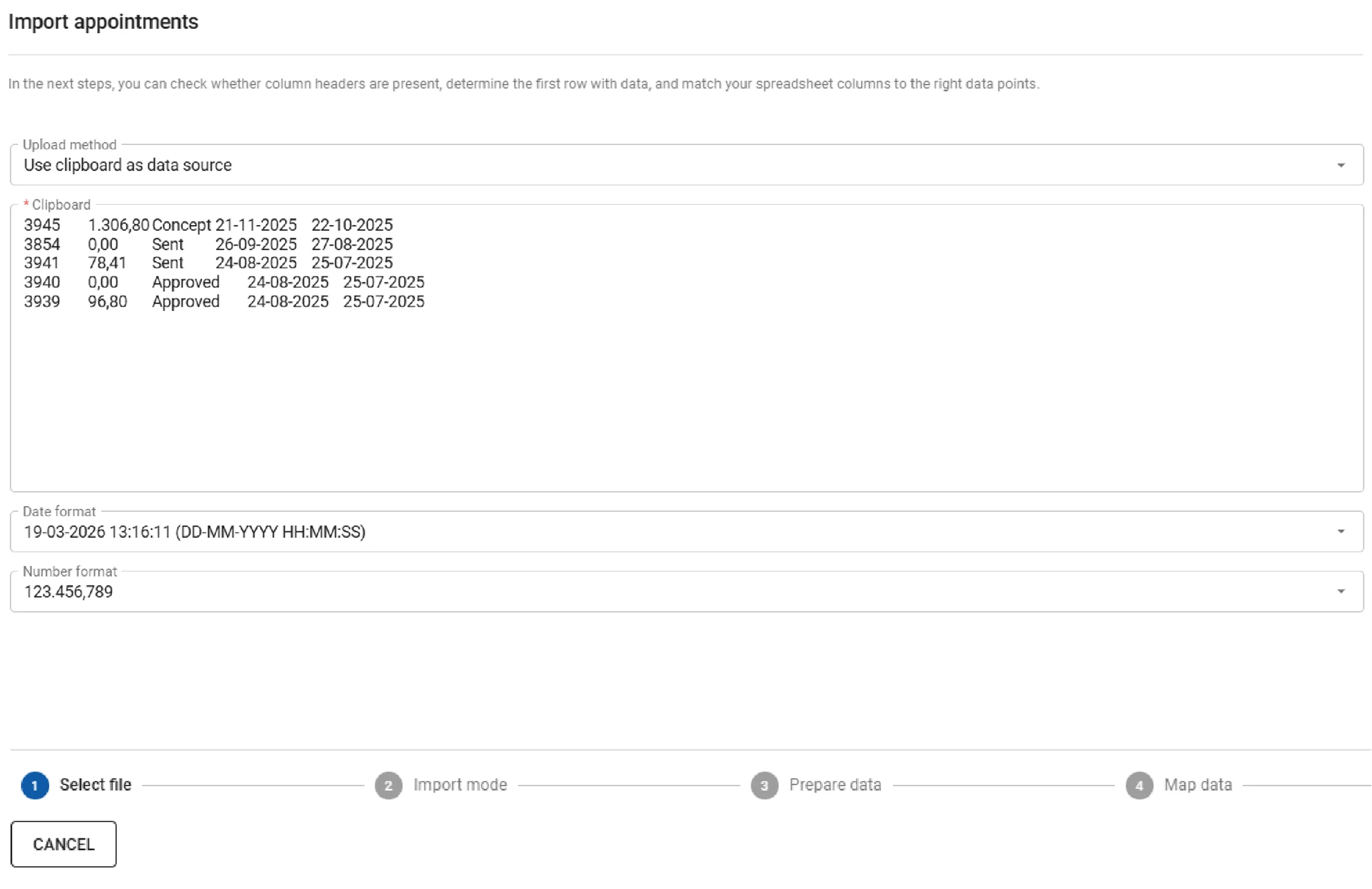
You can now import CSV data directly from the clipboard into a grid. This simplifies the process of importing data from external sources, such as Excel.
To import data from the clipboard, select Import from the overflow menu. In the pop-up, select Use Clipboard as data source as Upload method. Then, paste the data into the field Clipboard. Configure the Date format and Number format to match the data's format. After this, continue the import steps as usual.
Added support for 'Column width' user preference
change Universal UI Intelligent Application Manager main administrator
If users resize columns in a grid, these column width settings were previously saved to that specific device and browser. However, if a user used a different device or browser, these settings would not be migrated and had to be reconfigured by the user.
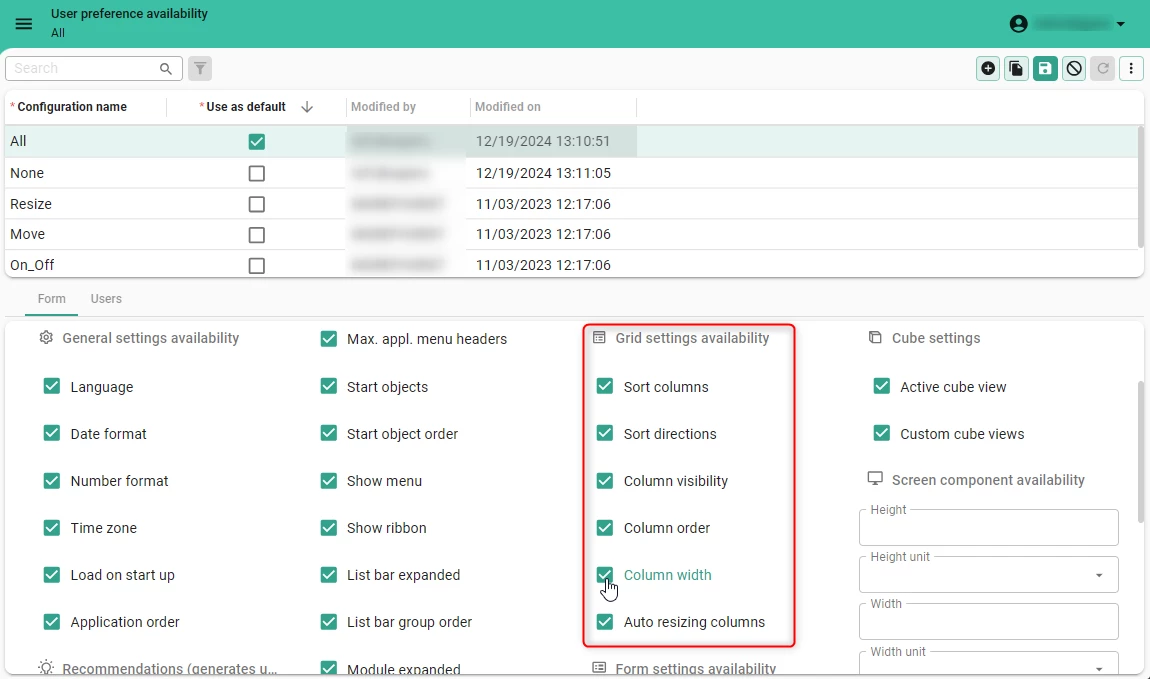
To improve user experience, the column width settings are now saved in IAM as part of User preferences.
To allow column width settings to be saved for a user, Column width must be included in a user preference configuration. Use one of the standard configurations Resize, Move, On_Off or Complete. Alternatively, create a custom configuration in the menu Advanced > Master data > User preference availibility and select the checkbox Column width in the group Grid settings availability.
After setting up the configuration, assign it to a user or user group to allow users to save their column width settings.
'Refresh model' moved next to profile menu
change Universal UI Community idea
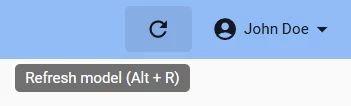
In Developer mode the task Refresh model is now available next to the profile menu. This makes it easier for you to find and use this task when working in the Universal UI. You can now also use the shortcut Alt + R (Windows) or Option + R (MacOS) to refresh the model.
Refresh model is now also automatically applied when using the Launch application task from the Software Factory. This is done by adding refreshModel=true to the URL. You can also apply this in custom solutions to automatically refresh the model when the Universal UI is loaded. For example https://myuniversalui.com/universal/?refreshModel=true or as part of the process flow action Open link in a process flow with the URL containing refreshModel=true.
Only reachable details shown in 'Detail settings' user preference
change Universal UI
Details that cannot be accessed due to the current screen type configuration or active context are no longer shown in the overflow menu > Detail settings user preference.
Previously, all subject details were listed regardless of whether they were visible on the active screen. This could cause confusion when details appeared in the menu but were not available in the user interface.
With this update, only details that are actually reachable in the current screen type and context are displayed. Details assigned to other screen areas or hidden by context conditions are excluded from the menu, resulting in a clearer and more accurate configuration experience.
Fixed
Refer to previous Community posts for additional releases provided during the sprint. These additional releases (for example, Universal UI 2026.1.13.1) are automatically included in this release.
Software Factory and Intelligent Application Manager
- Previously, when you created a new Expression column, it would be set to Editable. Now, the column is set to Read-only by default.
- When you modified the sequence number of a domain element, the absolute sequence number would be incorrect. This has been fixed.
- Previously, when deploying functionality in the menu Business Logic > Functionality > tab Deploy the database server name of the linked runtime configuration was displayed instead of the actual server name, which could make it unclear which server was used. This has been fixed.
Indicium
- If you would use the Search feature on a detail or look-up subject, Indicium previously included context reference columns. Because the values of these context reference columns are identical for all records in the context, this would cause all records to match when a context reference column satisfied the search term. Indicium now excludes context reference columns from the search for detail and lookup subjects.
- System flows that are started from user subflows via the Execute system subflow process action are now available in the Process Flow Monitor in the Debug Center.
- DB2 Due to the application connector not creating a message buffer for DB2 databases, issues could occur with smoke tests and other processes. This has been fixed.
- Fixed an issue with the JSON format of the chat history of the LLM Chat Completion connector.
- Fixed an issue in SQL Server where
TIMEvalues could not be converted from XML when the XML was generated by anXMLMultiselecttask parameter. - Fixed an issue with the links to the Debug Center which are shown in error messages in the Universal UI. The links were malformed due to an extra web application segment (for example: /indicium/indicium).
- Fixed an issue where files could not be downloaded in a task popup if the file came from a column via a table column -> task parameter link.
Universal UI
- Previously, when using a browser’s autofill in a Form, the auto-filled text would get a blue highlight. Users could confuse this highlight with conditional layouts already present on the screen. This has been fixed.
- Fixed an issue where the action bar would not appear if part of it was empty during the first render (for example due to a context procedure).
- In some cases, selecting an item from a lookup dropdown in a Filter form would return a previously selected record instead of the selected option. The selected option is now always returned.
- In cases where a pivot grid had many nested categories that were set to Expand by default, many requests were fired when the pivot grid was rendered. This would place a significant load on the server, causing performance issues. We have reduced the number of requests to fix this issue and improve performance.
- Custom components now update according to whether a related document is being edited.
- The pivot grid now updates if records are changed or deleted within the same subject in a different tab.
- Conditional layouts in cubes were applied incorrectly if the condition field was set to Hidden. The condition would be evaluated using the aggregated row value (for example, SUM, AVG, MAX) instead of the individual cell values. This issue has been fixed, and conditional layouts are now applied correctly.
- Fixed an issue where start objects were not displayed in the same order they were added after refreshing the page.
Data model changes
Data model changes for the Software Factory and IAM meta-models are listed here. This overview can be used as a reference to fix dynamic control procedures, dynamic model code, custom validations, or custom enrichments after an upgrade.
Changes Software Factory
Table changes
No changes in this release
Column changes
| SF - Table | SF - From column | SF - To column | Mandatory | Default value |
|---|---|---|---|---|
| usr_session | model_id | model_id | 1 | |
| usr_session | branch_id | branch_id | 1 |
Changes Intelligent Application Manager
Table changes
No changes in this release
Column changes
| SF - Table | SF - From column | SF - To column | Mandatory | Default value |
|---|---|---|---|---|
| gui_appl | database_id | database_id | 1 |
Questions or suggestions?
Questions or suggestions about the release notes? Let us know in the Thinkwise Community!