

Hello everyone,
In this release, we have added support for deploying IAM to IBM Db2 for i databases, from both the GUI and the command-line interface. To make this possible, we have introduced manifest schema version 4, which allows a single manifest to contain packages for multiple database platforms. We have also added a dependency check for SQL Server 2022, and the command-line interface is now available for Linux.
- Upgrade to version 4.0.0 of the Thinkwise Deployment Center. It remains fully backward compatible with existing SQL Server manifests and scripts.
- Windows SmartScreen may prevent you from opening the application.
To solve this, open the properties of the executable and select Unblock.
Then open the application again.
Download the Thinkwise Deployment Center 4.0.0 here.
Contents
Breaking
DbConnection settings in 'twdeployerGUI.appsettings.json'
GUI
The DbConnection section of twdeployerGUI.appsettings.json is now divided per database platform. This only applies to the GUI. The command-line interface does not use a appsettings.json file, so existing CLI scripts are not affected.
Move your existing settings into a SQLServer or DB2 sub-section in the twdeployerGUI.appsettings.json. Otherwise, the Server Connection step no longer fills in these settings for you.
Before:
"DbConnection": {
  "Host": "example.com\\instance",
  "AuthenticationMethod": "UserPassword",
  "Username": "sa"
}After:
"DbConnection": {
  "SQLServer": {
    "Host": "example.com\\instance",
    "AuthenticationMethod": "UserPassword",
    "Username": "sa"
  },
  "DB2": {
    "Host": "IBMI-SYSTEM",
    "Username": "<IBM i USER PROFILE>"
  }
}
New in the Thinkwise Deployment Center
Support for IBM Db2 for i
GUI CLI
With the Thinkwise Platform 2026.3 release, you can now deploy IAM to IBM Db2 for i databases. In addition to SQL Server, you can install, upgrade, hotfix, and synchronize IAM on an IBM i system.
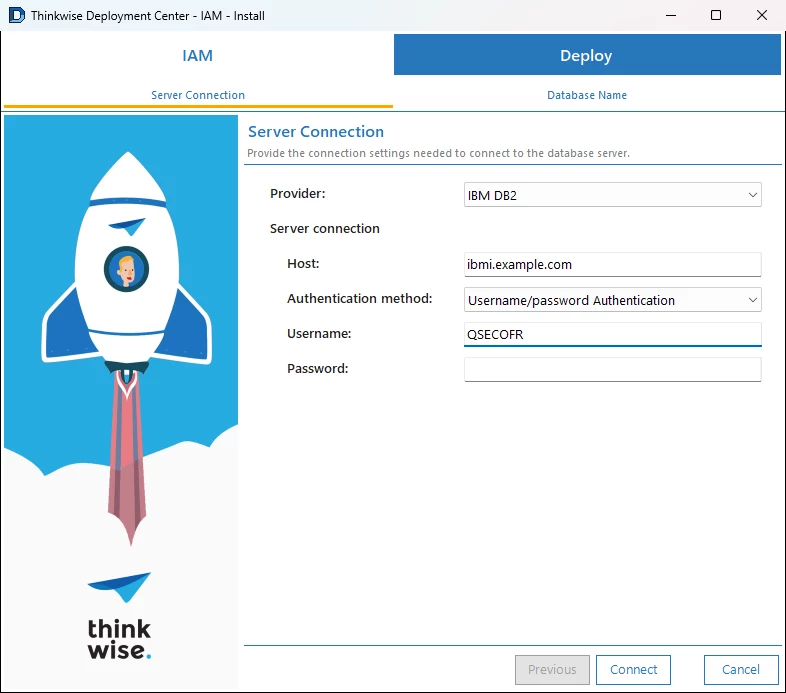
GUI When the manifest offers packages for more than one database platform, the Server Connection step shows a new Provider field. Select IBM DB2 to deploy to an IBM i system.
- Db2 connections use Username/password Authentication. The SQL Server Encryption and certificate options do not apply, so they are hidden.
- The library to deploy to takes the place of the database name. System libraries are excluded when you browse for a library.
CLI The IAM commands (iam install, iam upgrade, iam hotfix, iam sync-model, and iam auto) have a new --rdbms option. Use it to select the database platform to deploy to: SQLServer or DB2.
- When you do not specify
--rdbms, the platform is taken from the manifest. If the manifest contains packages for more than one platform, the Deployment Center uses SQL Server. Existing scripts against a SQL Server-only manifest keep working unchanged. - Db2 always connects with an IBM i user profile and its password, so
-u|--usernameis required. - If you specify an authentication method that Db2 does not support, such as a Microsoft Entra method, you now get an error immediately instead of when connecting.
- Pass the library to deploy to with
-n|--name, in place of the database name.
Example:
twdeployer iam install --server "IBMI-SYSTEM" --name "TW_IAM" --rdbms DB2 --username "<IBM i USER PROFILE>" --password "<USER PROFILE PASSWORD>"
Required for Db2: the IBM i Access ODBC Driver
GUI CLI
The Thinkwise Deployment Center connects to Db2 for i using ODBC. You must install the ODBC driver separately on every machine that deploys to Db2 as it is not included in the Deployment Center.
Register the driver under the name IBM I Access ODBC Driver. The Deployment Center looks for the driver by this exact name. When it cannot find the driver, it shows the following message: ‘The IBM i Access ODBC Driver does not appear to be installed on this machine. Install it before deploying to a Db2 database.’.
Windows installation
- Download IBM i Access Client Solutions - Windows Application Package from IBM: IBM i Access Client Solutions (a free IBM ID is required).
- Run the installer and make sure the 64-bit ODBC driver is included.
- Verify the installation by opening ODBC Data Sources (64-bit). The driver
IBM i Access ODBC Drivershould be listed on the Drivers tab.
Linux installation
On Linux, the driver is part of IBM i Access Client Solutions - Linux Application Package. It requires the unixODBC driver manager.
- Download the Linux Application Package (
.debor.rpm) from IBM i Access Client Solutions, or install it from the IBM i Access ODBC package repositories. - Install unixODBC and the driver:
# Debian / Ubuntu
sudo apt install unixodbc
sudo apt install ./ibm-iaccess-<version>_amd64.deb

# RHEL / Fedora
sudo dnf install unixODBC
sudo dnf install ./ibm-iaccess-<version>.x86_64.rpm- Verify that the driver is registered under the correct name. The output should contain
[IBM i Access ODBC Driver].
odbcinst -q -d
Manifest schema version 4
GUI CLI
We have added support for manifest schema version 4. The IAM product can now declare a providers list. This way, you can ship IAM packages for both SQL Server and Db2 in a single manifest. Each provider has its own version, dependencies, and packages.
Manifests that use schema version 2 or 3 remain supported. The Deployment Center reads them as SQL Server products.
{
  "schema": 4,
  "products": [
    {
      "type": "IAM",
      "version": "2026.3",
      "providers": [
        {
          "provider": "SQLServer",
          "dependencies": [ "CompatibilityLevel160" ],
          "packages": [ { "type": "Install", "path": "IAM/SQLServer/Install" } ]
        },
        {
          "provider": "Db2fori",
          "packages": [ { "type": "Install", "path": "IAM/Db2fori/Install" } ]
        }
      ]
    }
  ]
}
Compatibility level 160 (SQL Server 2022)
GUI CLI
We have added support for the database dependency CompatibilityLevel160. The Dependency Check step now checks whether the compatibility level of the database is set to 160 or higher (SQL Server 2022).
Command-line interface for Linux
CLI
The Thinkwise Deployment Center command-line interface (twdeployer) is now also available for Linux. This way, you can run deployments from Linux build agents, containers, and servers, without a Windows machine. The commands and options are the same as on Windows.
The following builds are available:
| Platform | GUI | CLI |
|---|---|---|
| Windows x64 | ✔ | ✔ |
| Linux x64 (such as Ubuntu, Debian, and RHEL) | ✔ |
The Linux builds are self-contained, so you do not need to install a .NET runtime. After you extract the files, make twdeployer executable:
chmod +x twdeployer
./twdeployer --version
Changed in the Thinkwise Deployment Center
Connection settings per database platform
GUI
Previously, the Deployment Center remembered the last used database connection settings globally for all database platforms. It now remembers them per database platform.
When you switch the Provider on the Server Connection step, the Deployment Center fills in the fields with the values you used last for that platform.
.NET 10
GUI CLI
We have updated the Thinkwise Deployment Center to .NET 10. All builds are self-contained, so you do not need to install a separate .NET runtime.
Questions or suggestions?
Questions or suggestions about the release notes? Let us know in the Thinkwise Community!