
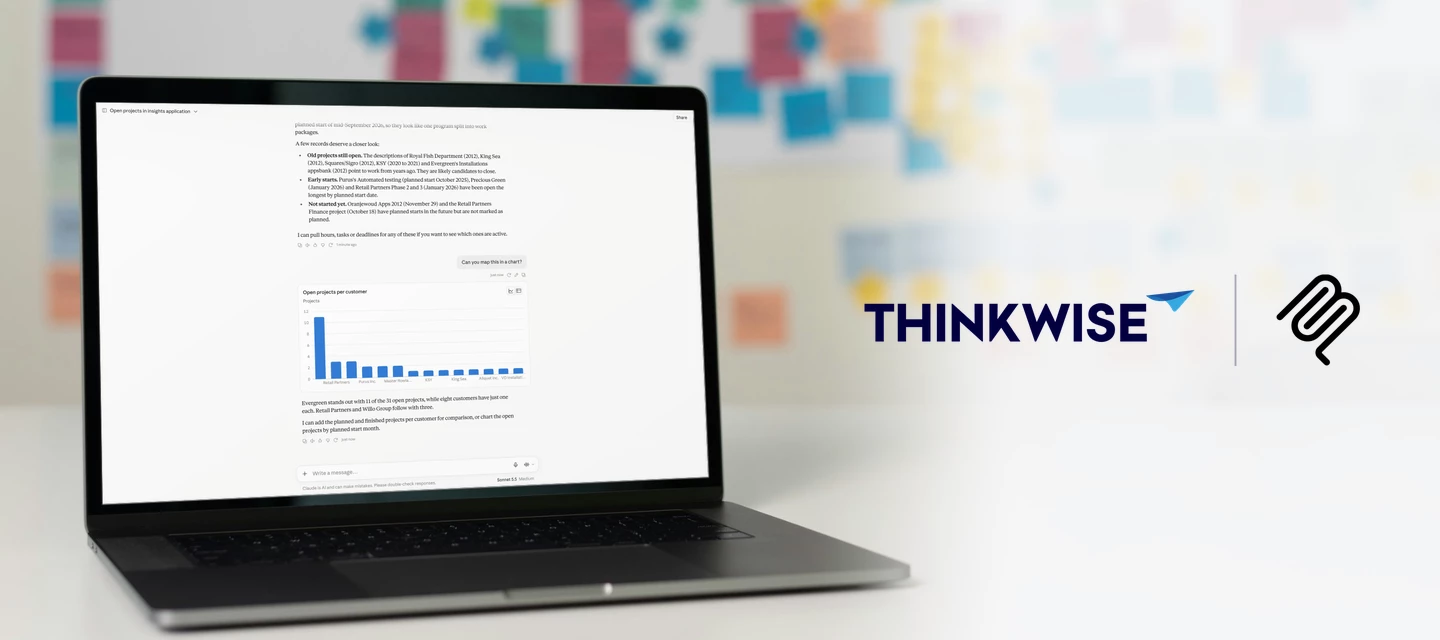



A sales employee opens an email from a customer who wants 40 units of a product, delivered next Friday. Instead of retyping the order, she hands the email to her AI assistant. The assistant reads it, finds the customer and the items in your Thinkwise application, and creates a draft sales order for her to review. This is what MCP (Model Context Protocol) makes possible: users talk to their business application in plain language, and agents act on their behalf.
AI is very good at turning unstructured input into structured data, and that goes well beyond order entry. With an MCP connection to your application, users can:
- Ask questions about their data, such as "Which customers have open invoices older than 60 days?"
- Prepare for a meeting by asking for a summary of a customer's recent orders, open quotes and service tickets.
- Spot problems early, for example "Which production orders are at risk of missing their delivery date this week?"
- Register work from a short note, such as turning "Spent 3 hours at Jansen BV fixing the pump" into a time entry.
Getting there takes more than switching on an MCP server. This blog gives developers and IT leads practical tips on choosing a client, securing access, improving answer quality and rolling out MCP in your organization.
MCP is officially available from Thinkwise Platform 2026.3.
For more information about how to get started, please read this blog:
Also keep in mind that Claude.ai and ChatGPT web desktop connect to your MCP server from the cloud, not from your users' laptops. Your Indicium's /mcp endpoint must therefore be reachable over HTTPS from the internet. On Thinkwise Cloud, that is already the case. Running Indicium on premises? Involve your network team early, and use Claude Code on your internal Indicium in the meantime.
Choosing a client
The AI client you pick determines how your users connect and how much work it is to manage. We recommend a client that supports OAuth with a predefined OAuth client ID. That way, every user signs in with their own account, and you decide which client application may connect. Client capabilities change quickly, so check the current documentation of your AI platform. At the time of writing, we have confirmed both Claude and ChatGPT support OAuth and can connect to the Thinkwise platform. We only got Microsoft Copilot to work with Personal Access Tokens.
Whichever client you choose, set up the connector at the organization level wherever possible. As the IT expert, you configure the connector once. Users only need to enable the connector and sign in with their own account.
Ready to connect your first client? The Getting started with MCP blog on the Thinkwise Community walks you through it step by step.
Secure access and trace every change
The official MCP connector of the Thinkwise Platform is enterprise grade and designed with security in mind. Apply the recommendations below for optimal configuration:
Avoid personal access tokens for organization-wide connectors
Most AI platforms also support authorizing an MCP server with a personal access token (PAT). We do not recommend this for MCP servers that you deploy to your entire organization. The PAT handles authorization. Everyone using the MCP server gets the same rights as the user who created the token. Your trace columns and logging will not work as expected either, because every action is logged under that user's name. If you have to use a PAT, only grant read rights on this MCP server.
Autonomous AI agents and bots are a different case. An agent that runs without a user, such as a process that handles incoming emails overnight, has no user to sign in as. For such an agent, a PAT for a dedicated service account is a valid choice. Give that account its own user name and only the rights the agent needs, so its changes stay traceable and separate from your users' work.
Data access
MCP does not bypass your authorization model. It inherits it. The AI can only read and change what the signed-in user's roles allow, including prefilters. Review your roles with that in mind before you roll out MCP: data a user can technically reach but never opens in the user interface is now one question away.
You can narrow this down further with access delegation roles. The AI only receives the roles you explicitly make available for delegation in IAM, and only for users and applications that allow access delegation. That gives you a separate, smaller set of rights for the AI next to the rights a user has in the regular user interface. The access delegation roles documentation explains how to set this up.
Also check the data-processing terms of your AI platform. Make sure your business data is not used for model training and that data residency meets your requirements.
Data manipulation
Letting AI insert, update or delete data is powerful, but mistakes are harder to spot than in a regular screen. A misunderstood instruction can update the wrong records or delete more than intended. Decide per role which changes you want to allow through MCP. A safe starting point is read, create and task rights. Add update and delete rights only once you trust the results. Tasks are a good fit for data changes, because your business logic validates the input before anything is written.
Your statuses are a natural place to draw the line between AI and human work. Most processes already move a record through steps such as Concept, Open, Waiting for approval and Approved. Decide for each step whether the AI may take it or whether a person has to. An AI can create a concept order from an email, for example, but only a manager can approve it. Then enforce that choice in your model: include the task that creates the order in the role you delegate to MCP, and leave the approval task out. Also mention in the tooltip of the status column which statuses the AI may set. That way, the AI can tell the user who needs to take the next step. The AI does the typing, and a human stays in control where it matters.
If you do allow direct updates and deletes, add a safety net. History tables let you see and restore previous values, and handlers or dynamic model code can replace hard deletes with soft deletes.
Traceability
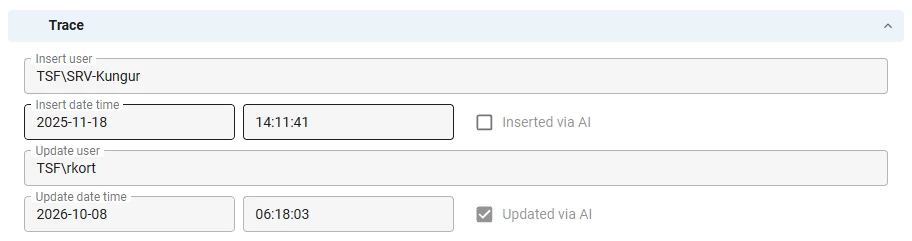
To keep track of who changed your data, extend your logging so you can see whether a row was inserted or updated by the user directly, or by an AI on behalf of that user.
Since Thinkwise Platform 2026.2.13, Indicium sets the session variable tsf_is_delegated_request. Its value is 1 when a request is authenticated via a client application or PAT that is scoped using access delegation roles, and 0 for any other method, including a client application configured with Full access. On SQL Server, you read it with SESSION_CONTEXT, for example in the default or trigger that fills your trace columns:
set @is_delegated = coalesce(cast(session_context(N'tsf_is_delegated_request') as bit), 0);We have applied this ourselves in the Software Factory. Since Thinkwise Platform 2026.3, the Software Factory trace fields use this variable to show which changes were made through delegated access. Your own application does not do this automatically, so you’ll need to update your trace fields logic. We will be updating the Thinkstore trace fields solution in the near future to incorporate this session variable as well.
Improving answer quality
Think of the AI as a smart new colleague on their first day. They are quick and eager to help, but they know nothing about your company yet. Everything they learn comes from what you show them. So the better you prepare them, the better their answers. Let's build that up one layer at a time.
Optimize your application model
Start with the foundation. When the AI connects through MCP, it sees your subjects, columns and tasks with the names, translations and tooltips you defined in the Software Factory. Because the AI receives the model’s translations and tooltips in the user's language, your users can also work with your application through AI in their preferred language. If a user asks a question in a language not supported by your application, the AI will still answer the question, but the results might not be quite as good.
Use tooltips to explain. A tooltip translation is the perfect spot to tell the AI what a column or task means and when to use it. Take a column called "Delivery date." Is that the date you promised the customer, or the date production planned? A tooltip such as "Delivery date agreed with the customer, not the planned production date" settles it. As a bonus, your users see the same explanation in the user interface.
Speak the language of the world. Language models learned from enormous amounts of general text. They already know what a "customer" or an "invoice" is. What they don't know are your internal abbreviations and legacy names. Faced with a table called "deb_mut" or a column called "status_2," the AI can only guess. So where you can, rename these to standard business terms. Where you can't, explain them in the tooltip.
Use one term for one concept. Imagine a colleague who hears "client" in one meeting and "customer" in the next. They would wonder whether those are two different groups. The AI wonders the same thing. Pick one term and use it everywhere in your model.
Give tasks a clear name and purpose. A task called "Process" leaves the AI guessing. Call it "Approve sales order" and add a tooltip that explains what happens next. Now the AI knows exactly when to use it.
Teach your workflows with skills
Once your model is clear, the AI understands what your data means. Skills teach it how your company works. A skill is a set of written instructions that the AI picks up whenever a request calls for it. Basically, skills are a manual for AI.
Take the sales order from the start of this blog. A skill for that job can tell the AI to check the customer's credit limit first, use the default delivery address, and always create the order as a draft for review. You write these rules once, and the AI follows them in every conversation.
Share team context with projects
Some knowledge doesn't belong to a single workflow, but to a whole team. That is where projects come in. Both Claude and ChatGPT let you create a project with its own instructions and files, shared by everyone who works in it. A "Sales team" project could hold your pricing policy and a short explanation of your customer segments. Every conversation in that project starts with that knowledge, so nobody has to explain it again.
Test before you invite users
Finally, put yourself in your users' shoes. Before you open the connector to anyone, ask the questions they will ask. Watch which subjects and tasks the AI picks, and note where it hesitates or guesses. Each wrong turn points you to something to improve, such as a missing tooltip or a skill that needs one more rule. Then test again. After a few rounds, you'll notice the answers getting sharper.
Roll out step by step
A read-only MCP connector can be deployed with low risk, provided you have set up your data access and roles properly.
You can roll out in two ways: make everything available at once, or open up your application step by step. For most organizations, we recommend the second path.
Create a dedicated MCP role that exposes a limited set of subjects and tasks, and assign it to a small pilot group on a test environment. Use their questions and feedback to improve your descriptions, tooltips and skills. Then widen the scope and the audience step by step, so you know everything works as expected before all your users start using MCP.
Don't forget to prepare your users as well. Tell them what the AI can and cannot do in your application: it can create a concept order, for example, but a manager still approves it. Remind them to always check what the AI proposes before they confirm it. And give them one clear place to report wrong or odd answers. Every report points you to a tooltip or skill you can improve, so your users become part of making the AI better.
Let's get started
MCP turns your Thinkwise application into something users can talk to and agents can work with. The best way to find out what it can do for your business is to try it. Set up an MCP connector on your own application, start with a read-only role and a handful of test questions, and see what value it adds for your users.
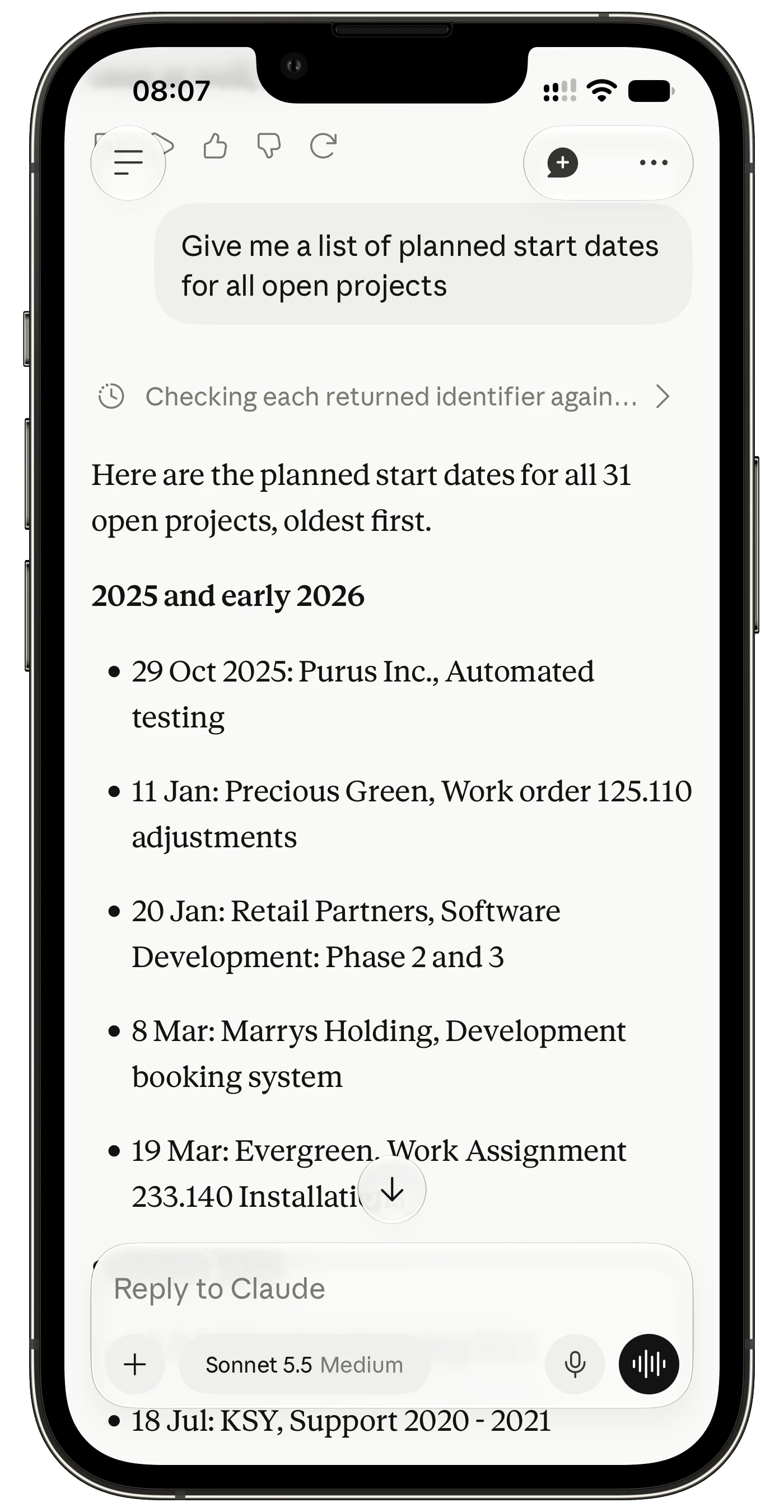
Want to get hands-on with MCP? You can try it right now on our Insights application!
Using MCP Server in a Production environment will require an amended license agreement with Thinkwise, as Agentic AI via MCP typically automates and replaces human user interaction. MCP Server will be freely available in Develop and Test environments to empower you to experiment with MCP for end users and speed up development in the Software Factory.