News and blogs on our products, services, and events
Recently active
Zoom into detailsTo create a good overview, it can be desirable to configure a screen which shows ample data with many underlying details. But these detail windows can become rather small. To make such a window larger, it is possible for users to zoom into a detail screen. The question is: “What will the screen type of this zoomed screen be?” Screen type inheritanceIn the Software Factory G8, the zoom screen type was inherited from the master screen type. This seemed like a good solution, but in fact it lead to unexpected results. For example, if a detail screen contained only a grid and the master screen type contained both a grid and a form, the user would get access to a form when zoomed in. This would provide the user with the option to add records, which the developer might not have intended. Since the developer had no control over this, the screen type for the zoomed screen was changed to the detail screen type with the introduction of the G9. Even though this solved the unint
With the advent of the Software Factory release G9.8 “Pyxis”, we would like to introduce a change in the Software Factory regarding requirements. Where previous releases of the Software Factory had limited support for the registration of requirements, the G9.8 release will have fully-fledged support for the process analysis. Process analysis is used in the Thinkwise Project Methodology as the way to elicitate the requirements. By capturing the primary process of a company, it is way easier to determine what the application has to do to support this primary process. The processes are specified using BPMN 2.0. ProcessesThe primary process can be specified in the Software Factory using activities called tasks. This primary process shows 3 partial processes. Each partial process could be the responsibility of one or more different actors. This is why the primary process does not have any lanes. When we zoom into the first partial process, we see that a lane is introduced: This
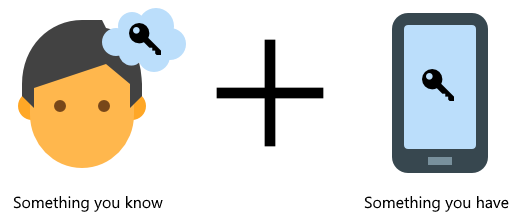
With the upcoming release of the Thinkwise Suite G9.8, we have introduced the ability to perform two-factor authentication on users. Two-factor authentication provides an extra layer of authentication, on top of the conventional username and password, which serves to establish the identity of a user with a higher degree of certainty. Typically, two-factor authentication requires the user to prove that they are also in possession of something that only the real user should be in possession of, for instance a mobile phone. Our implementation of two-factor authentication supports the validation of phone numbers (by means of SMS) and the validation of email addresses. Support Two-factor authentication can only be used in applications which are managed by IAM, as IAM is the place where a user’s settings with regard to two-factor authentication can be configured. In addition, support for two-factor authentication is provided by the Web GUI and the Mobile GUI, but not by the Windows GUI.
Virtually every table in an application has a primary key. The primary key is unique per record and can be used to refer to the record. For instance, the table Person can use a number as primary key. However, when a person is referenced in the application, we do not want to see this number. When we are referring to a person, we want to see the name of the person. The name of the person is said to be the display value of the person. The display value of a person could be variable, depending on the context of where this person is referenced. The display value might even be stored in another table, especially when dealing with link tables. Obtaining a set of keys and display values and translating a key into a display value is called a look-up. This blog is about look-up display values and how to use them effectively. TerminologyIn the example with persons, the Person table is used as a look-up table. The look-up table is the table you would see if you were to open the look-up po
Because the Thinkwise GUI’s and Service Tiers use a connection pool for database connections, they will automatically try to reconnect with every new statement. This can cause locking problems during maintenance or upgrades. In the upcoming GUI’s a new feature will be introduced which will automatically close any application that is no longer available in IAM. Every five minutes a check is performed which will compare the currently loaded applications with the available applications for the current user. If an application is made inactive or the access rights are revoked then the GUI will close all the corresponding documents and removes the application from the menu. This feature ensures that all users are disconnected from the application and no new database connections will be opened by the Thinkwise GUI’s. Example In this IAM we find a Software Factory and three versions of a customer end product. We only want the most recent application version to be active, so we d
Already have an account? Login
Enter your E-mail address. We'll send you an e-mail with instructions to reset your password.