


Last December, I joined Thinkwise as a Product Designer. My main focus for 2026 will be improving the developer experience. I’ll be spending a lot of time in the Software Factory myself to experience how developers work with the platform, where friction occurs, and how we can make everyday development tasks easier and more efficient. The move of the Software Factory to the Universal UI is an important first step in that direction.
By working hands-on with the Software Factory in both the Windows GUI and the Universal UI, I’ve been able to experience these changes from a developer’s perspective.
This article shares practical insights from getting started and working with the Software Factory in the Universal UI and is intended to spark discussion on how we can continue to improve the developer experience.
Word of warning
Before upgrading to the 2026.1 release, make sure that all of your applications are running on the Universal UI. The Windows GUI will no longer work, and you will get an error message when you try to open it.
If you need more information on how to smoothly transition your Windows application to the Universal UI, please read our 7-step transition documentation.
Before you start with the Software Factory on Universal
Review the upgrade notes, breaking changes and the Known issues & improvements blog below to prevent avoidable issues.
Known issues & improvements
The Software Factory has now been available on Universal for several weeks. We have received a great deal of positive feedback, along with constructive suggestions for further improvement. Read more about these in my latest blog:
Getting started in the Software Factory on Universal
Before you start working with the Software Factory in the Universal UI, there are a few important concepts and configuration choices to be aware of.
Environment setup
Previously, the Universal meta server URL on development environments often was set to use the Software Factory as its meta source. We recommend changing this to use IAM as the default meta source across all environments, including development.
When you open your development environment, the Software Factory will then launch by default. To test an application, click the new 'Launch Application' button—your application opens in a new browser tab using your active runtime configuration.
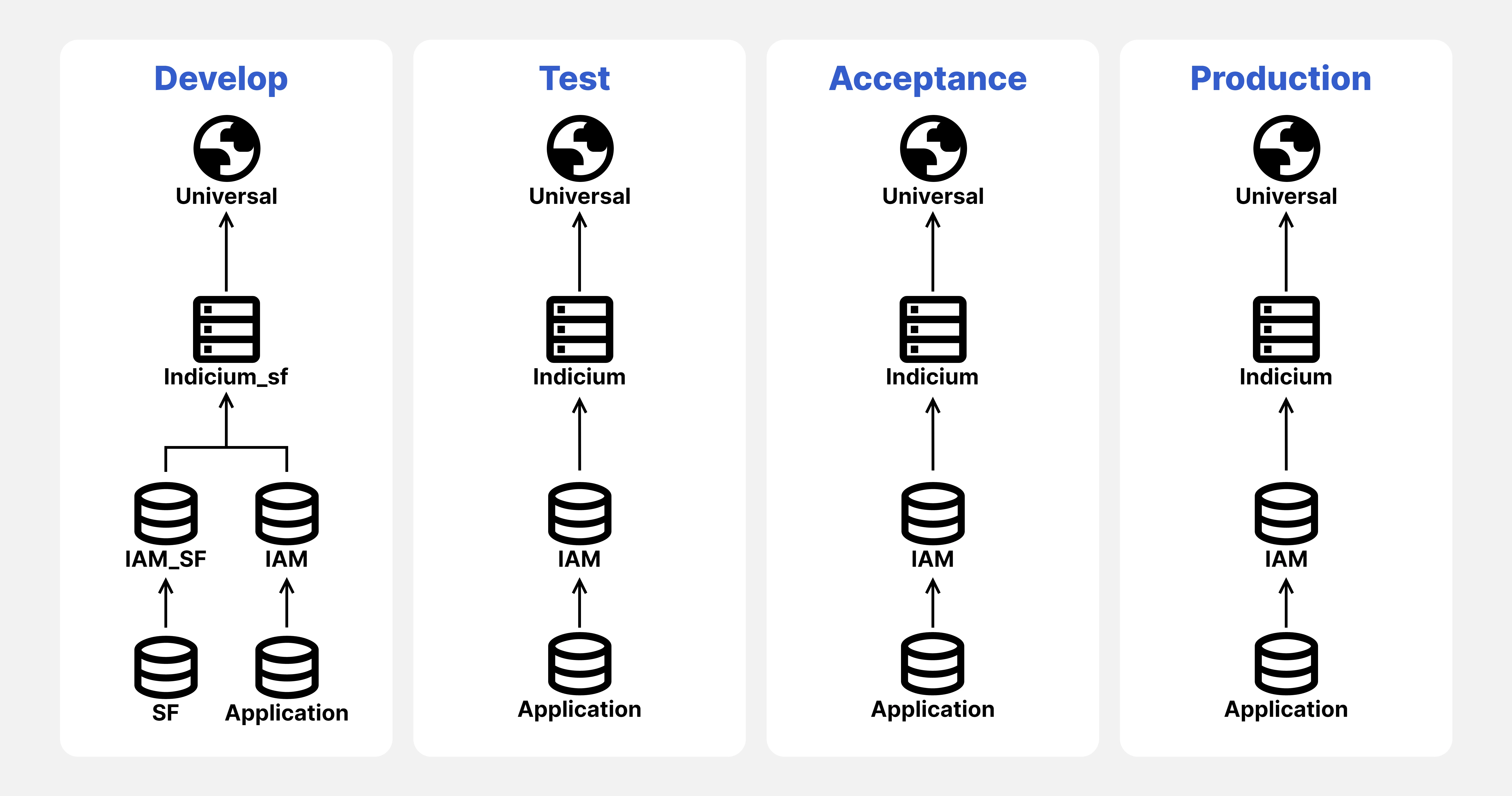
Understanding meta sources
The Universal login screen lets you switch between two meta sources by changing the meta server URL: Software Factory or IAM.
The Software Factory meta source connects directly to your Software Factory. It bypasses user roles, rights, and system flows entirely. This gives you immediate access to test changes as you develop them, without the overhead of security layers or the need to synchronize to IAM. Use it exclusively for development work.
The IAM meta source connects through the Intelligent Application Manager. It enforces all configured user roles and rights, executes system flows, and applies all security policies. This represents how your application actually behaves for end users.
Meta server URL examples
Software Factory meta source: https://yourwebsite.com/indicium_sf/iam/sf
IAM meta source: https://yourwebsite.com/indicium/iam/iam
Automatic syncing of local code files
The Software Factory in the Universal UI allows you to synchronize code files to a local folder on your PC, enabling you to edit code in your preferred IDE. To enable this, you must use a browser that supports the Filesystem API, such as Chrome or Edge.
Browsers that do not support this API (e.g.Safari and Firefox) cannot be used for automatic synchronization of code files.
How it works
When you open a code field for the first time, click the pencil icon. You will be prompted to select a workspace folder. This folder will be used to synchronize all code files between the Software Factory and your local file system.
We recommend you create and select a dedicated folder for SF code files in your user directory. This will also be the folder the Thinkwise Workspace Listener listens to.
If you want to change the workspace folder used by the Software Factory, you’ll need to clear your browser cache so you can select a new folder again.
Automatic opening of local code files
For additional convenience, Windows users can install the new Thinkwise Workspace Listener. This tool automatically opens the selected code file in your preferred IDE when clicking on the pencil icon.
The Workspace Listener is optional. Without it, you can still edit and synchronize code locally (provided you use a browser that supports the Filesystem API), but you will need to manually open the files in your IDE.
Step-by-step
-
Download and install the Thinkwise Workspace Listener
Get the application from TCP, then install it on your Windows device.
-
Configure your workspace folder
Open the Workspace Listener and select the workspace folder you want to use. This folder should be used by the Software Factory to store code files for local editing.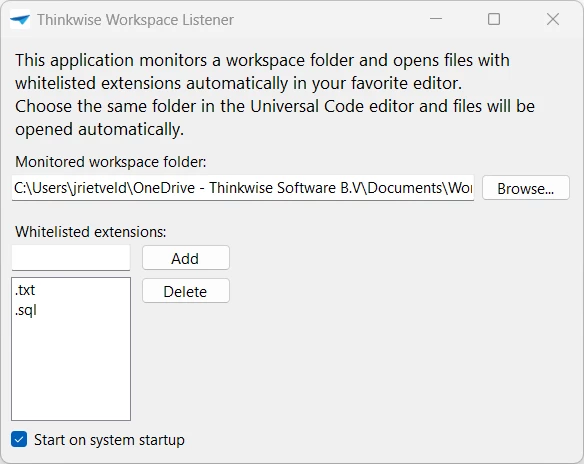
This folder should be the same folder as set in the universal code editor
-
Start editing in your preferred code editor
From now on, clicking the pencil button will open the corresponding file directly in your preferred editor.
Compatibility cheat sheet
|
| Browsers with File System Access API Chrome & Edge | Browsers without File System Access API Safari & Firefox |
| Windows | ✅ Automatic syncs ✅ Automatic opening (using the Workspace Listener) | ❌ No automatic sync ❌ No automatic opening
Local code editing requires manual copy/paste |
| MacOS | ✅ Automatic sync ❌ No automatic opening (yet) | |
| Linux | ✅ Automatic sync ❌ No automatic opening (yet) |
Benefits of the Software Factory on Universal
With the Software Factory on Universal, we now have all 3-tier features of the Thinkwise Platform at our disposal to further improve the Software Factory. This release introduces a couple of steps forward, and more is on the horizon:
Safer 3-tier Architecture
With the Universal UI, the Software Factory adheres to a 3-tier architecture using Indicium as the service layer. This increases safety by avoiding direct database access. Because all communication goes through Indicium, the application can more safely be exposed to the internet, removing the need for a VPN or RDP for developers. Provided, of course, that you take the recommended security measures:
Work anywhere, on any machine
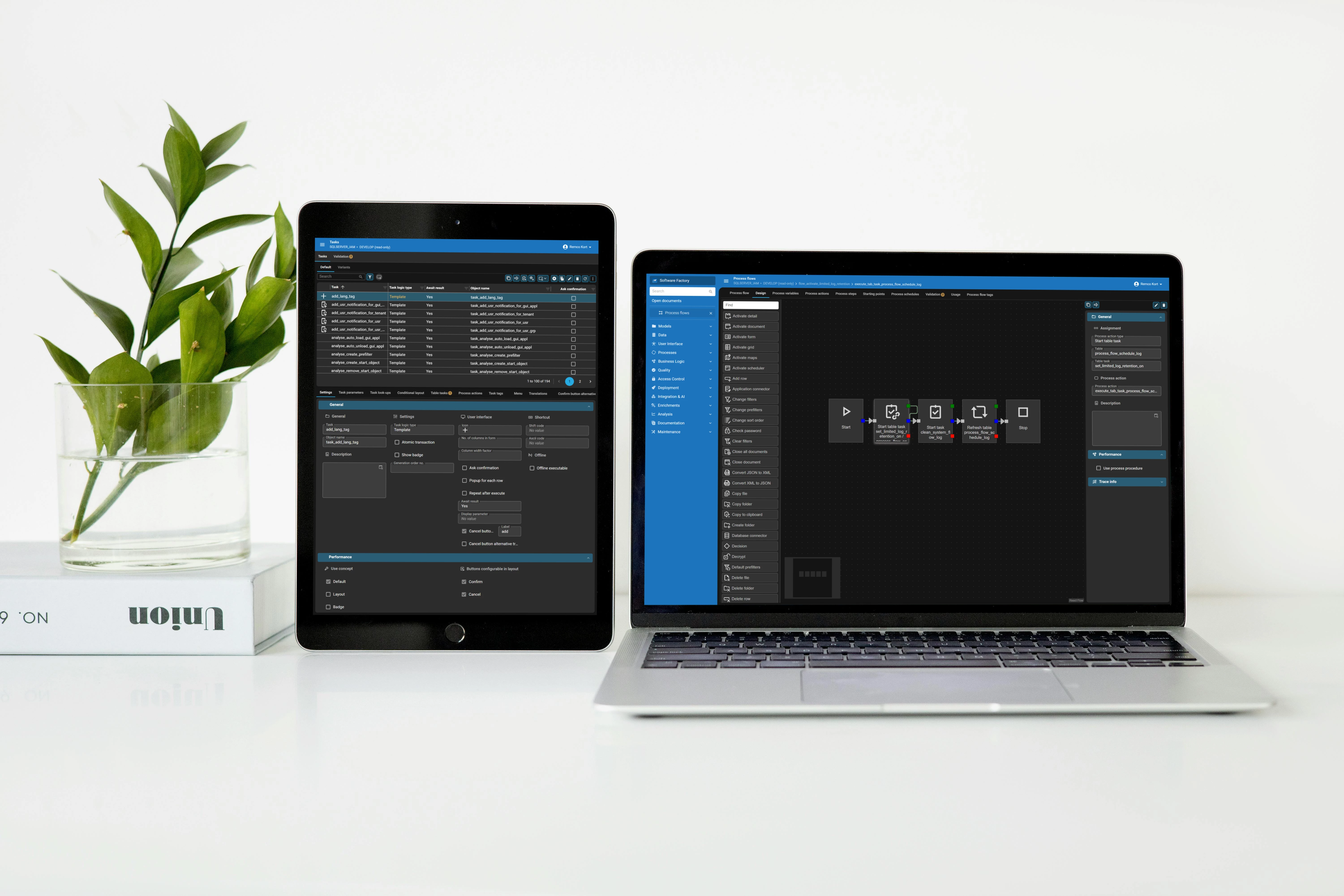
With the Software Factory being available in the Universal UI, every Thinkwise application can be developed entirely within the Universal interface. This removes the dependency on a Windows-based setup for application development.
You can develop and maintain your application from any device that supports a modern web browser, such as a MacBook, a Linux-based PC, or even a Chromebook. Small adjustments can also be made from a tablet, taking advantage of breakpoint-specific screens. This flexibility makes it easier to develop, review, and refine applications whenever and wherever it suits your workflow.
Improved screen layouts
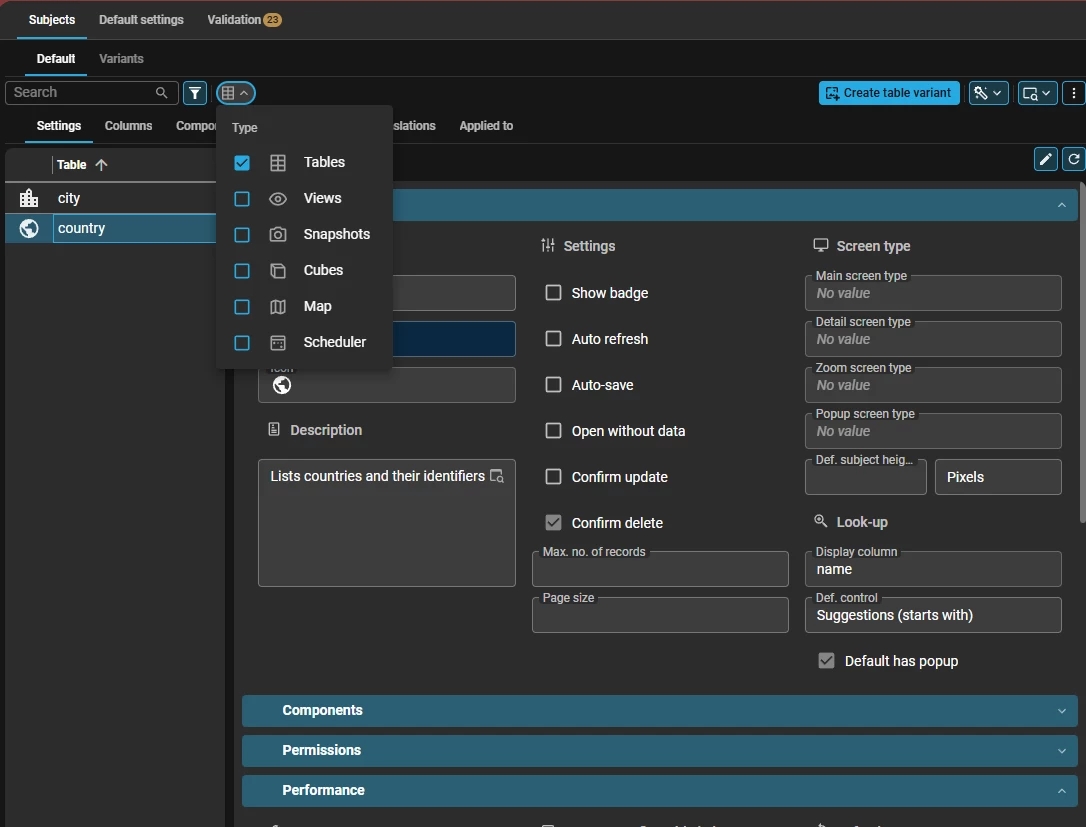
The move to the Universal UI also provided an opportunity to revisit and improve the layout of several screens. By using the new grouped buttons and filters, and by introducing collapsible form sections, related data can be presented in a clearer and more structured way.
For a number of screens, responsive layouts are now used as well. This is a first step towards a future in which developing your model will be possible on a wide range of devices.
New and improved modelers
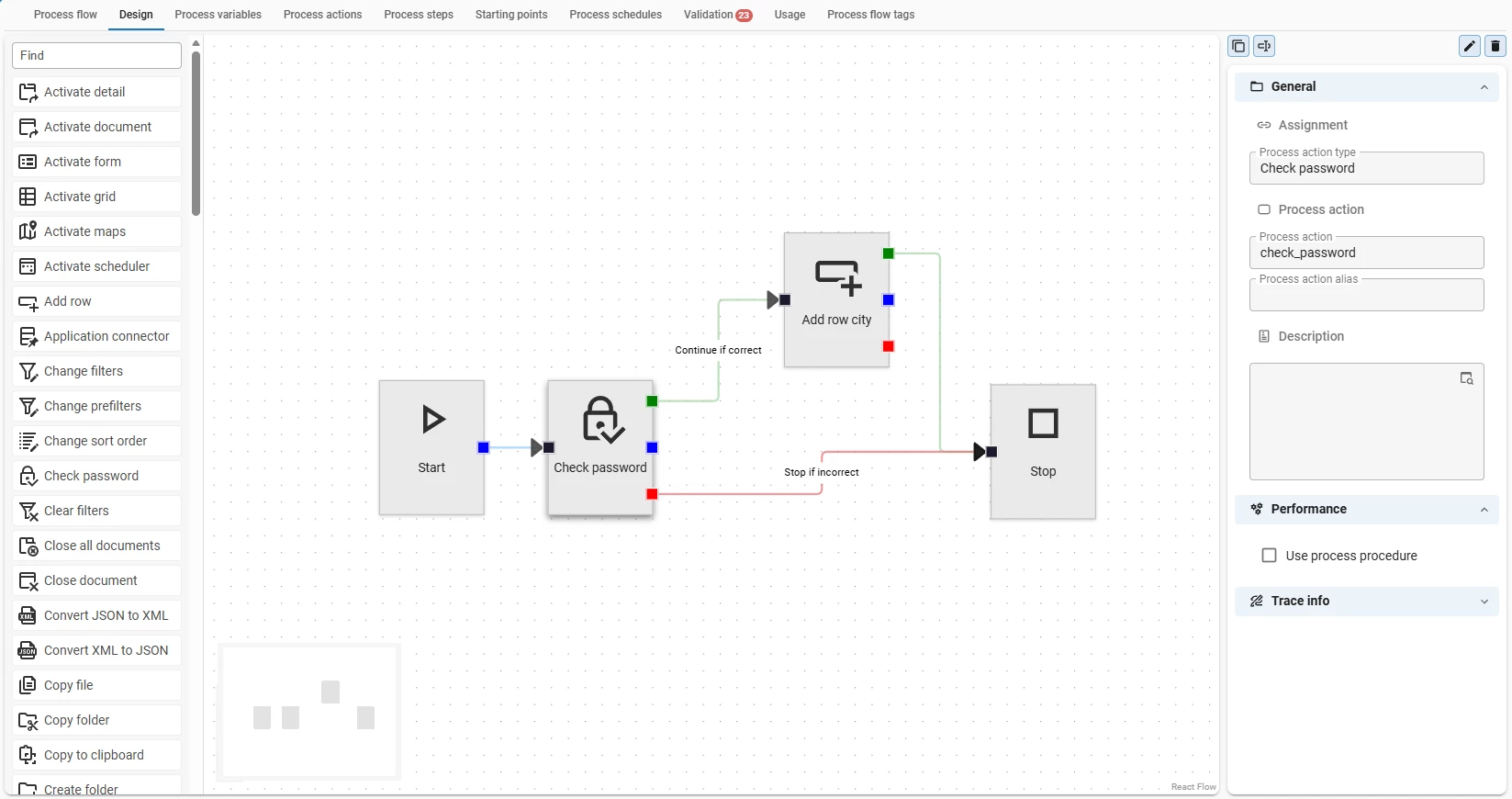
The Software Factory now includes updated modelers for creating data models, screen types, and process flows. These new modelers improve usability, making it easier to develop and maintain solutions.
The biggest upgrades are in the Process Flow Modeler, which introduces several workflow improvements:
-
Drag process actions directly into the flow
This reduces the need to constantly switch between tabs while designing or updating a process flow.
-
Clearer distinction between process step line types
The modeler now makes it easier to distinguish between line types, such as successful, unsuccessful, and “always” paths.
-
Use subflows inside regular process flows
You can now reuse any process flow as a subflow, and even nest subflows within other subflows. As a result, the menu item Subflows has been removed and all process flows can be modelled in a single location. This helps keep complex flows structured, modular, and easier to maintain.
Launch application button
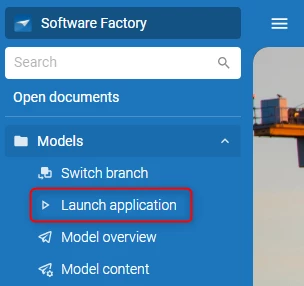
A new Launch application button has been added, allowing you to open the application you are working on directly in a new browser tab. This enables you to immediately test your changes.
The application is launched using the active runtime configuration of the user.
Other noteworthy improvements
-
Consistent user experience across all Thinkwise applications, now that everything runs using the same user interface.
-
Dark mode support, perfect for night owls, dark-mode enthusiasts, and anyone who just prefers a calmer interface.
Some limitations to be aware of
While the overall experience has improved, there are still a few limitations worth noting:
-
Keyboard navigation is not yet on the same level as in the Windows GUI, which may impact users who rely heavily on keyboard-driven workflows. Significant improvements are already underway and planned for the short term.
-
If you want to work in multiple branches simultaneously, use a different browser or an incognito window. When the Software Factory is installed as a PWA, you cannot work on other branches in the same browser that was used to install the PWA.
-
This limitation is resolved as of version 2026.1.13.
-
What’s next for the Software Factory
With your help, we’ve already listed a great deal of improvements in the 10× faster development topic on the Thinkwise Community. These continue to be an inspiration for significantly improving the usability of the Software Factory.
I will pay specific attention to lowering the barrier for new developers to successfully work with the Software Factory. We aim to implement development wizards to guide the developer by using best practices for developing enterprise-grade applications.
Please help me to make you more successful:
What would you change to improve your experience as a developer?