



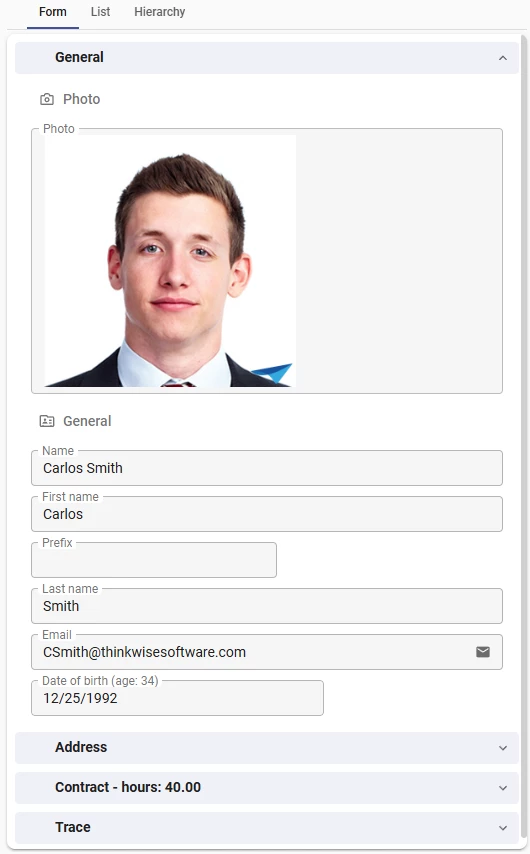
A new team member joins your organization. You open their employee record and see a collapsible section labeled Contract. To check their working hours, you expand the section, scroll through the details, find the right fields, and read the values. Now imagine that same section label simply reads Contract – hours: 40.00. No expanding, no scrolling.
That is what parameterized translations do. They let you embed data values directly into labels, section headers, and task parameters. The result: a more information-dense interface that gives your users the context they need at a glance.
It looks like a small feature. It is not. The ability to surface the right data in the right place, without adding extra columns or expression fields, changes how users interact with your application. In this post, we walk through six practical scenarios to show you what is possible.
How it works
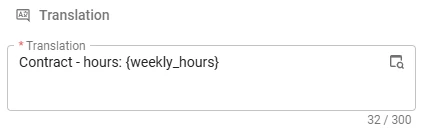
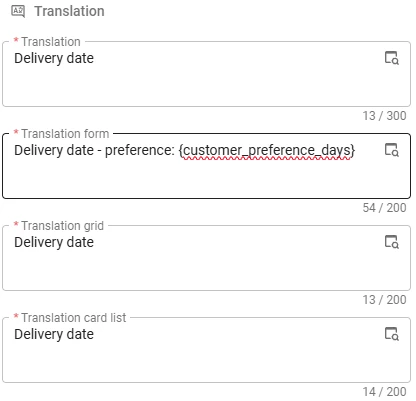
The configuration is surprisingly simple. In a translation field, you reference another column from the same subject by wrapping the column name in curly braces. For example: Contract – hours: {working_hours}. At runtime, the platform replaces the reference with the actual value from the current record. That is all there is to it.
Parameterized translations work in form labels, form list labels, group and section labels, and task and report parameter labels. A nice detail: they also respect your localization settings, so dates and numbers are always displayed according to the user’s configured format.
For columns only add the parameter to the form translation. If you also add the parameter to the grid translation it will display the parameter name in curly braces, not the parameter value.
Practical use cases
Show employee working hours at a glance
HR teams and managers check employee records all the time to verify contract details. Instead of expanding a collapsible form section every single time, parameterized translations let you display the contracted hours directly in the section header. The section label Contract – hours: {weekly_hours} shows the value right away. Need the full breakdown of specific days and daily hours? Just expand the section.
Display currency symbols alongside amounts
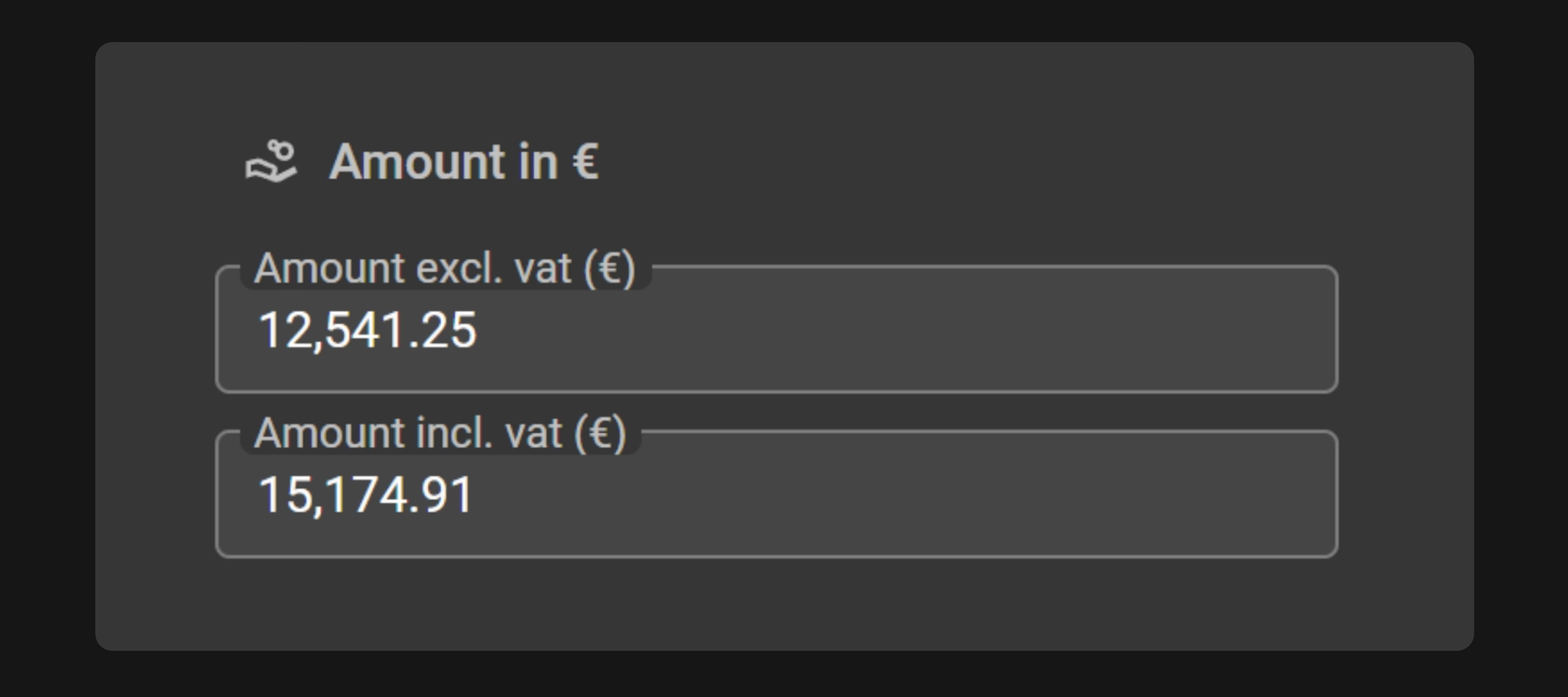
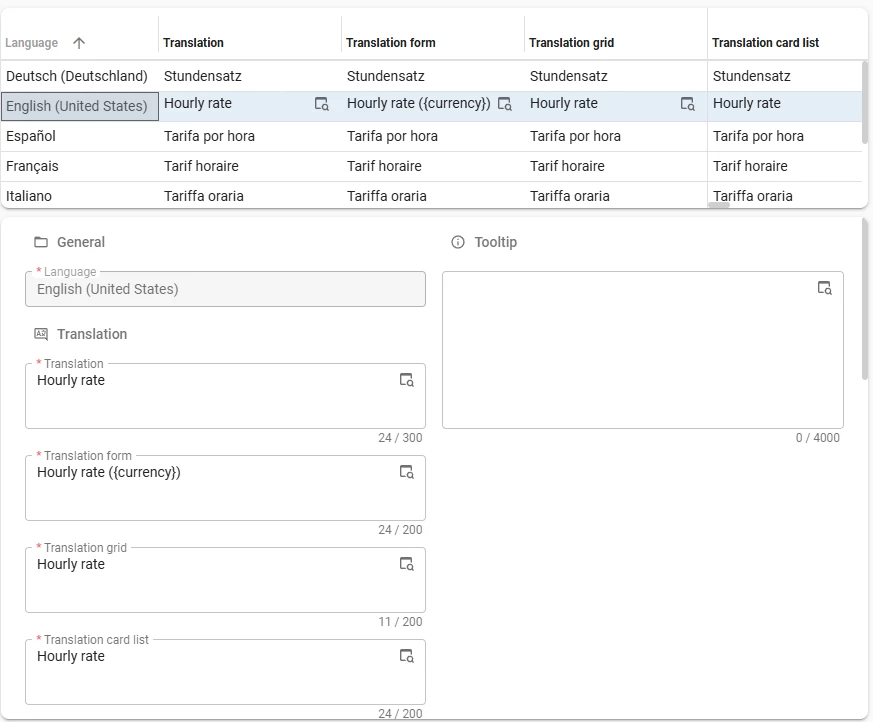
If your organization operates internationally, you might deal with invoices in multiple currencies. A common headache: users see an amount but have to look elsewhere to figure out whether it is in euros, dollars, or pounds. With parameterized translations, you can include the currency symbol directly in the column label. Set the form translation to Hourly rate ({currency}) and the label dynamically shows Hourly rate (€), Hourly rate ($), or Hourly rate (£) depending on the customer. No separate currency column needed.

Show preferred delivery days when selecting a date
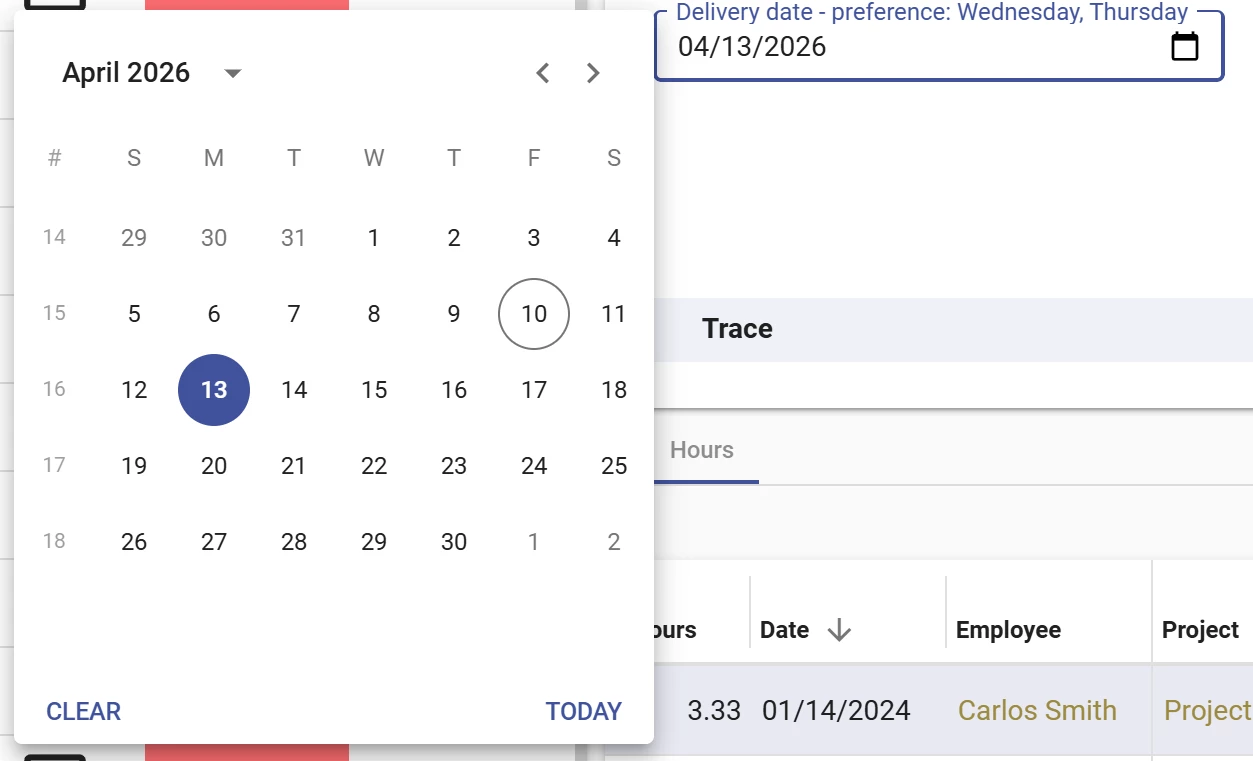
When your logistics team schedules a delivery, they need to know which days the customer prefers to receive goods. Before, this required a lookup or an expression field next to the date picker. With a parameterized translation on the delivery date column, such as Delivery date – preference: {customer_preference_days}, the preferred days appear right in the field label. The user sees Delivery date – preference: Wednesday, Thursday while picking the date. This makes the form richer and more data-dense, without any additional fields on the screen.
Display shipping status in a section header
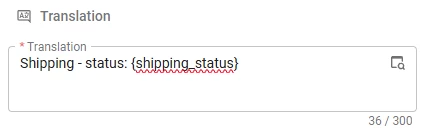
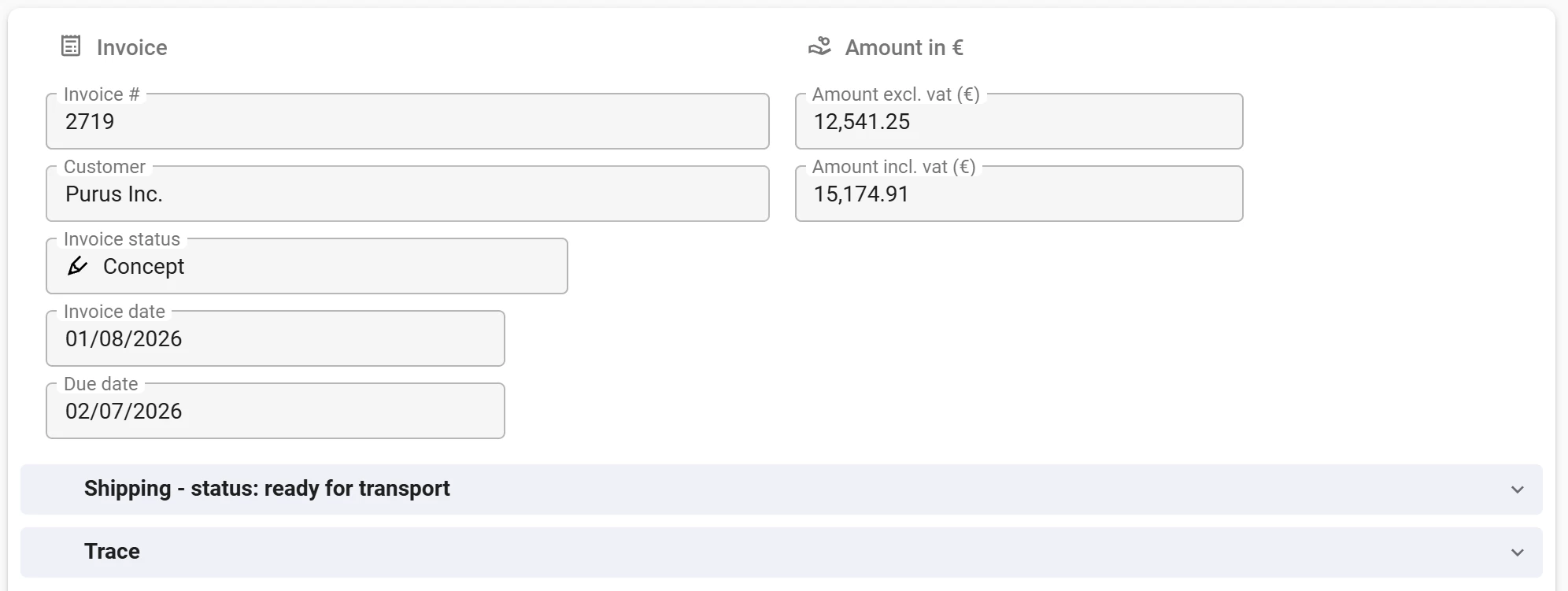
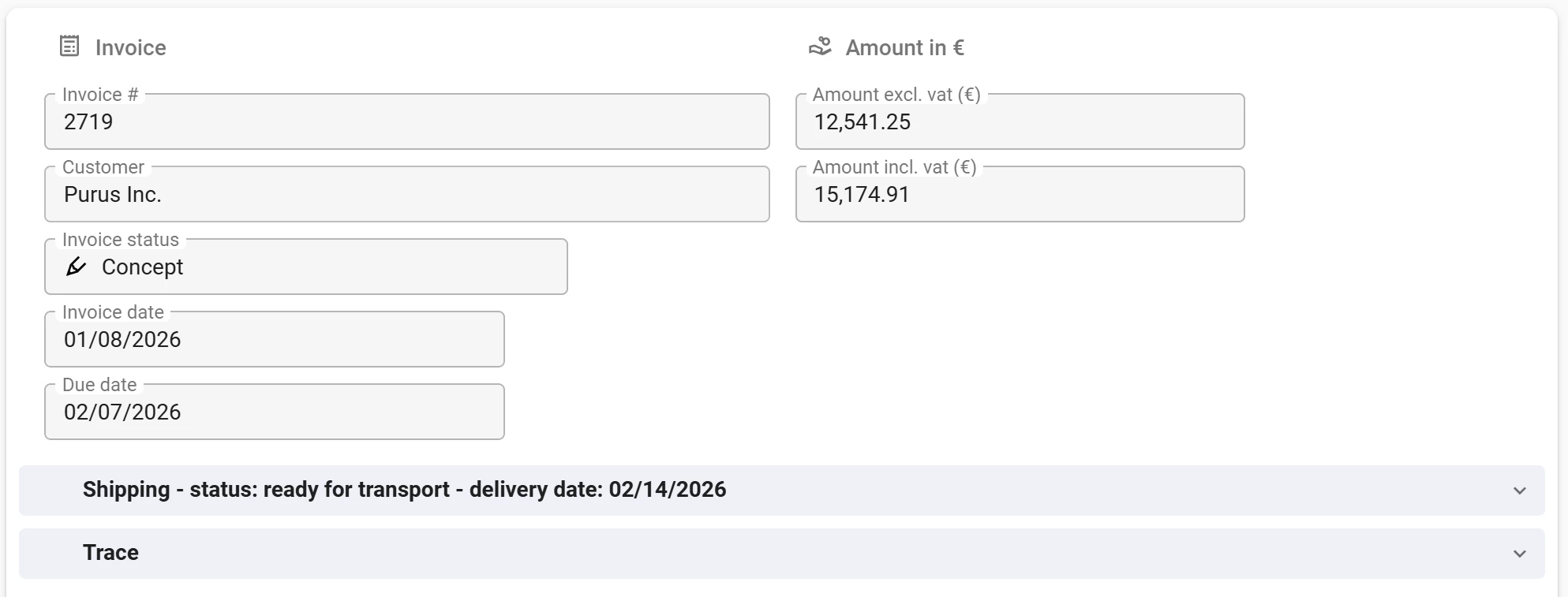
Order management screens often contain a shipping section packed with tracking details. By adding the shipping status to the section header, your users get an instant overview without any extra clicks. The translation Shipping – status: {shipping_status} shows the current state directly. Need more detail? Just expand the section. It keeps the interface clean and focused.
Combine multiple parameters in a single translation
You are not limited to a single parameter. You can combine multiple parameters in one translation. For example, Shipping – status: {shipping_status} – delivery date: {delivery_date} combines two pieces of information in one section header. This works well when the referenced columns are always populated.
Good to know: localization is fully respected here too. Dates and numbers within parameterized translations are formatted according to the user’s locale settings, so everything looks right regardless of where your users are based.
Using expression fields to prevent unwanted whitespace / text in your translations
When some of the parameters are empty, you might get unwanted whitespace or text. When a parameter is empty it will not be displayed. But if you have a whitespace before and after your parameter in the translation, and it is empty, you get two spaces when you probably only want one.
A good approach to prevent this is to use an expression field that handles null values with an isnull check, and use that expression field as a parameter in your translation instead.
This expressions field will then only show the parameter and associated whitespace / text when it has a value. The performance cost of a concat or isnull operation on columns from the same row is negligible, so this is a perfectly valid approach.
Add context to task parameters
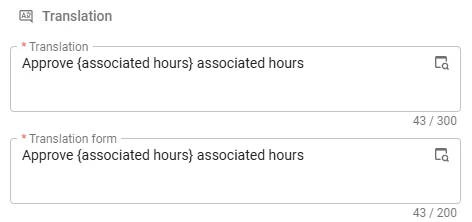
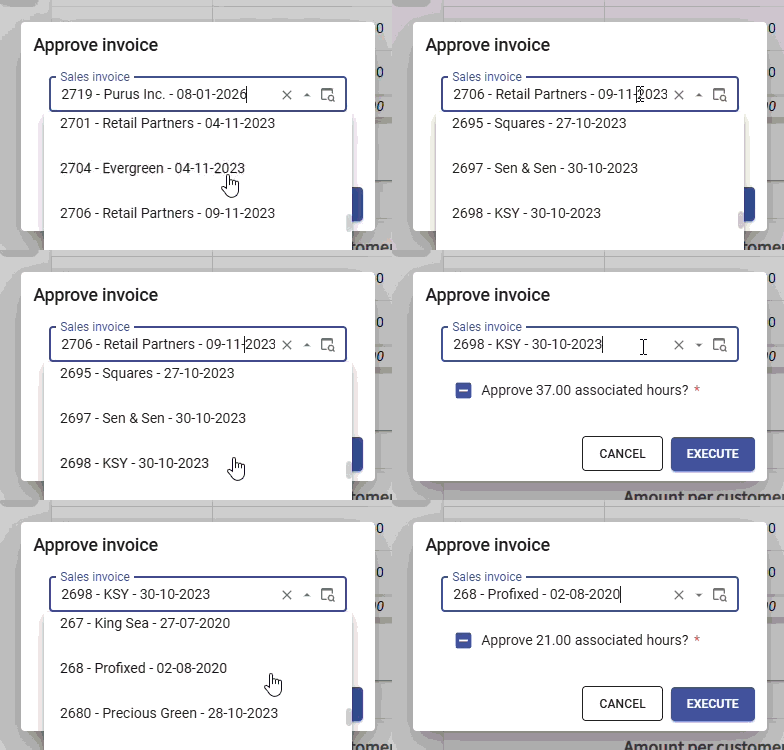
Parameterized translations also work in task parameter labels, which opens up some great possibilities. One of the most useful: showing totals from underlying detail records directly in the task pop-up. Consider an invoice approval task. The parameter label Approve {associated_hours} associated hours tells the user exactly how many hours are attached to the invoice they are about to approve. Instead of a generic Approve button, users see Approve 21 associated hours. That kind of context makes the action more transparent and helps prevent mistakes.
Getting started
Parameterized translations are available on all supported platform versions (starting from 2024.3) when running Universal UI and Indicium 2026.1.13 or higher.
Give it a try: pick a form in your application where users currently expand sections or navigate to other fields for context. Add a parameter to the translation. It takes less than ten minutes, and the improvement is immediately visible.